

After you enable the official MCP service in Alibaba Cloud Model Studio, you can use it immediately. The official MCP service supports direct integration within the platform, such as in agent applications and workflows, and external integration with third-party applications or projects.
One Key MCP
One Key MCP services require no manual activation—they take effect on first invocation. Below is an example using the Amap Maps MCP service:
- Access the MCP Plaza: Go to the Alibaba Cloud Model Studio MCP page and browse for MCP services with the One Key badge.
- Get Integration Configuration: On the service detail page under Integration, copy the configuration or click the one-click configuration button for your client. Use your Bailian API Key (DASHSCOPE_API_KEY) for authentication—no separate key is needed for this service.
- Start Invoking: Once configured, you can start invoking immediately. First invocation activates the service automatically. If the service includes a free quota, it will be activated automatically.
Plaza MCP (Activation Required)
For Plaza MCP services not marked with the One Key badge, manual activation is required before use:
-
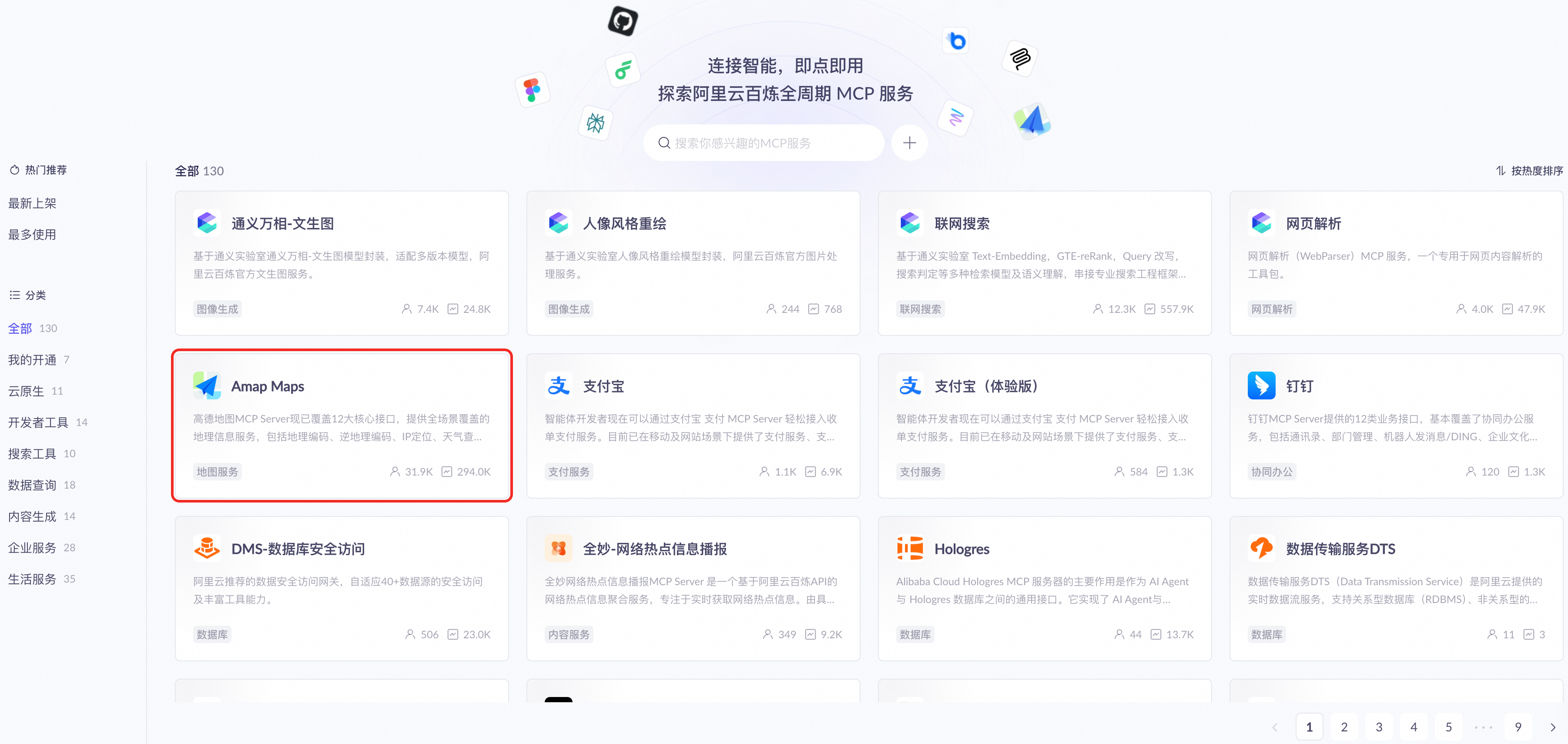
Go to the Alibaba Cloud Model Studio MCP page. Click the Amap Maps card.
-
Click Enable Now. Then click Confirm activation to enable the Amap Maps MCP service.
Alibaba Cloud Model Studio has pre-deployed the Amap Maps MCP service in the cloud. You do not need to enter an AMAP_MAPS_API_KEY to try the service. For commercial use, you can also use your own AMAP_MAPS_API_KEY.
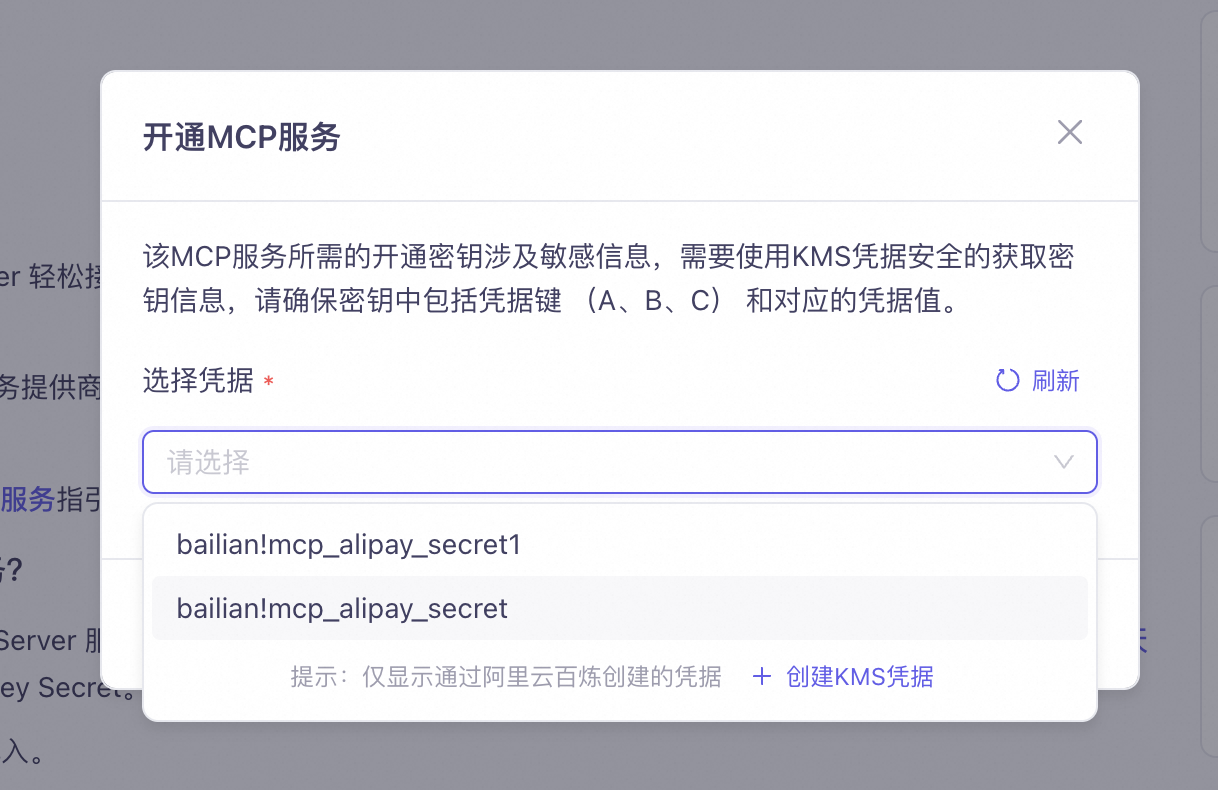
For MCP services that handle sensitive information, you must create KMS credentials to encrypt it.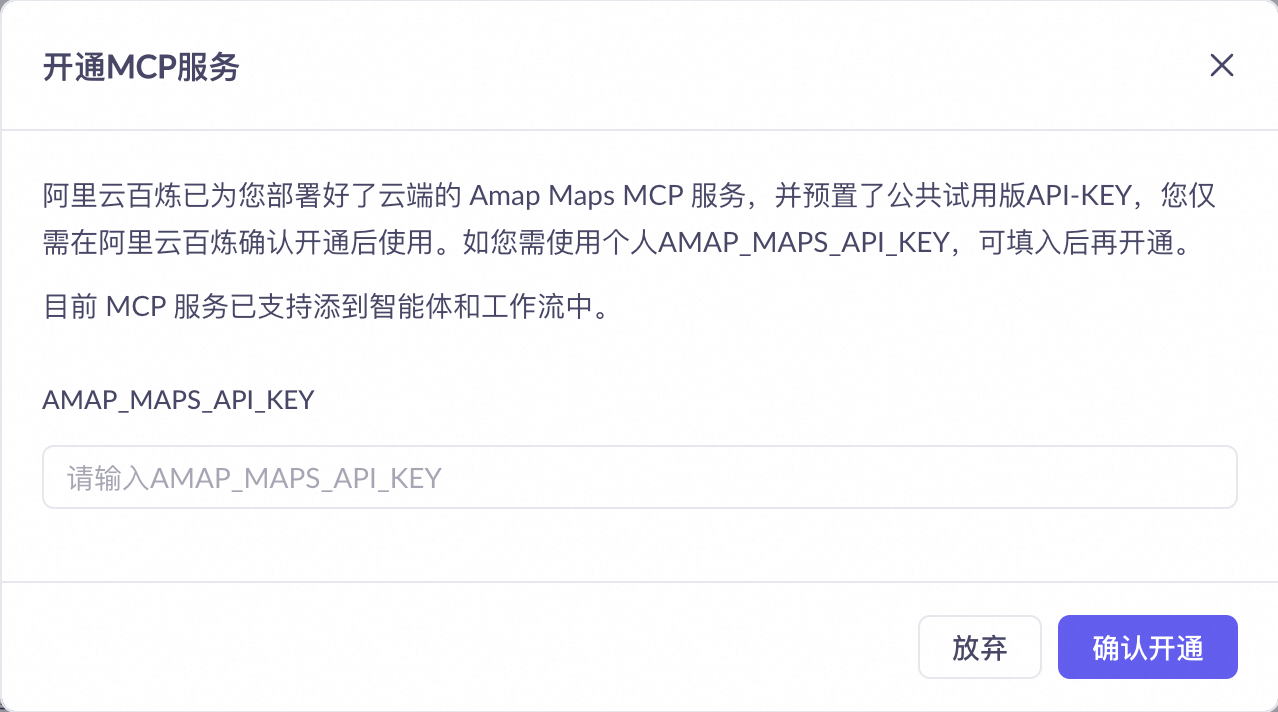
Configure MCP services in agents or workflows
Agent applications
In an agent application, the Large Language Model (LLM) decides whether to call an MCP service based on the conversation input.
- Create an agent Go to Application Management in Alibaba Cloud Model Studio. Click Create Application. Select Agent Application Create Now.
-
Add MCP services
An agent can call multiple MCP services in a single response. You can add up to five MCP services at a time.

-
Test the MCP Server
The agent automatically calls the appropriate MCP service to solve problems. Here are some example scenarios:
- Route planning (single MCP service)
- Step-by-step reasoning (single MCP service)
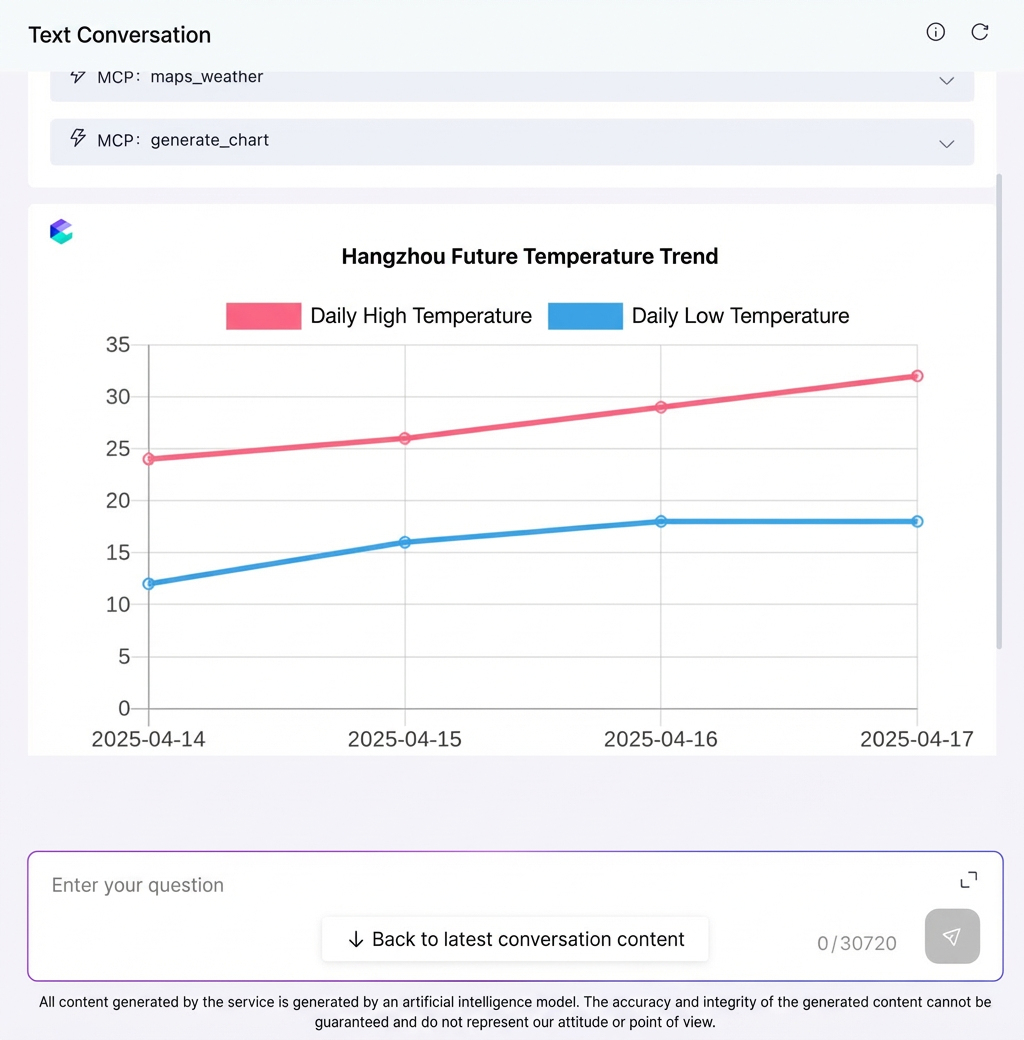
- Temperature trends (multiple MCP services)
Make sure you have added the Amap Maps MCP service to help the agent retrieve geographic information.In the chat pane on the right, send this test message: “I am leaving now from Hangzhou Xiaoshan International Airport to West Lake Scenic Area in Hangzhou. Please provide three public transportation options.” The agent will call the MCP service multiple times to plan routes and estimate travel time.

Workflow applications
An MCP service may offer multiple tools. In a workflow application, however, each MCP node can use only one tool. Therefore, you must manually specify the input parameters for the MCP node and pass its output parameters to the next node.
Use the maps_weather tool from the Amap Maps MCP service to quickly build a city weather query workflow.
When you use only the maps_weather tool, the workflow cannot answer questions unrelated to weather queries.
-
Create a workflow
Go to Application Management in Alibaba Cloud Model Studio. Click Create Application. Select Workflow Application Create Now.

-
Configure the start node
Delete the two default parameters of the start node.
In this example, you only need the default system variable query, so you can delete the other two parameters.

-
Extract the city name
To parse the natural-language input into the city name that the MCP node requires, drag a Large Language Model (LLM) node from the toolbar on the left. Name it “Information Extraction”, connect it to the start node, and configure the parameters as instructed.
Keep all other parameters at their default values.
Parameter name
Parameter value
Model configuration
Qwen-Max
System Prompt
You are an expert in information extraction. Your job is to help the “weather query tool” parse the correct input parameter.
---
Description of the “weather query tool”:
Name: maps_weather
Description: Query the weather for a specified city by city name or standard adcode.
Input parameter: city [string] — city name or adcode
Output parameter: result [string] — weather forecast for the city
---
Your output is the input for the “weather query tool”. Output only the city name.
Note: Output only one city per response.
User Prompt
Type "
/" to open the variable menu. Select “System Variablesquery”.Before you use an MCP node, you typically need to convert natural-language input into the required input parameters. Therefore, describe the function, input, and output of the MCP service in the System Prompt to control the output format of the LLM.
-
Query weather information
Use the weather query tool from the Amap Maps MCP service. It accepts a city name and returns the city’s weather information.
Drag an MCP node from the toolbar on the left. Select the maps_weather tool as shown in the diagram. Then, confirm the node configuration.Name the MCP node “Weather Query Tool”. Then connect it to the “Information Extraction” node. Click the arrow button in the top-left corner of the node to expand or collapse its configuration.Click the configuration button for the maps_weather tool inside the MCP node. Set the input to “Reference: Information Extraction/result”.

-
Summarize weather information
To convert the result from the MCP service into easy-to-read natural language, drag a Large Language Model (LLM) node from the toolbar on the left. Name it “Information Summary”, connect it to the “Weather Query Tool” node, and configure the parameters as instructed.
Keep all other parameters at their default values.
Parameter name
Parameter value
Model configuration
Qwen-Max
System Prompt
You are an information processing assistant. Your job is to combine user input into natural language.
User Prompt
Type "
/" to open the variable menu. Select “Weather Query Toolresult”.
-
Output the query result
Connect this node to the “Information Summary” node and configure the parameters as instructed to obtain the final output.
Parameter name
Parameter value
Input field
Type "
/" to open the variable menu. Select “Information Summaryresult”.
-
Test the query
Click the Test button in the upper-right corner, enter "
Query Hangzhou weather", and view the workflow output.