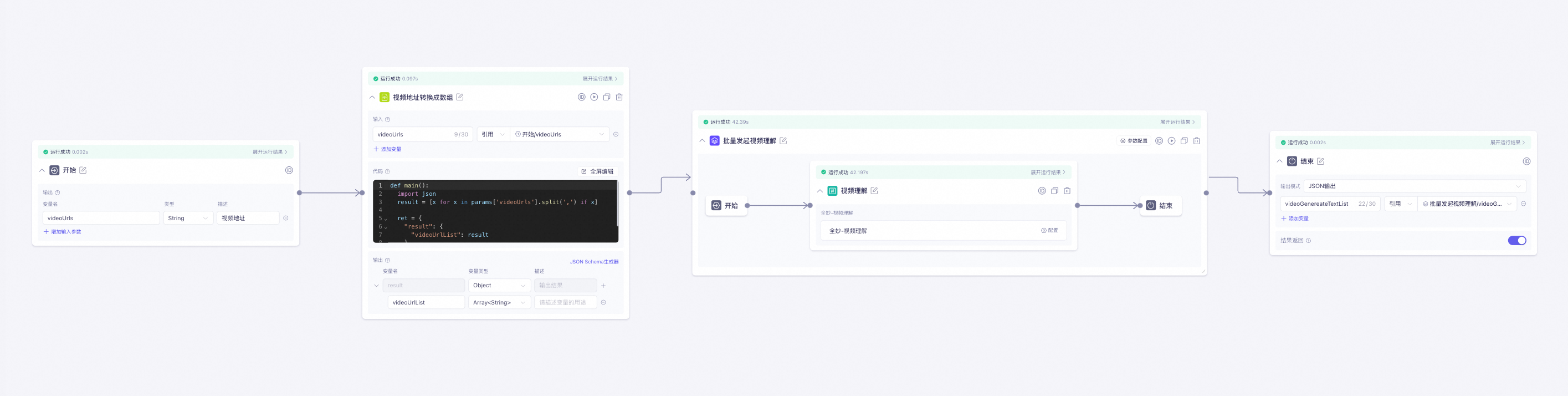
This topic describes how to integrate the video understanding feature into an Alibaba Cloud Model Studio workflow.
Background
Some scenarios require building an agent with an Alibaba Cloud Model Studio workflow that references a video understanding API. Alibaba Cloud Model Studio workflows are flow-based AI applications that improve process control by breaking down complex tasks into multiple subtasks. You can create custom task flows by dragging and dropping nodes.
Prerequisites
- Activate Alibaba Cloud Model Studio. For more information, see Activate Alibaba Cloud Model Studio.
- Activate Function Compute (FC). For more information, see What is Function Compute?.
Procedure
This topic uses the creation of a video understanding workflow application as an example.
Step 1: Create a function (FC)
-
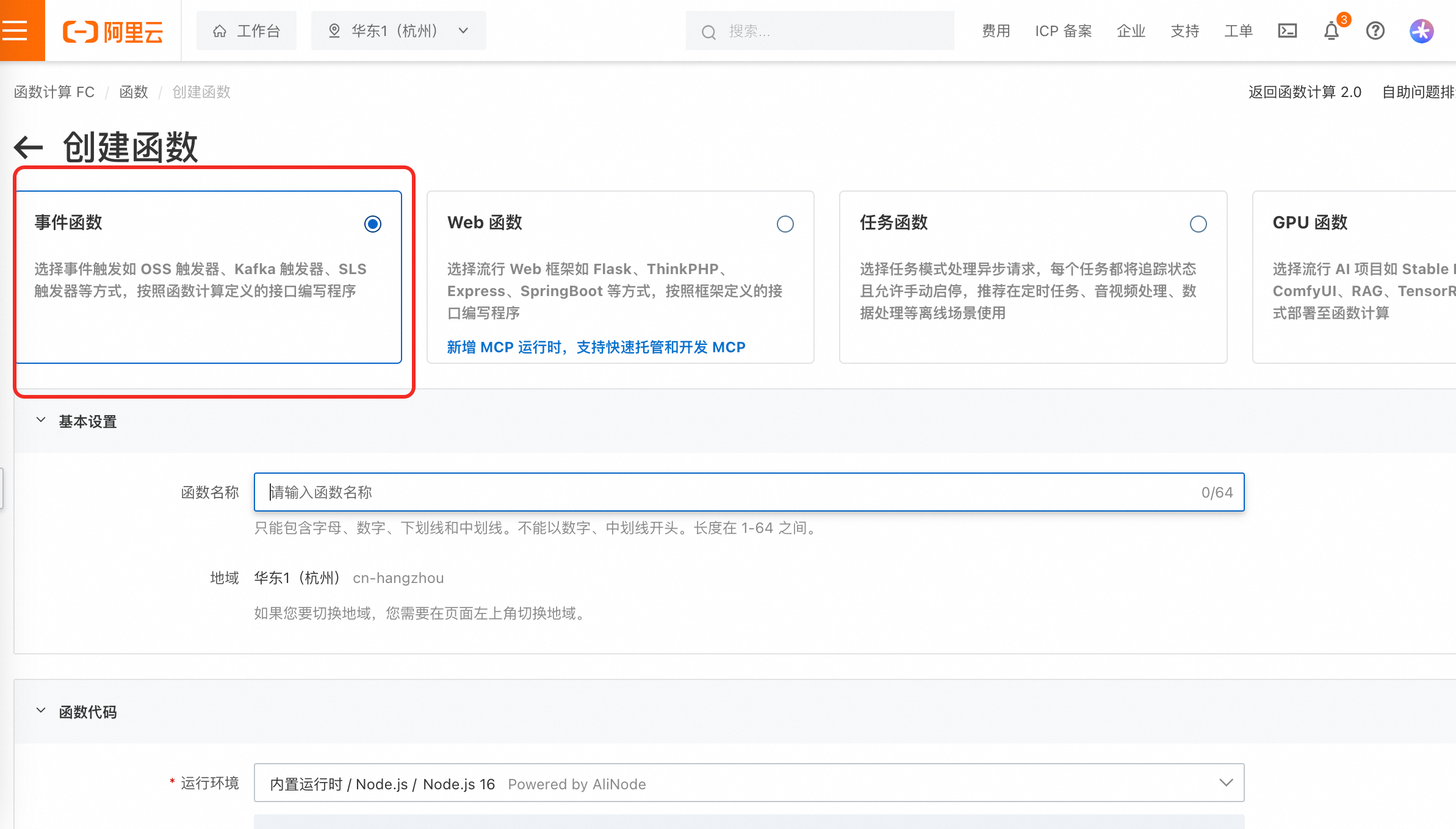
Create an event-triggered function in the Function Compute console. For more information, see Create an event-triggered function.
-
Create a function to submit video analysis tasks. The recommended function name is
SubmitVideoAnalysisTask.- Configure the function handler: Configuration -> Runtime -> Handler:
FCVideoAnalysisTask.submit_video_analysis_task.
- Configure the function handler: Configuration -> Runtime -> Handler:
-
Create a function to query video analysis tasks. The recommended function name is
GetVideoAnalysisTask.- Configure the function handler: Configuration -> Runtime -> Handler:
FCVideoAnalysisTask.get_video_analysis_task.
- Configure the function handler: Configuration -> Runtime -> Handler:
-
Create a function to submit video analysis tasks. The recommended function name is
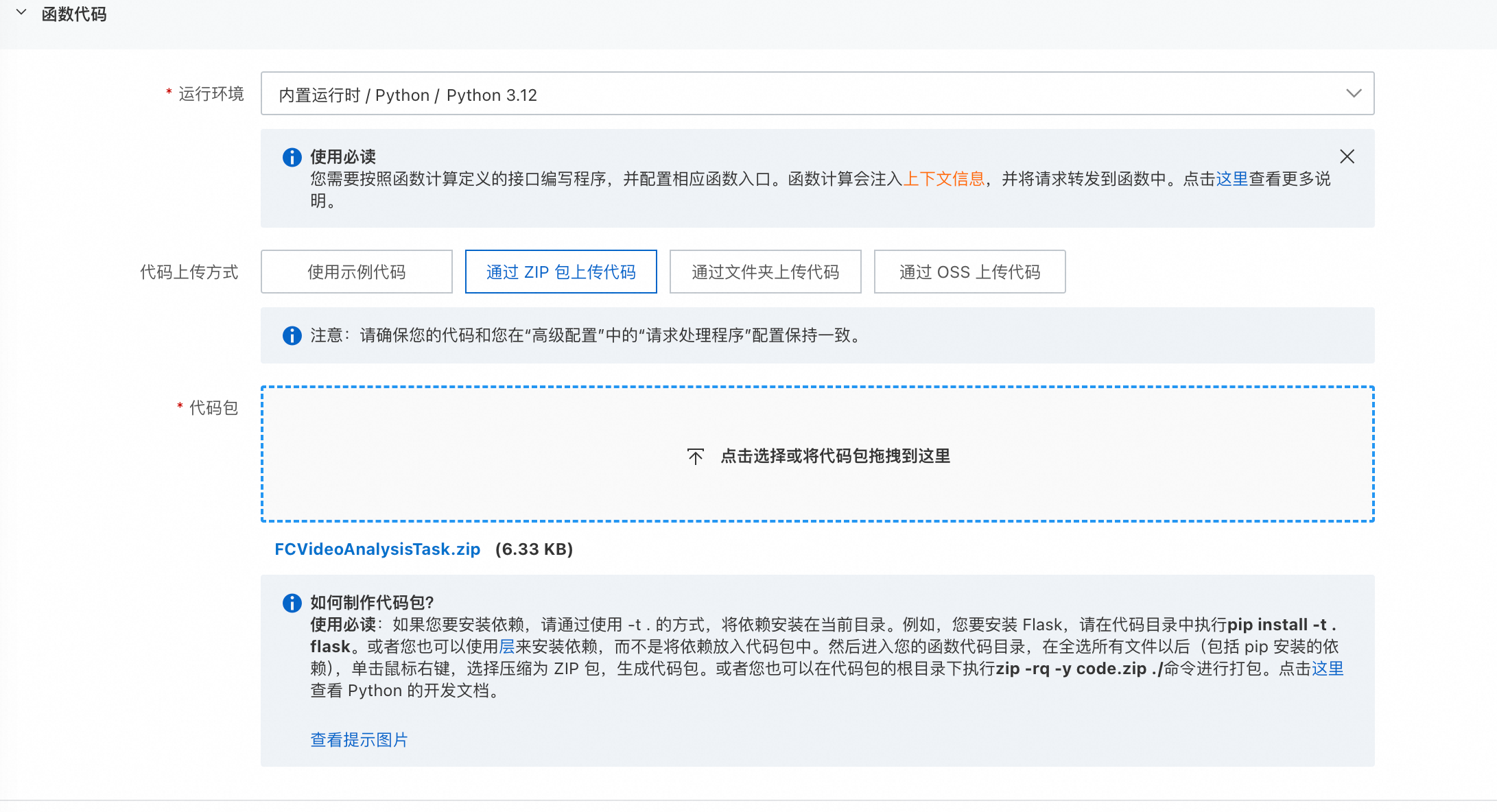
- Runtime environment: Select Python 3.12.
- Code upload method: Select Upload a ZIP file. For a sample file, see FCVideoAnalysisTask.zip.
-
Install function dependencies.
- Method 1: Run the following command:
- Method 2: Install dependencies as a layer. For more information, see Create a custom layer.
-
Optimize and adjust the input parameters in the code as needed, such as the
prompttemplate andmodelId. Replace the AccessKey pair and workspaceId in the code with your actual values. This ensures that the code runs correctly and returns the expected results.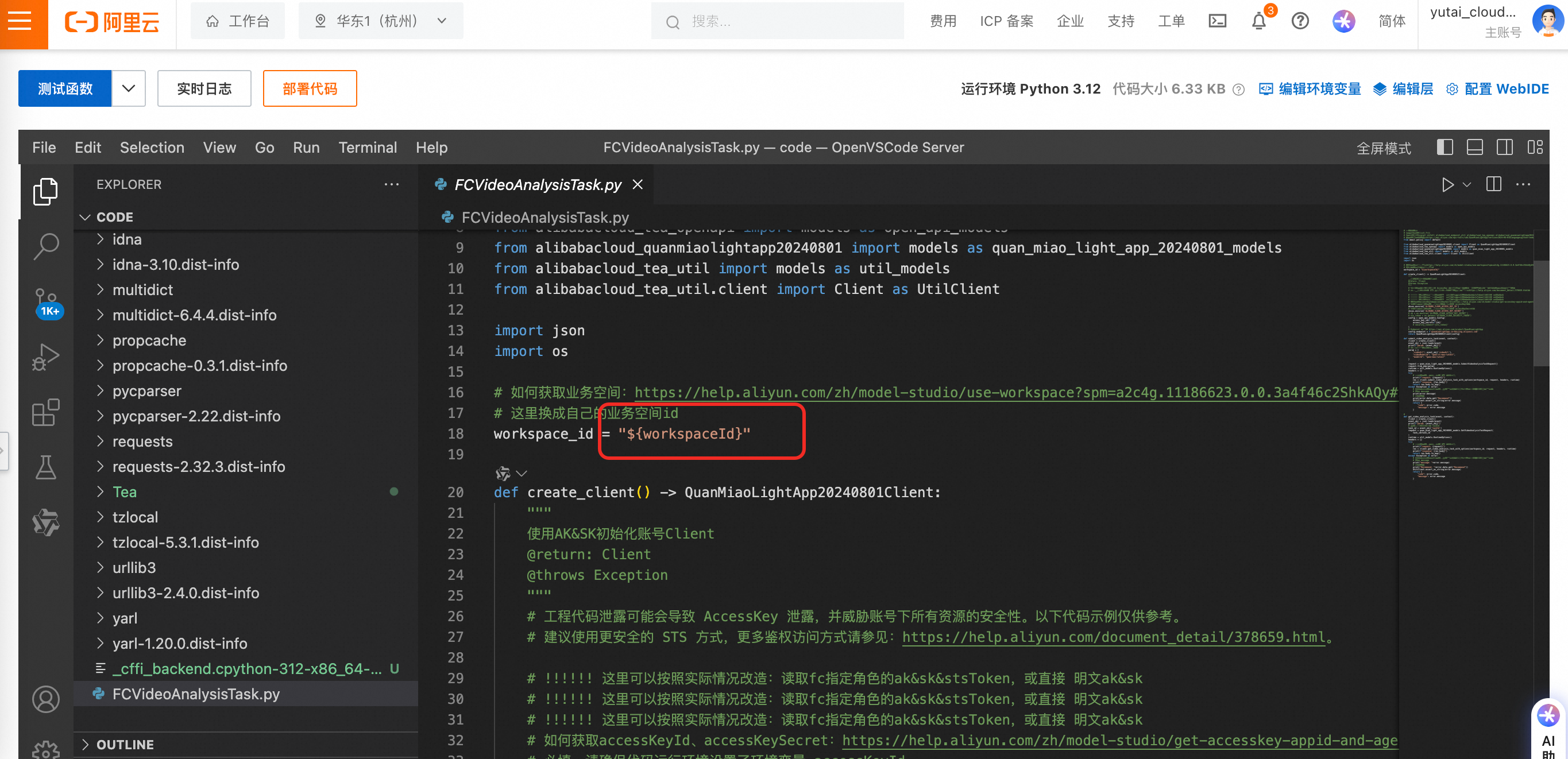
Step 2: Configure the Alibaba Cloud Model Studio workflow
-
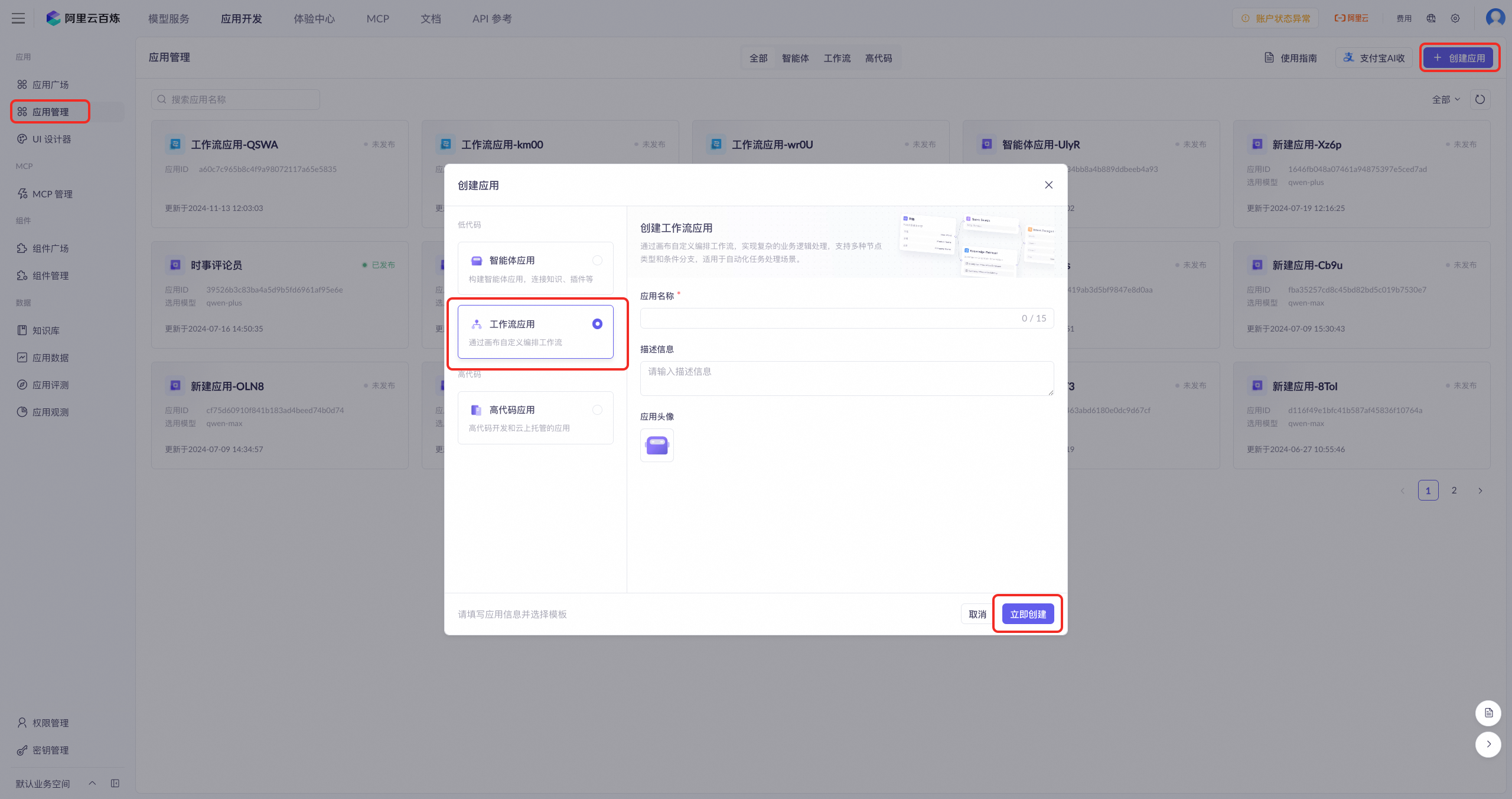
Create a task-based workflow. Go to the Application Management page, click Create Application, and select Workflow Application. Enter an application name and description, upload a profile picture, and click Create Now to go to the workflow configuration page.
-
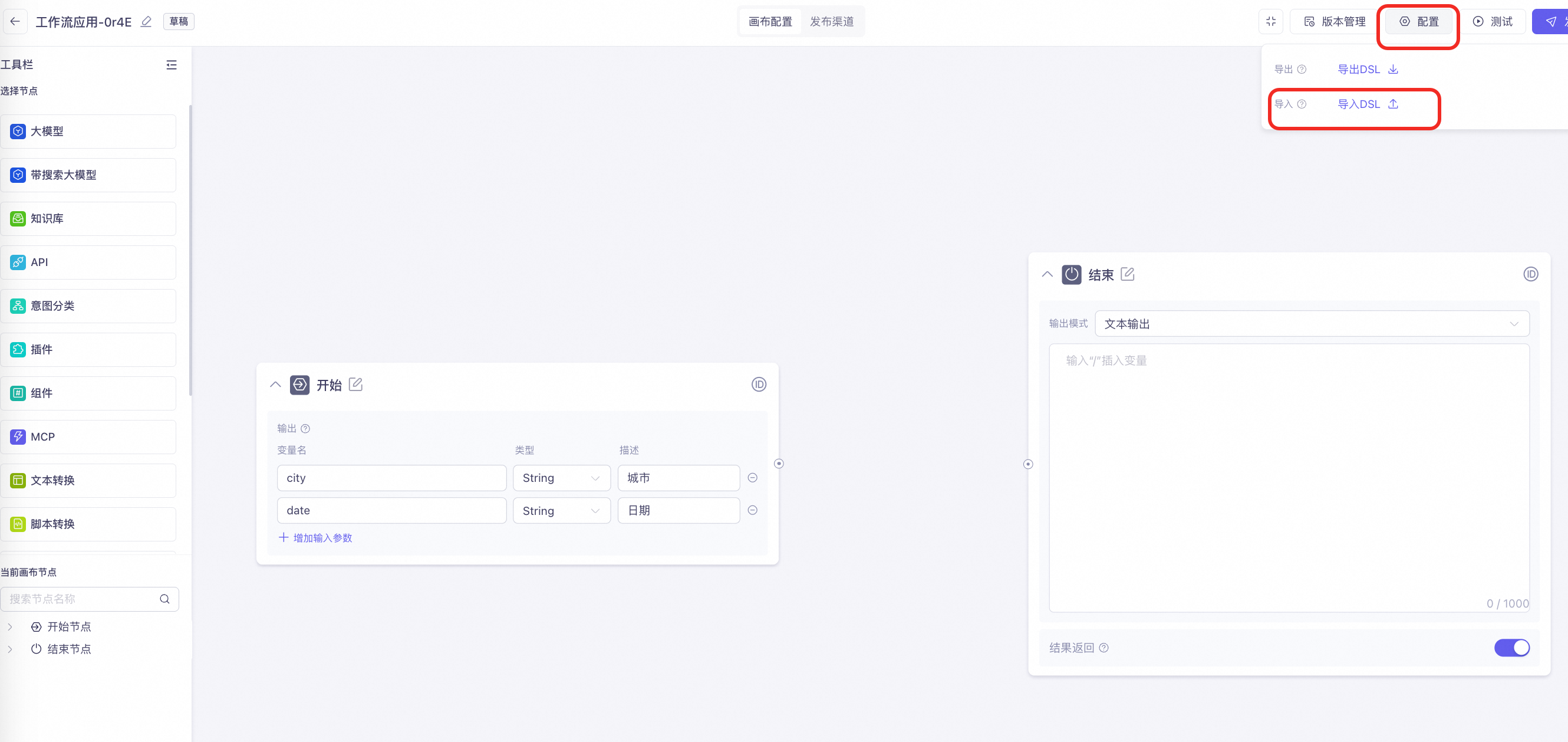
Import the template into the workflow. For a sample template file, see Quanmiao-Video_Understanding-Workflow_Template.zip.
-
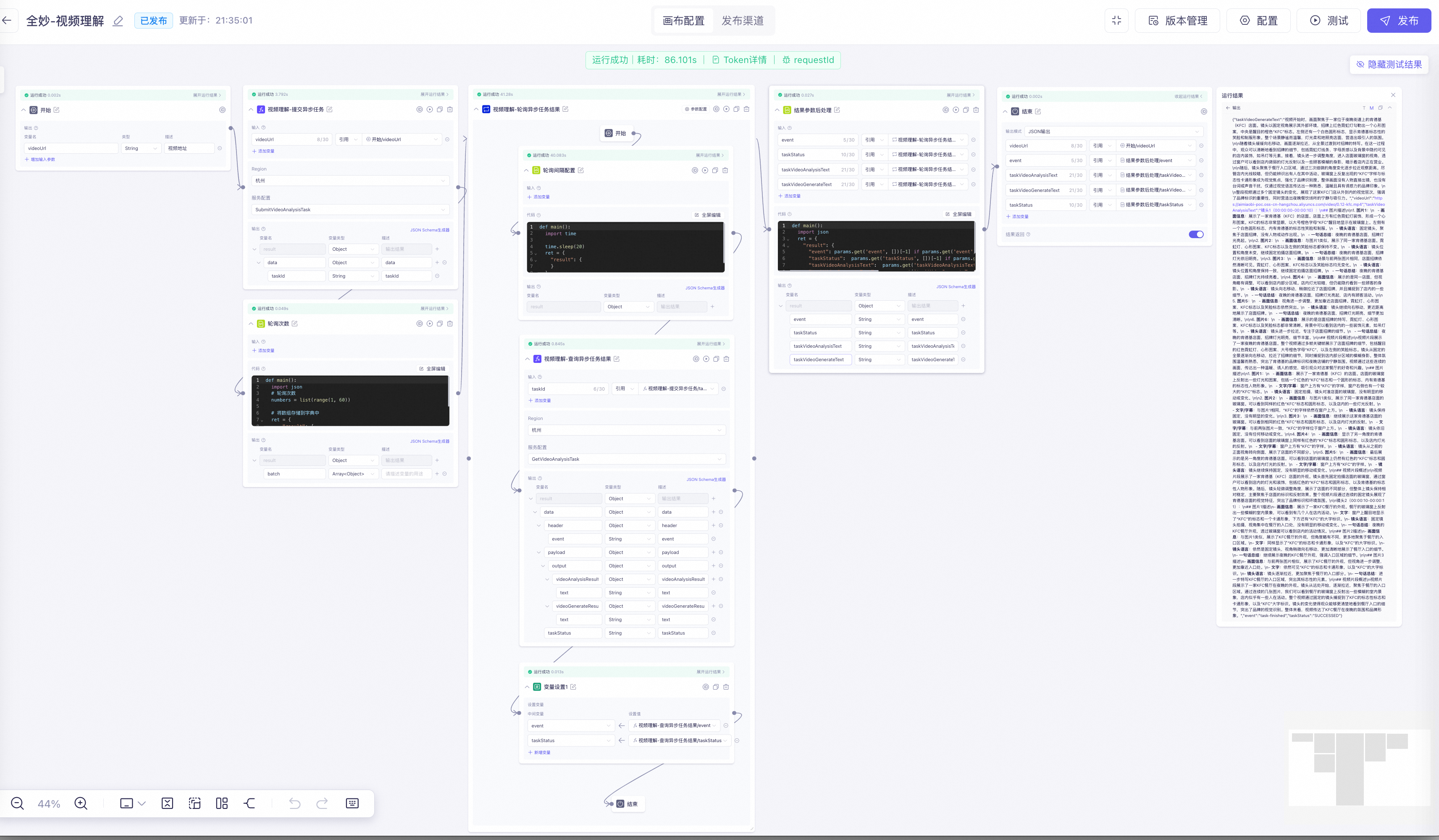
Modify the configuration of some nodes:
- Video Understanding - Submit Asynchronous Task: Associate the
SubmitVideoAnalysisTaskfunction. - Video Understanding - Query Asynchronous Task Result: Associate the
GetVideoAnalysisTaskfunction.
- Video Understanding - Submit Asynchronous Task: Associate the
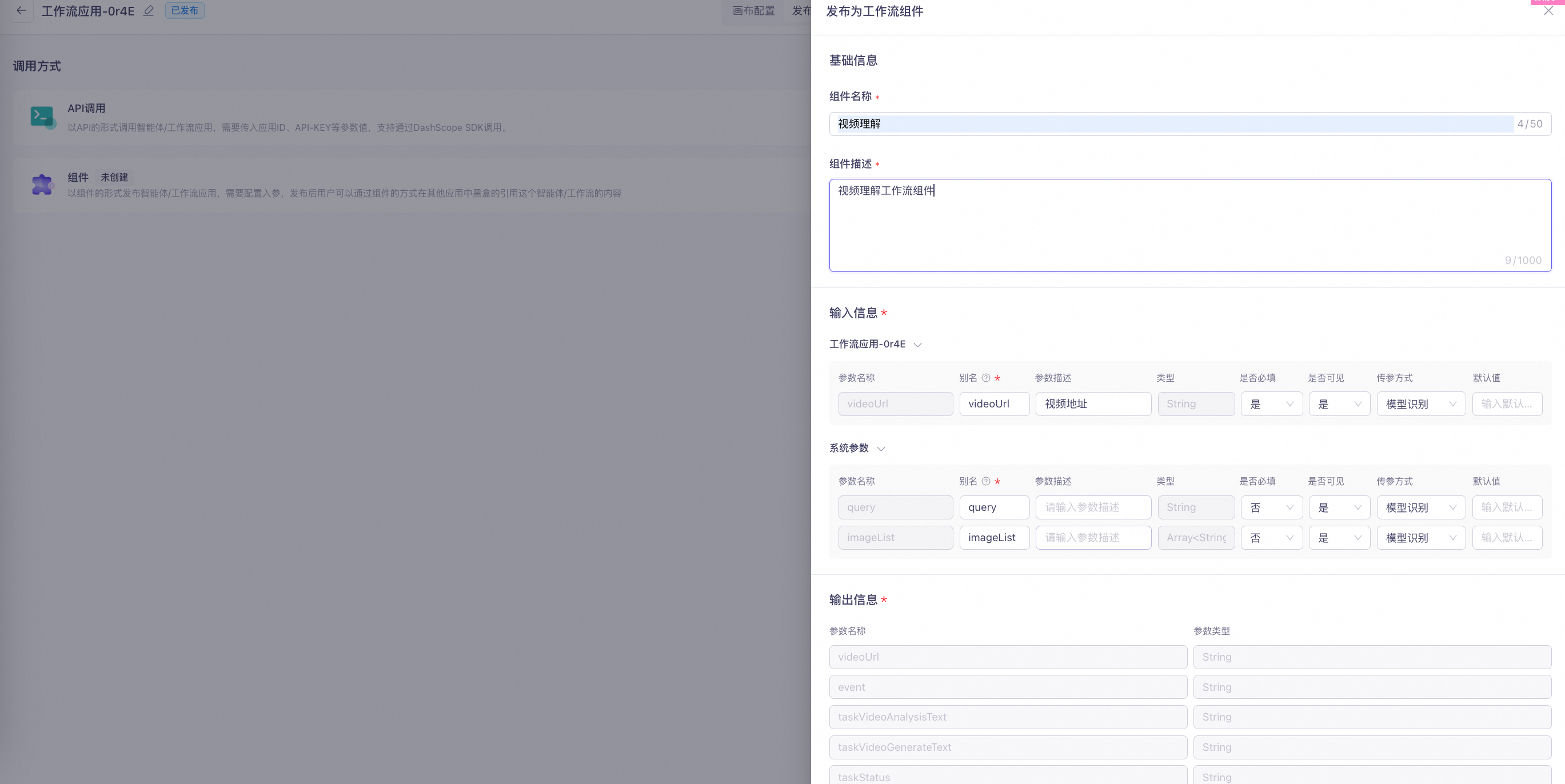
Optional: Publish the workflow as a component
Publish the workflow application as a component for use in other agents or workflow applications. For more information, see Publish as a component.

Optional: Component application - serial
Import the serial video understanding component into your workflow. For a sample file, see Video_Understanding-Serial.zip.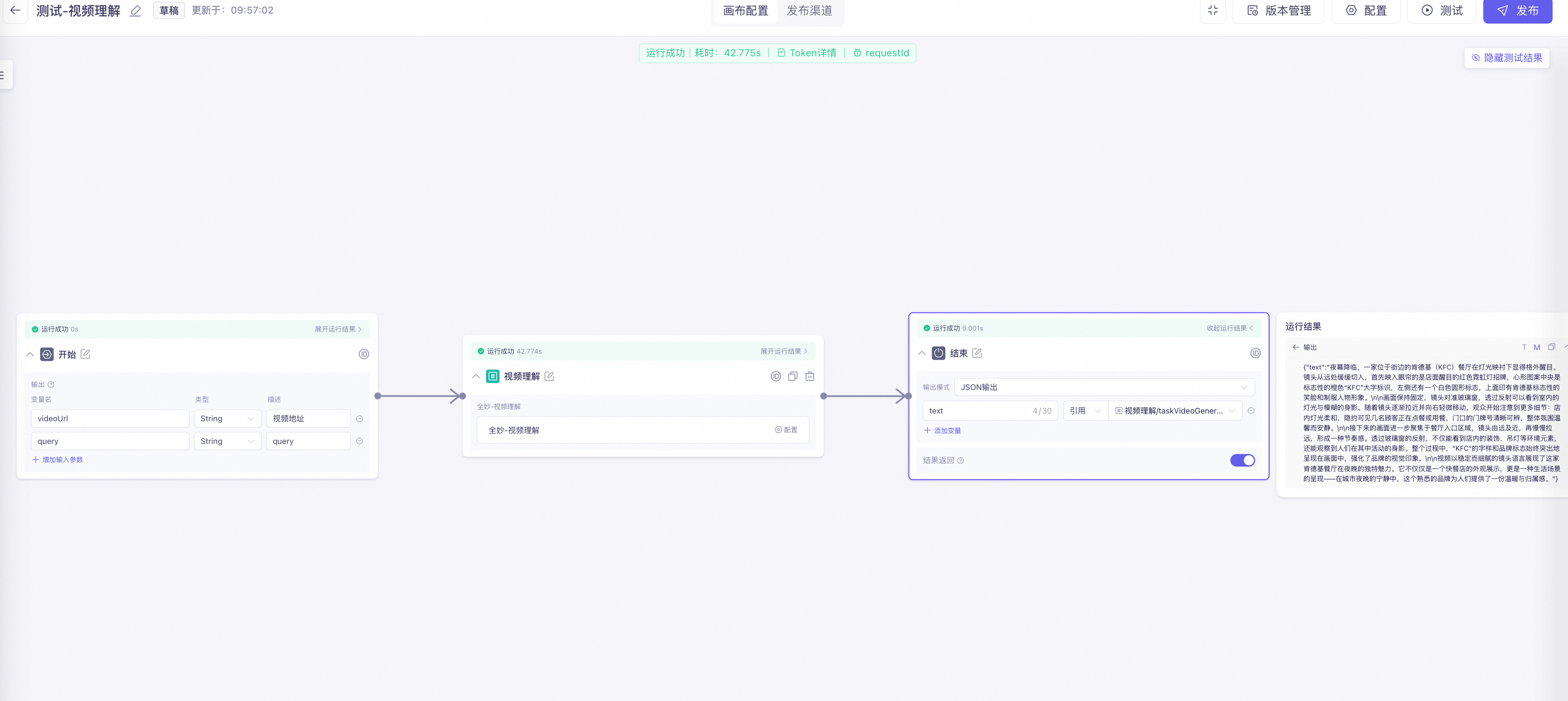
Optional: Component application - parallel
Import the parallel video understanding component into your workflow. For a sample file, see Video_Understanding-Parallel.zip.