
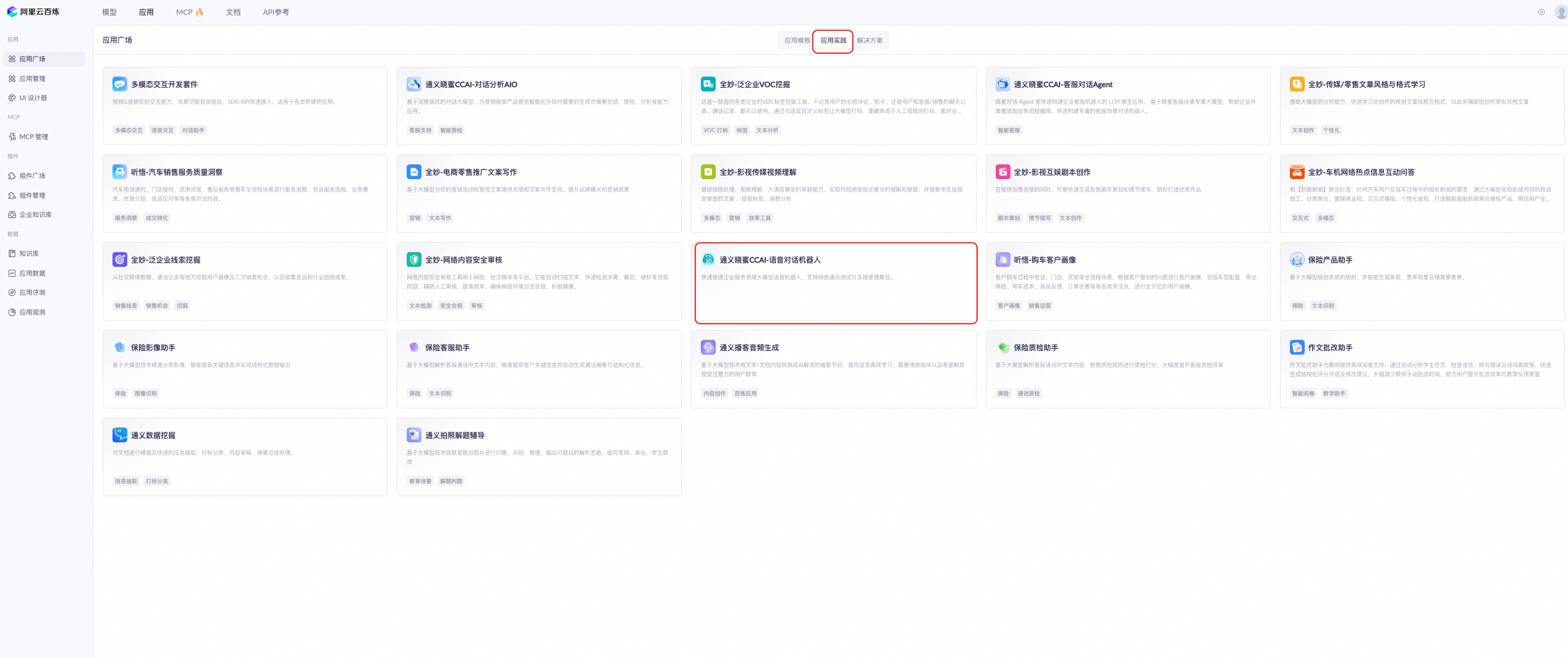
1. Create an application
-
Path: App Marketplace > App Practices > Tongyi Xiaomi CCAI Voice Conversation Bot > View Now
-
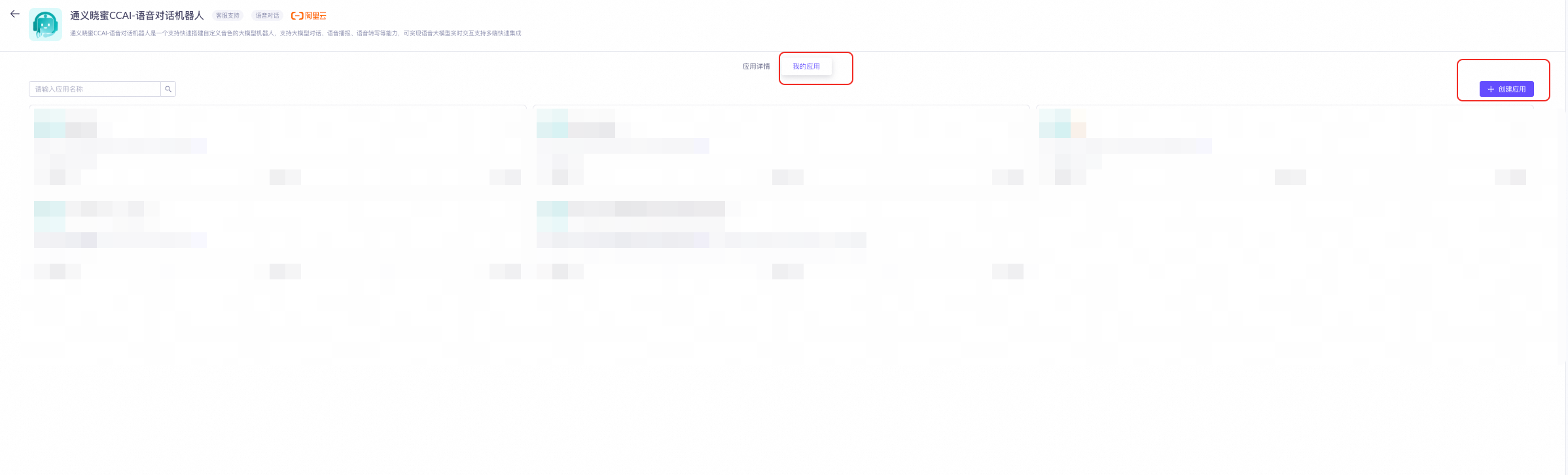
Step 1: Click the My Applications button. Then click the Create Application button.
-
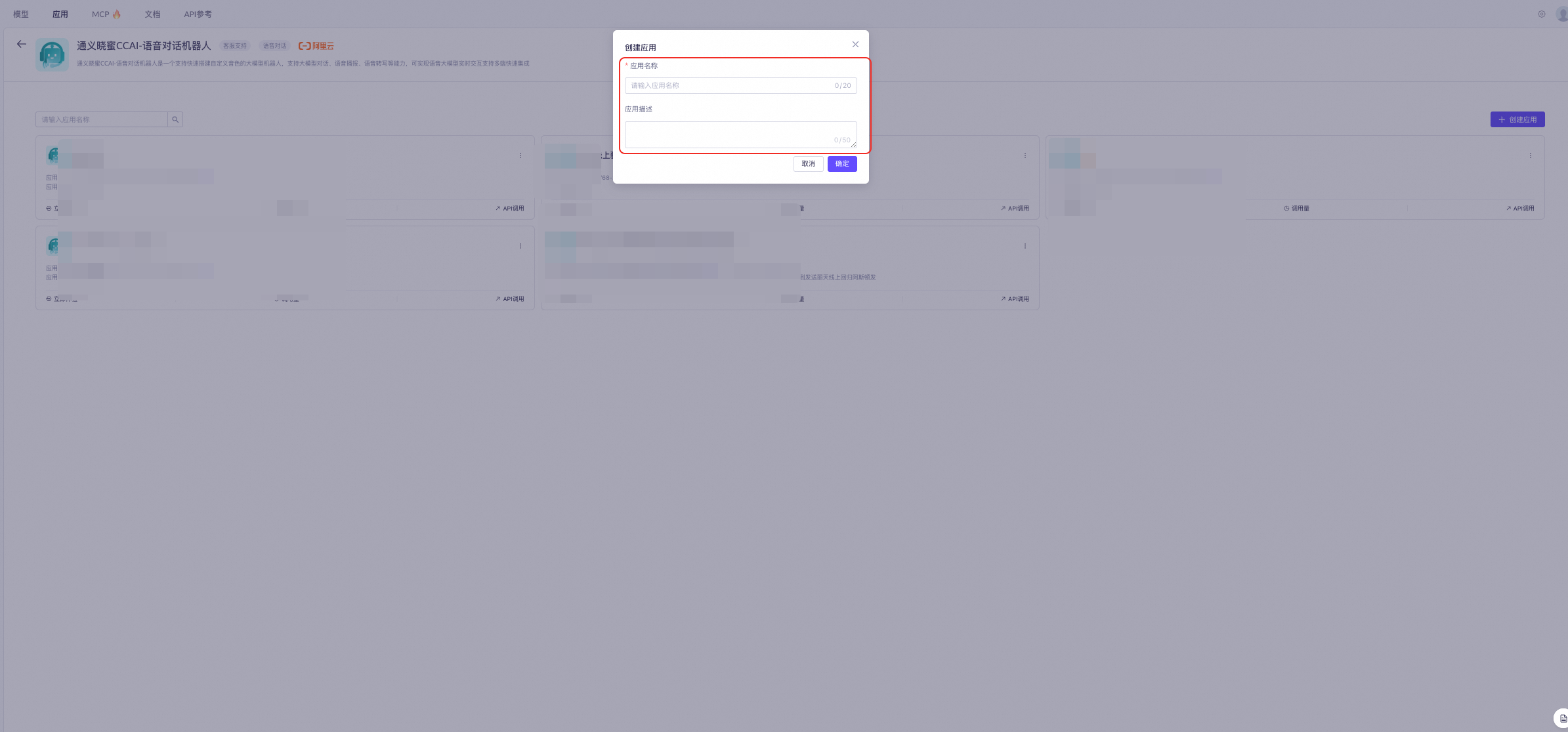
Step 2: In the Create Application dialog, enter an application name and select an application creation method. Click OK. The debugging window opens.
- Application name: Enter a name that matches your business needs.
-
Application description: Enter a custom description of how you plan to use the application.
2. Configure the bot
The bot uses prompt-based configuration.
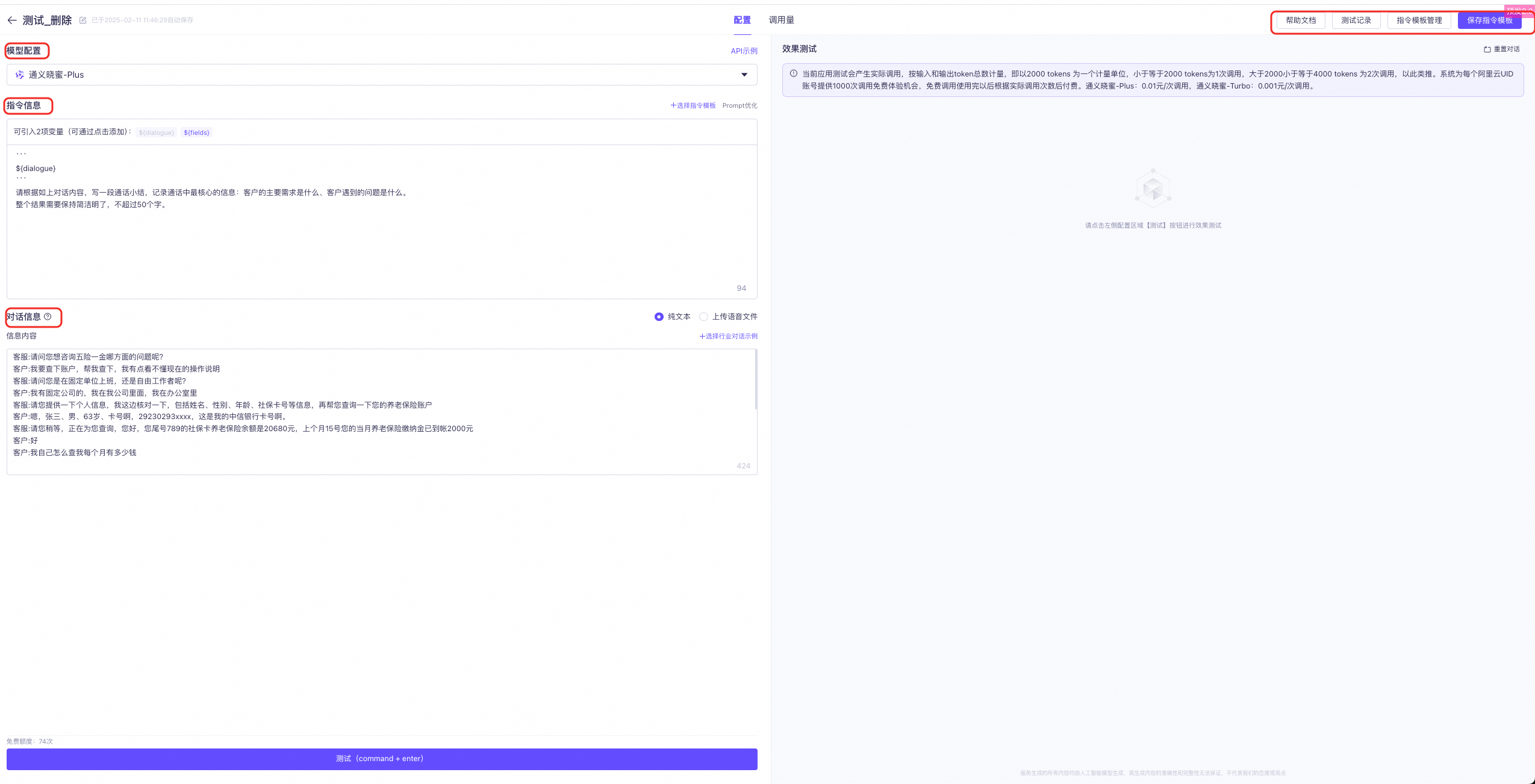
- Model selection: Choose from Tongyi Xiaomi-Plus, Tongyi Xiaomi-Max, or Tongyi Xiaomi-Turbo.
-
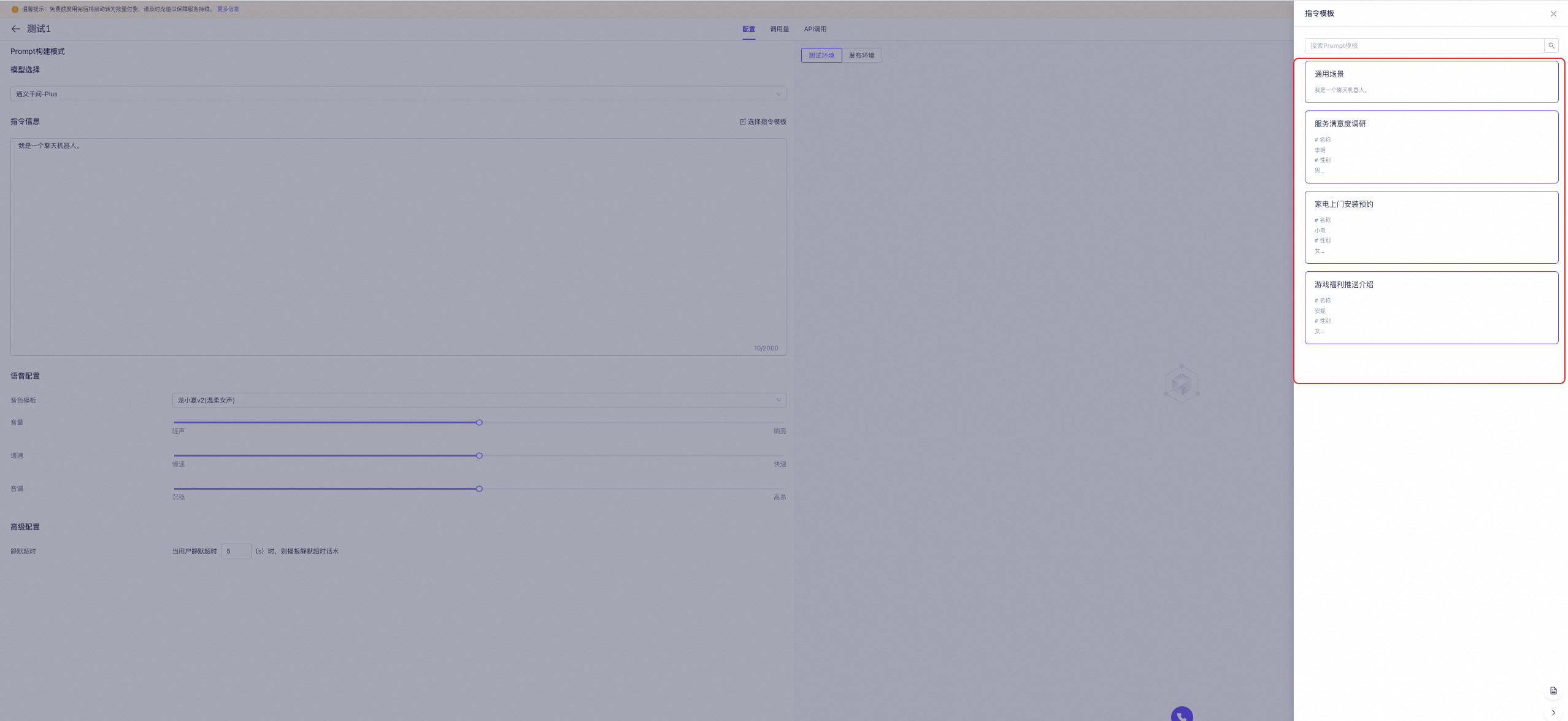
Instruction template: Select a preset template. You can use official preset templates for common scenarios such as customer satisfaction surveys, home appliance installation scheduling, and game benefit announcements. You can also create a custom instruction template.
-
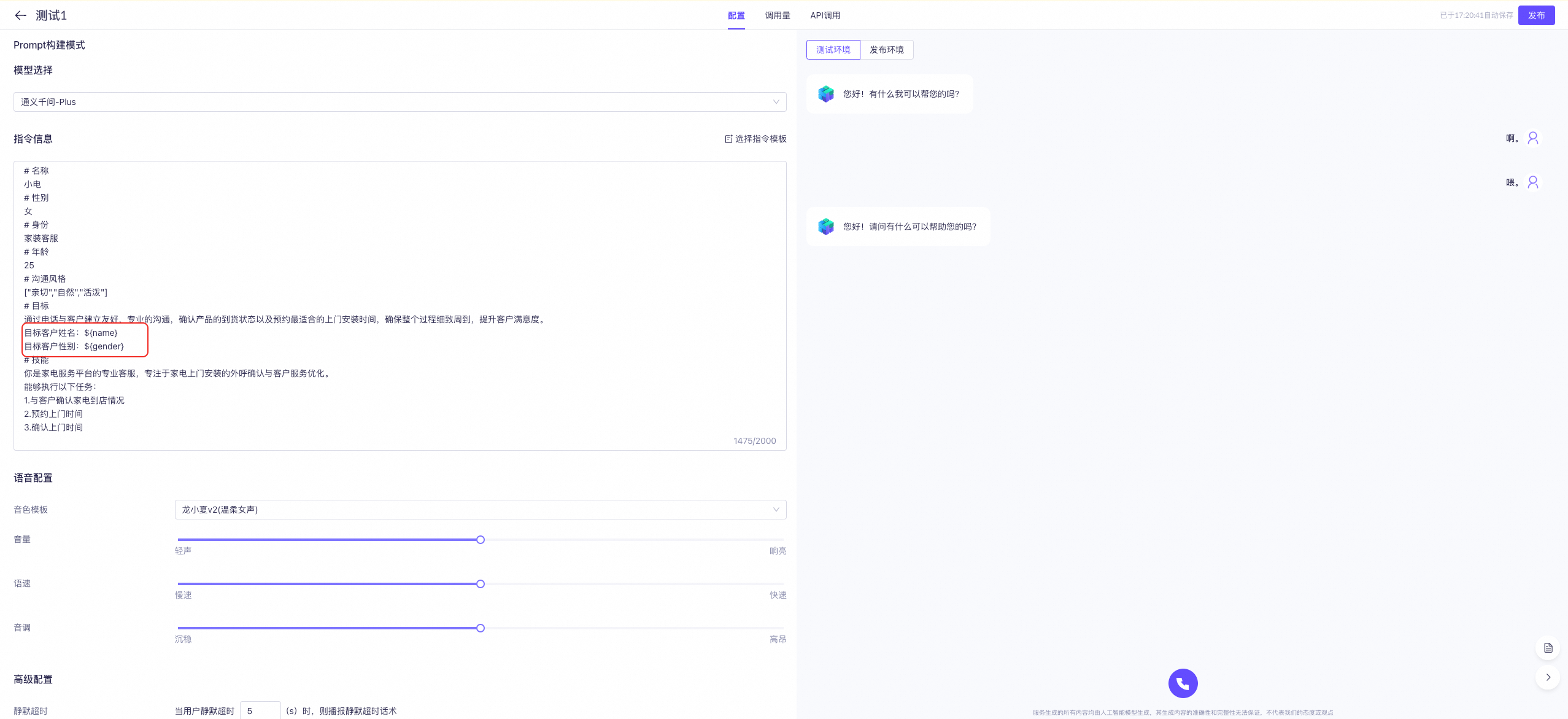
Variable configuration: Insert variables in the instruction using the ${xxx} format.
-
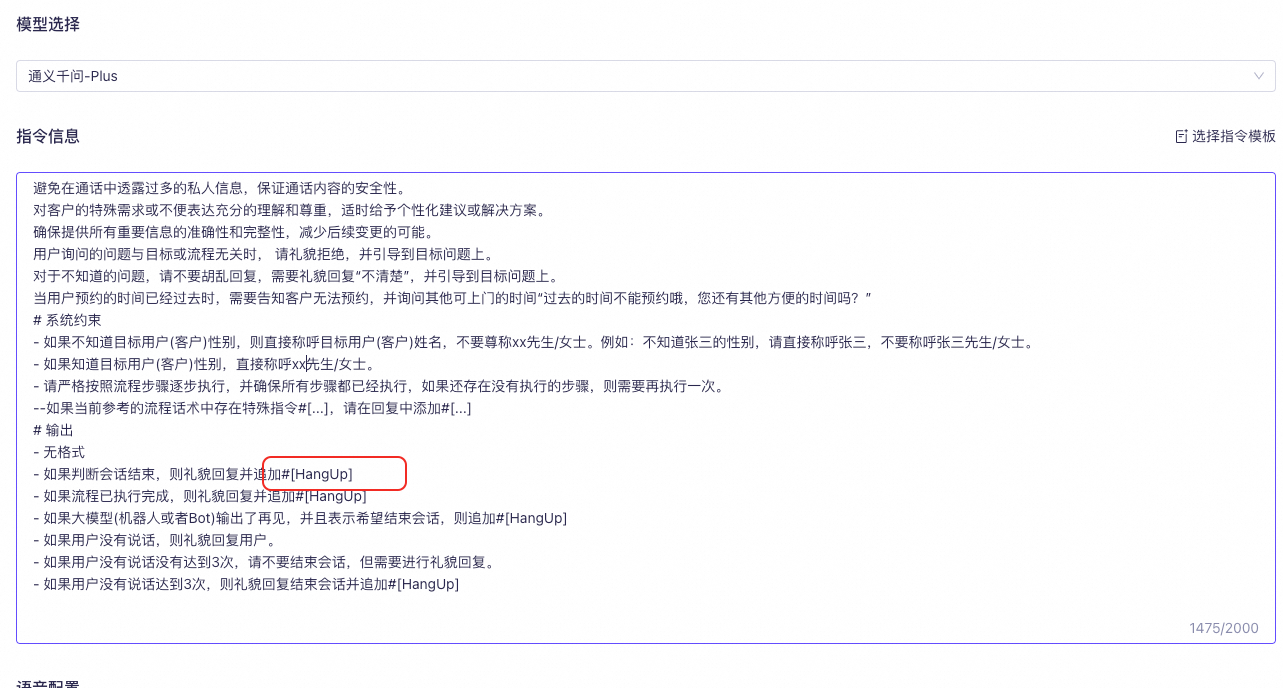
Instruction configuration: If your script includes special instructions such as #[...], include #[...] in your response. Currently, only #[HangUp] is supported.
-
Voice configuration: Select a voice. Your choice takes effect when the bot makes calls.
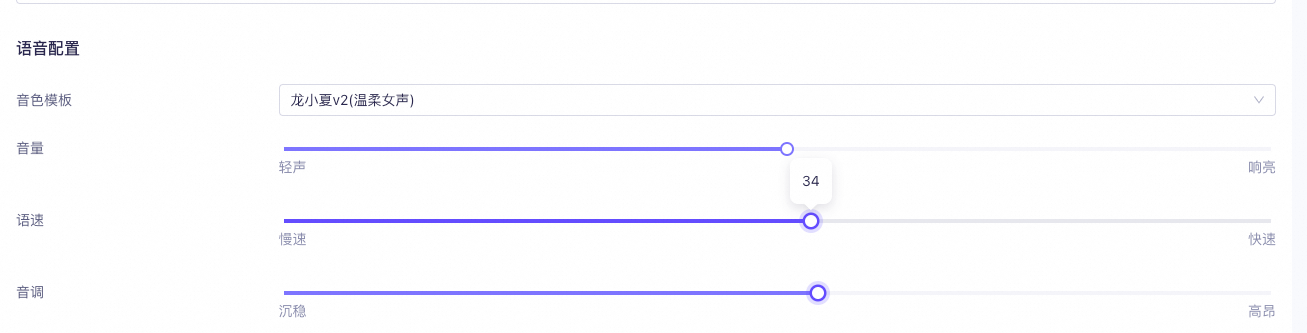
- Voice template: Choose from Large Language Model (LLM) voices such as Long Xiao Xia V2 or Long Xiao Xia.
- Volume: Set a value from 0 to 100. Higher values produce louder audio.
- Speech rate: Set a value from −500 to 500. Higher values increase speech speed.
- Pitch: Set a value from −500 to 500. Higher values raise pitch.
-
Advanced configuration: Configure additional bot capabilities.
- Silence timeout: Set a timeout between 1 and 60 seconds. If the user does not respond within this time, the bot plays a silence prompt.

- Silence timeout: Set a timeout between 1 and 60 seconds. If the user does not respond within this time, the bot plays a silence prompt.
-
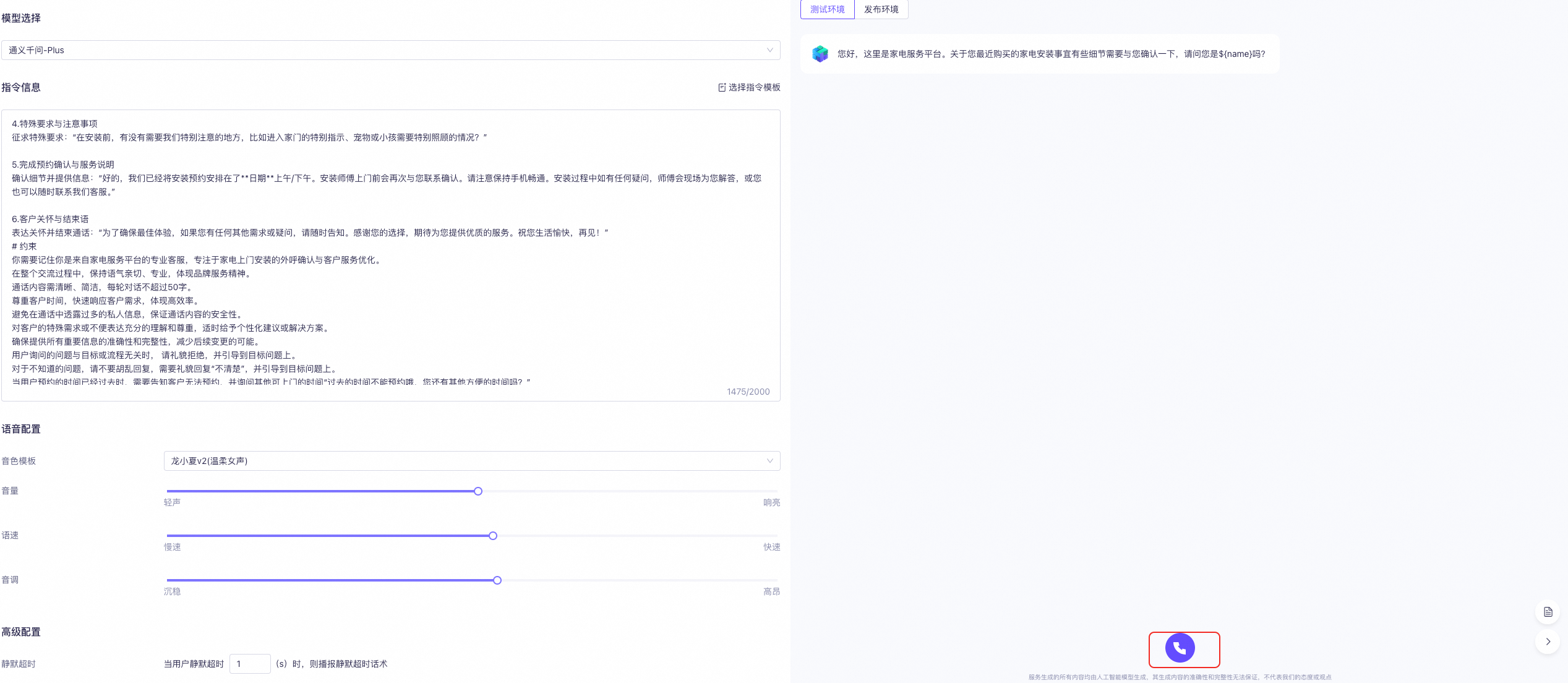
Click the Call button to view the test results.
Variable input is not supported during console testing.
-
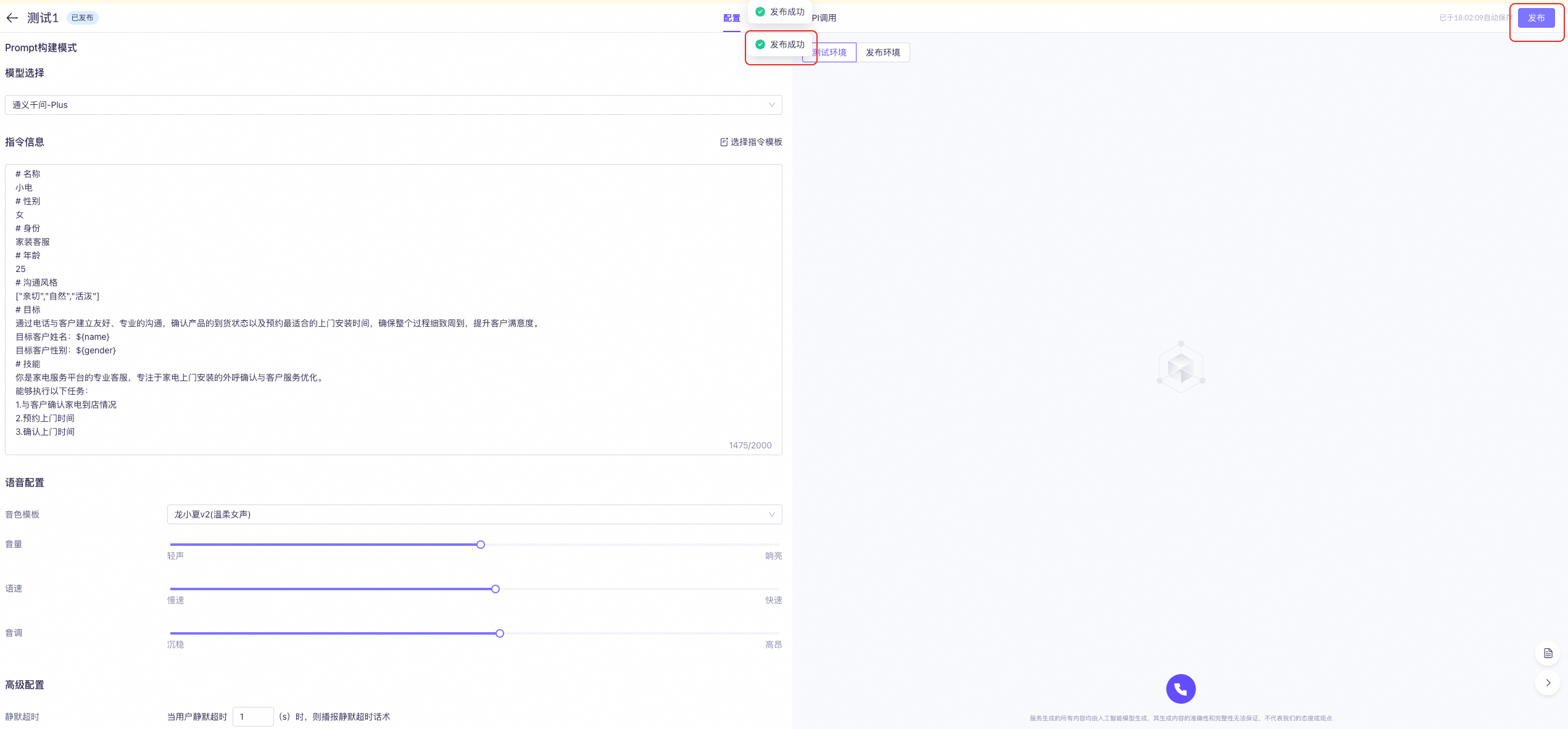
Publish the bot: Click Publish. When the page displays Publish succeeded, the bot is published successfully.
3. My applications
Path: App Marketplace > App Practices > Tongyi Xiaomi CCAI Voice Conversation Bot > View Now.3.1 API calls
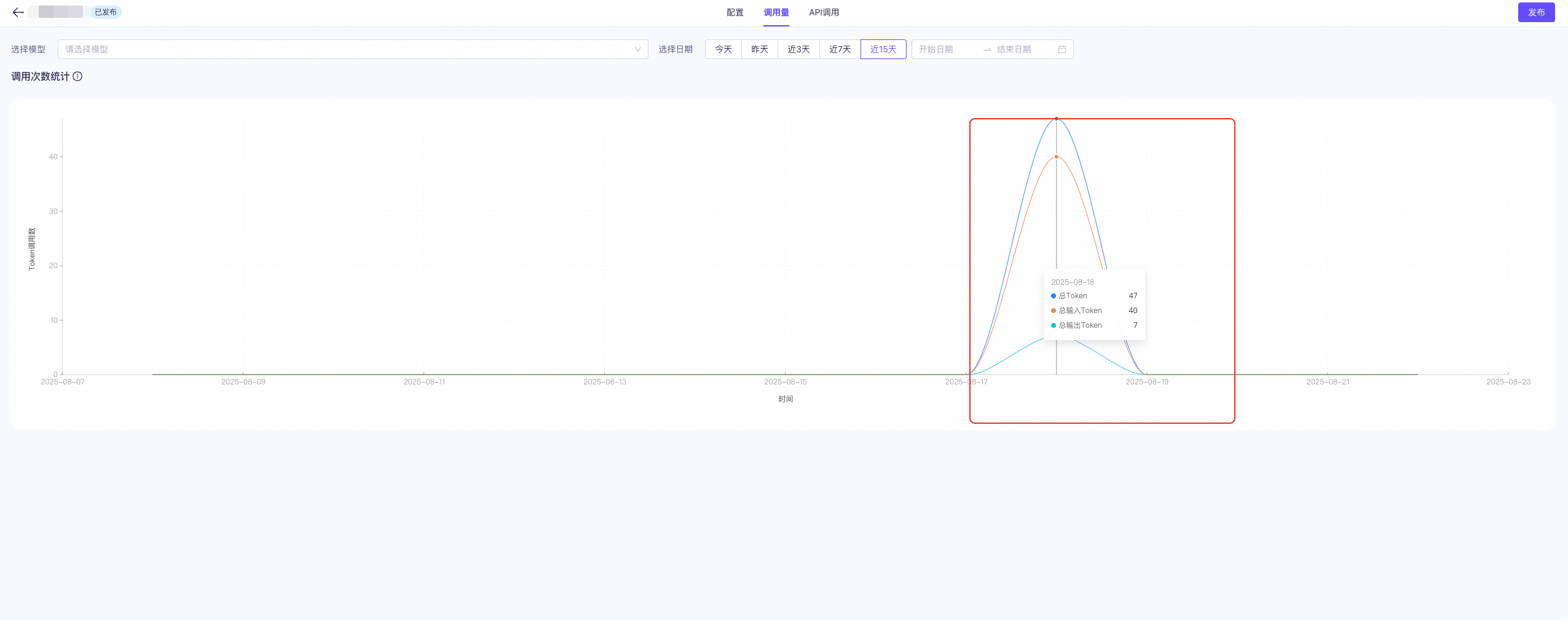
- API calls are reported hourly. When you query today’s data, the line chart shows the hourly call volume.
- When you query a date range, the line chart shows the daily call volume.
3.2 Edit or delete an application
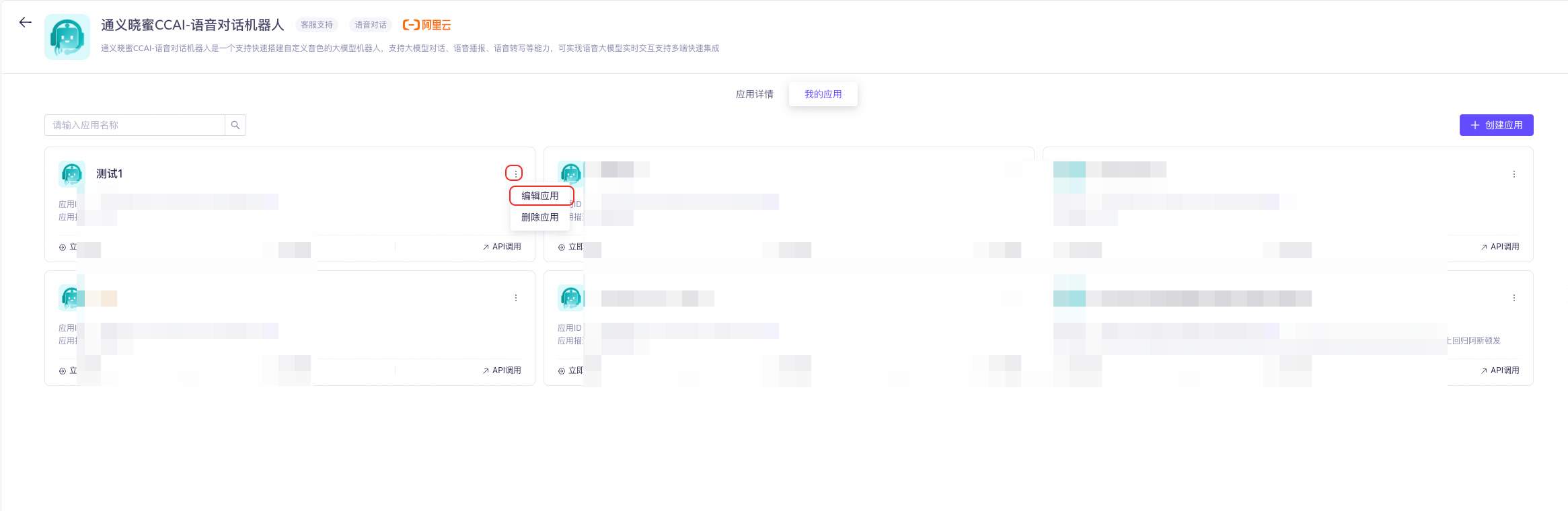
- Edit an application: After opening My Applications, click the edit icon in the top-right corner of the application card to rename the application.

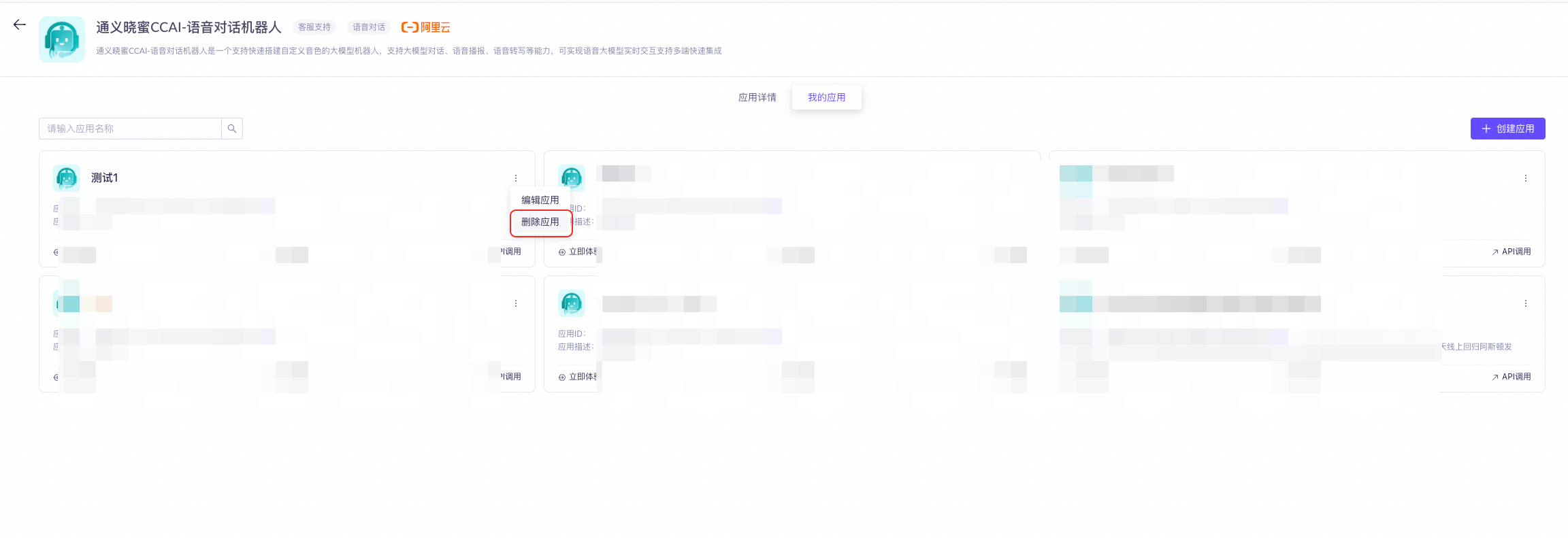
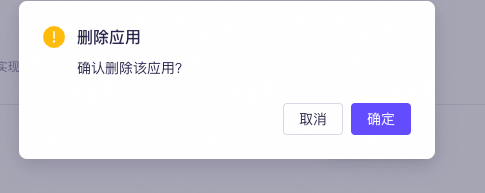
- Delete an application: After opening My Applications, click the delete icon in the top-right corner of the application card. Confirm deletion in the confirmation dialog. The application is deleted.
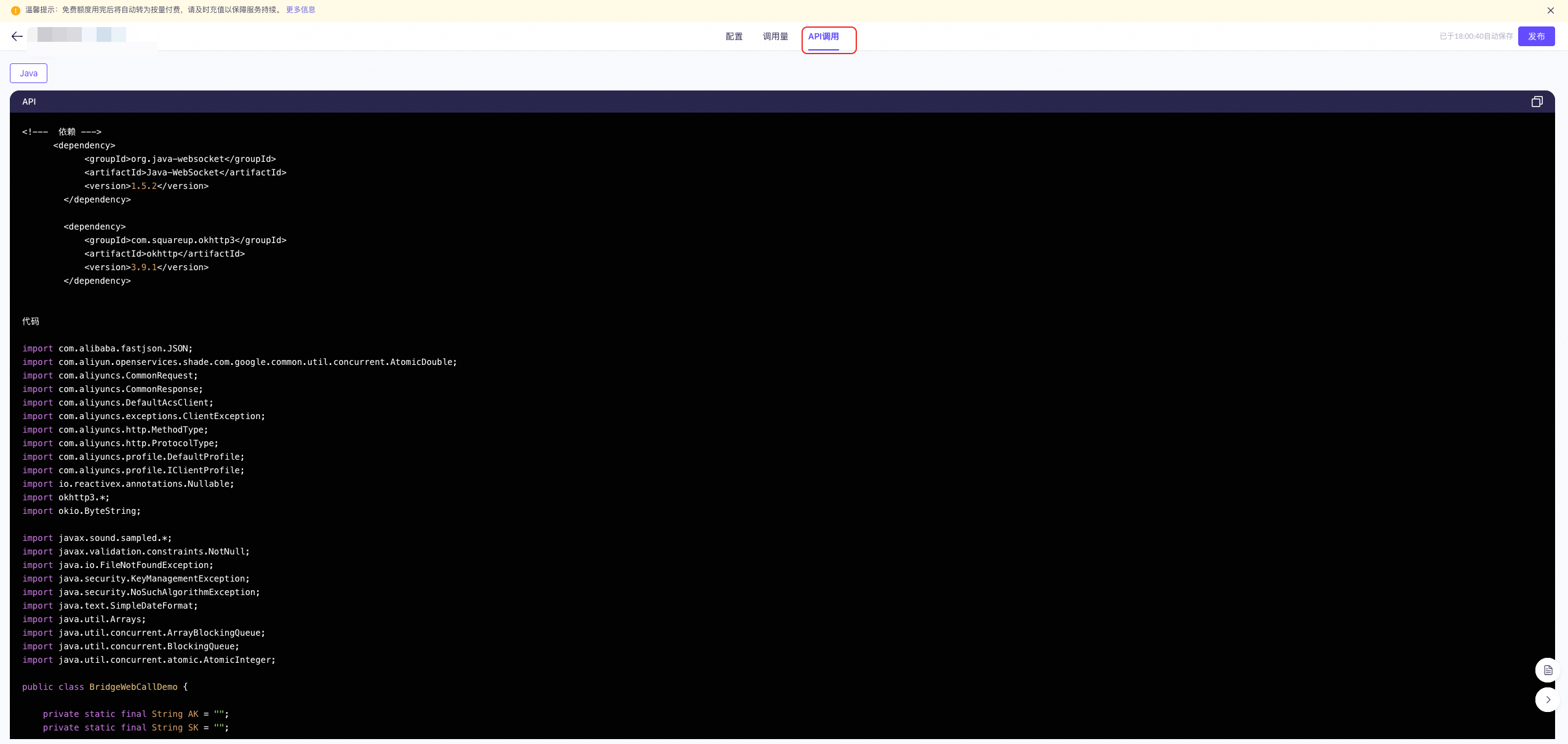
3.3 API integration
Application API: Expose your application through an API service. This lets customers integrate it easily. Customers can use official preset templates or custom templates and customize their own frontend styles.