

For data security reasons, some customers do not grant Alibaba Cloud services access to their databases. Xiyan GBI offers an unmanaged database connection solution that uses virtual data sources. This solution ensures that database operations are performed locally, while still allowing customers to use the SQL generation capabilities of the cloud service.
Prerequisites
- You have activated Alibaba Cloud Model Studio.
- You have obtained a Workspace ID. For more information, see Obtain a Workspace ID.
- You have obtained an AccessKey ID and AccessKey secret. For more information, see Obtain an AccessKey and AgentKey.
- The
AliyunDataAnalysisGBIFullAccessaccess policy is attached to the Resource Access Management (RAM) user. For more information, see Grant permissions in the RAM console. - You have installed the Java SDK for Xiyan GBI. For more information, see Install the Java SDK for Xiyan GBI.
Introduction to database connection methods
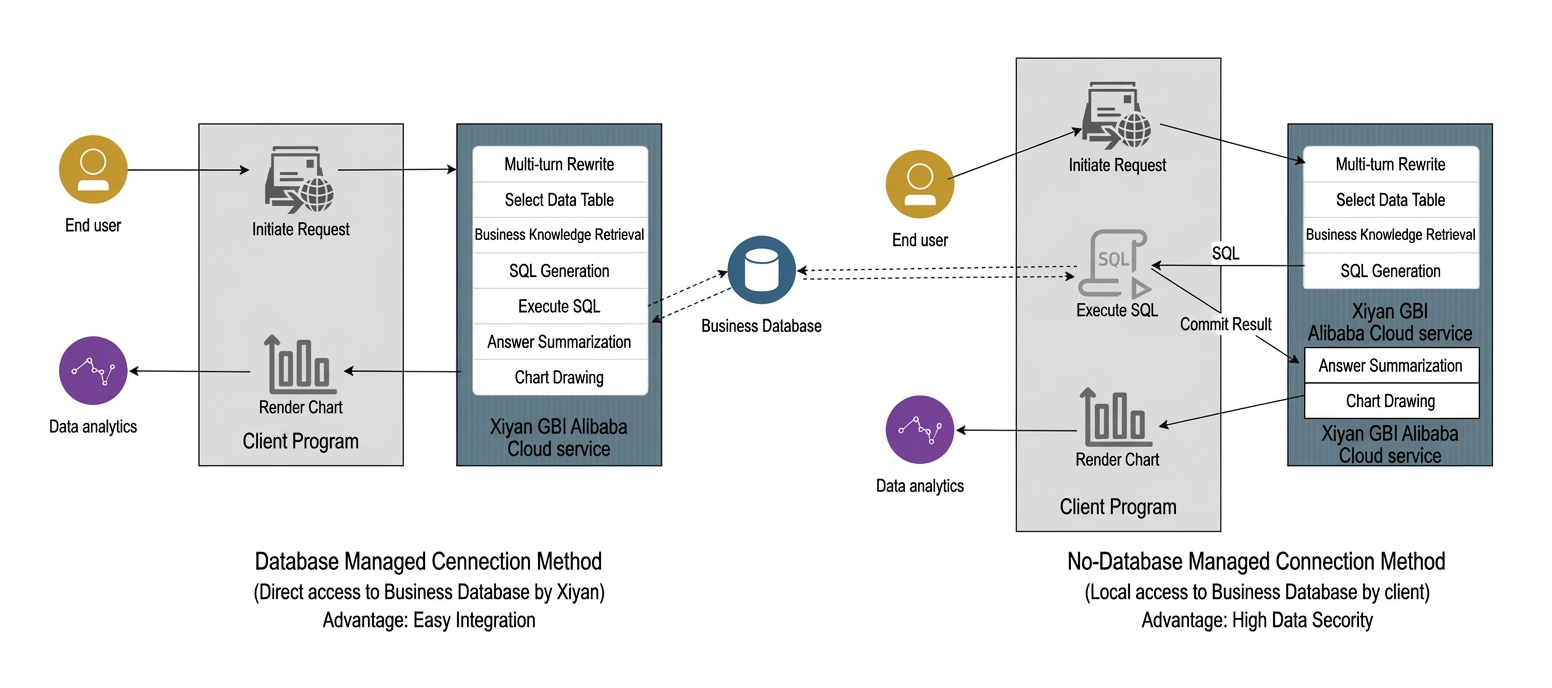
- The standard managed database connection method offers easy integration with the Xiyan GBI cloud service. You can simply authorize and associate your data source on the product page. Xiyan GBI can then directly access your business database to retrieve SQL query results.
- The unmanaged database connection method provides enhanced data security. However, it requires you to execute SQL statements and retrieve query results on your local client. The virtual data source is the Xiyan GBI solution that simplifies this process and reduces associated costs.
Introduction to the virtual data source solution
Xiyan GBI offers the virtual data source solution for users who cannot use a managed database connection because of data security concerns. You can use the Xiyan GBI SDK to create a virtual data source that mirrors the structure of your business database. Then, you can associate this virtual data source with a workspace in Xiyan GBI. This process lets you generate SQL queries without directly accessing your business database.
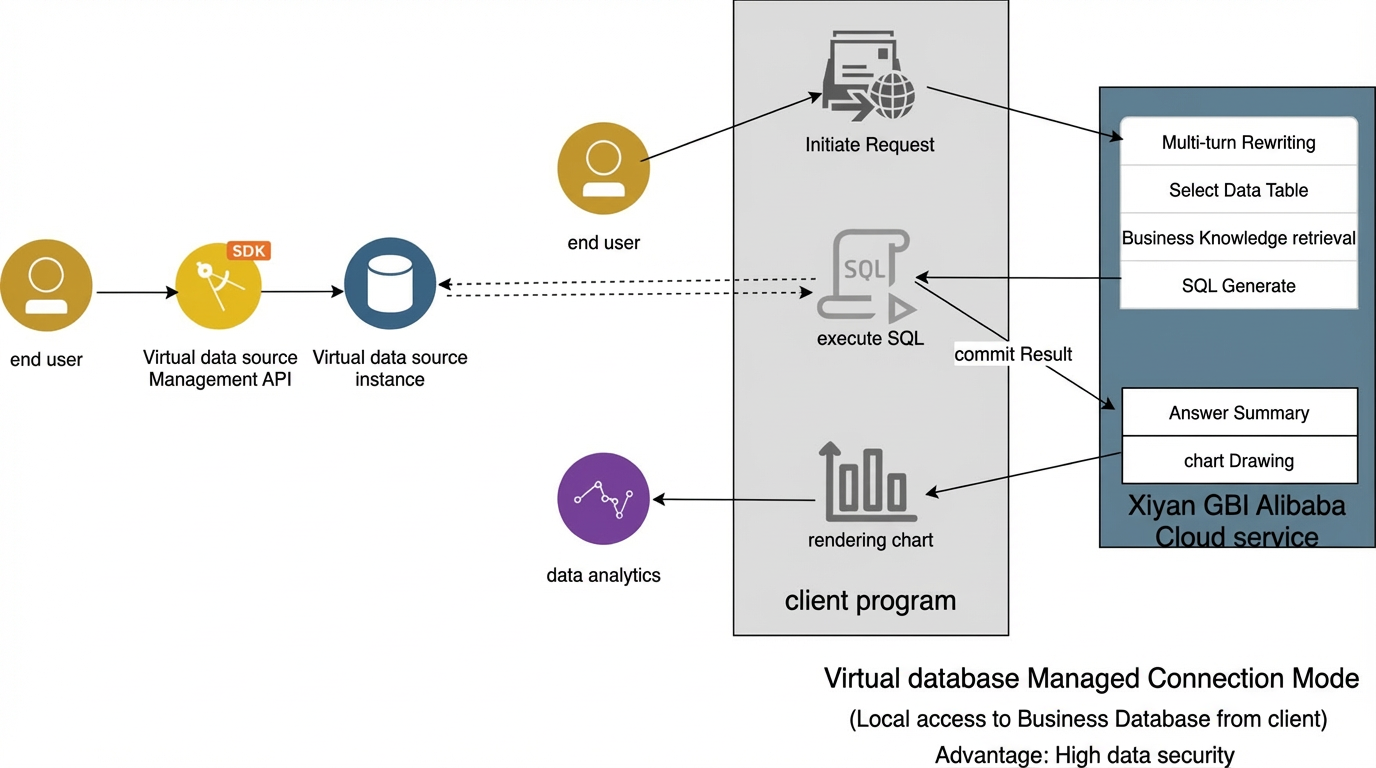
Create, associate, and authorize a virtual data source
Step 1: Create a virtual data source instance
Use the createVirtualDatasourceInstance API to create up to ten virtual data source instances per workspace. Each instance is an empty database instance, similar to an ApsaraDB RDS instance.
Step 2: View the list of virtual data source instances
Use the listVirtualDatasourceInstanceRequest API to view all virtual data source instances in the current workspace. This lets you obtain the unique identifier (vdbId) for each virtual data source.
Step 3: Add DDL statements to the virtual data source instance
Use the saveVirtualDatasourceDdl API to add DDL statements to a specified virtual data source instance (vdbId). The Xiyan GBI cloud service parses these DDL statements to generate and maintain structured information for the corresponding data tables and columns.
Step 4: Attach the virtual data source instance to your workspace
Use the createDatasourceAuthorization API to associate a specified virtual data source instance (vdbId) with a workspace.
Step 5: Select the required data tables in your virtual data source
Use the syncRemoteTables API to synchronize information about specified data tables with the Xiyan GBI cloud service. Subsequent intelligent Q&A and SQL generation operations will be based on the data tables you select.
Code example for using a virtual data source instance
This code example uses the Xiyan GBI SDK to demonstrate an end-to-end scenario that includes creating, associating, and authorizing a virtual data source. This example is designed to help you become familiar with the API. Before you run the code, replace the accessKeyId, accessKeySecret, and workspaceId placeholders with your actual values.
The following code example demonstrates how to manage a virtual data source instance, including operations such as creating, modifying, deleting, and viewing the instance. The example also shows how to authorize and associate the instance with a workspace and link specific tables from the instance to Xiyan GBI.