

This topic describes how to use the Xiyan GBI API to implement an intelligent data Q&A feature in the DingTalk client. This guide shows you how to use the Xiyan GBI API and apply it to common clients in your projects.
Prerequisites
- You have activated the Alibaba Cloud Model Studio service.
- You have obtained a Workspace ID.
- You have obtained an AccessKey ID and AccessKey secret.
- You have authorized a database connection in Data Table Management of Xiyan GBI. For more information, see Database connection.
- You have registered a DingTalk enterprise.
- You have registered as a DingTalk developer.
Step 1: Create a DingTalk application
- Log on to the DingTalk Open Platform console.
-
Create an internal enterprise application.
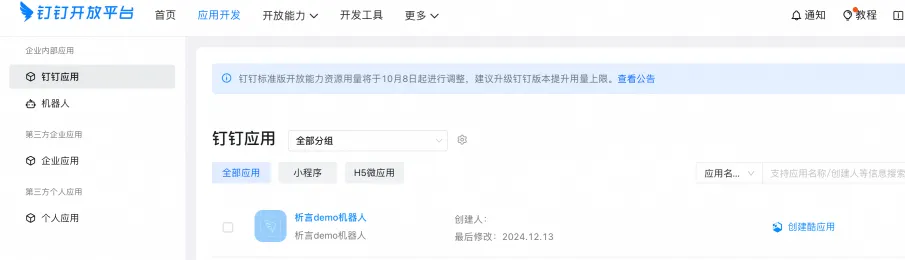
- Under Application Features, add a Robot.
-
Set Message Receiving Mode for the robot to Stream Mode.
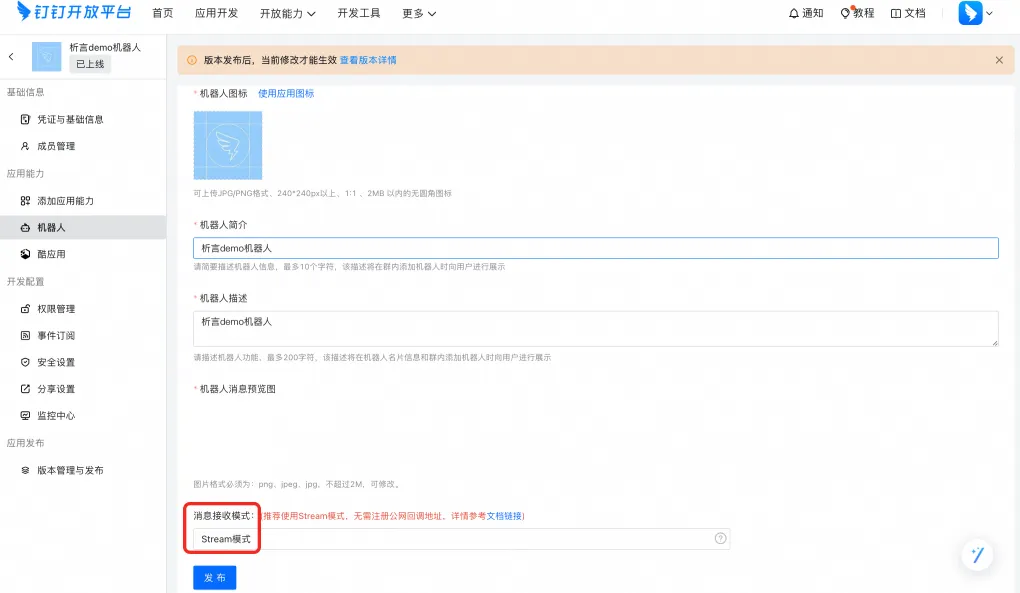
-
Enable the following permissions: Basic Permissions to Call Server-side APIs, Permission to Send Messages from Internal Bots, Write Permission for Interactive Card Instances, and Stream Update Permission for AI Cards.
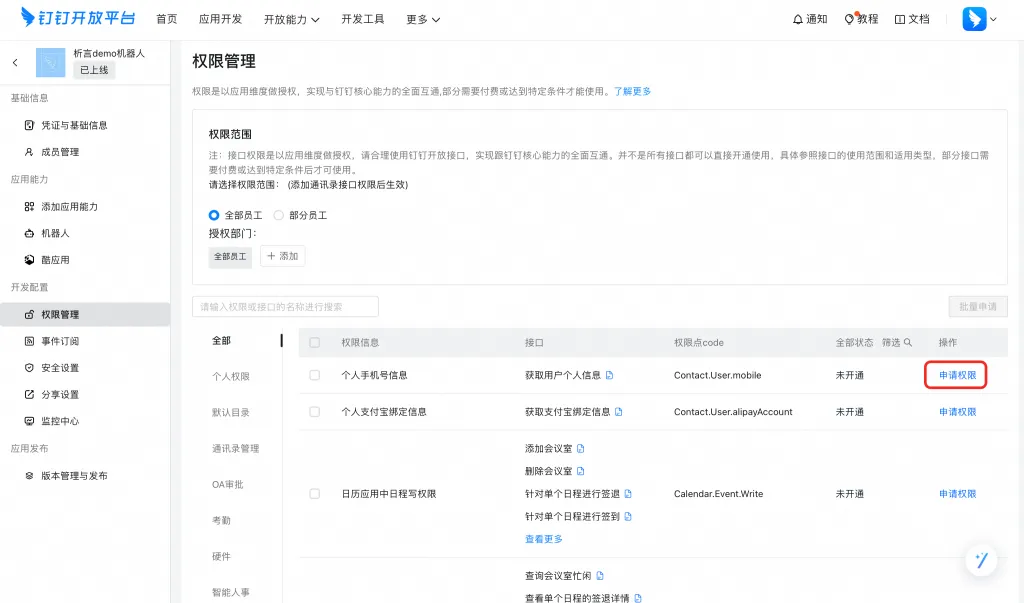
-
Set the Push Method under Event Subscriptions to Stream Mode Push. Save the settings and complete the access verification.
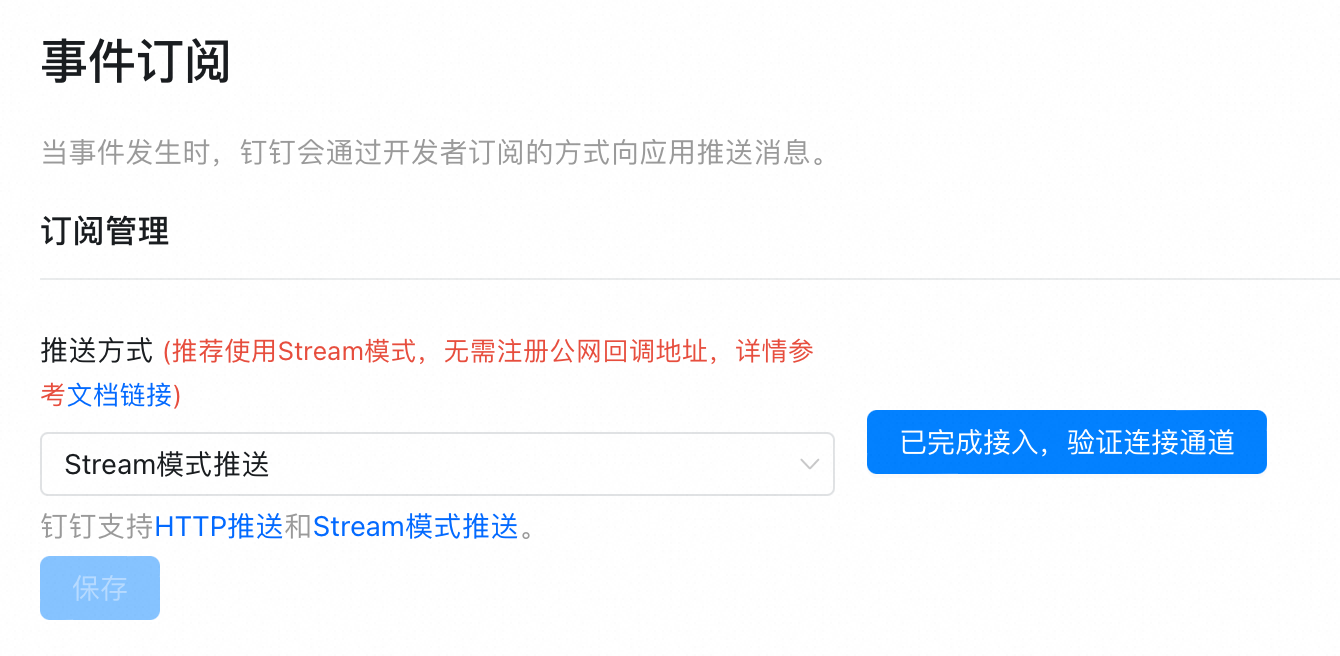
-
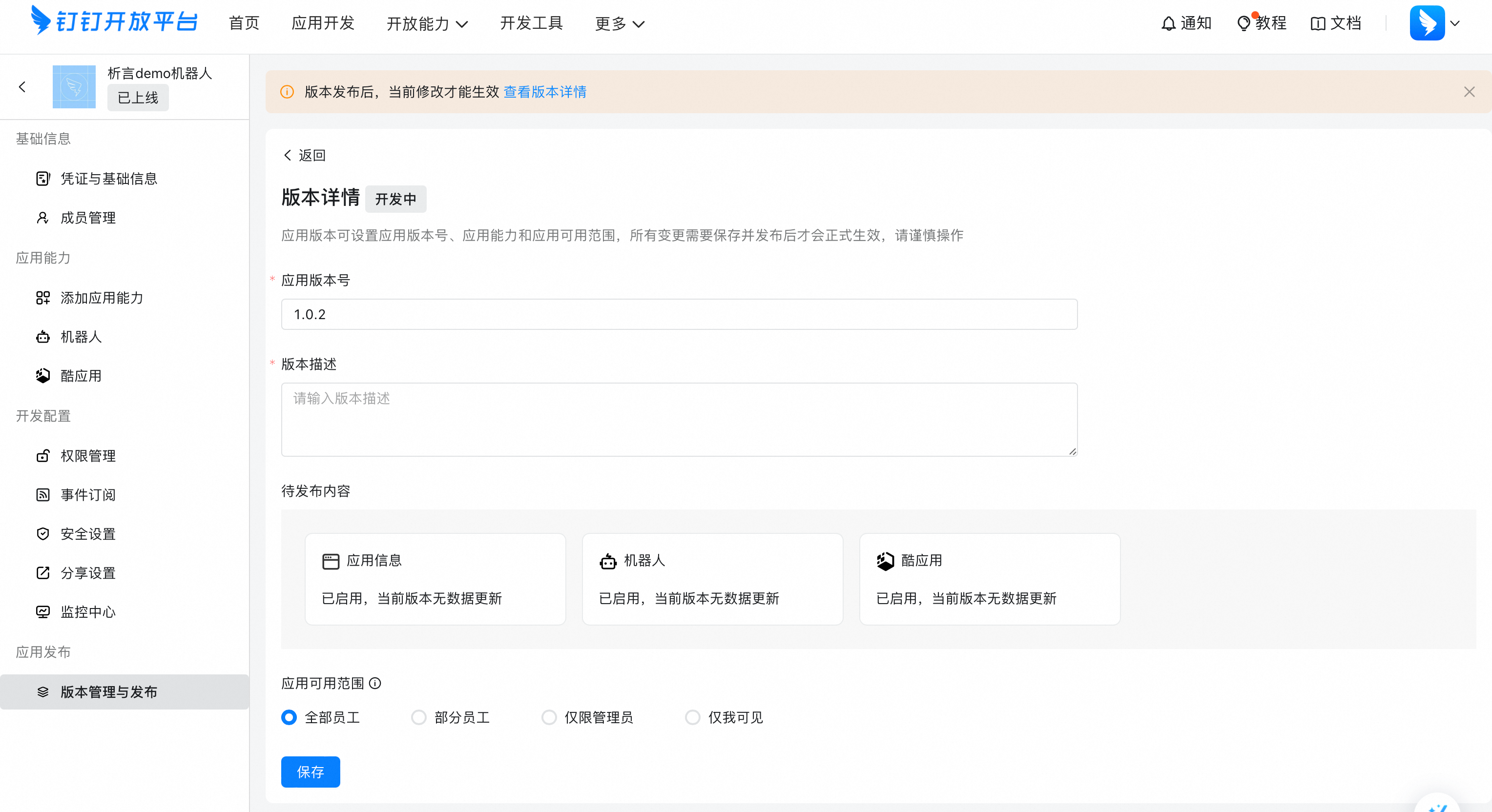
Go to Version Management and Release and click Publish Application. Create and publish a new version.
Step 2: Create a card template
- Log on to the DingTalk Card Platform.
-
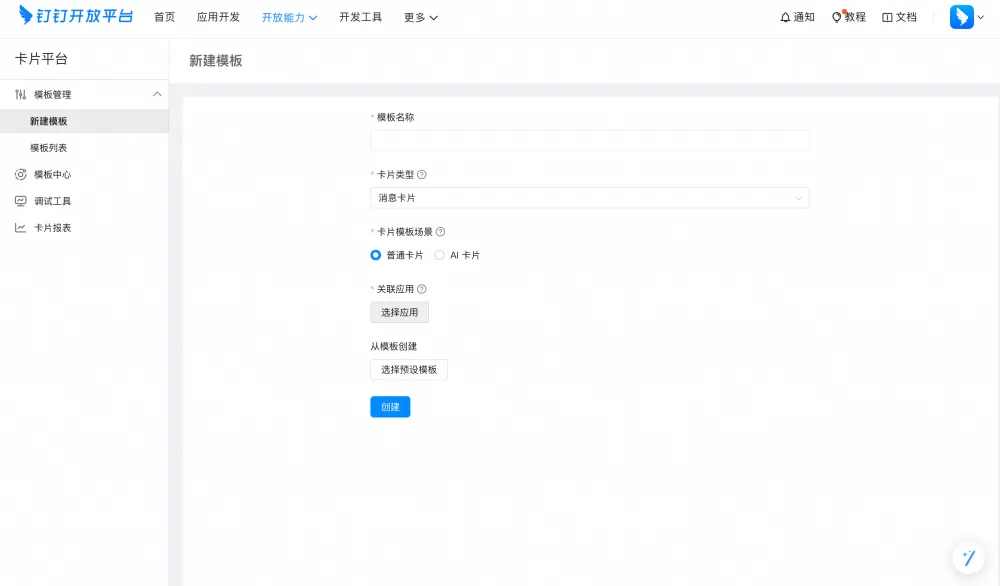
Click Template Management > Create Template.
-
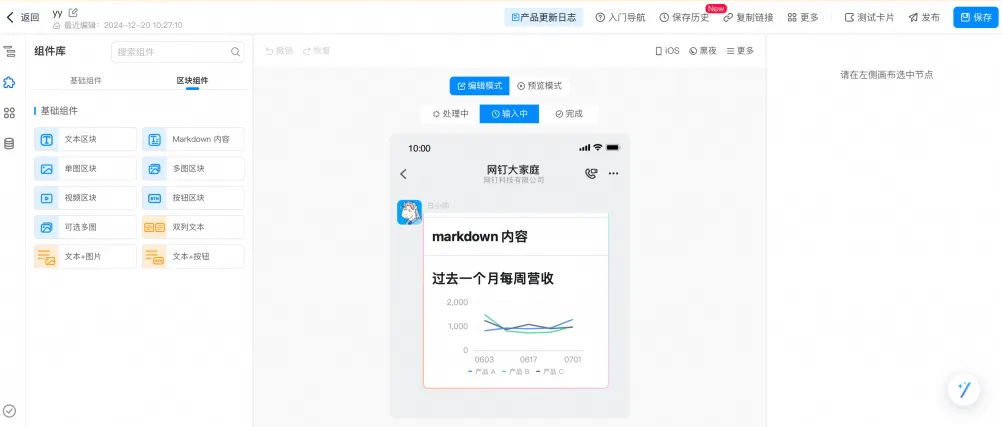
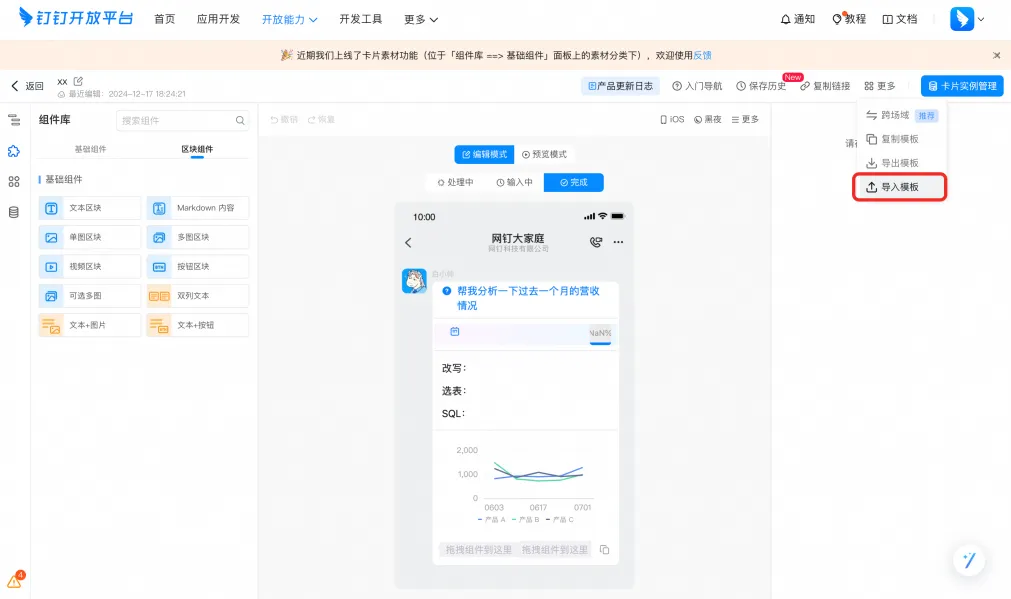
Click Import Template. Import the template file and save it.
Step 3: Develop the DingTalk robot backend application
This step describes how to use Java to integrate the DingTalk backend robot, the Xiyan Q&A service software development kit (SDK), and DingTalk cards.
-
Two methods are available to obtain the project code.
- Refer to the official DingTalk file and modify the code as needed.
- Use the test file provided by Xiyan.
-
If you use the test file provided by Xiyan, replace the
client-idandclient-secretparameters in thePropertiesfile, and thetemplateIdparameter in the code.
- Obtain the
client-idandclient-secretfrom the Credentials and Basic Information page of the application that you created in Step 1: Create a DingTalk application.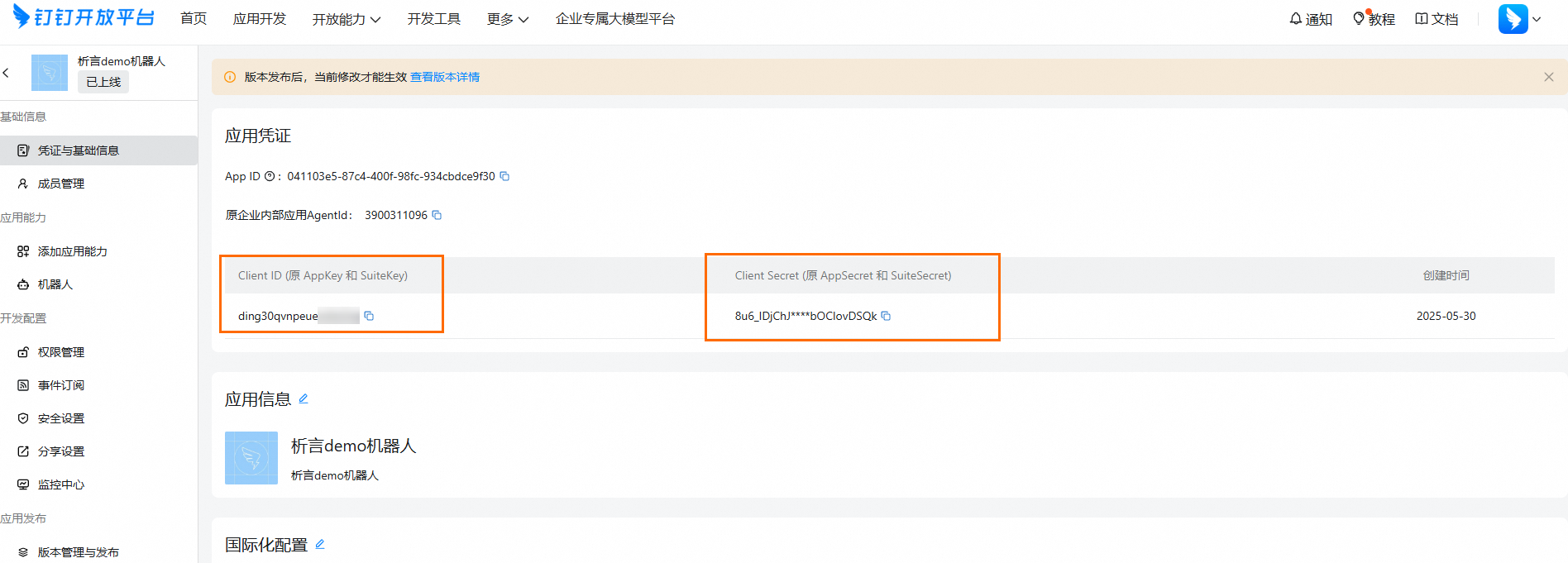
- Obtain the
templateIdfrom the Template List page, as described in Step 2: Create a card template.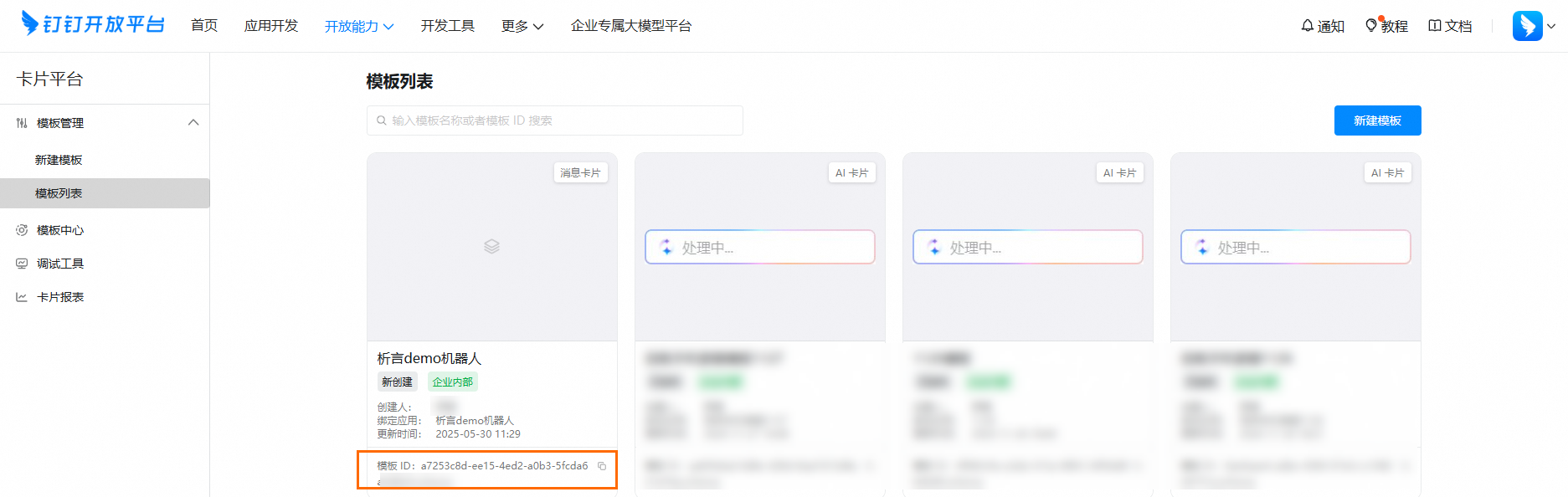
- Run the Java project. Verify that the application initialization and network connectivity are normal.
Step 4: Verify the result
- Log on to the DingTalk app and mention
@botin the message box to ask a question. Then, check the Java application log to confirm that an event notification was received.
- You can view the card rendering in the DingTalk app chat window.