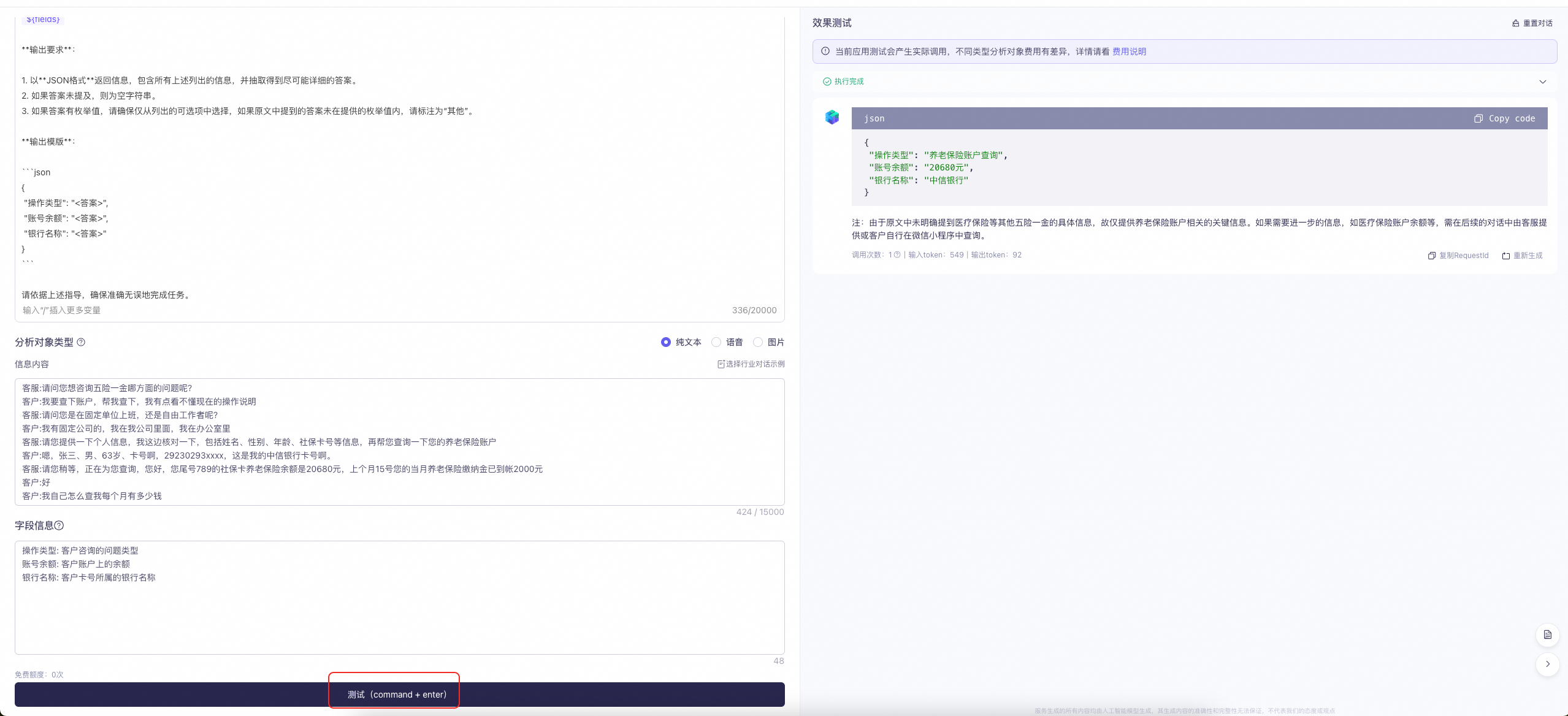
This topic describes how to create an application using a custom method.
Create an Application
-
Step 1: Click My Applications, and then click Create Application.

-
Step 2: In the Create Application dialog box, enter an application name and select an application creation method. Click OK. The application test interface appears.
- Application Name: Enter a name for your application.
-
Application Creation Method:
- Custom Creation: Select this option to build application logic by writing custom instructions (Prompts). You can test your application using built-in or custom instruction templates. This option is recommended for experienced users.

- Custom Creation: Select this option to build application logic by writing custom instructions (Prompts). You can test your application using built-in or custom instruction templates. This option is recommended for experienced users.
Configure the Application
After you create an application, you must configure it. 
- Model Configuration: The Tongyi Xiaomi Plus and Turbo models support only speech and text analysis. When the input is an image, the system automatically uses the Tongyi Xiaomi VL model. You cannot manually select this model.
-
Instruction Information: Define tasks, output formats, and other requirements by writing instructions.
- Variable Configuration: You can add variables that you want to reference during conversations. In the instruction editor, type
/to trigger auto-completion. You can then select a variable to insert its reference.
- Select an Instruction Template: You can choose from official preset templates. Five types are available: Summary, Information Extraction, Service Quality Inspection, Tag Categorization, and Multi-Instruction Tasks. You can also use custom instruction templates or modify official preset templates.

- Save an Instruction Template: After you write instruction information or customize a system industry example, click Save Instruction Template. You can choose to save it as a new template or overwrite an existing one. You can view the saved templates in Instruction Template Management. To overwrite an existing template, select a target template name from the drop-down list.

- Instruction Optimization: You can use AI to optimize your instruction information.
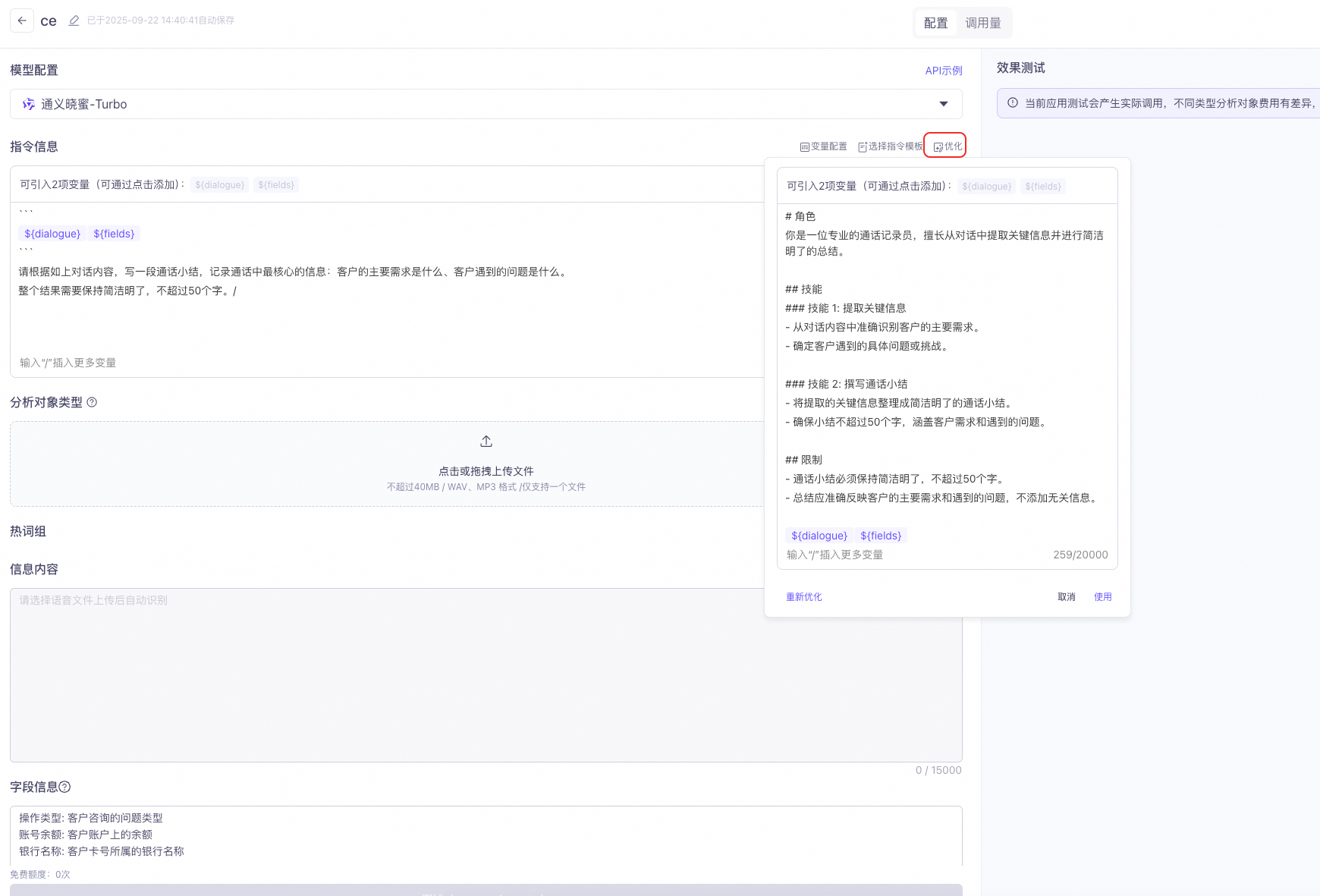
- Variable Configuration: You can add variables that you want to reference during conversations. In the instruction editor, type
-
Analysis object type
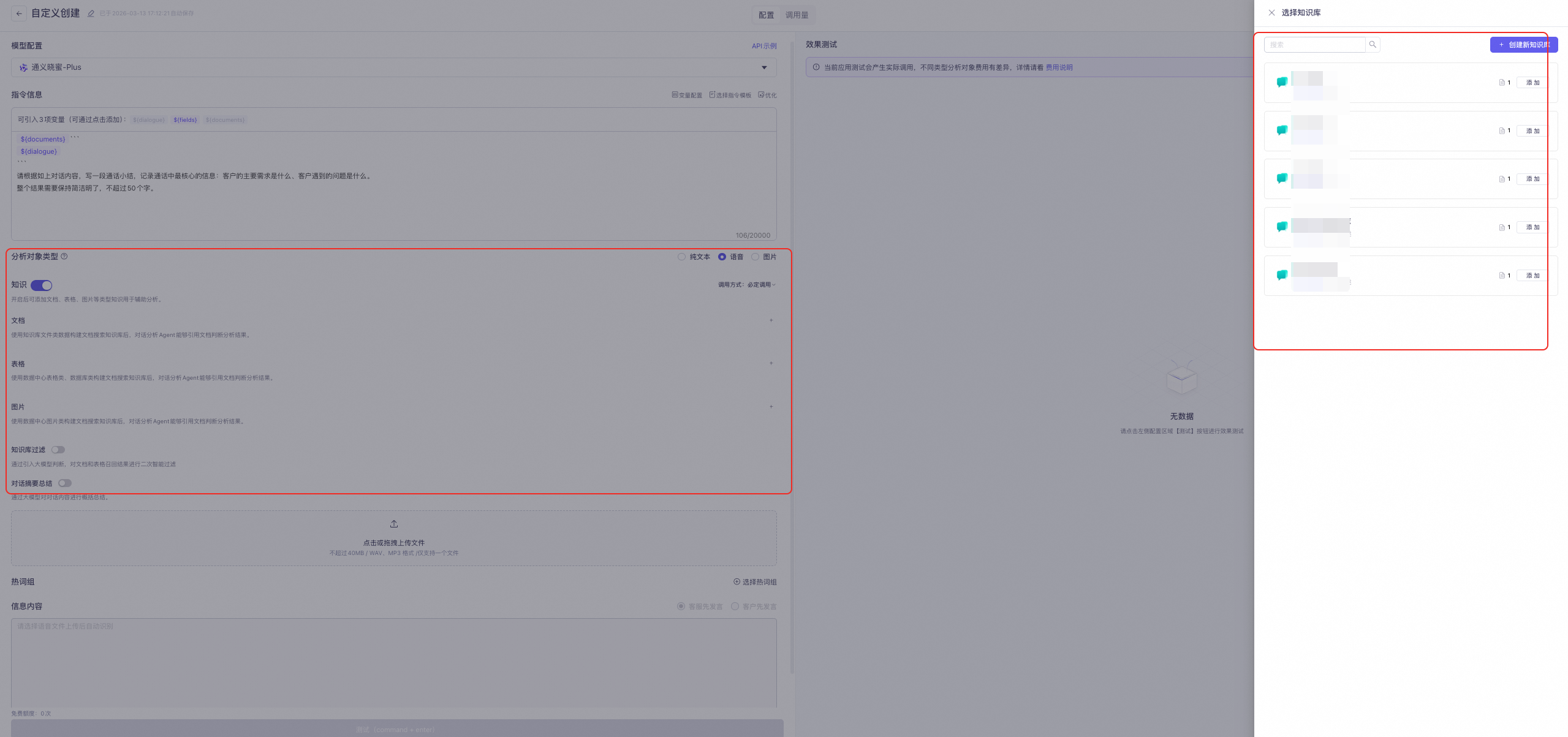
You can analyze plain text, speech, or images. You can also add a knowledge base to provide additional context for the analysis. Adding hotword groups improves speech-to-text accuracy.
-
Knowledge Base: You can enable this option to upload documents, tables, or images to support the analysis. The knowledge base is unavailable when the input type is an image. For more information, see Using a Knowledge Base.
-
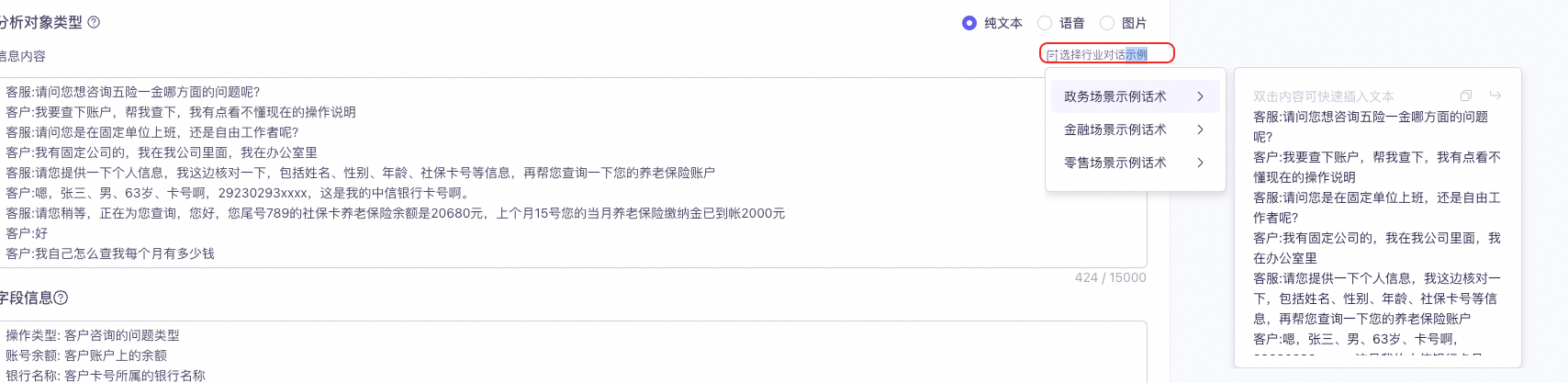
When You Select Plain Text: You must format the conversation content as shown in the following example. You can also use industry-specific conversation examples.
Customer: xxx
Agent: xxx
Customer: xxx
Agent: xxx
-
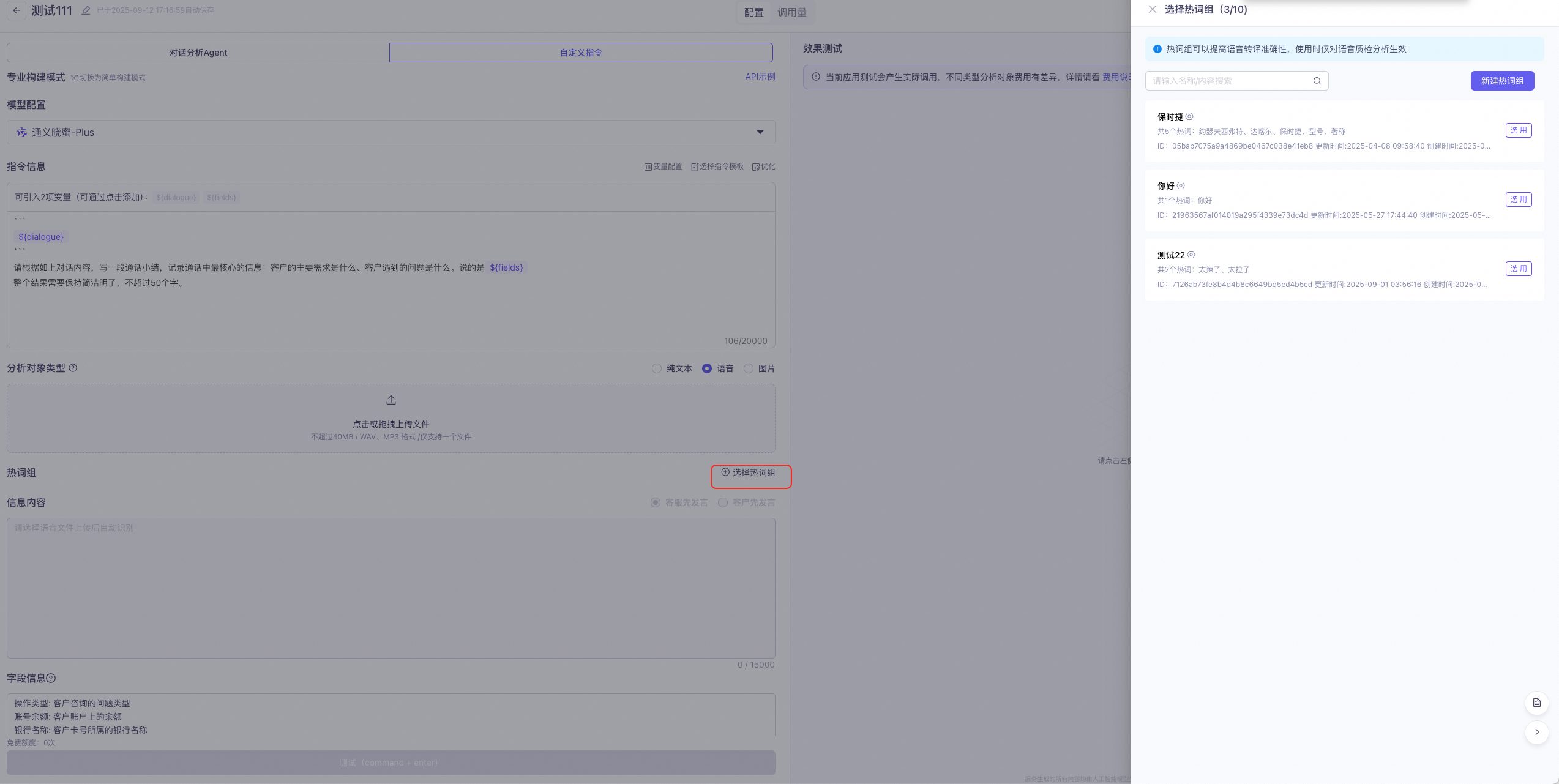
When You Select Speech: You can upload a WAV or MP3 file that is no larger than 40 MB. You can add or create a hotword group to improve speech-to-text accuracy. After the file is uploaded, the system automatically transcribes the speech. You can set whether the customer or the agent speaks first.
-
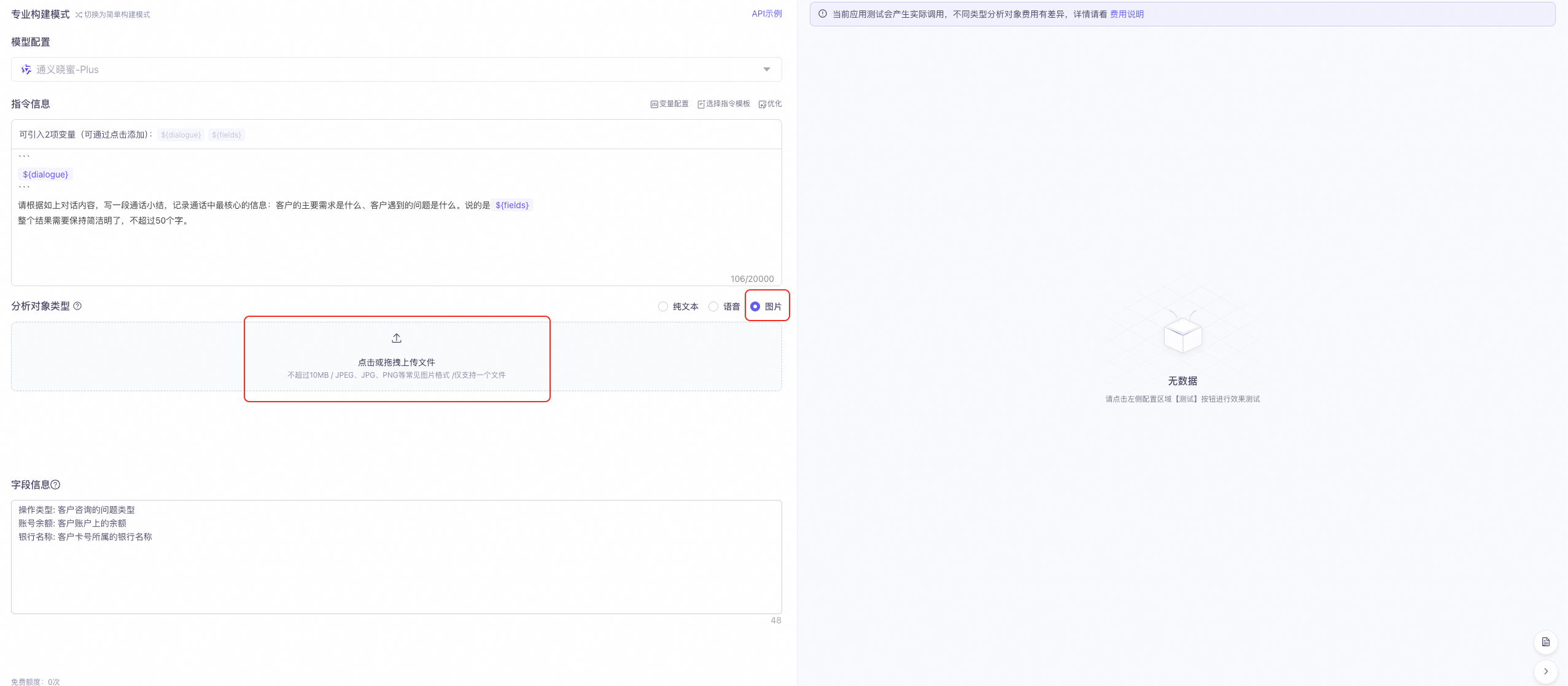
When You Select Image Analysis: You can upload a JPEG, JPG, or PNG image that is no larger than 10 MB. After the image is uploaded, you can use instructions to detect and analyze it.
-
Knowledge Base: You can enable this option to upload documents, tables, or images to support the analysis. The knowledge base is unavailable when the input type is an image. For more information, see Using a Knowledge Base.
-
Source Table Columns: To extract fields from the conversation content, you can use the Information Extraction preset template or the Multi-Instruction Template. You must also include the
${fields}variable and define the column names and descriptions. Format: Column name: Column description.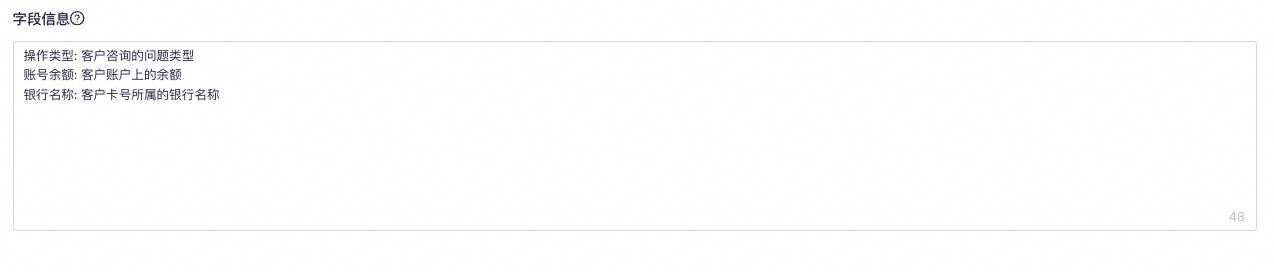
-
Click the Test button to view the test results.