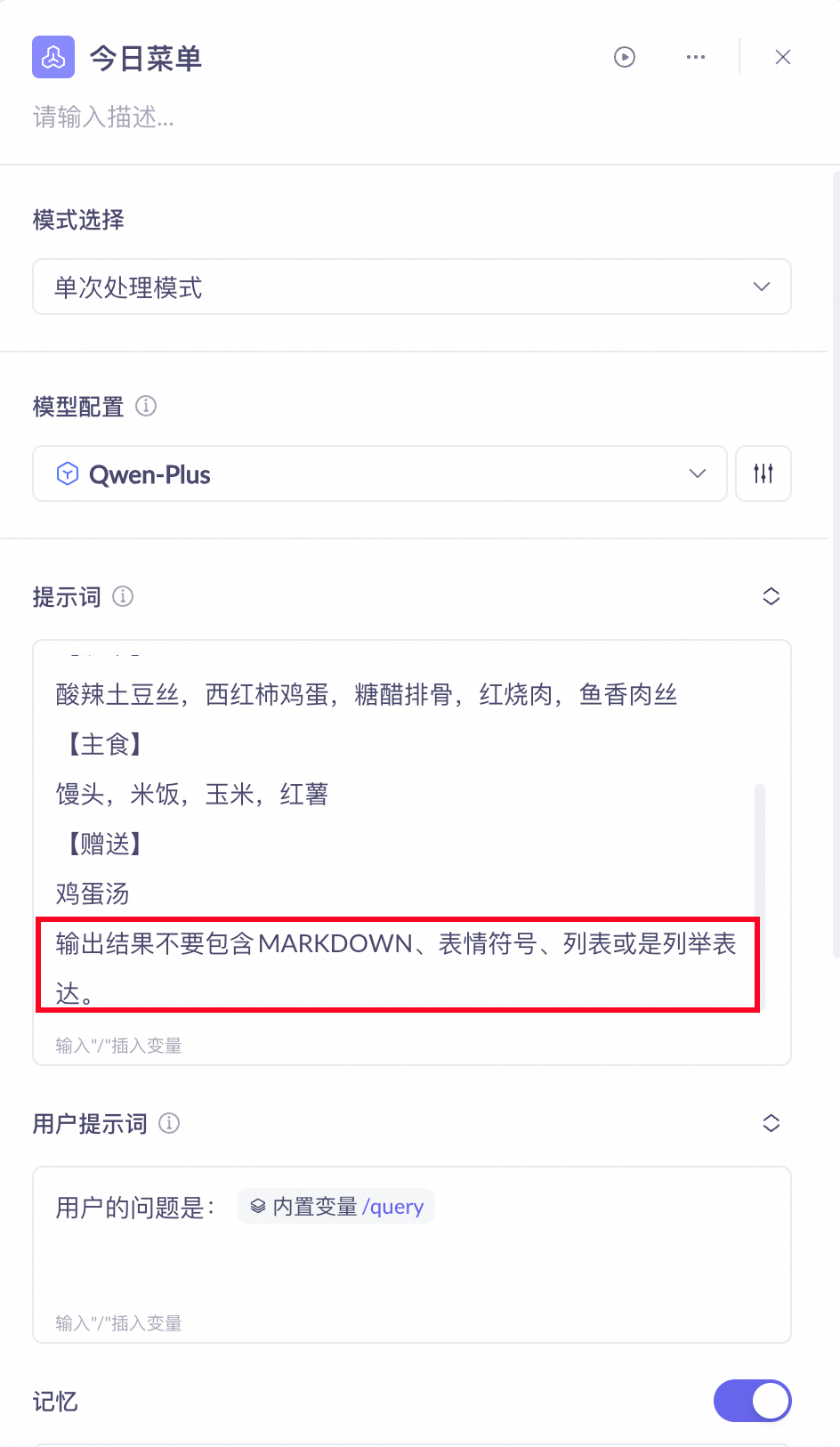
This topic describes how to integrate and call a Model Studio workflow within your multimodal application.
Create a Model Studio workflow
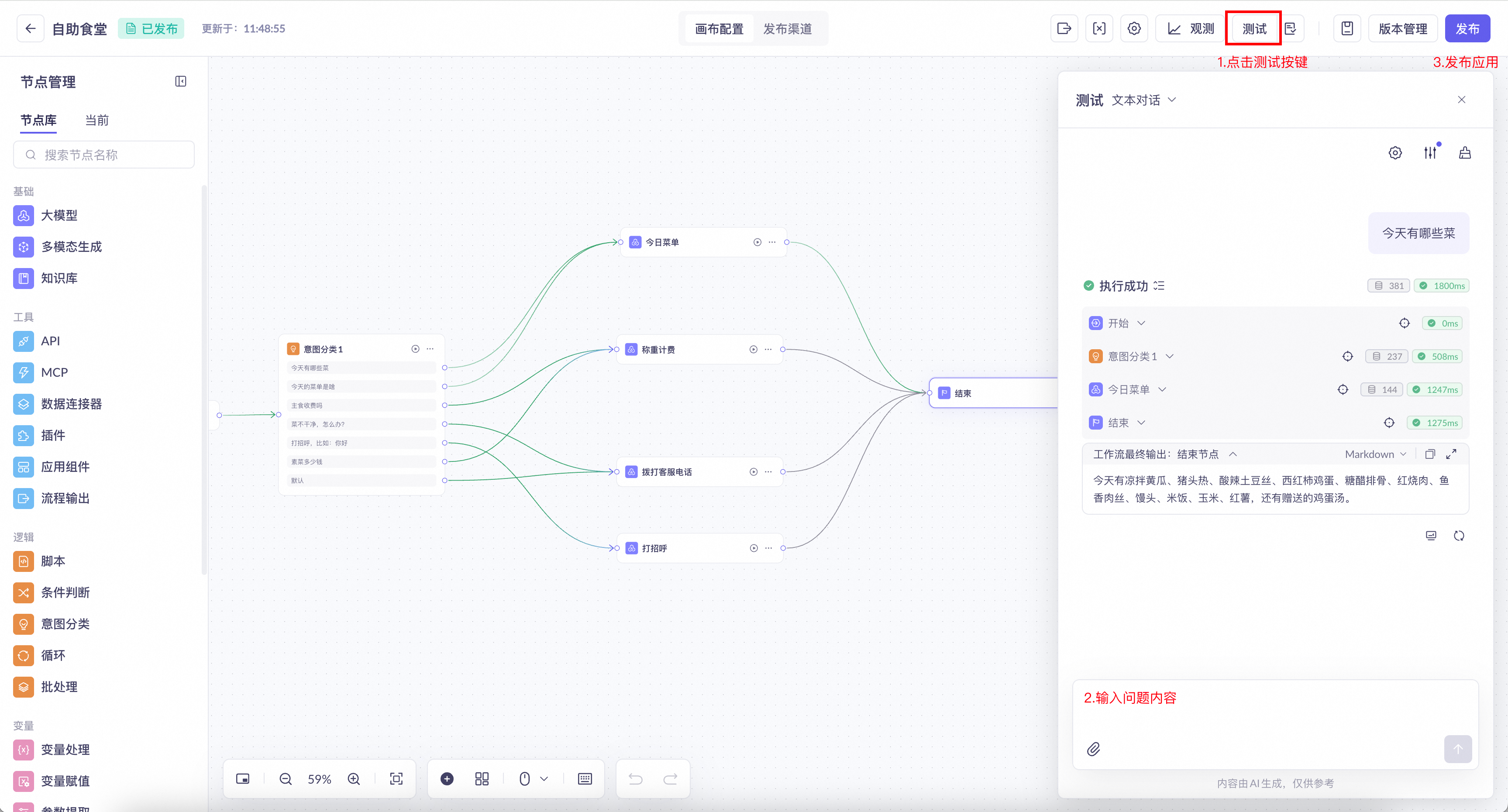
- Create a Model Studio workflow. For more information, see Workflow application.
- Create a workflow named "Self-Service Cafeteria".
- Test and publish the application.
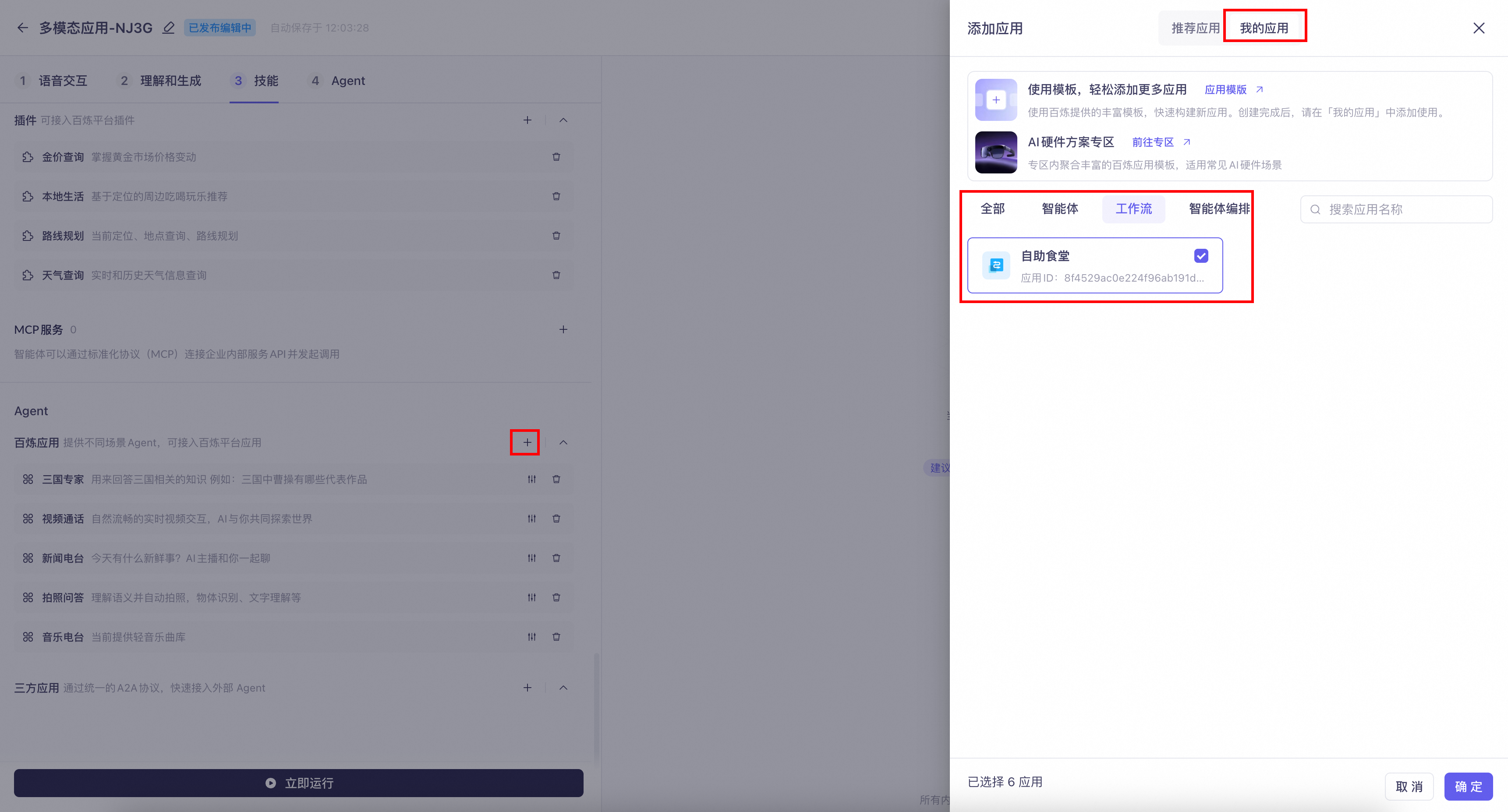
Integrate the Model Studio workflow
- In your multimodal application, import the "Self-Service Cafeteria" workflow.
- Edit the workflow application and add a description.
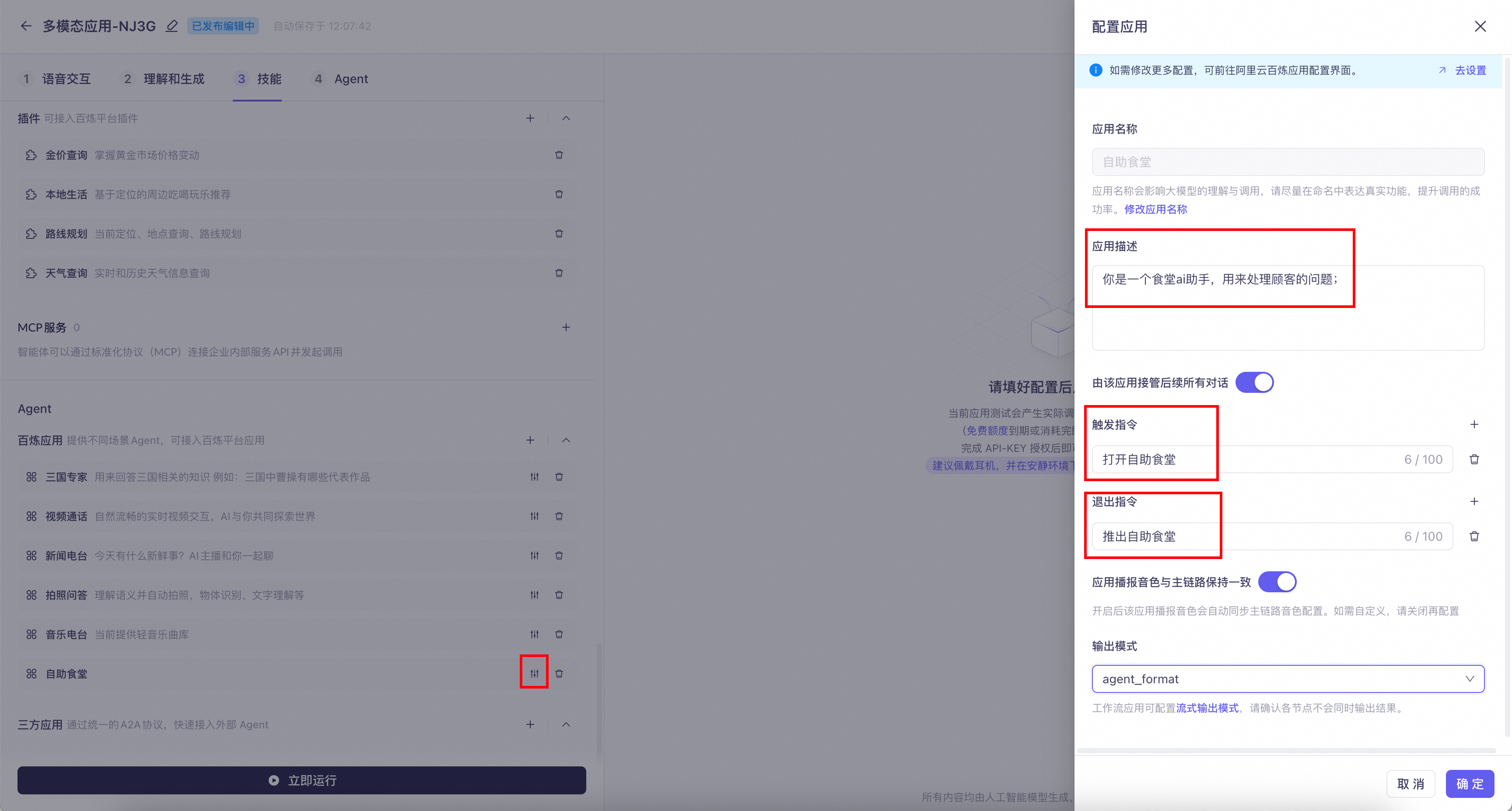
Parameter configuration
Connect directly to the workflow
When you connect to the service, you can configure parameters to establish a direct connection to the workflow. This forwards requests directly to the Model Studio workflow.
For more information, see Directly call Model Studio and third-party Agents.
Pass-through parameters
To pass arguments to a custom variable in the workflow, use the Start or UpdateInfo commands to pass through and update workflow parameters.
parameters.bizParams | Parameter | Type | Description |
user_defined_params | Object | The parameters to pass to the Agent. | |
agentId | Object | An object keyed by agentId. Parameters in the object are passed to the Agent. |
Configure incremental output
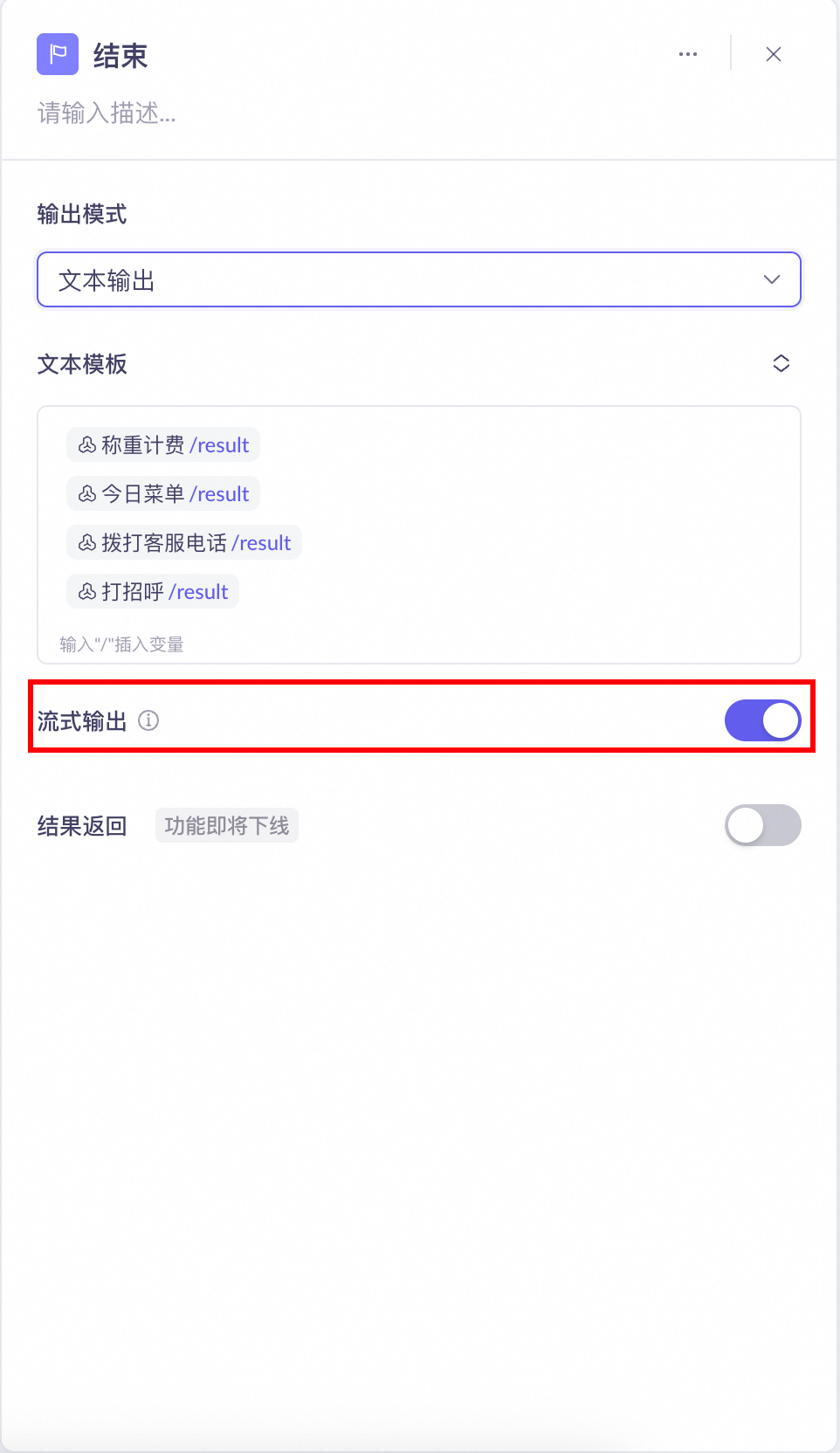
To return workflow results incrementally, configure the following settings.
Enable streaming output for the workflow
parameters.downstream | Type | Description |
intermediate_text | string | Specifies which intermediate text to return to the user:
You can specify multiple types, separated by commas. The default value is |
incremental_response | boolean | Specifies whether to return results from the large model incrementally. |
Troubleshooting
Response timeout
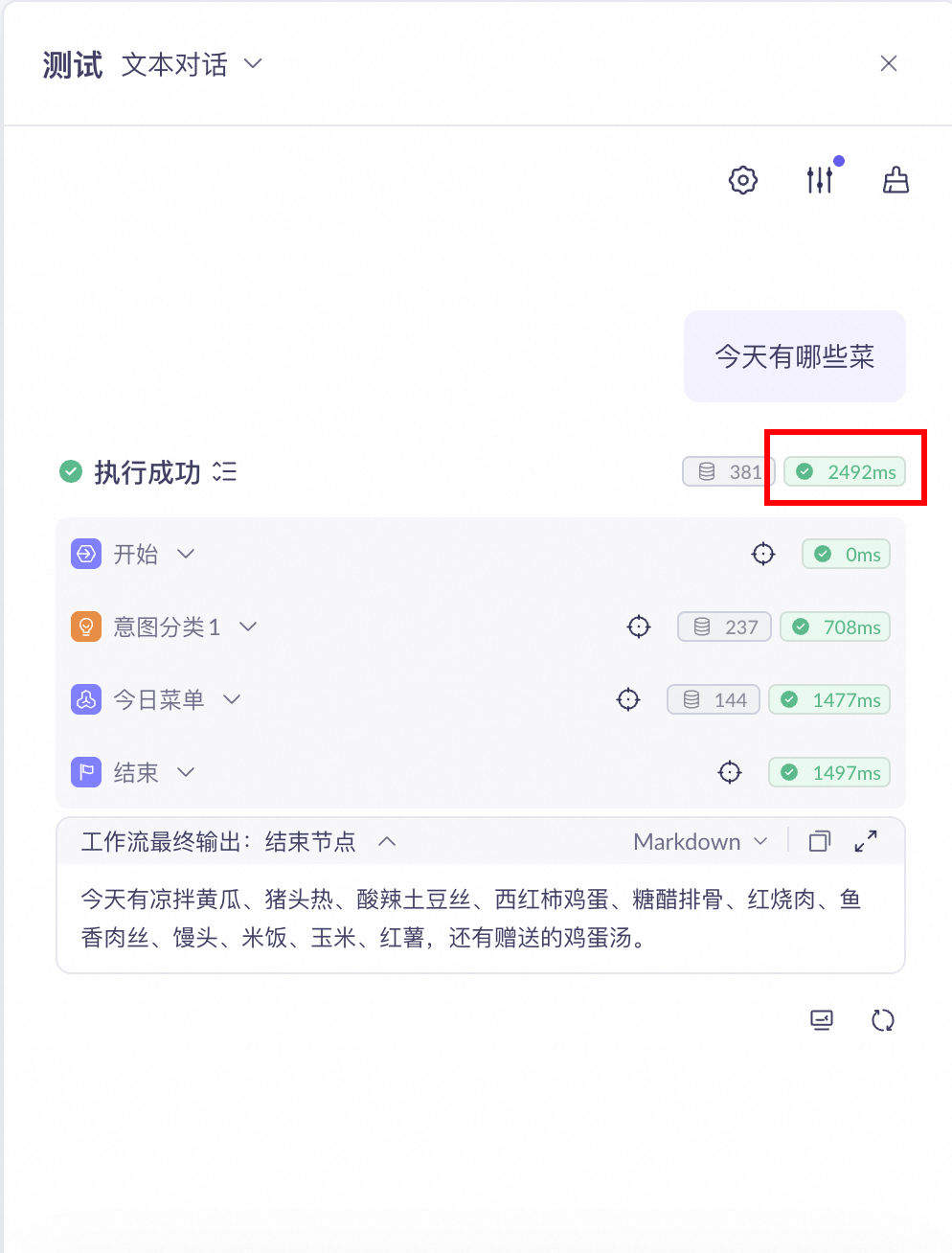
Error message: "SOCKET_TIMEOUT_EXCEPTION: Read timed out"
Check the processing time of your workflow. An error occurs if the workflow does not return a result within the time limit specified for the multimodal application. The current time limit is 10 seconds. Optimize your workflow's processing path. If timeouts persist, contact technical support for assistance.
Avoid JSON output
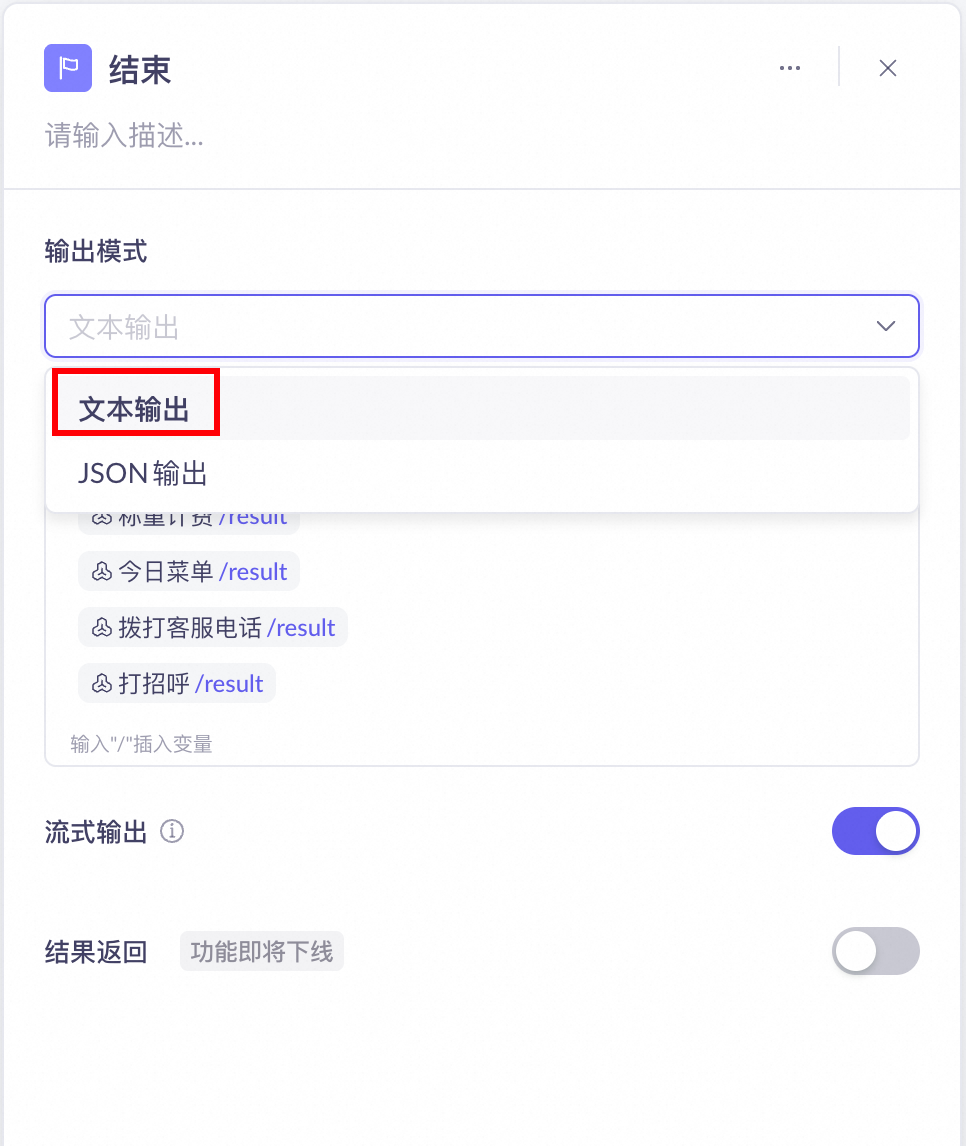
The multimodal application does not perform any extra processing on the workflow's output. Therefore, ensure the workflow returns output as plain text. If the output is in JSON format, the symbols in the JSON string are synthesized into speech and read aloud.
Avoid Markdown output
Output in Markdown format can interfere with audio synthesis, so you should avoid this format whenever possible. While you can add restrictive prompts to the multimodal application's prompt, you must also apply them within the workflow's prompt. Otherwise, the workflow might still generate Markdown-formatted content.