

Edit images with text instructions using Wan models. Supports multi-image input/output, image fusion, subject preservation, and object detection.
Getting started
Generate an edited image from two input images and a text prompt with wan2.7-image-pro.
Prompt: Spray the graffiti from image 2 onto the car in image 1
Input image 1 | Input image 2 | Output image (wan2.7-image-pro) |
|---|---|---|
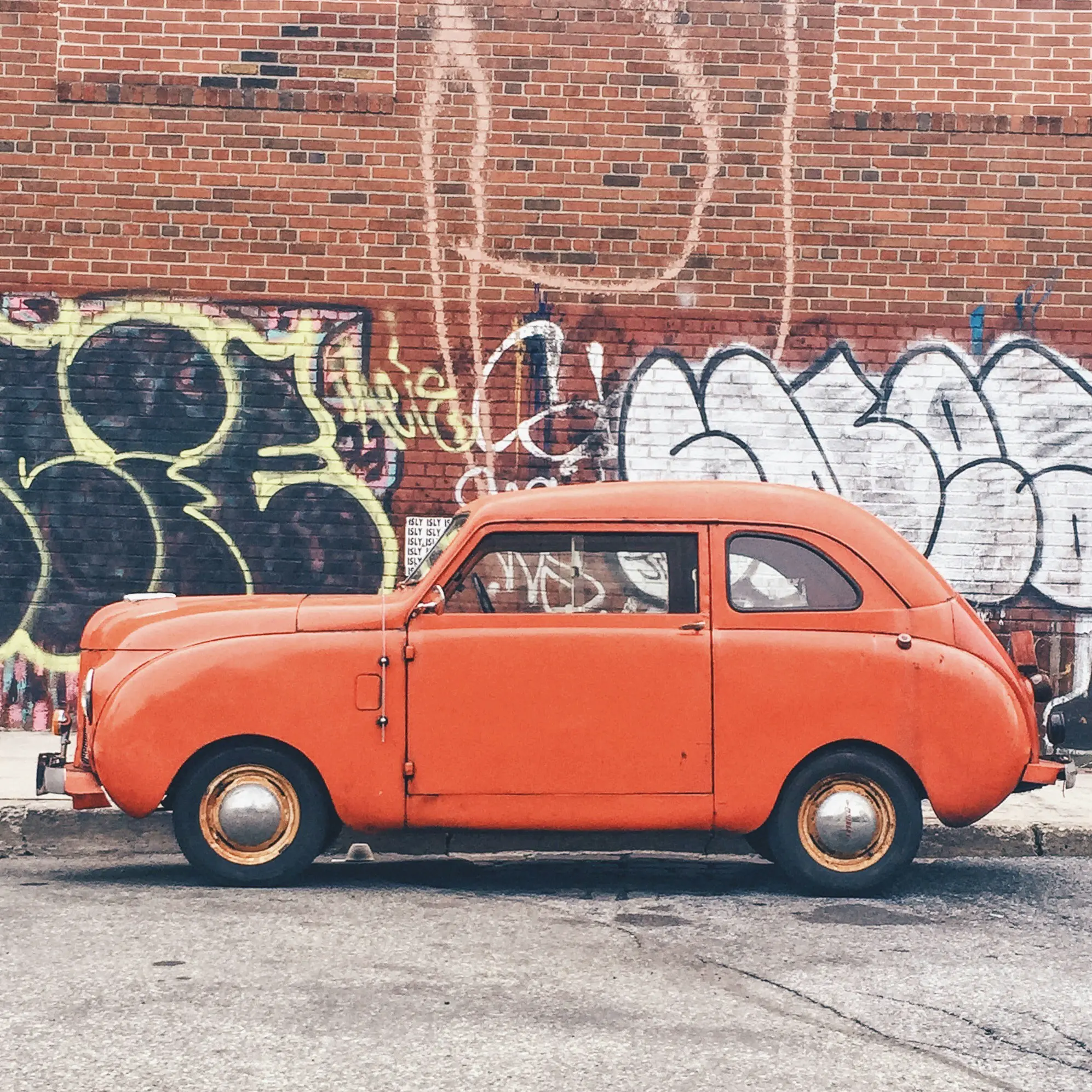 | 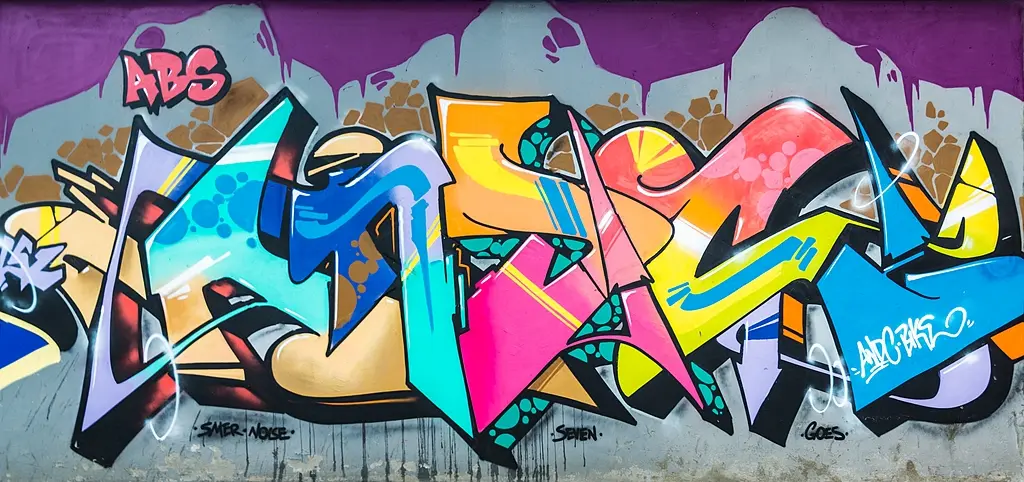 | 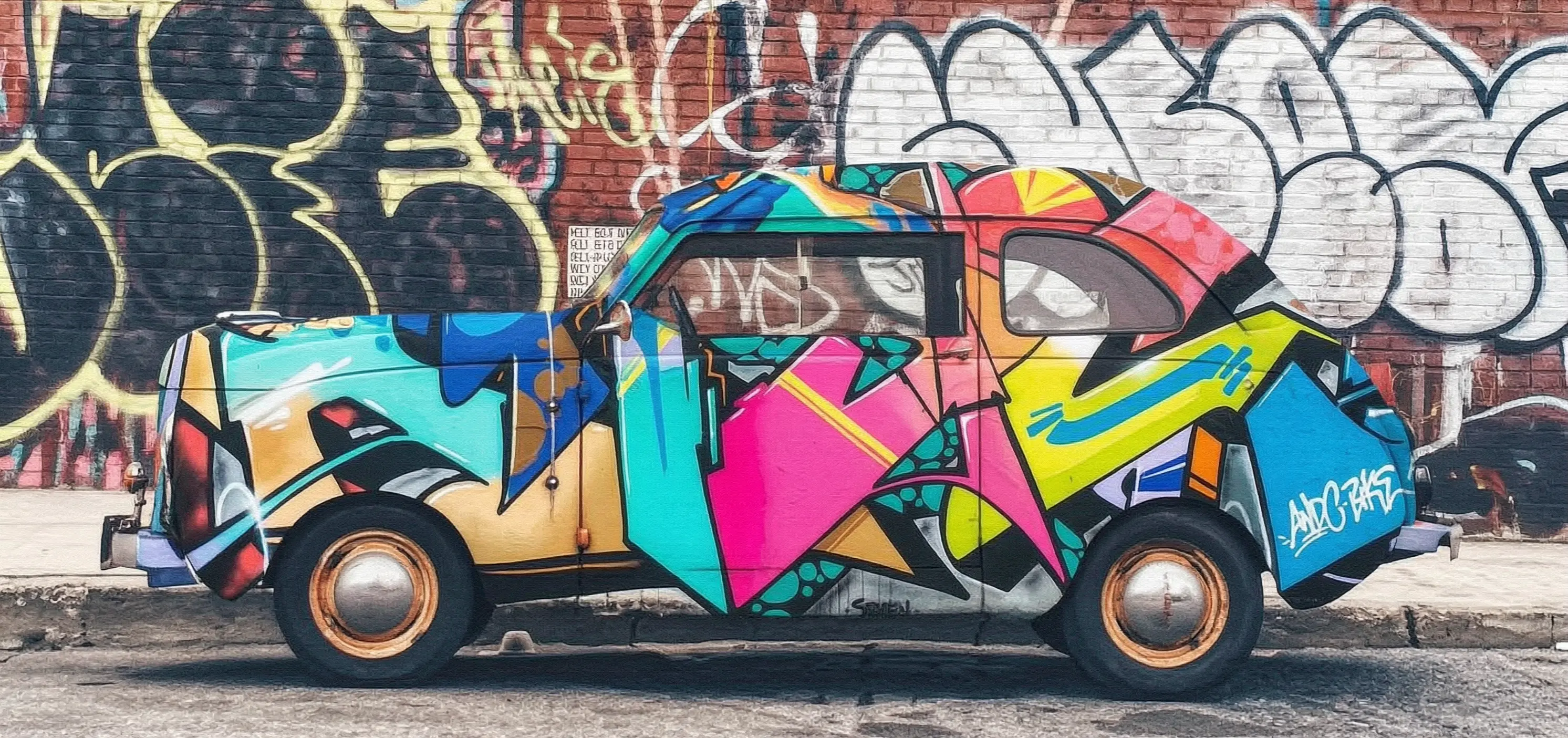 |
- Synchronous call
- Asynchronous call
- Python
- Java
- curl
Sample request
Sample response
The URL is valid for 24 hours. Download the image promptly.
Click to view the wan2.5-i2i-preview calling examples
Click to view the wan2.5-i2i-preview calling examples
- Synchronous call
- Asynchronous call
- Python
- Java
Sample request
Response example
The URL is valid for 24 hours. Download the image promptly.
Model selection
-
wan2.7-image-pro, wan2.7-image (recommended): suitable for scenarios that require high editing precision or generating multiple images with coherent content.
- Precise local editing: select a specific area in the image and move, replace, or add new elements to the objects in that area; suitable for e-commerce photo retouching and design draft adjustments
- Multi-frame sequential image generation: outputs multiple images with a consistent style at once; suitable for comic storyboards, product series images, and sequential story illustrations
- wan2.6-image: suitable for stylized editing scenarios with mixed text and images or multiple reference images; it can generate corresponding text content when generating images, and supports up to 4 reference images as input.
- wan2.5-i2i-preview: suitable for simple image editing and multi-image fusion.
Showcase
Image-to-image set
Input image | Output image |
|---|---|
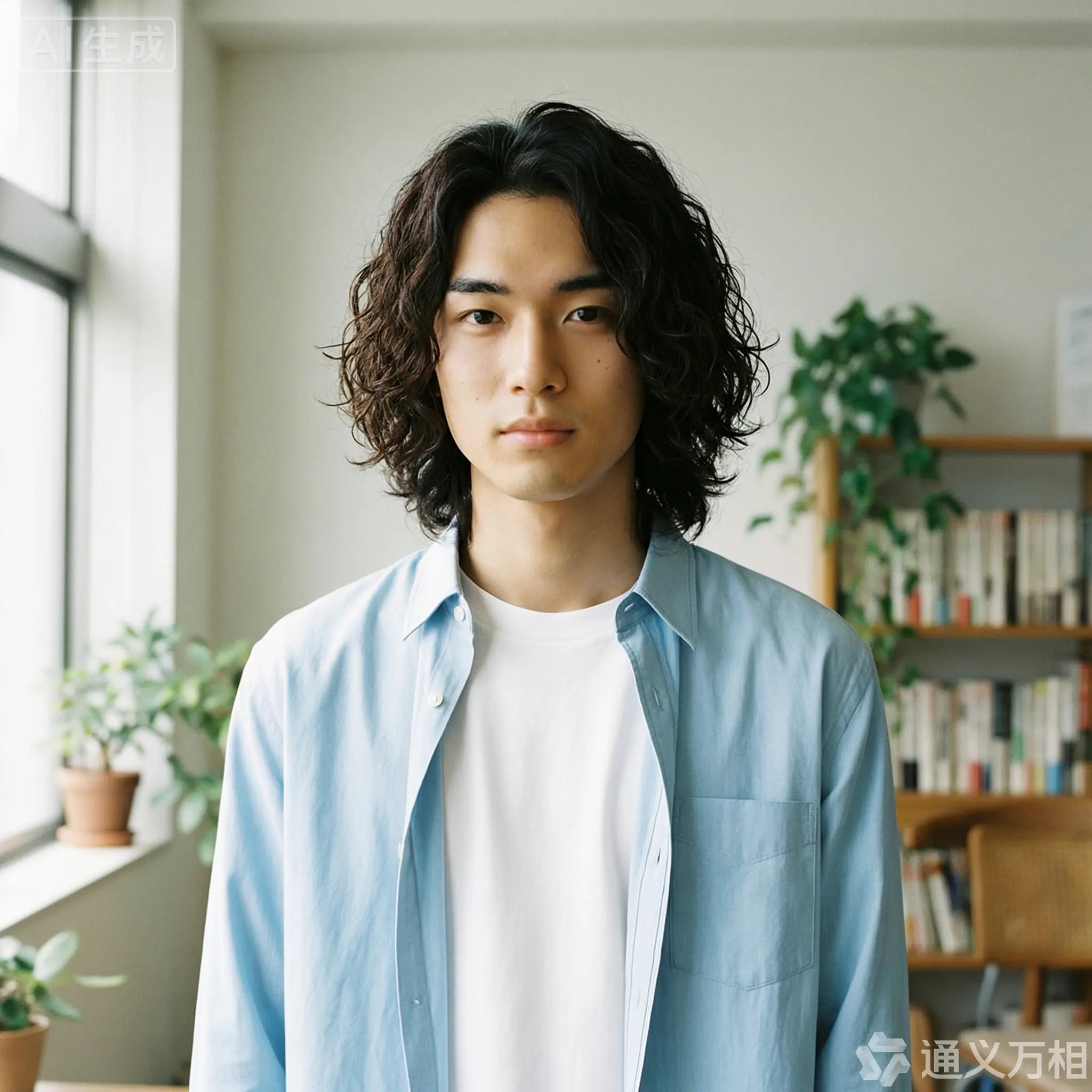 |  |
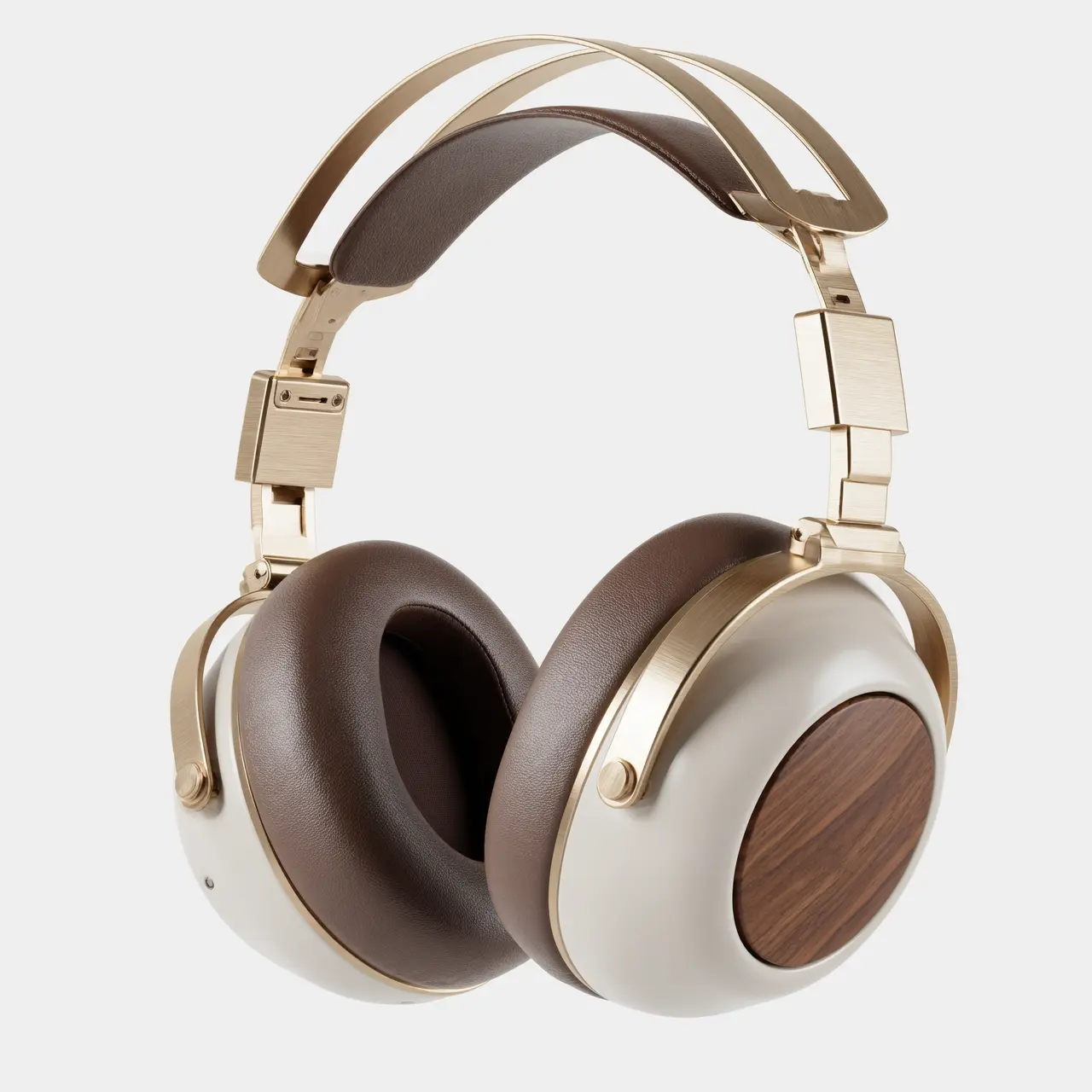 | 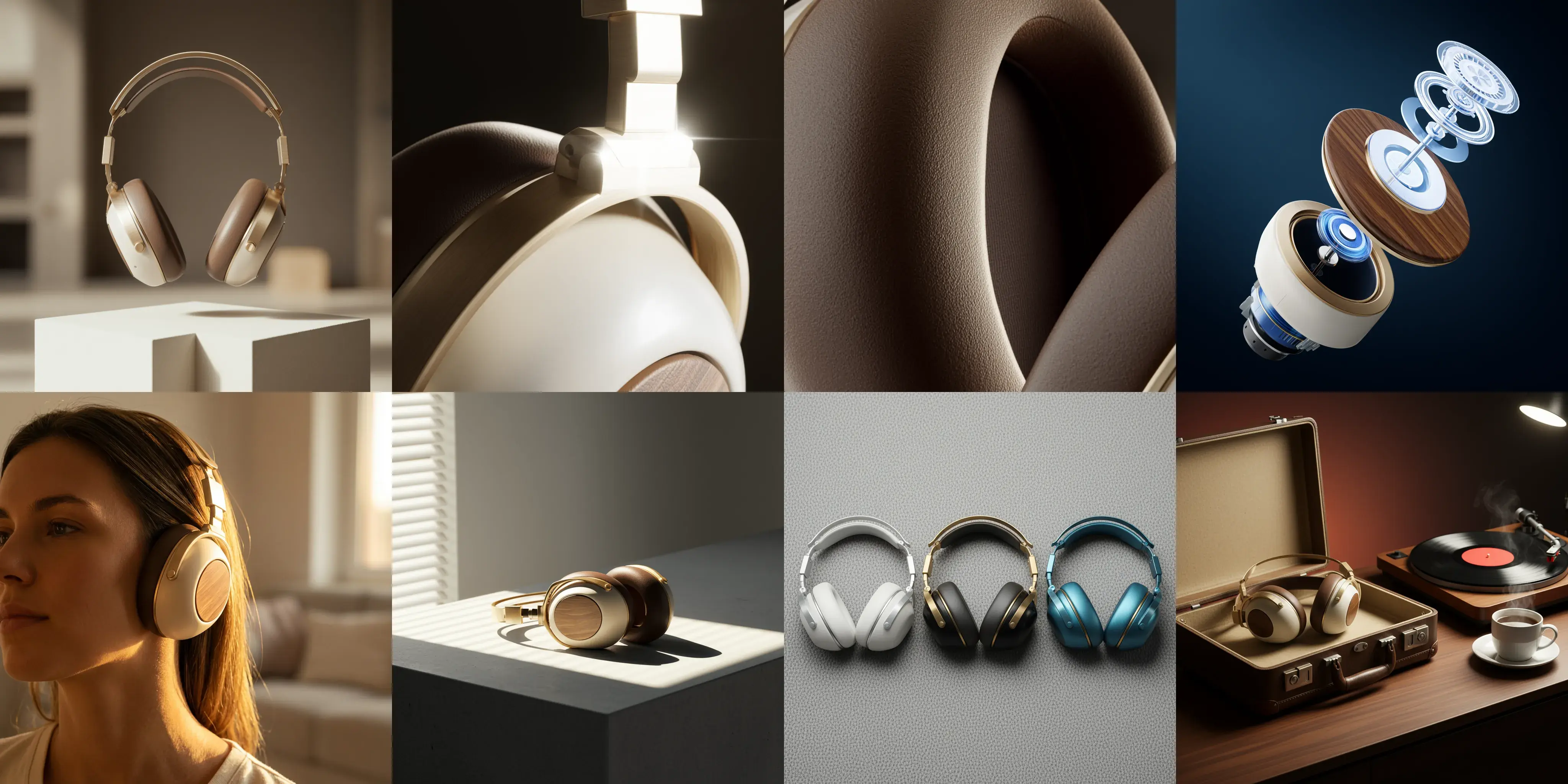 |
Click to view prompt
Click to view prompt
Interactive Editing
Input image | Output image |
|---|---|
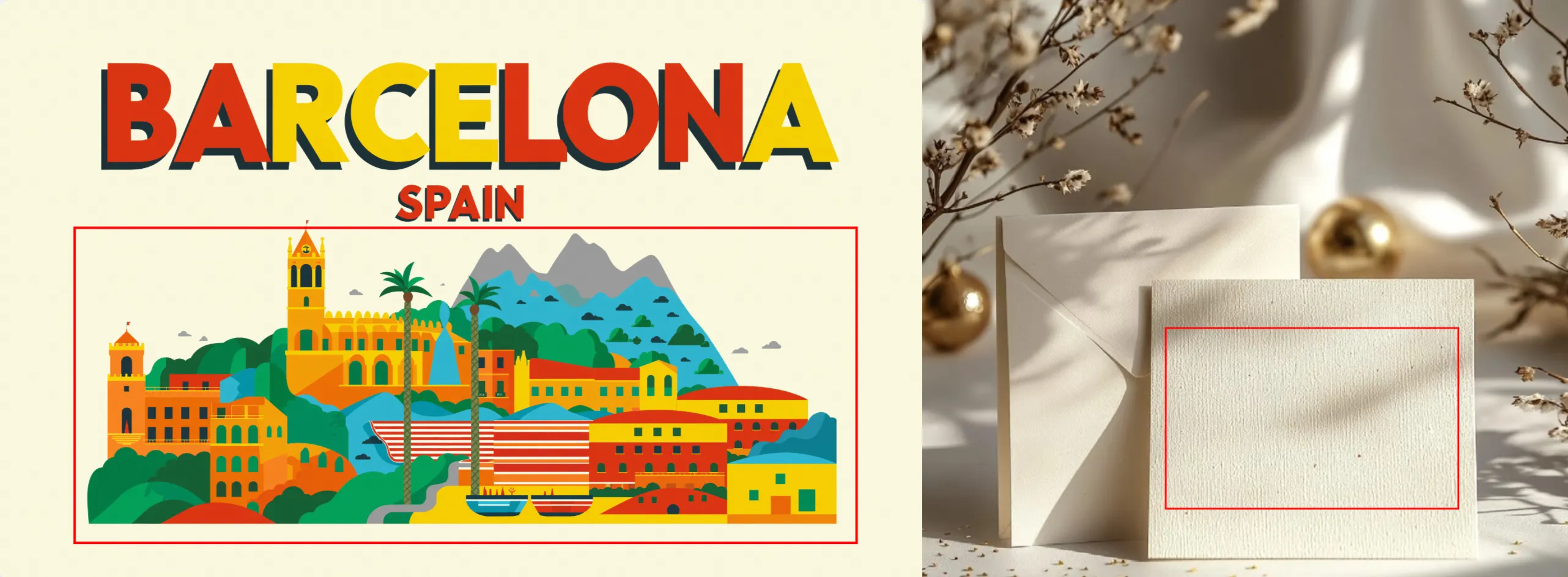 | 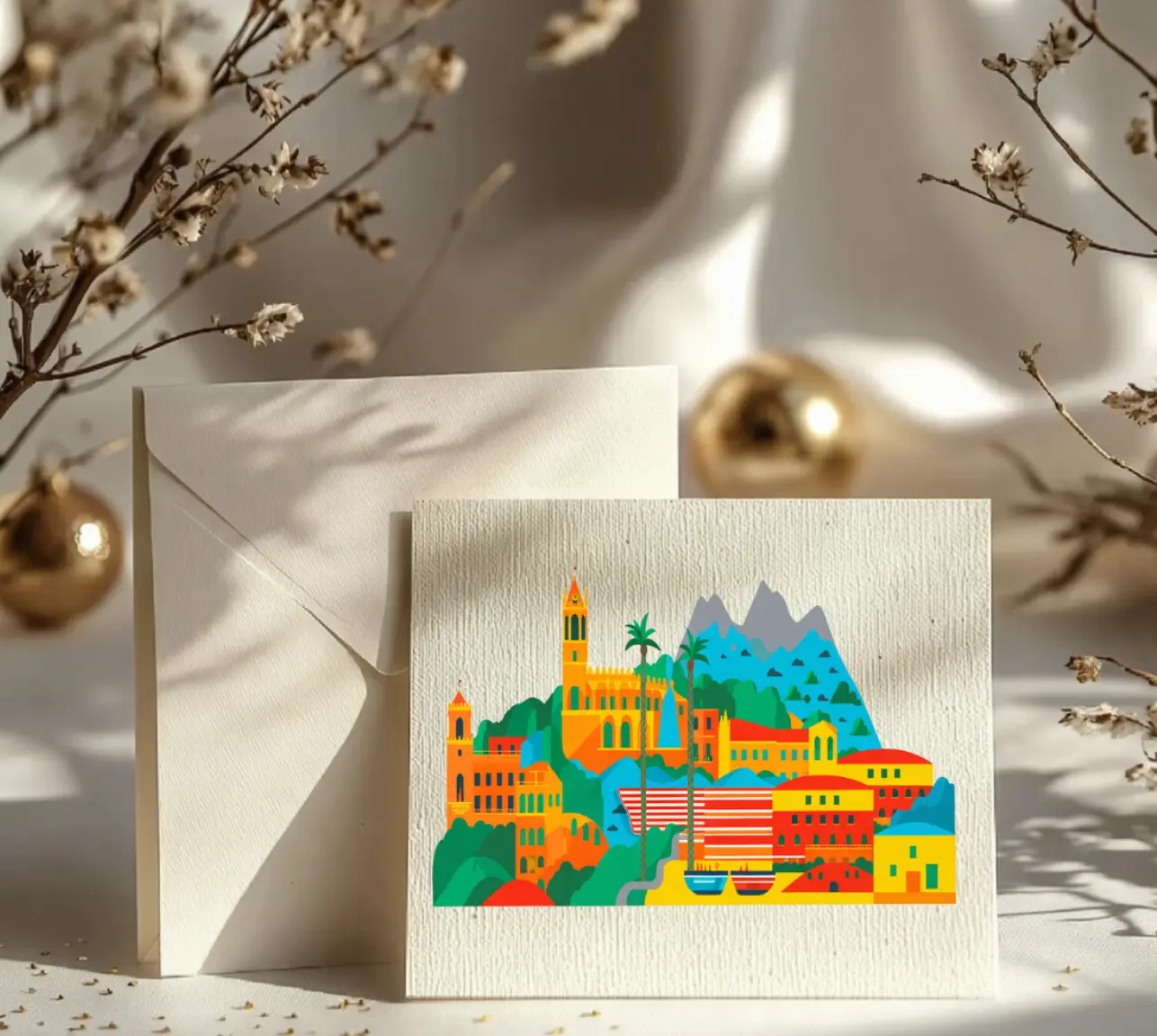 Place the pattern framed in image 1 into the framed area in image 2 |
Multi-image Fusion
Input image | Output image |
|---|---|
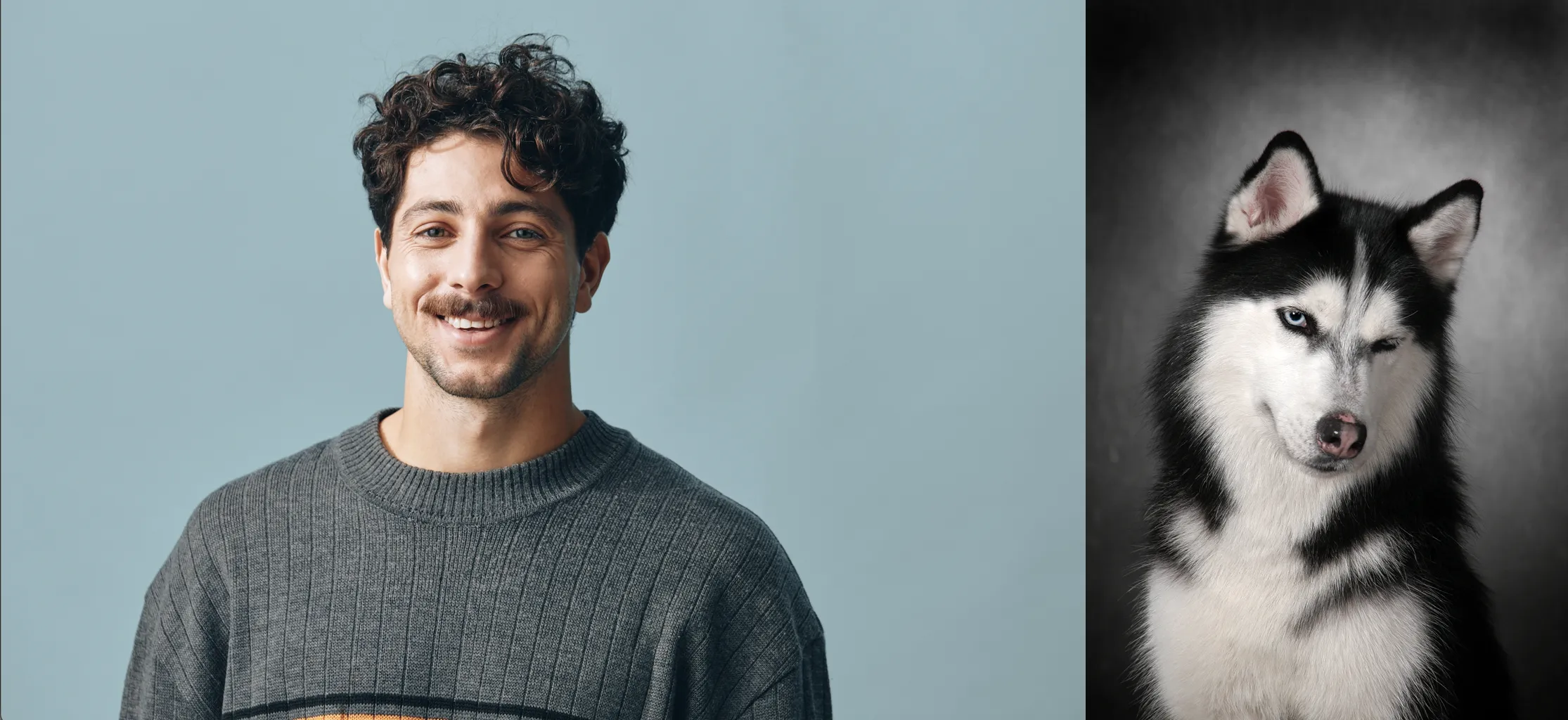 | 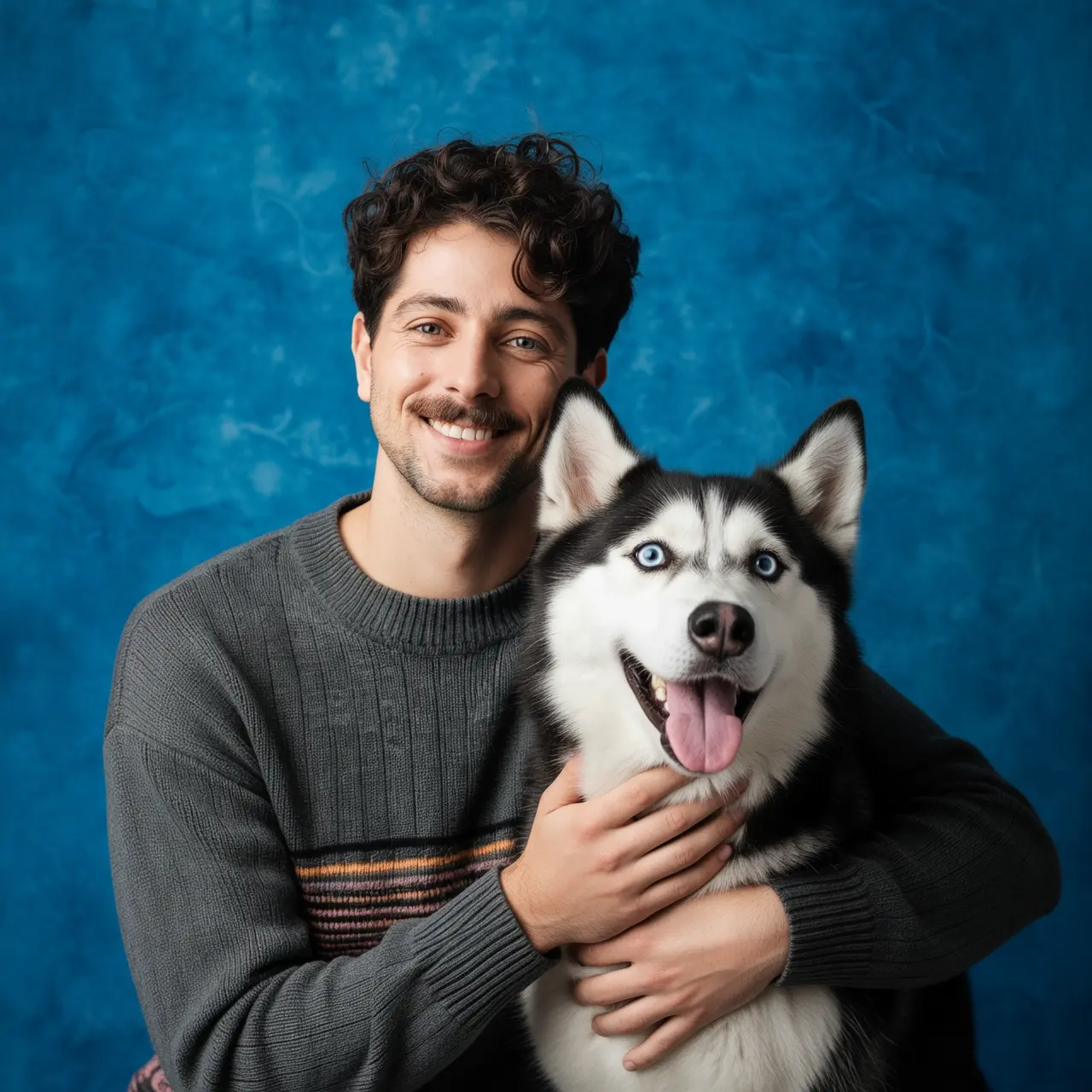 Take a portrait photo of the boy in image 1 and the dog in image 2, with the boy holding the dog in his arms, both the person and the dog looking happy, soft studio lighting, blue textured background |
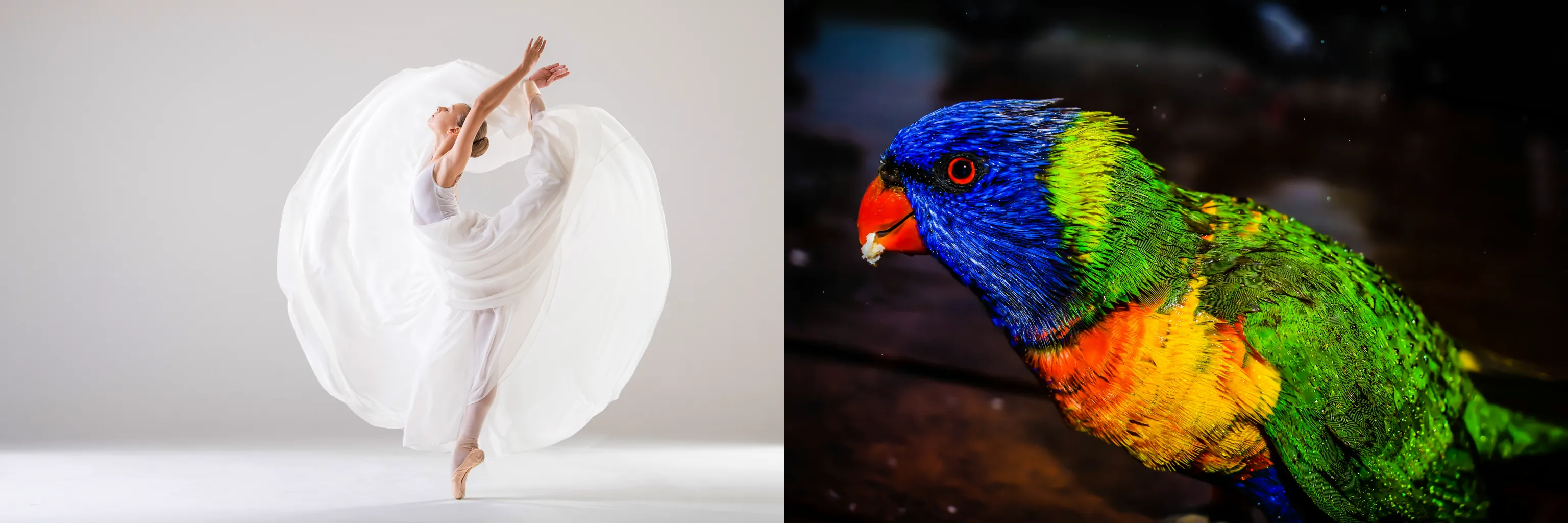 | 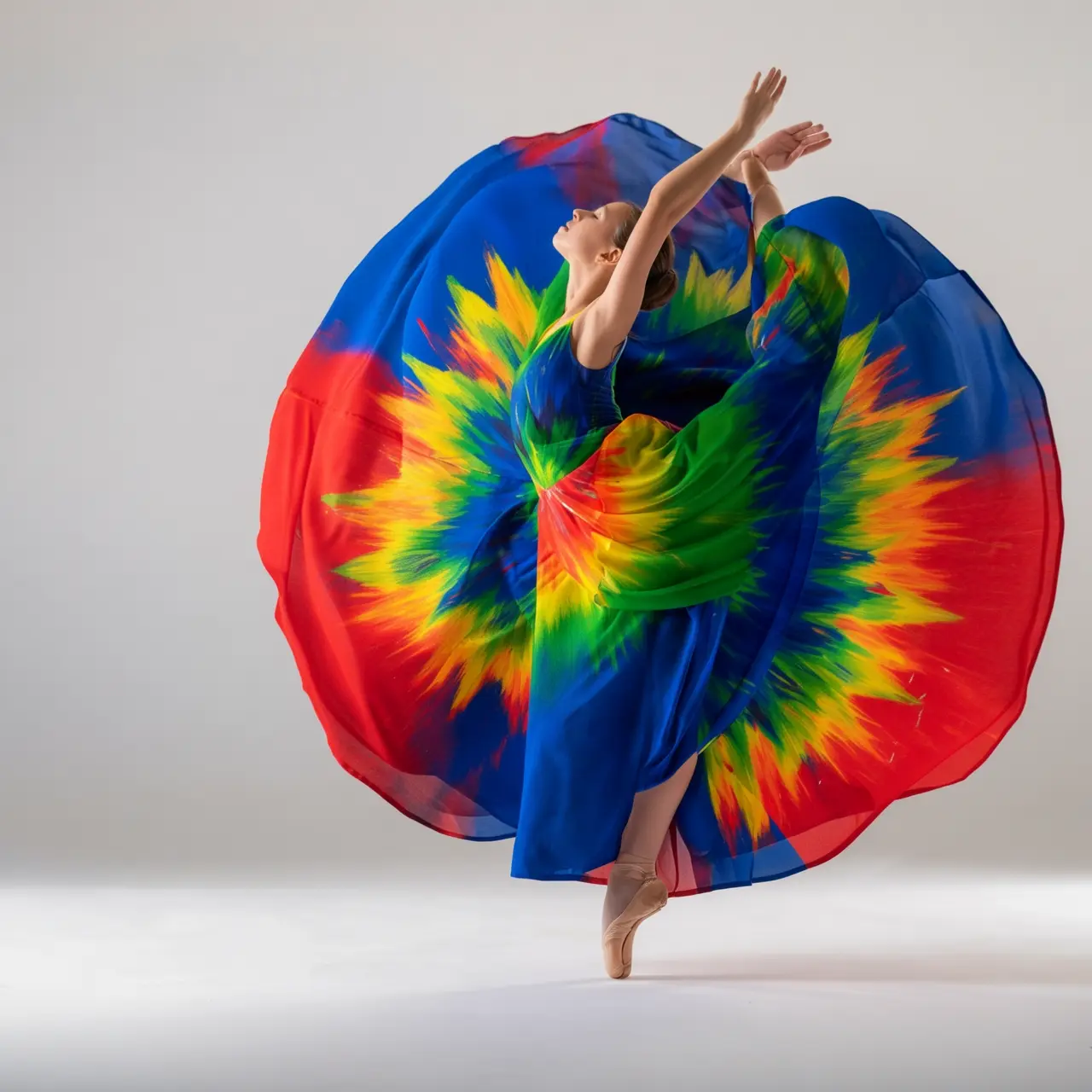 Color the dress in image 1 based on the colors of the bird in image 2, full of artistic flair, with the clothing style unchanged and the model unchanged |
Subject Feature Preservation
Input image | Output image |
|---|---|
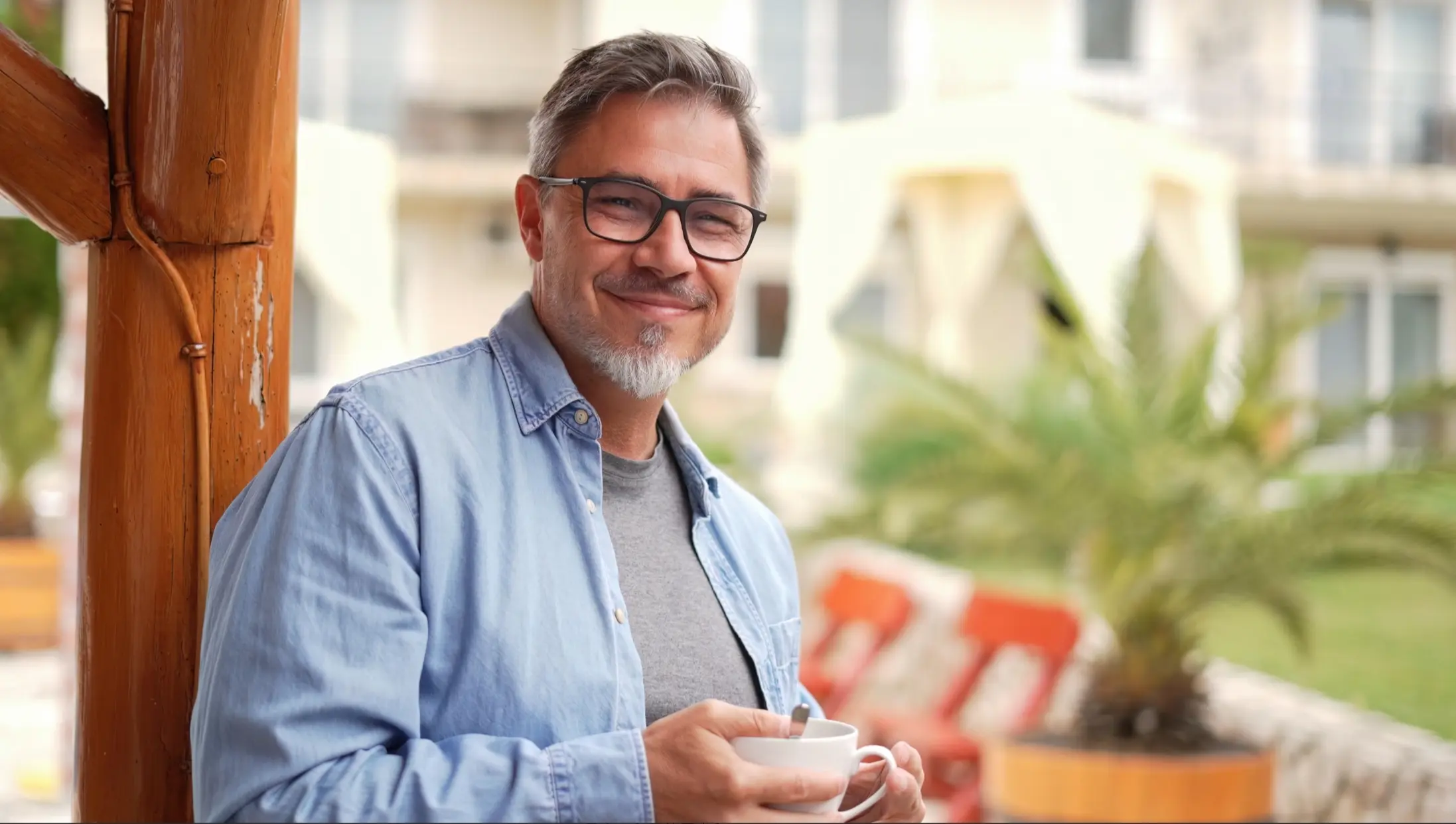 | 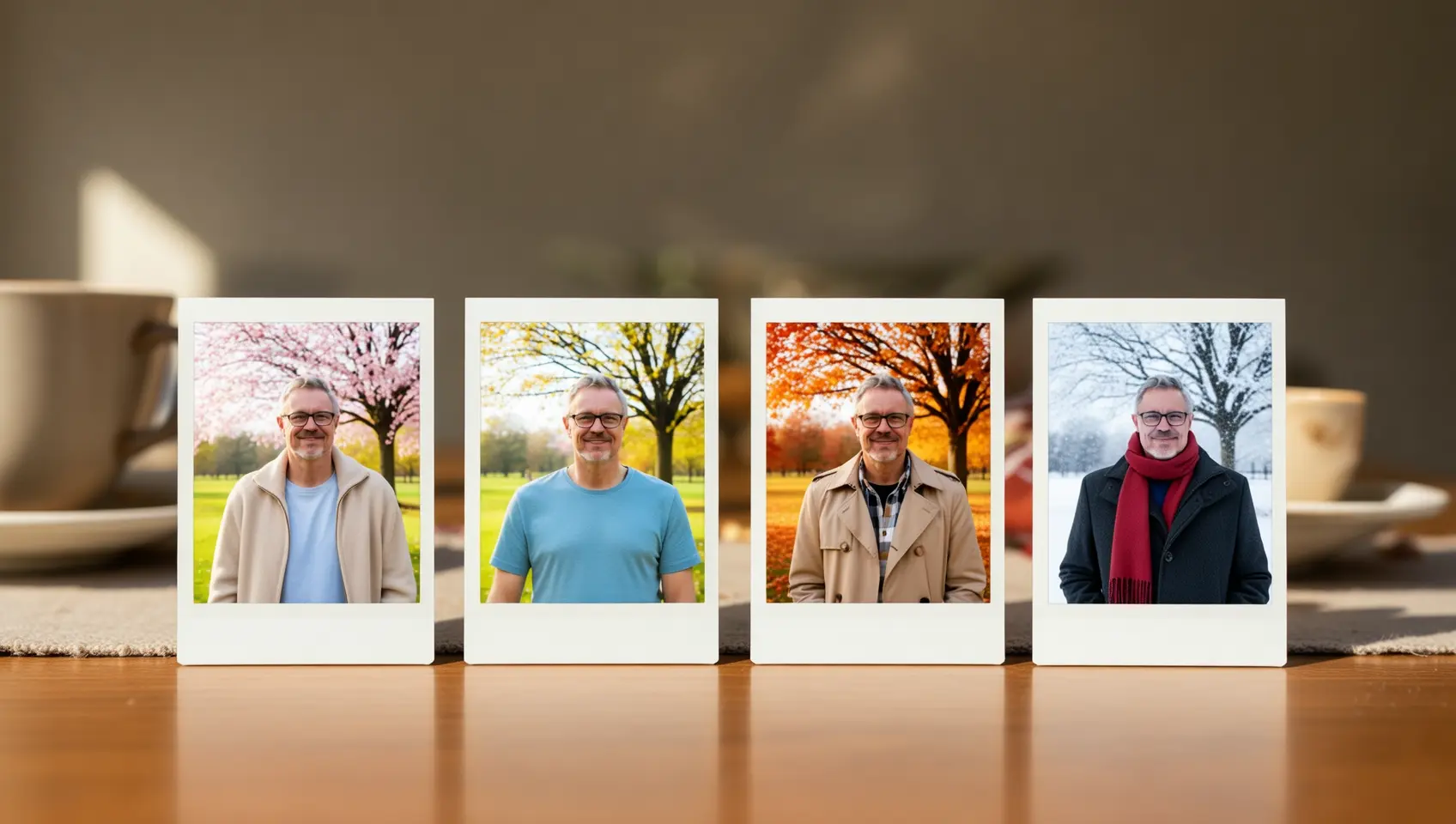 Please generate a set of Polaroid photos in a 2x2 grid themed "Seasonal Changes", four photos in total. Each photo is taken in the same location, under a tree in a park, but respectively shows the scenes of spring, summer, autumn, and winter. The person's clothing should also match the season: a light jacket in spring, short sleeves in summer, a trench coat in autumn, and a scarf and thick coat in winter. Place this set of photos on a dining table. |
Detection and Segmentation
Input image | Output image |
|---|---|
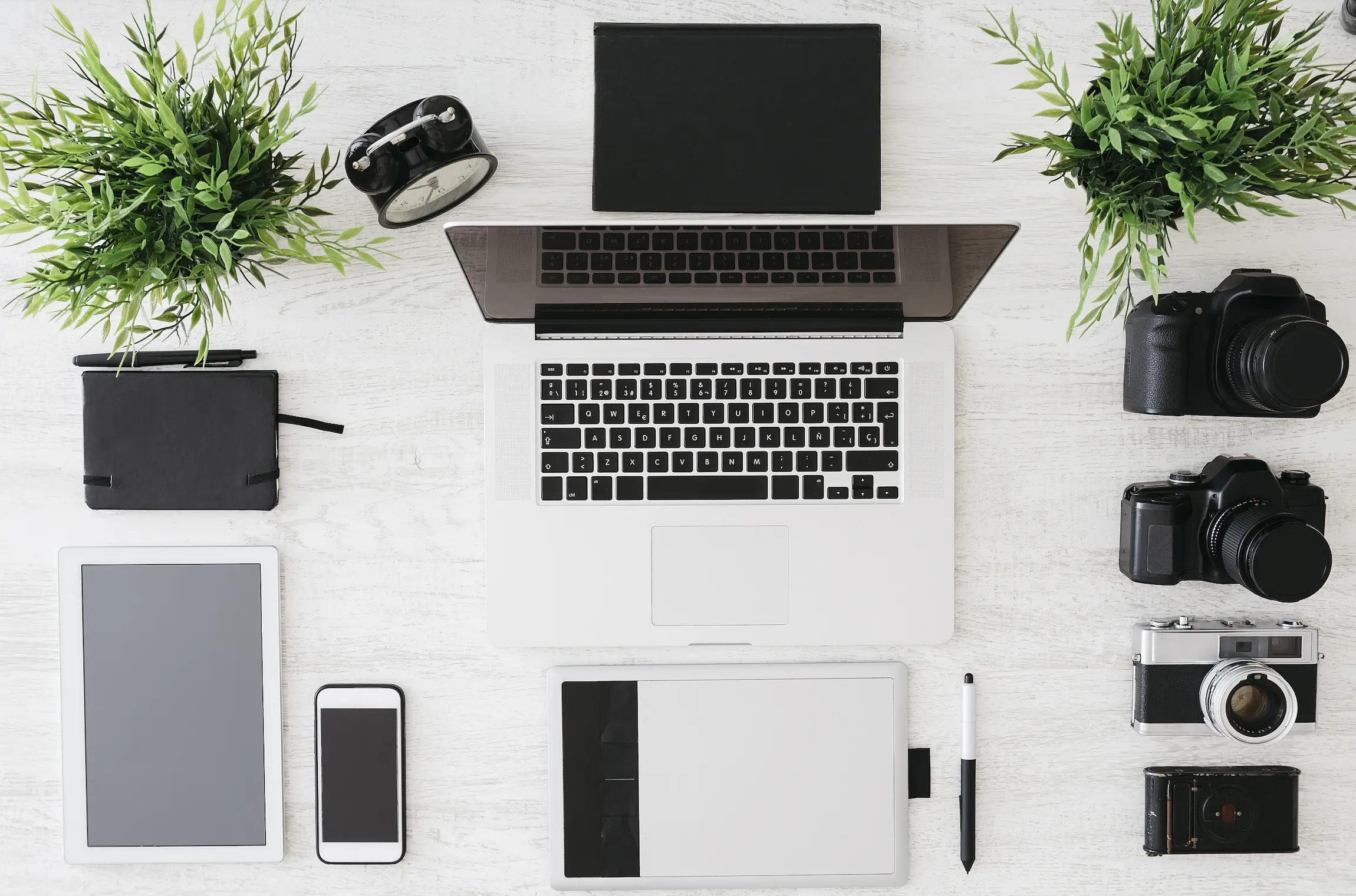 | 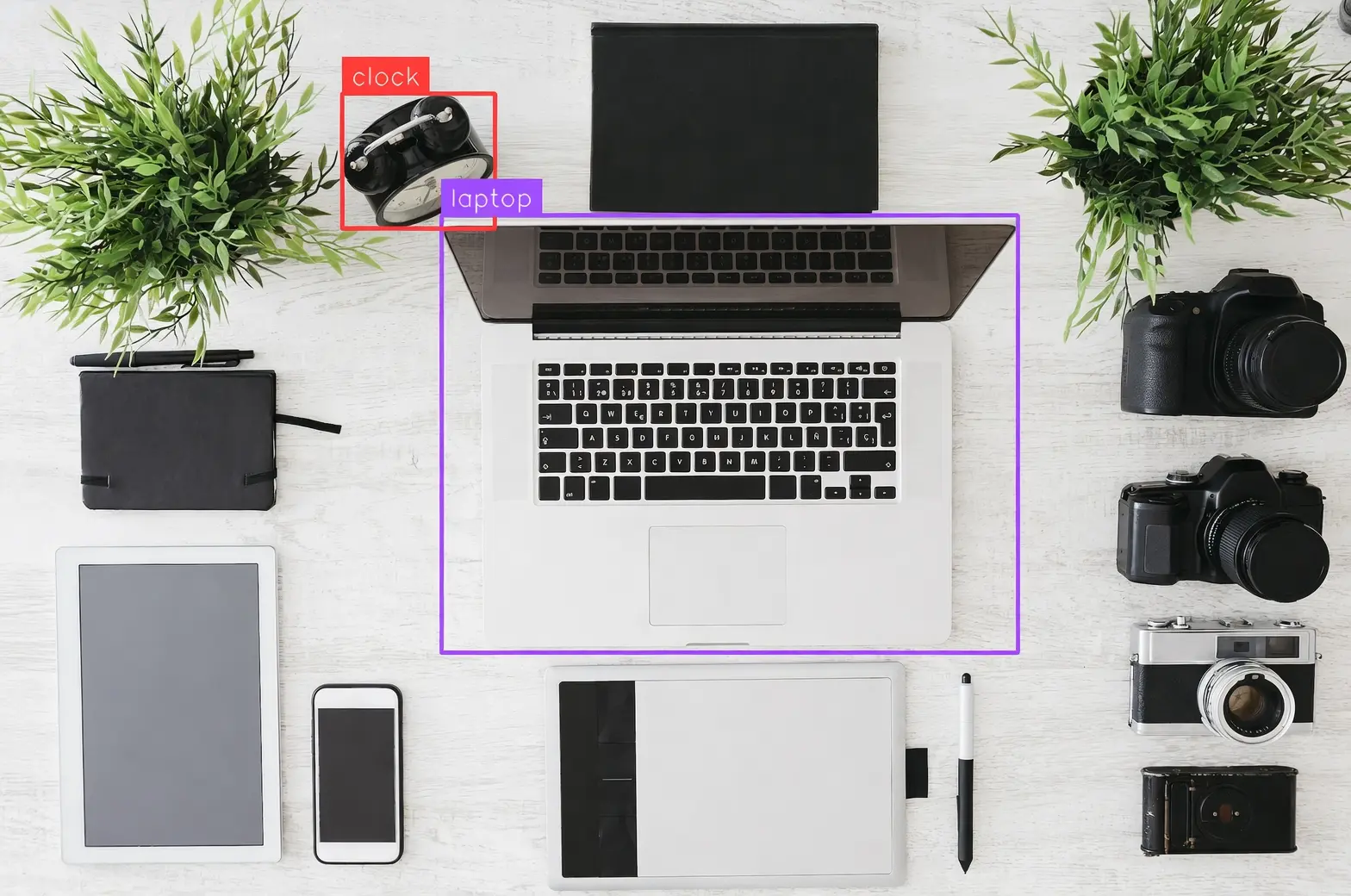 Detect the laptop and alarm clock in the image, draw boxes and label them "laptop" and "clock" |
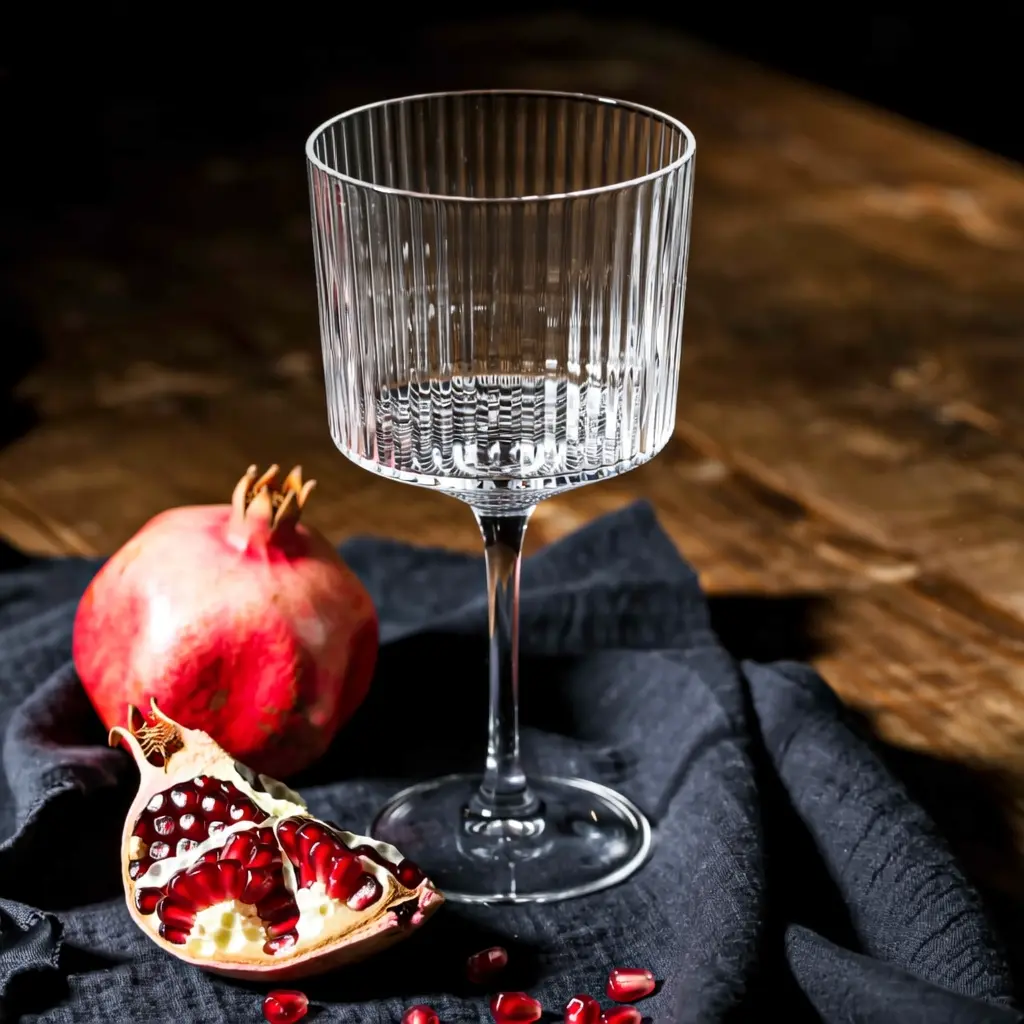 | 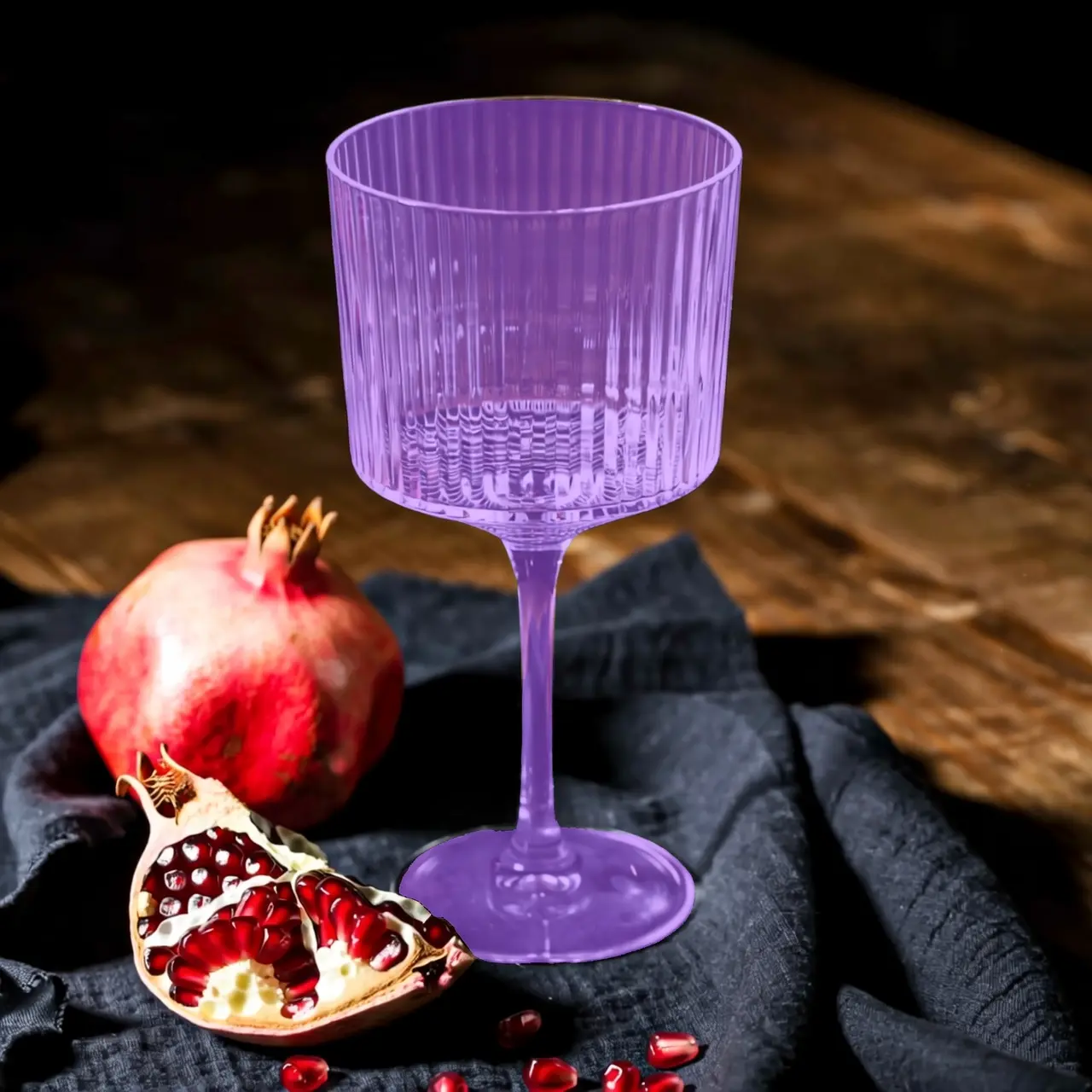 Segment the glass in the image |
Element Extraction
Input image | Output image |
|---|---|
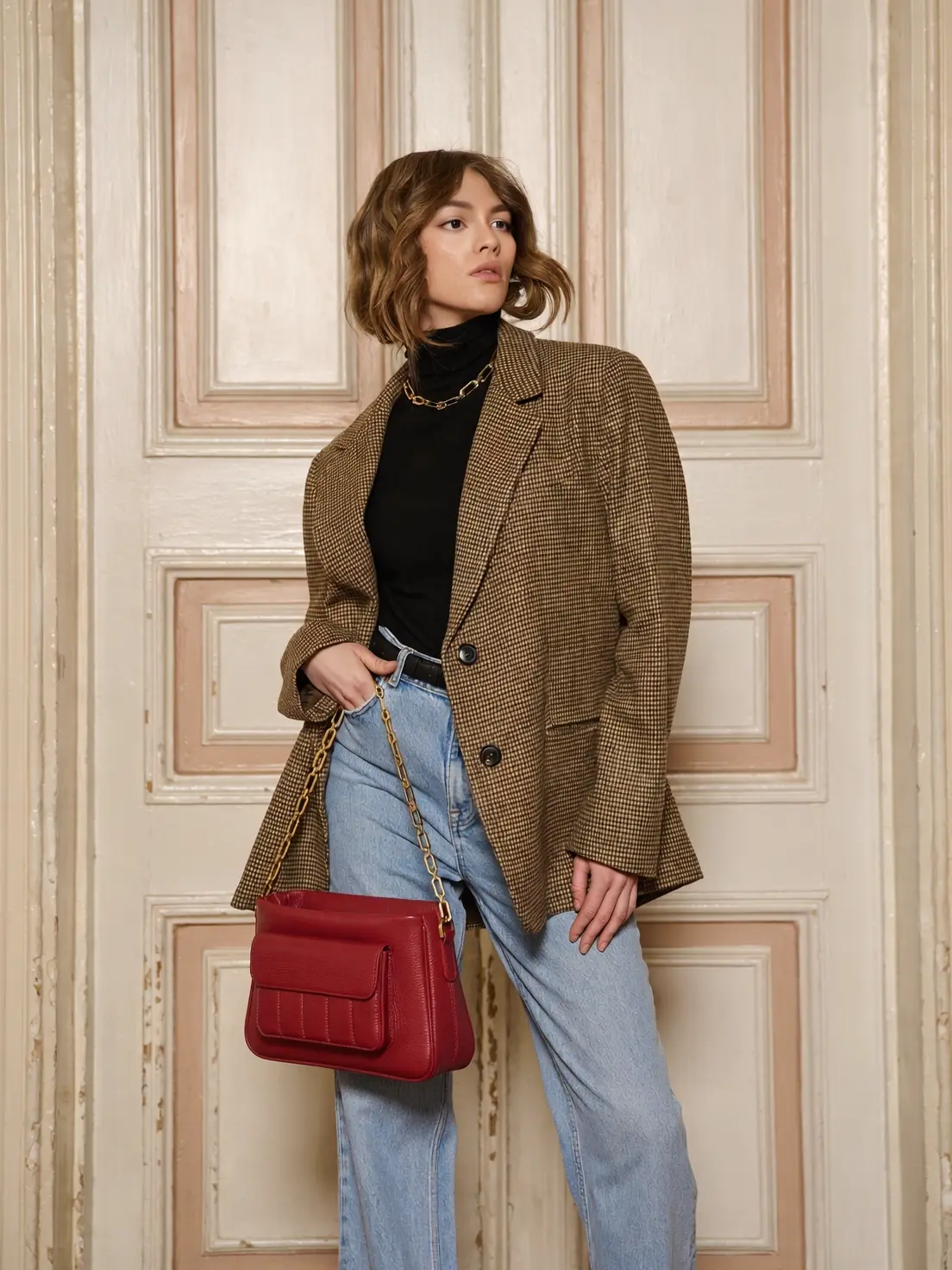 | 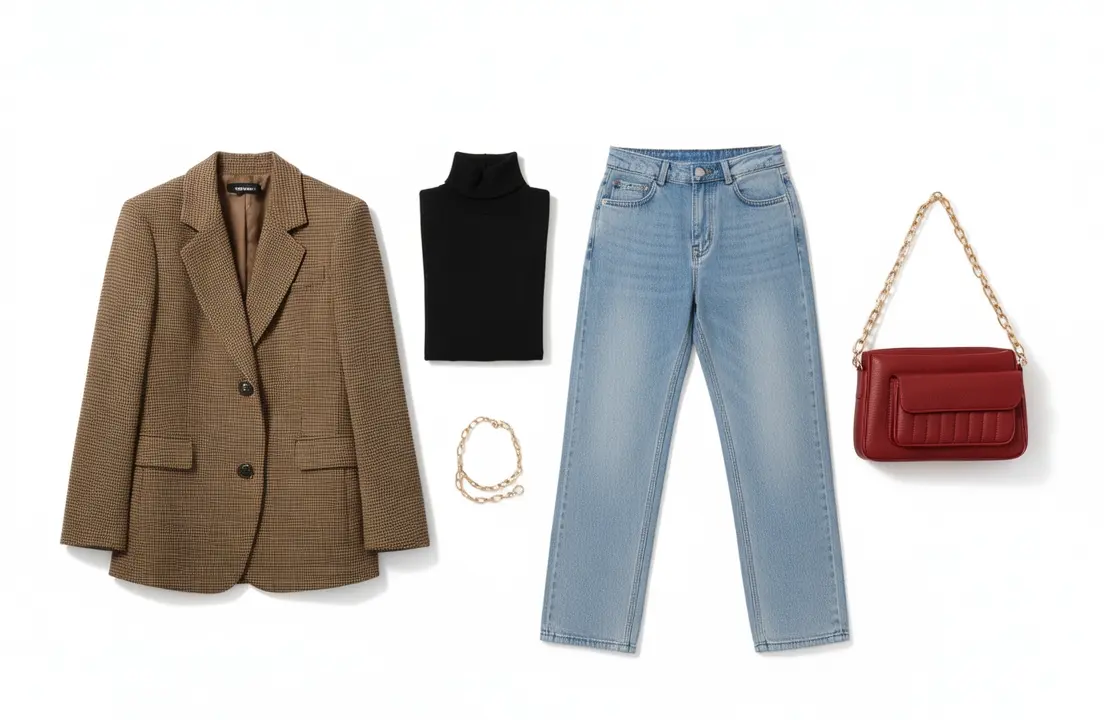 Extract clothing items from the uploaded photo, arrange them in a flat-lay display on a pure white background, preserving realistic details and material textures, in a fashion e-commerce style, suitable for clothing display. |
Text Editing
Input image | Output image |
|---|---|
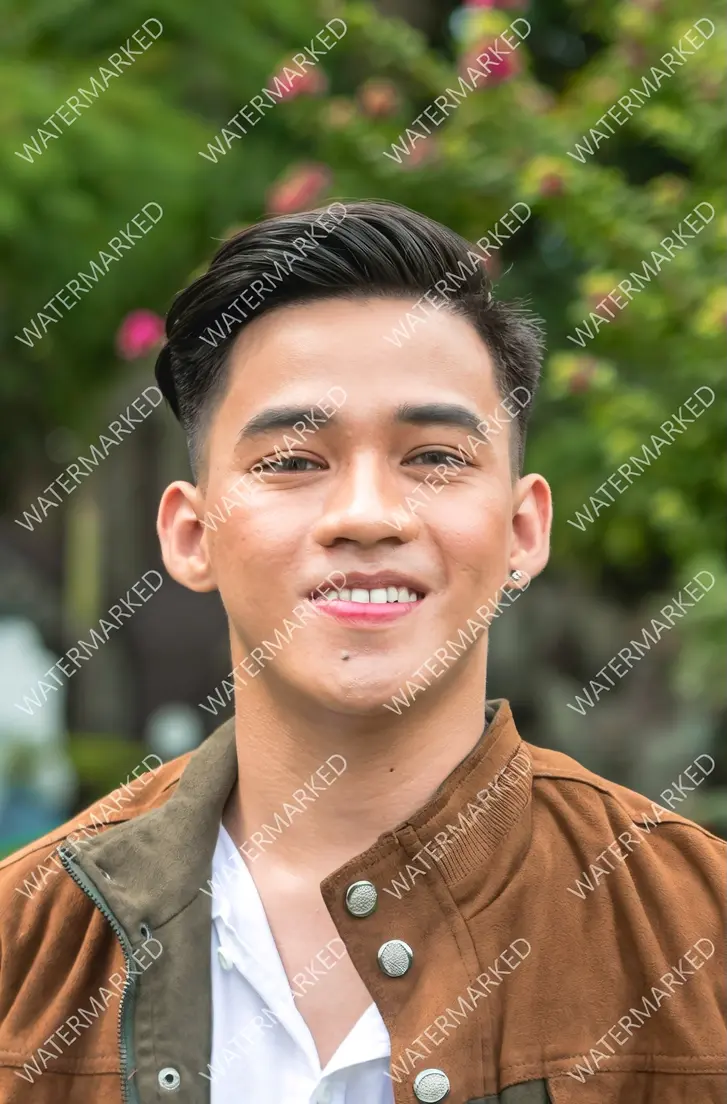 | 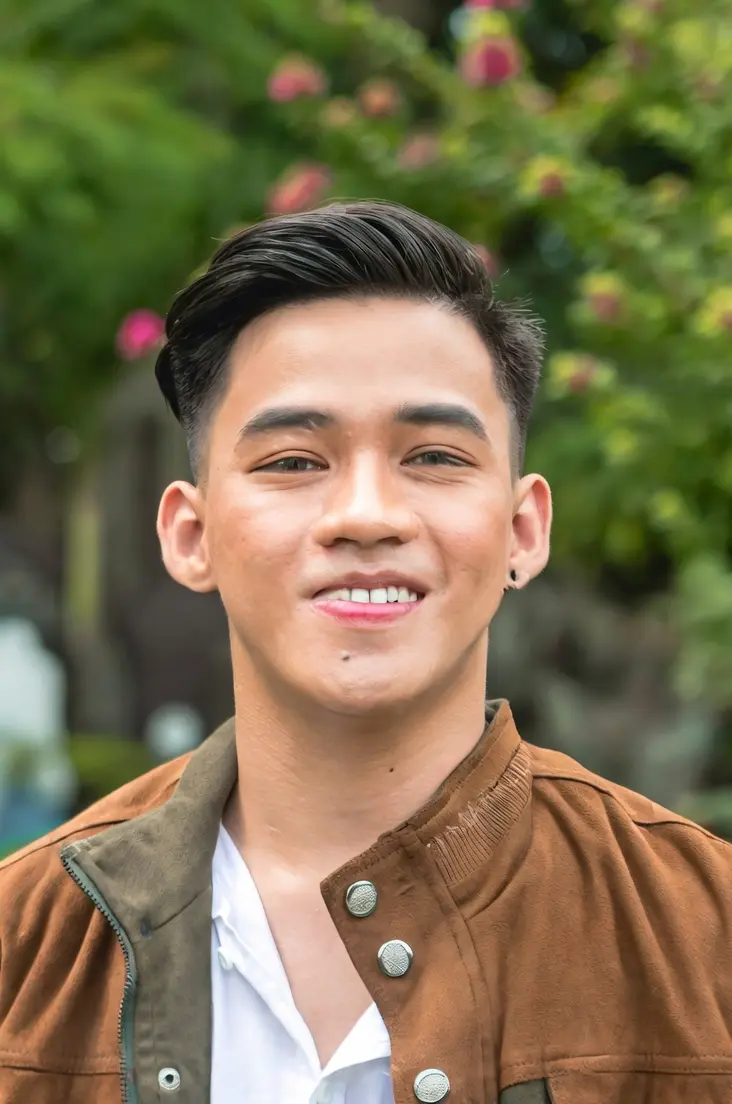 Remove watermarks from the entire image |
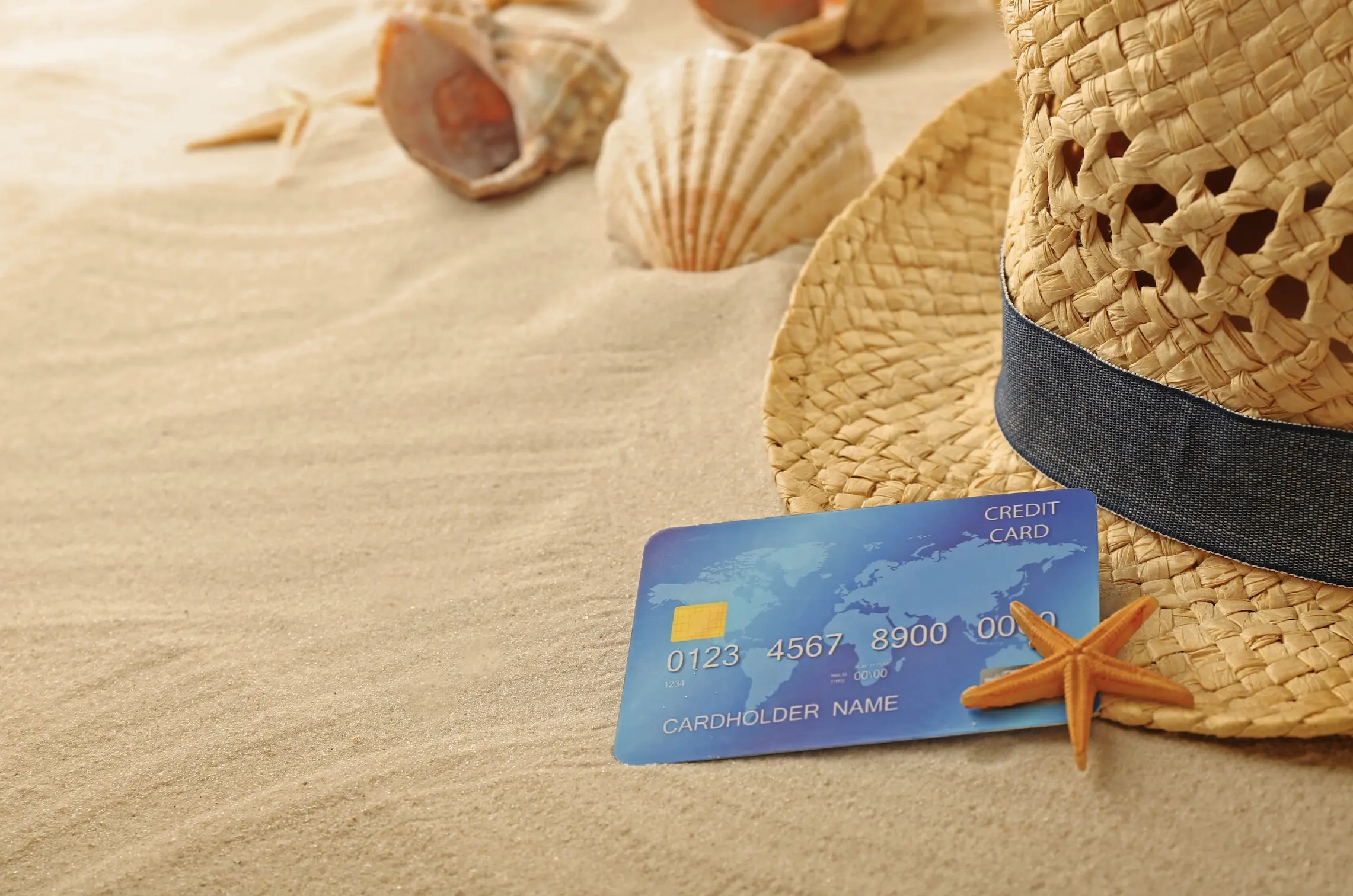 | 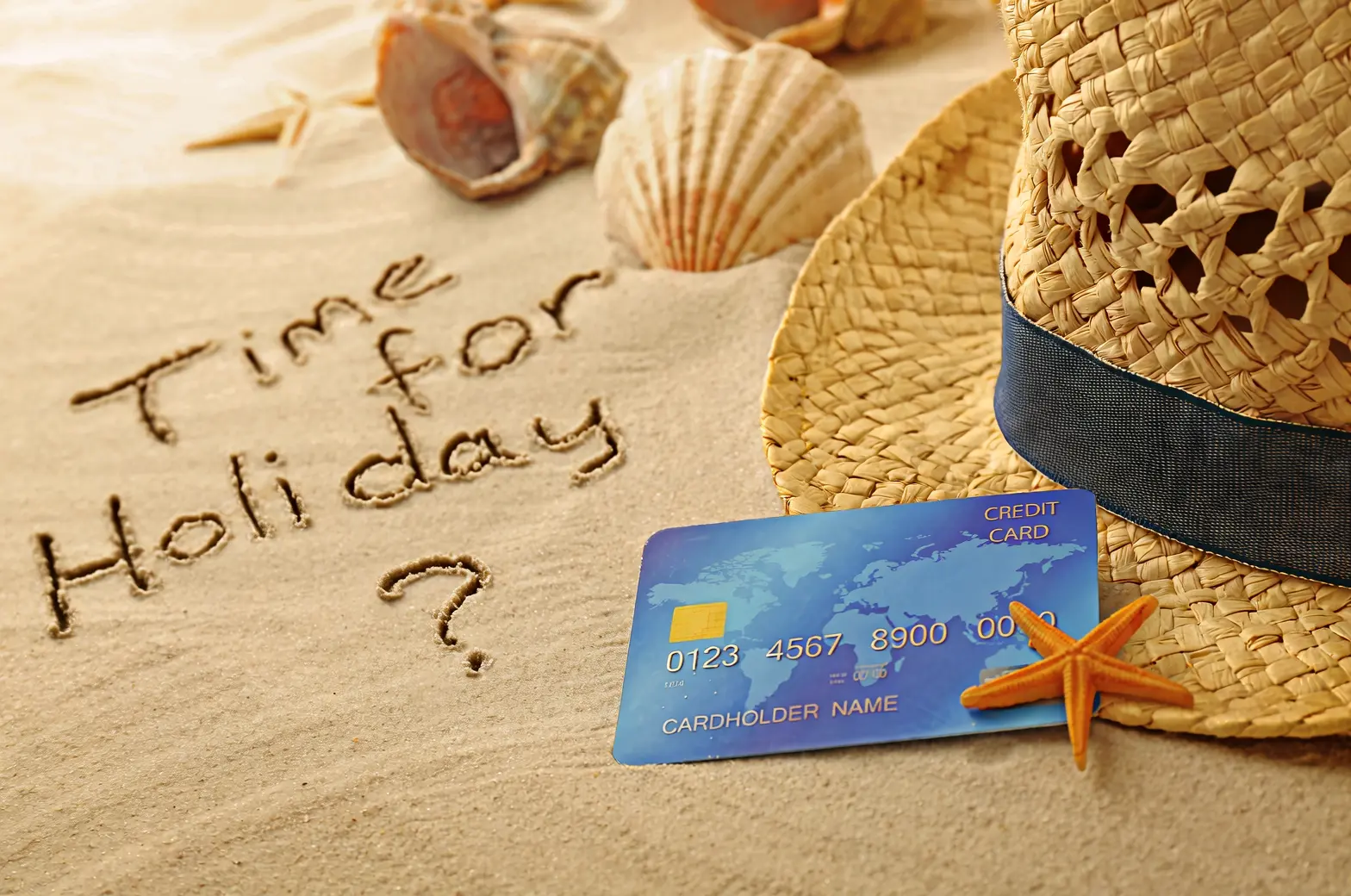 Write "Time for Holiday?" casually on the beach by hand |
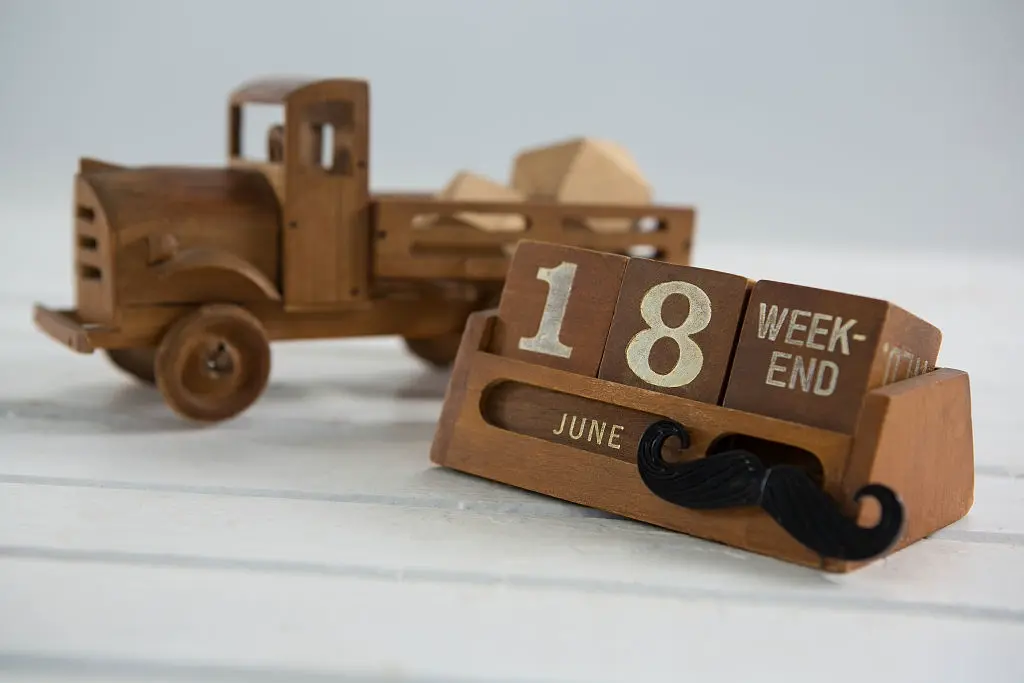 | 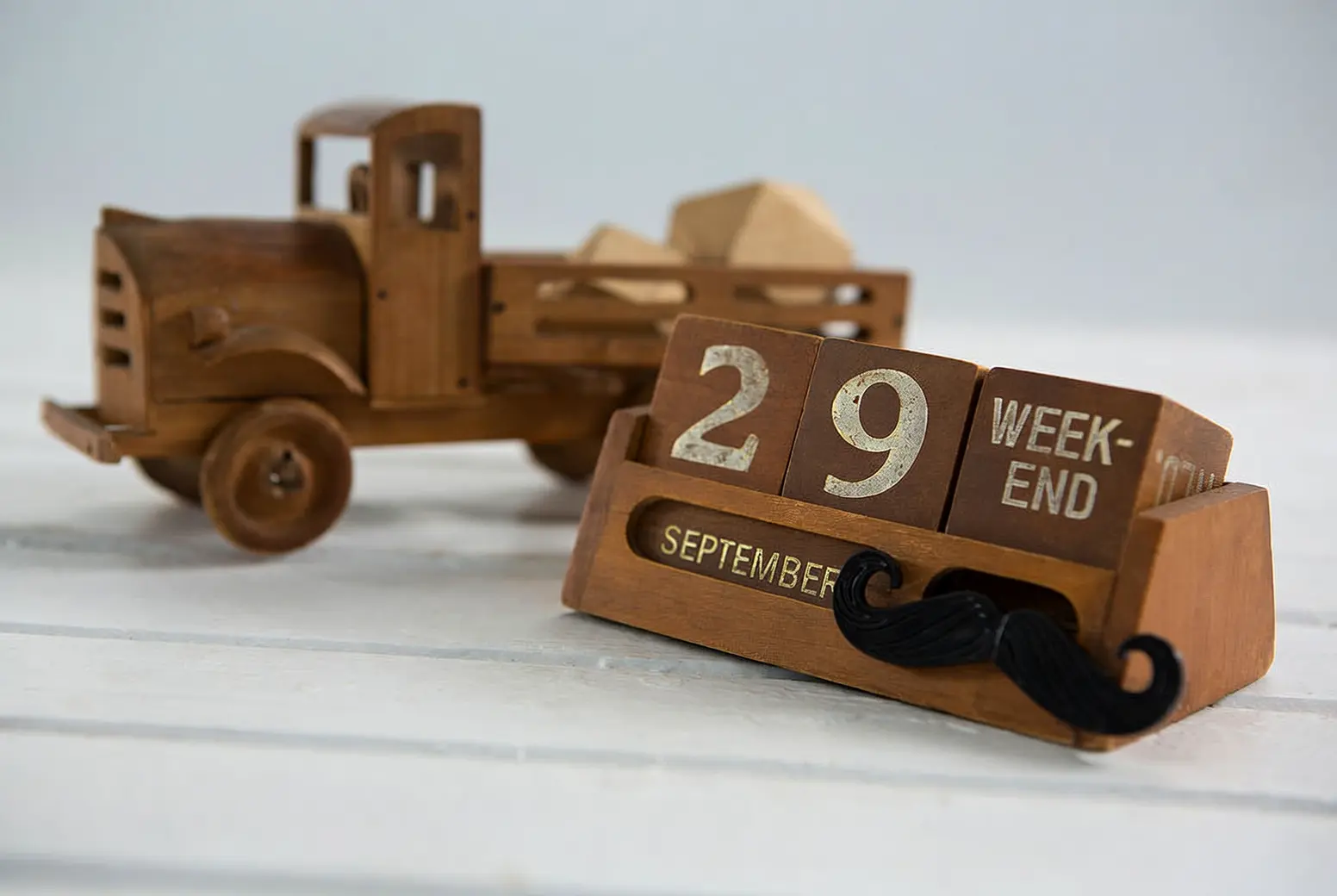 Change 18 to 29 and JUNE to SEPTEMBER |
Lens and Perspective Editing
Input image | Output image |
|---|---|
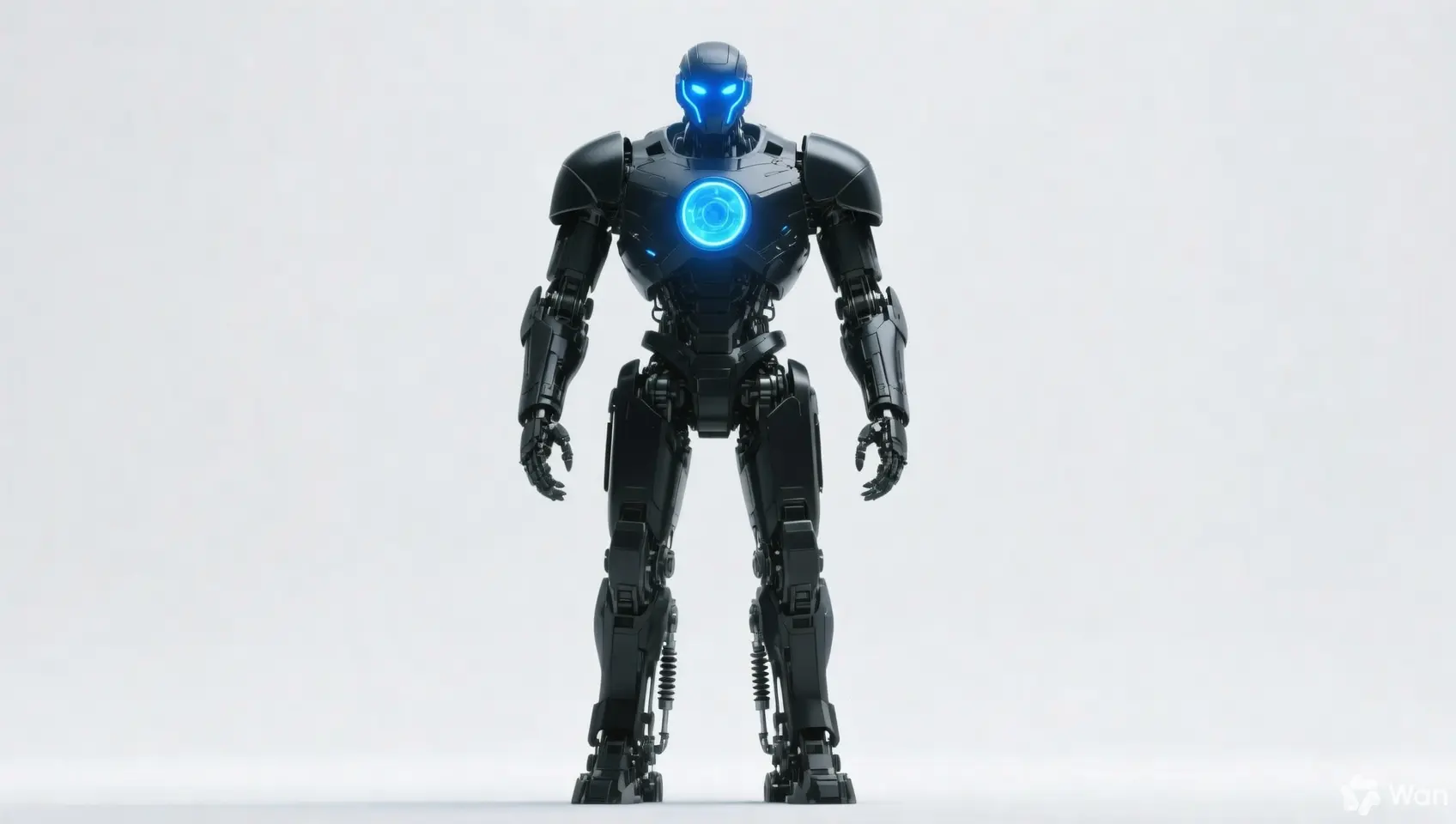 | 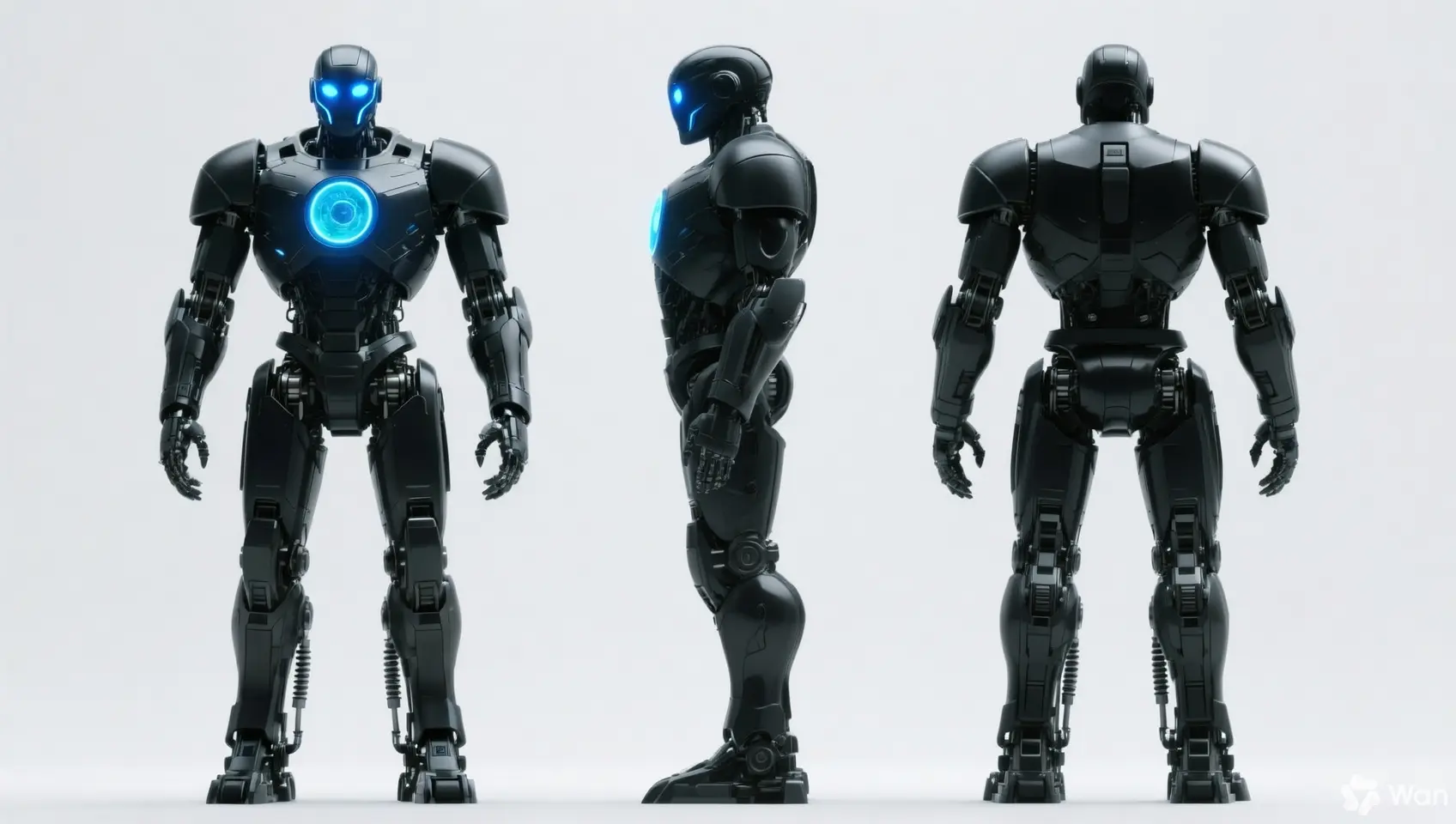 Keep the person's features unchanged and generate front, side, and back views |
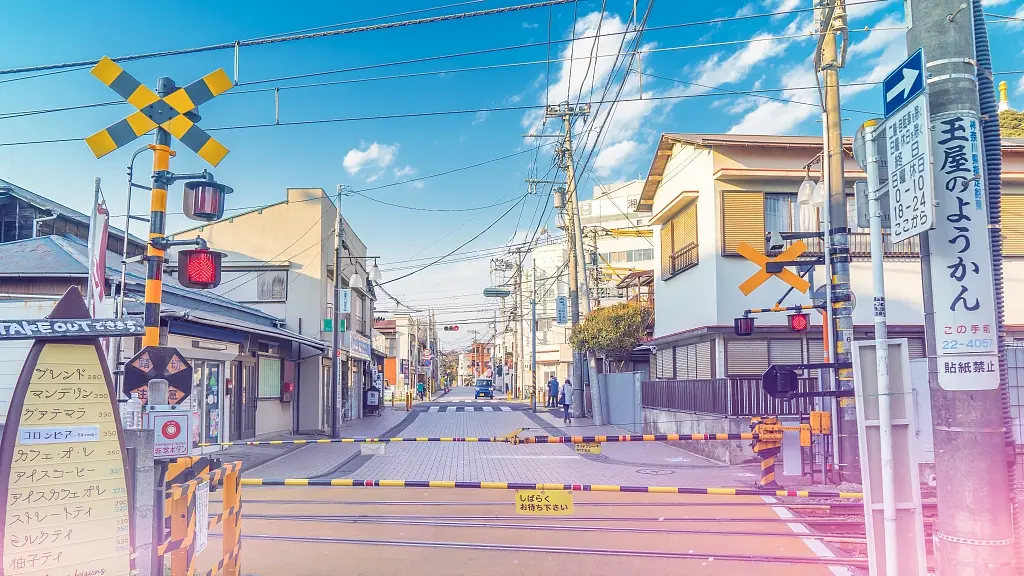 | 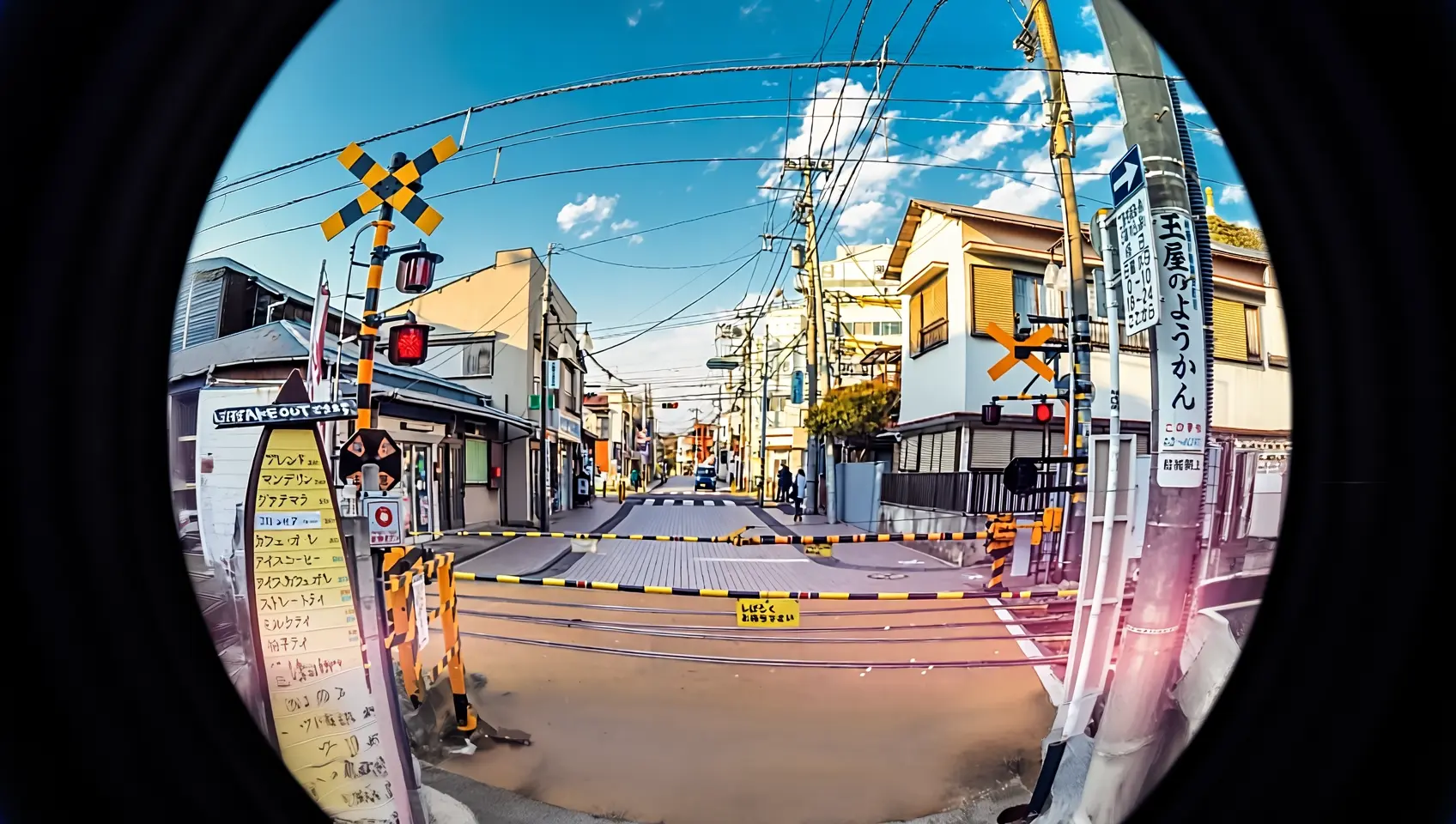 Retake this photo with a fisheye lens |
Input Description
Input Image Specifications
Type | wan2.7-image-pro、wan2.7-image | wan2.6-image | wan2.5-i2i-preview |
|---|---|---|---|
Number of input images | 0-9 images (0 images corresponds to text-to-image mode) | Image editing: 1-4 images / Image-text layout: 0-1 images | 1-3 images |
Image Format | JPEG, JPG, PNG (transparent channels not supported), BMP, WEBP | JPEG, JPG, PNG (transparent channels not supported), BMP, WEBP | JPEG, JPG, PNG (transparent channels not supported), BMP, WEBP |
Image width and height range | [240, 8000] pixels | [240, 8000] pixels | [384, 5000] pixels |
File Size | ≤ 20MB | ≤ 10MB | ≤ 10MB |
Aspect Ratio | [1:8, 8:1] | Unlimited | [1:4, 4:1] |
Image input order
When multiple images are input, the image order is defined by their order in the array. Therefore, the image numbers referenced by the prompt must correspond one-to-one with the order in the image array. For example: the first image in the array is "Image 1", the second is "Image 2", or use marker notation such as "[Image 1]" and "[Image 2]".
Input image | Output image | ||
|---|---|---|---|
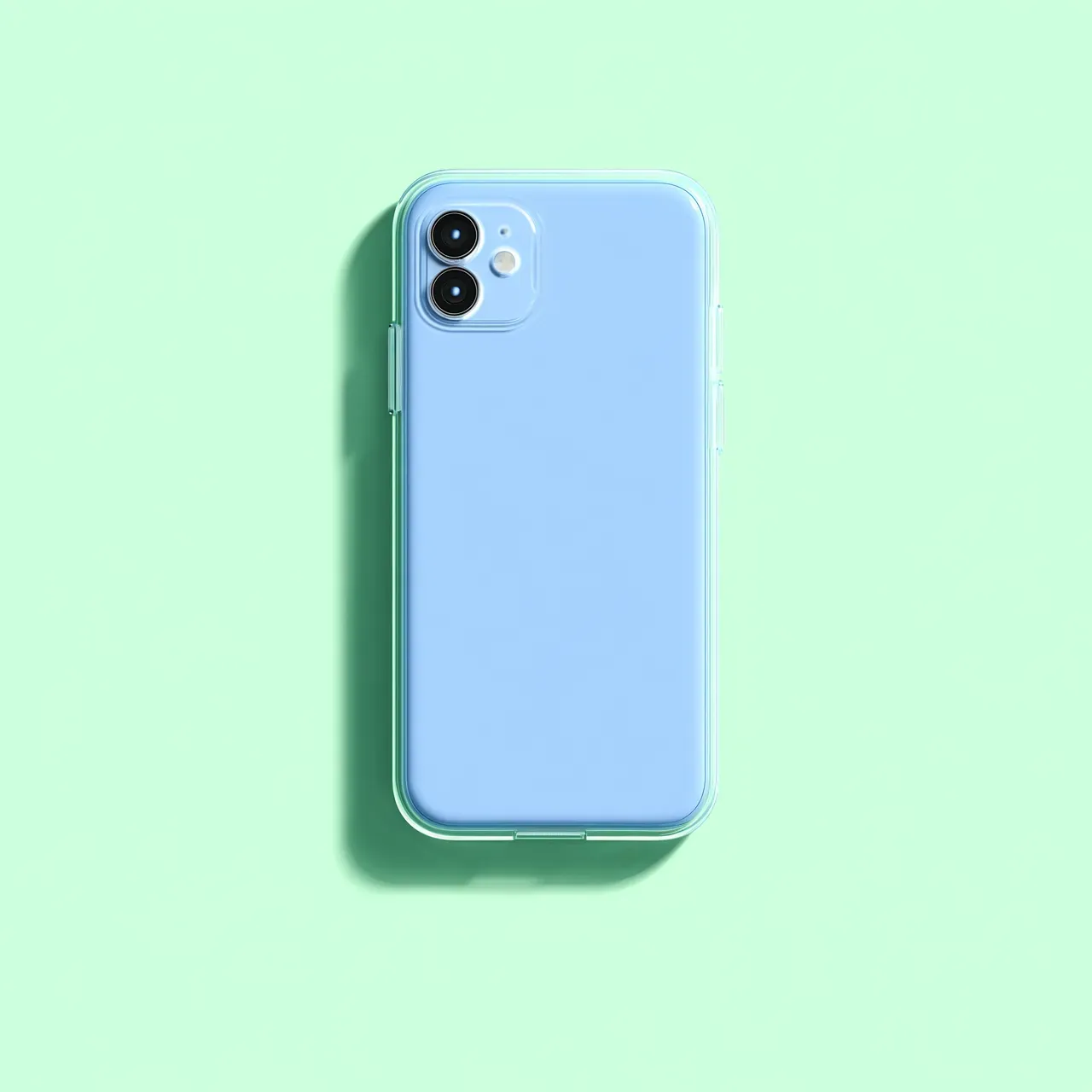 Image 1 | 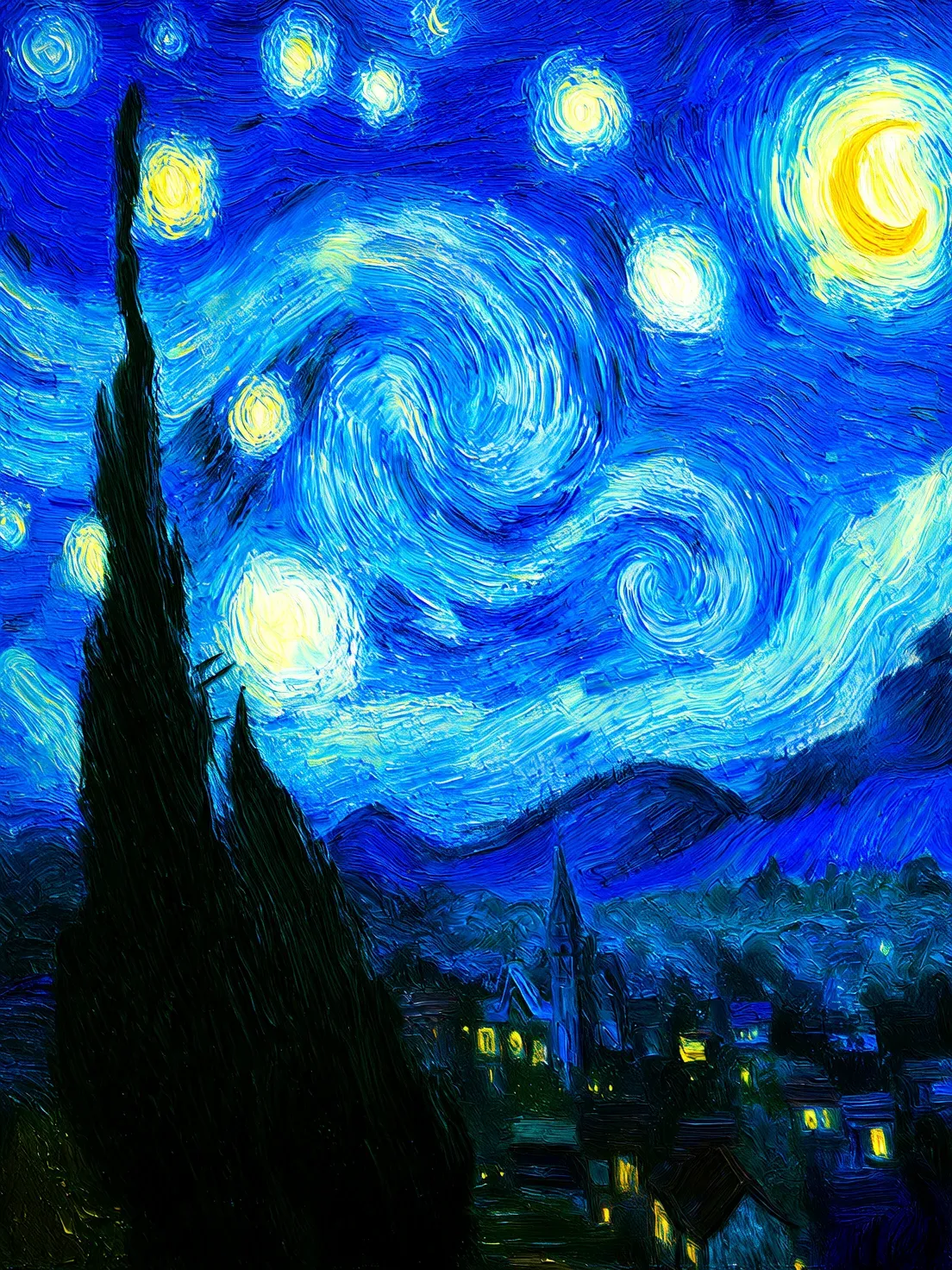 Image 2 | 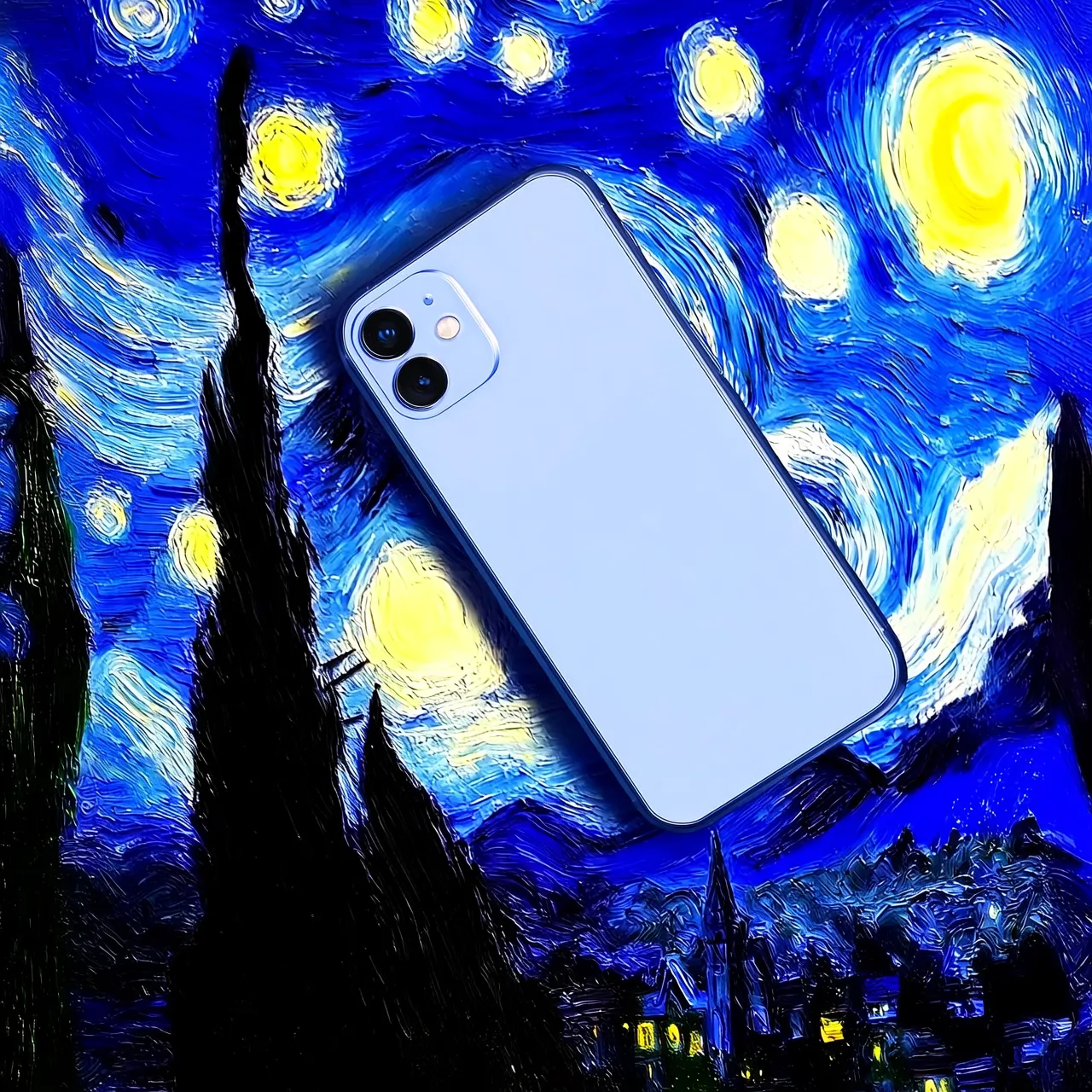 Prompt: Move Image 1 onto Image 2 | 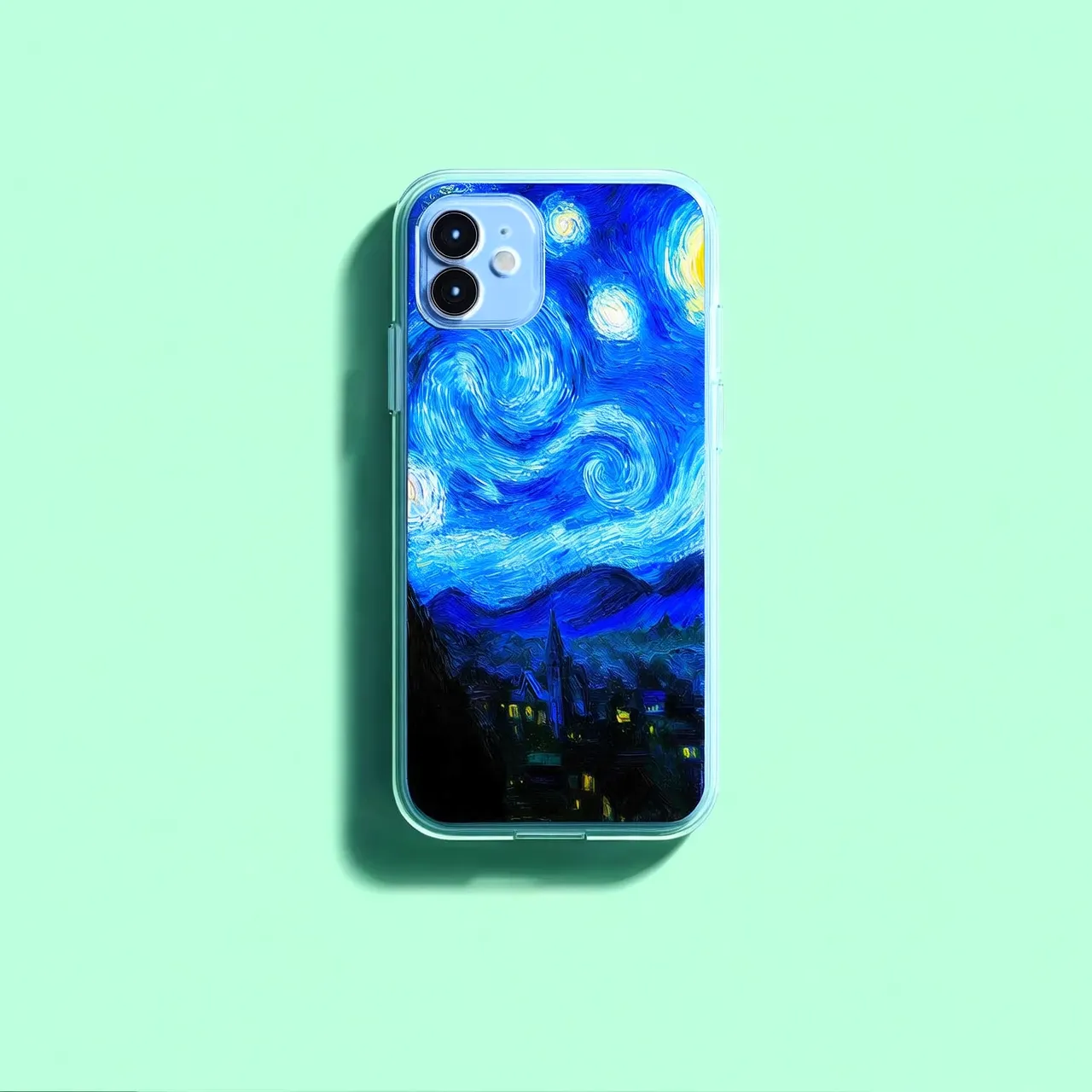 Prompt: Move Image 2 onto Image 1 |
Image input methods
Images can be passed in using the following methods:
Method 1: Public URL
Method 1: Public URL
- Provide a publicly accessible image URL, supporting HTTP or HTTPS protocols.
- Example value:
https://xxxx/img.png. - Applicable scenario: the image is already hosted on object storage (such as OSS) or a public image hosting service.
Method 2: Base64 encoding
Method 2: Base64 encoding
data:{MIME_type};base64,{base64_data}.-
Example value:
data:image/png;base64,iVBORw0KGgoAAAANSUhEUgAABDg......(only a fragment is shown due to length limits). When calling, you must pass the complete string. - {base64_data}: the string obtained by Base64-encoding the image file.
-
{MIME_type}: the media type of the image, which must match the file format.
Image format
MIME Type
JPEG
image/jpeg
JPG
image/jpeg
PNG
image/png
BMP
image/bmp
WEBP
image/webp
- Use for local images, private images, or scenarios that require encrypted transmission.
Code example: Base64 encoding for an image
Code example: Base64 encoding for an image
Method 3: Local file path (SDK only)
Method 3: Local file path (SDK only)
-
Python SDK: Supports both absolute and relative paths. The file path rules are as follows:
System
Input file path
Example (absolute path)
Example (relative path)
Linux or macOS
file://{absolute or relative path of the file}
file:///home/images/test.png
file://./images/test.png
Windows
file://D:/images/test.png
file://./images/test.png
-
Java SDK: Supports only the absolute path. The file path rules are as follows:
System
Input file path
Example (absolute path)
Linux or macOS
file://{absolute path of the file}
file:///home/images/test.png
Windows
file:///{absolute path of the file}
file:///D:/images/test.png
- Use for quick testing in local development.
Key features
1. Instruction following (prompts)
Parameters: messages.content.text or input.prompt (required), negative_prompt (optional).
- text or prompt (Positive prompt): Describe content, subjects, scenes, styles, lighting, and composition for the output image.
- negative_prompt (Negative prompt): Describe content that you do not want to appear in the image, such as "blurry" or "extra fingers". It is only used to help optimize generation quality.
Parameter | wan2.7-image-pro、wan2.7-image | wan2.6-image | wan2.5-i2i-preview |
|---|---|---|---|
text | Required, up to 5,000 characters | Required, up to 2,000 characters | Not supported |
prompt | Not supported | Not supported | Required, up to 2,000 characters |
negative_prompt | Not supported | Supported, up to 500 characters | Supported, up to 500 characters |
2. Enable intelligent prompt rewriting
Parameter: parameters.prompt_extend (bool, defaults to true).
This feature automatically expands and optimizes short prompts to improve the output image quality. Enabling this feature adds extra processing time.
Best practices:
- Recommended to enable: When the input prompt is concise or broad, this feature can improve the image quality.
- Recommended to disable: If you need to control the image details, have already provided a detailed description, or are sensitive to response latency. Explicitly set the parameter
prompt_extendtofalse.
Parameter | wan2.7-image-pro、wan2.7-image | wan2.6-image | wan2.5-i2i-preview |
|---|---|---|---|
prompt_extend | Not supported | Supported (image editing mode only) | Supported |
3. Set the output image resolution
Parameter: parameters.size (string), in the format "width*height".
| Parameter | wan2.7-image-pro、wan2.7-image | wan2.6-image | wan2.5-i2i-preview |
|---|---|---|---|
| size | Method 1: Specify the output image resolution (recommended)In editing mode (with at least one image passed), the optional output resolution tiers are: 1K, 2K (default).
Only wan2.7-image-pro in text-to-image scenarios supports 4K resolution. | Method 1: Reference the input image ratio (recommended)In editing mode (enable_interleave=false), the optional output resolution tiers are: 1K (default), 2K.
The actual output image pixel values will be the closest multiple of 16 to the specified value. | Only supports specifying the width and height pixel values of the generated image
|
4. Interactive precise editing
Use the parameter parameters.bbox_list to box-select the objects or locations in the image to edit, achieving more accurate editing results. Only supported by wan2.7-image-pro and wan2.7-image.
- List length: Must match the number of input images. Use an empty list
[]for images that don't require editing. - Coordinate format:
[x1, y1, x2, y2](top-left x, top-left y, bottom-right x, bottom-right y). Use absolute pixel coordinates of the original image, with the top-left corner as (0, 0), the x-axis pointing right, and the y-axis pointing down. If you use a vision model (such as qwen3.6-plus) to locate the target region, it returns normalized coordinates [0, 999]. Convert them to absolute pixel coordinates with the auxiliary code below before passing them in. - Quantity limit: A maximum of 2 bounding boxes per image.
Click to view call examples
Click to view call examples
How to determine editing region coordinates
How to determine editing region coordinates
Billing and rate limits
- Free quota and pricing: Model list and pricing.
- For rate limits, see Wanxiang.
-
Billing:
- Billing is based on the number of images successfully generated. You are charged only after the API returns a
task_statusofSUCCEEDEDand the image is successfully generated. - Failed model calls or processing errors do not incur any fees or consume the free quota.
- Billing is based on the number of images successfully generated. You are charged only after the API returns a
API reference
Each model uses a different endpoint and request structure:
Model | Endpoint(Example for the China (Beijing) region) |
|---|---|
| Sync API: Async API: |
| Async API: |
wan2.7/wan2.6: Use themessagesformat. In themessages[].contentarray, pass the image in theimageparameter and the prompt in thetextparameter.wan2.5: Pass the image in theinput.imagesarray and the prompt in theinput.promptparameter.