

Inputs to and outputs from large models can contain sensitive or high-risk content, such as pornographic material, political references, or advertisements. While a model's built-in safety mechanisms typically provide effective protection, Alibaba Cloud Model Studio lets you integrate an AI guardrail service. This service adds a security layer that scans both inputs and outputs for non-compliant content, ensuring safety and compliance.
Configure the AI guardrail service
When you call a large model in Alibaba Cloud Model Studio, the system automatically matches it with the appropriate AI guardrail service.
For details about model-to-service mapping and billing, see AI guardrail service for Alibaba Cloud Model Studio users.
Step 1: Activate content moderation
Go to the AI guardrail Purchase page, create a Service-linked Role, and click Buy Now to activate the service.
Step 2: Authorize content moderation
-
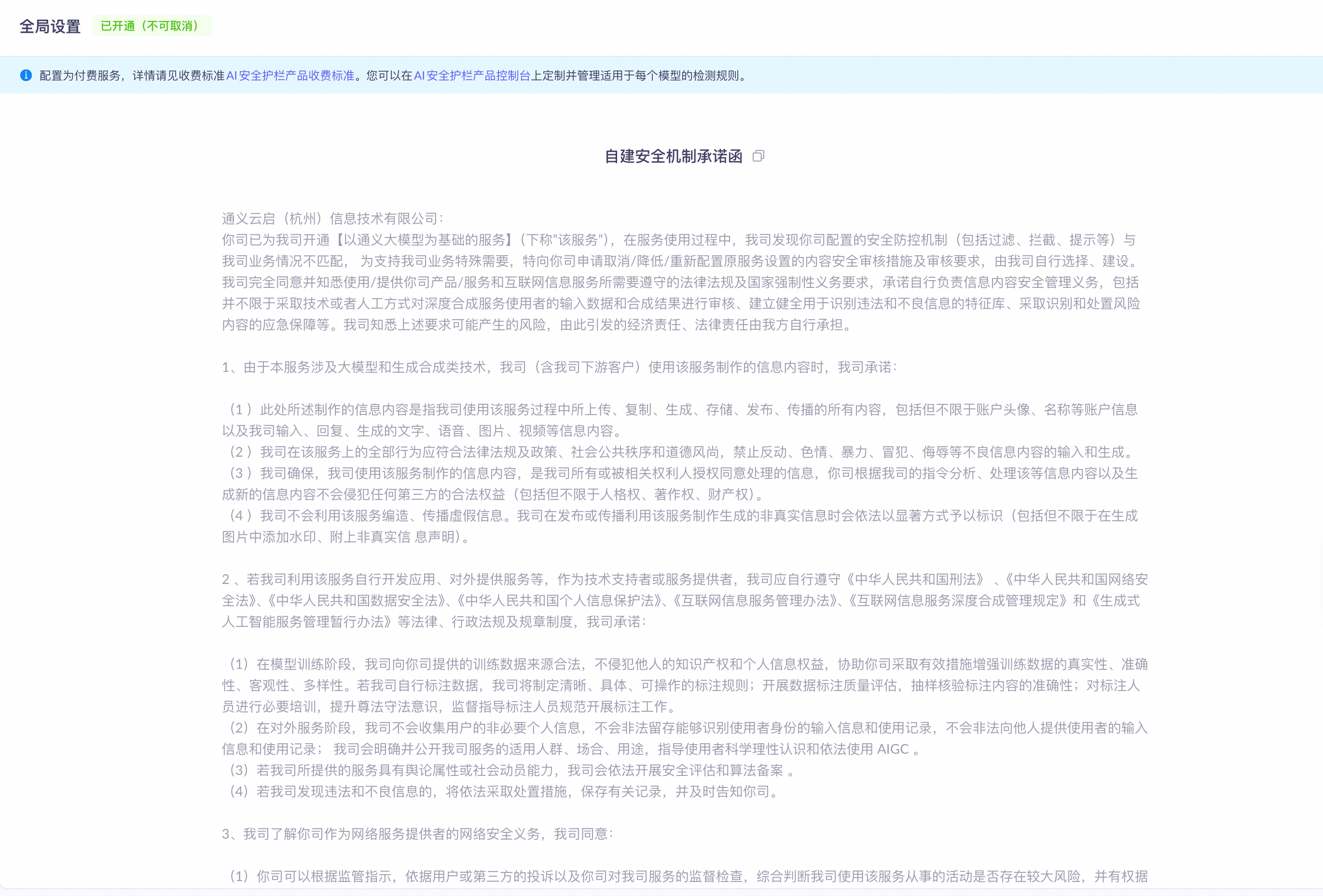
Go to the Security management page.
If the page looks like the following image, you have already granted authorization and can skip to Step 3: Set the request header.
-
Click Authorize to enable content moderation settings.
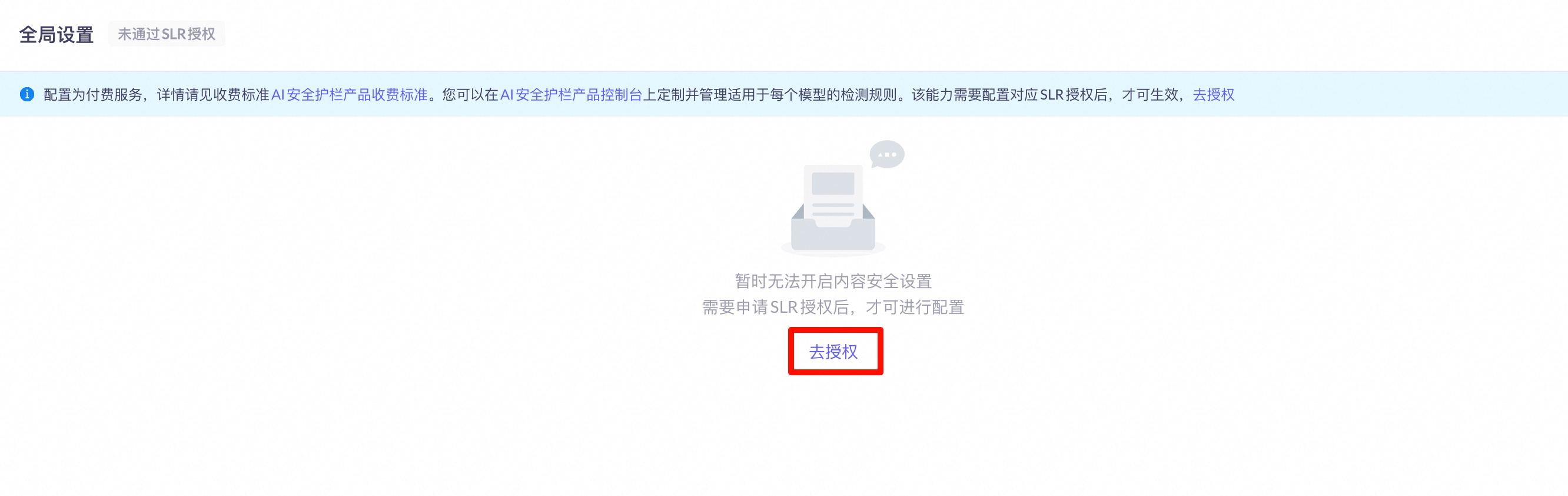
- Confirm the authorization.
Step 3: Set the request header
When calling Alibaba Cloud Model Studio, include the following in the request header to enable the AI guardrail service.
Set the DASHSCOPE_API_KEY environment variable before making a call. For instructions, see Obtain an API key.
- Python
- Java
- Node.js
- cURL
- OpenAI
- DashScope
Request exampleResponse example
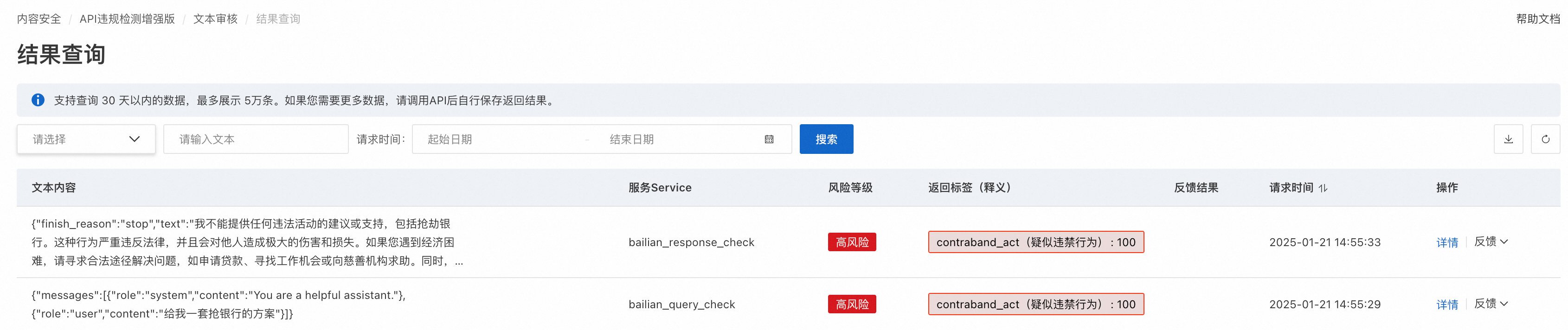
Detection results
Log on to the AI guardrail console. On the Detection Results > Result Query page, view detection results to analyze recurring policy violations. The following figure shows an example.
Knowledge base retrieval and the AI guardrail
When you use the knowledge base feature in Model Studio, documents uploaded to your knowledge base are retrieved and injected as context into model inputs. If the retrieved documents contain sensitive or non-compliant content, that content is subject to the same AI guardrail inspection as direct user inputs, and the request is intercepted with a DataInspectionFailed error.
If your knowledge base retrieval requests are blocked by the AI guardrail, follow these steps to troubleshoot:
- Review the documents uploaded to your knowledge base for content that may violate content policies, including politically sensitive content, adult content, violent content, illegal information, private data, or content that could induce policy violations.
- Simplify or rewrite your prompts to reduce the likelihood that retrieved context triggers the guardrail.
- If the issue persists, collect the full error details (HTTP status code, error code, and error message) and contact your account manager to request allowlisting. See Request content allowlisting below.
Request content allowlisting
If your use case requires content that is flagged by the AI guardrail, you can contact your account manager to request allowlisting for specific content. Once the security team approves your request, the specified content is added to the exemption list.
Before submitting your request, collect the following information from the failed API response:
- HTTP status code (for example,
400) - Error code (
DataInspectionFailedfor DashScope ordata_inspection_failedfor OpenAI-compatible mode) - Full error message (for example,
Input data may contain inappropriate content.)
- Collect the complete error details and a description of the issue, including the knowledge base ID, the model name, and the operation that triggered the interception.
- Contact your account manager with the error details, your use case description, and the specific content you need allowlisted.
- Wait for the security team to complete the review. Allowlisting takes effect after the review is approved.