

Datasets are the foundation of model training and evaluation. The Alibaba Cloud Model Studio Data Management feature helps you efficiently create and manage datasets.
Dataset overview
Alibaba Cloud Model Studio Data Management centrally manages all large model-related datasets in your business workspace. Datasets are divided into Training Set (used for model fine-tuning, supporting SFT/DPO/CPT) and Evaluation Set (used for Model evaluation).
Training sets support four training scenarios: text generation, visual understanding, image-to-video (first frame), and image-to-video (first and last frame). Evaluation sets support text generation (two sample formats: single-turn and multi-turn), as well as multimodal scenarios such as visual understanding, text-to-image, image-to-image, and image-to-video (first frame/first and last frames) for multimodal model evaluation. The dataset type cannot be changed after creation; choose carefully based on your downstream usage.
Dataset names can be up to 50 characters long (Chinese, English, digits, underscores, hyphens, and periods are supported), and descriptions up to 200 characters. Creating or publishing empty datasets is not supported. There is no limit on the number of datasets you can create, and no upper bound on the amount of data you can import.
DPO/CPT training methods and cloud storage mounting are supported only in the Beijing region.
Training methods and scenarios
Training sets support three training methods with different applicable scenarios and minimum data requirements:
- SFT (supervised fine-tuning): instruction fine-tuning that enables the model to solve specific tasks. At least one thousand entries recommended. Available on all sites.
- DPO (direct preference optimization): preference alignment training. At least one hundred entries recommended.
- CPT (continual pre-training): domain knowledge injection. At least 50 million tokens of data recommended.
Training method | Purpose | Recommended data volume | Site availability |
|---|---|---|---|
SFT | Supervised fine-tuning (instruction fine-tuning) | 1,000+ entries | All sites |
DPO | Direct preference optimization (preference alignment) | 100+ entries | Beijing region |
CPT | Continual pre-training (domain knowledge) | 50 million tokens | Beijing region |
Import methods
Datasets support four import methods with different applicable scenarios and prerequisites:
- Upload Local File: no prerequisites; directly upload local files, suitable for small batches of data.
- Import from OSS: add the tag
bailian-datahub-access=readto the target bucket; suitable for large batches of data. Not supported for evaluation sets. - Log Backflow: automatically extract training data from SLS inference logs; requires authorizing a service-linked role, forming an inference → data → fine-tuning enhancement loop.
- API Upload: upload data files programmatically via the Model Studio API, suitable for scenarios requiring automated integration. See Fine-tuning via API or CLI.
Import method | Prerequisites | Applicable scenario | Evaluation set supported |
|---|---|---|---|
Local upload | None | Small batches of data | Supported |
OSS import | Bucket tag bailian-datahub-access=read | Large batches of data | Not supported |
Log backflow | Authorization + API Key/model filter | Build training data from inference logs | Supported |
Data Preparation
Preparing high-quality data is key to model fine-tuning results. For the recommended data volumes of each training method (SFT/DPO/CPT text generation), see Tuning data upload rules.
There are no official recommended data volumes for visual understanding and image-to-video training sets; prepare sufficient samples based on your actual scenario.
Data format and templates
For the data file format specifications of each training scenario (SFT text/visual understanding (image/video → text), DPO, CPT, evaluation sets), see Tuning data upload rules.
On the Data Management dataset creation page, download the data template for the corresponding scenario; preparing data according to the template structure can prevent import failures. Evaluation sets support the Text generation (prompt&completion) single-turn format and the Text generation (ChatML-messages) multi-turn dialogue format; evaluation sets for multimodal scenarios (visual understanding, text-to-image, text-to-image, image-to-image, and image-to-video) are in Zip archive format. For detailed field specifications and examples, see Tuning data upload rules - Evaluation set format.
For data diversity and augmentation strategies, see the model fine-tuning documentation. For evaluation sets, prepare an independent set of non-overlapping data to objectively assess model generalization.
Create a dataset
Before creating a dataset, the following prerequisites must be met: Model Studio service is activated; for OSS import, add the tag bailian-datahub-access=read to the target bucket; for log backflow, authorize a service-linked role.
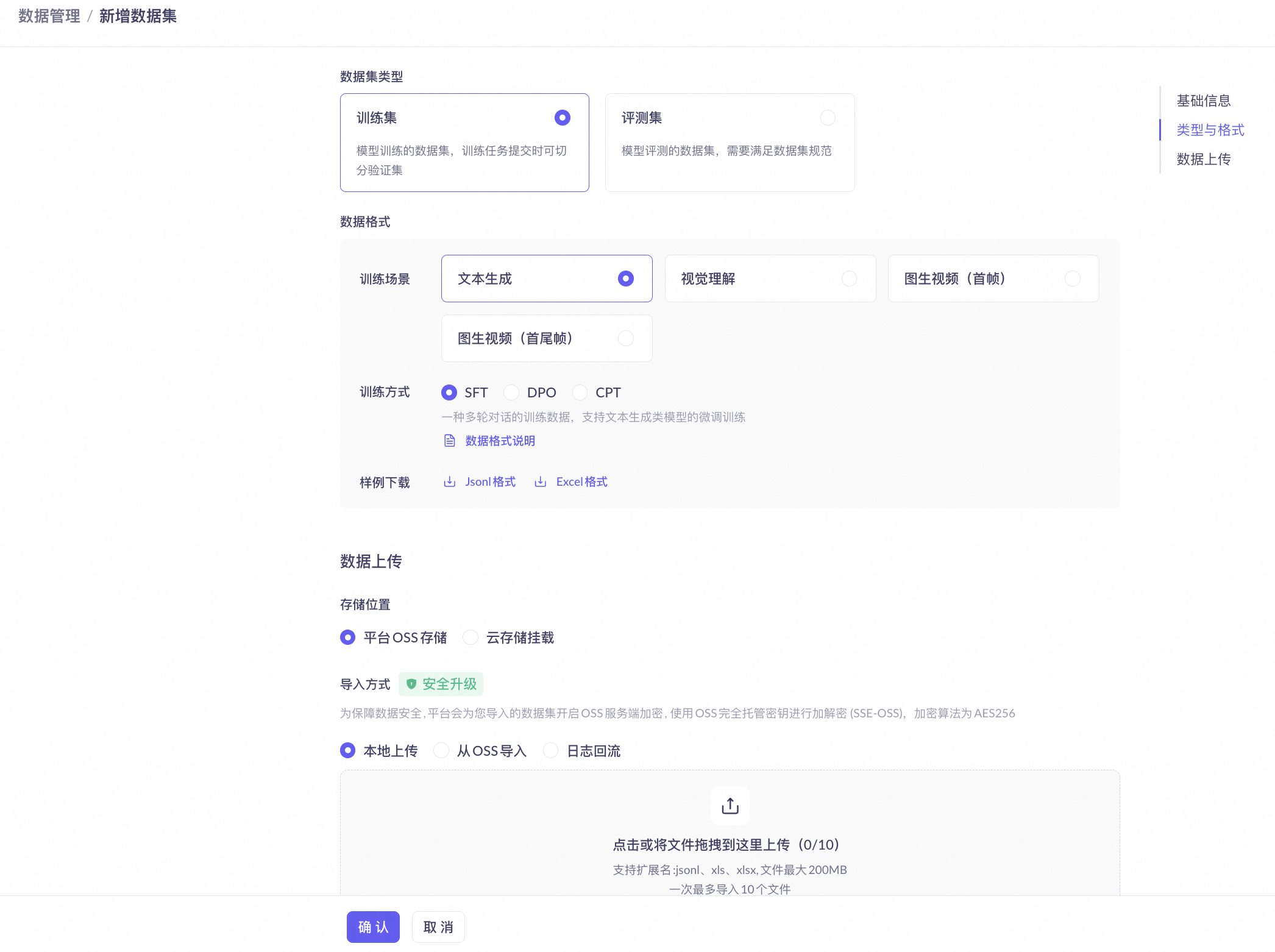
On the Data Management > Dataset list page, click Create Dataset to enter the standalone creation page, then follow these steps:
- Enter a dataset name (up to 50 characters) and a description (up to 200 characters, optional).
- Select a dataset type: Training Set or Evaluation Set (cannot be changed after creation).
- Select a training scenario: training sets support text generation, visual understanding, image-to-video (first frame), image-to-video (first and last frame), and more; for evaluation sets, select the sample format or scenario here — Text generation (ChatML-messages) (multi-turn dialogue), Text generation (prompt&completion) (single-turn), or multimodal scenarios such as visual understanding, text-to-image, image-to-image, image-to-video (first frame), and image-to-video (first and last frame) (when you switch the scenario, the data format description and sample download change accordingly).
- Select a training method: SFT, DPO, or CPT (required only for training sets; evaluation sets have no such configuration).
- Select a data format: Jsonl format or Excel format. The file types of evaluation sets are determined by the sample format: ChatML-messages supports jsonl, xls, and xlsx (up to 200 MB per file), and prompt&completion supports only xls and xlsx (up to 20 MB per file); multimodal scenarios use a Zip archive (up to 2 GB per file, with data.jsonl in the root directory of the archive, and image and video files can be located in subdirectories). The creation page provides sample template downloads for the corresponding formats.
- Select a storage location: Platform OSS storage (free, no data volume limit) or Mount Cloud Storage (not available for evaluation sets).
- Select an import method and upload data: local upload, import from OSS, log backflow, or API upload (see the tab descriptions below).
- Click Confirm; the dataset is published immediately, completing creation.
Parameter | Description | Required | Value description |
|---|---|---|---|
Dataset name | Dataset identifier | true | Up to 50 characters; Chinese/English/digits/underscore/hyphen/period |
Dataset description | Dataset description | Up to 200 characters | |
Dataset type | Training set or evaluation set; cannot be changed after creation | true | Training set/Evaluation set |
Training scenario | Training scenario the data applies to | true | Text generation/Visual understanding/Image-to-video (first frame)/Image-to-video (first and last frame); evaluation sets can additionally select Text-to-image/Image-to-image |
Training method | Training algorithm type | true | SFT/DPO/CPT |
Data format | Data file format | true | Jsonl format/Excel format; evaluation sets use either of the two sample formats Text generation (ChatML-messages)/Text generation (prompt&completion), or a Zip archive for multimodal scenarios |
Storage location | Dataset storage method | true | Platform OSS storage/Cloud storage mounting |
Import method | Data import source | true | Local upload/Import from OSS/Log backflow/API upload |
- Local upload
- Import from OSS
- Log backflow
Version management
A dataset can have multiple independent versions, with version numbers auto-incrementing. On the dataset detail page, click Add Version to create a new version.
When adding a version, the create-new mode is adopted: all data must be re-imported, and the inheritance mode that incrementally modifies the previous version's data is no longer supported.
- Create Mode: re-import all data; suitable for large-scale updates.
Dataset management
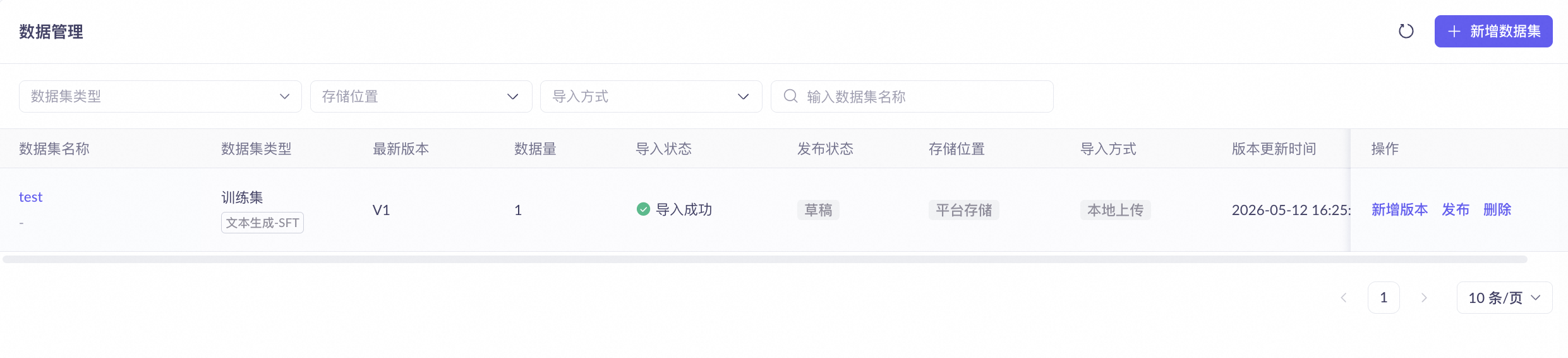
On the Data Management > Dataset list page, you can view all datasets. The list displays the following 9 columns: dataset name, type, latest version, data volume, import status, publish status, storage location, import method, and operations (add version/publish/delete). You can filter by storage location and import method. Datasets being imported auto-refresh their status every 5 seconds; no manual refresh is needed. Import status and publish status are two independent columns, reflecting data import progress and whether the dataset has been published, respectively.
Publish and delete
Publish is irreversible; published versions cannot be edited. Deleting a published version is also irreversible; only historically created draft versions can be deleted. Deleting an entire dataset removes all its versions. All these operations are irreversible; proceed with care.
Edit and export
Only historically created draft versions can be edited online (Prompt/Completion content is editable); newly created datasets are published immediately upon submission and no longer produce draft versions, and editing is unavailable for published versions. When exporting datasets, each type has a different format: SFT training sets are exported as jsonl, visual understanding training sets as zip, and evaluation sets as xlsx. Exporting empty datasets is not supported.
Billing
The Data Management feature is free, but dataset storage and downstream resources incur fees; see the Model Studio billing page for details.
- Platform OSS storage: fees are based on the Model Studio billing page.
- Mount Cloud Storage: fees are billed to the user's own OSS account.
- Log Backflow: SLS fees incurred are billed to the SLS product account.
Next steps
After a dataset is created and published, it can be used in the following downstream scenarios:
- After a training set is published, it is used for model fine-tuning (SFT/DPO/CPT).
- After an evaluation set is published, it is used for Model evaluation.
- Published datasets (including historically created draft versions) can all be used for Data processing (data cleaning and augmentation).