

In My Models, you can manage models fine-tuned in Alibaba Cloud Model Studio and models imported from OSS (LoRA fine-tuning and full-parameter fine-tuning only), covering first-time OSS authorization, model file preparation and validation, import form completion, model status management, and common issue troubleshooting. Supports cloud deployment with high-concurrency, low-latency inference services.
Supported Models
On the My Models page, you can manage two types of models:
- Fine-tuned models: Models fine-tuned in Alibaba Cloud Model Studio. For more information, see Supported Models for Model Fine-tuning.
-
Imported models: Models imported from Object Storage Service (OSS). This supports importing models that underwent LoRA fine-tuning or full-parameter fine-tuning.
Importing full-parameter fine-tuned models is a whitelist feature. To enable it, contact your account manager.
Model list:- China (Beijing)
- Singapore
Supported Models
Model Name
Qwen3
Qwen3-32B
Qwen3
Qwen3-14B
Qwen3
Qwen3-8B
Qwen3
Qwen3-4B-Instruct-2507
Qwen3-VL
Qwen3-VL-8B-Instruct
Qwen2.5
Qwen2.5-72B-Instruct
Qwen2.5
Qwen2.5-32B-Instruct
Qwen2.5
Qwen2.5-14B-Instruct
Qwen2.5
Qwen2.5-7B-Instruct
Qwen2.5-VL
Qwen2.5-VL-72B-Instruct
Qwen2.5-VL
Qwen2.5-VL-7B-Instruct
Data updates may be delayed. Refer to the actual display on the interface when you import models.
Import Models
This section describes how to import models from OSS using the Alibaba Cloud Model Studio console.
Importing models is not supported through API or command line operations.
- On the My Models page, click Import Model to open the Import Model interface.
- Enter a Model Name and select the Base Model (the model to be fine-tuned).
- For Import Method, select Import from OSS. Currently, no other methods are supported. You need to manually upload the associated files for your LoRA fine-tuned or full-parameter fine-tuned model to Alibaba Cloud Object Storage Service (OSS). Upload View model file examples
- After clicking OK, the system begins importing the model. During peak request times, this process may take longer. You can wait patiently.
Prepare LoRA Model Files
Before importing, place the LoRA model files in a subdirectory of an OSS Bucket per the following requirements (the Bucket root directory is not supported), and pass the system's automatic validation before submission. The model files must be placed directly under the selected subdirectory; the system detects them automatically.
Required files and directory structure
The subdirectory must contain the following files: adapter_model.safetensors (LoRA adapter weights, SafeTensors format), adapter_config.json (configuration file containing rank, alpha, and other parameters), and config.json (base model configuration). After selecting a directory, the system automatically validates the format and completeness of these files.
Training parameter constraints
- rank value: rank must be 8, 16, 32, or 64, and all LoRA layers of the same model must use the same rank value; otherwise the model cannot be imported.
- Vocabulary cannot be modified: Models that added new tokens or modified the original vocabulary during training cannot be imported; the vocabulary must exactly match the base model's.
- Chat template cannot be modified: Models that modified the chat_template during training cannot be imported; it must match the base model's default configuration. The chat_template is located in the chat_template field of config.json or tokenizer_config.json.
- Vision models must freeze VIT: Vision-language models must freeze the Vision Transformer part. If the LoRA adapter contains visual-related weight parameters (i.e., VIT not frozen), the model cannot be imported.
Pre-submission automatic validation
On the import page, after selecting a model directory, the system automatically calls the file validation interface to check the format and completeness of the model files in the directory. If validation fails, a red prompt appears below the directory field and blocks submission. Fix the files per the prompt before submitting. A common failure cause is missing required files, with error code AvailableModelFileNotFound.
Import Form Fields
The import model form fields are as follows:
Field | Description | Constraint |
|---|---|---|
Model name | Enter a display name for the model. | Required, up to 50 characters |
Base model | Select the base model used for LoRA training; must match the training base. | Required, dropdown select |
Training method | Options depend on the selected base model; after selecting a base model, options render automatically with the first one selected by default. | Required, dropdown select |
Import source | Only "Import from OSS" is supported; no other options. | Read-only, selected by default |
Bucket | Select the OSS bucket storing the model files; only buckets with the bailian-datahub-access=read tag are listed. | Required, dropdown select |
Model directory | Browse and select the subdirectory containing the model checkpoint in the chosen bucket; the bucket root directory is not selectable. | Required, tree select |
Model encryption | The platform automatically enables OSS server-side encryption (SSE-OSS) for exported model files, using fully managed OSS keys with AES256 as the encryption algorithm. | Read-only, platform-enforced |
What to do next
Manage My Models
On the My Models page, you can view all fine-tuned and imported models in the current workspace. You can also perform operations such as deployment and deletion.
Delete: Undeploy models before deleting them. If the model comes from Model Fine-tuning, this operation does not delete records from the Model Fine-tuning interface.
Status and transitions
Imported model states include Creating, Created, Creation Failed, and Expired. Creating means importing is in progress; Created means the import is complete and deployable; Creation Failed means the import was unsuccessful; Expired means the OSS source model files changed after Created. The list silently auto-refreshes every 3 seconds for models in the Creating state, which is normal behavior, not an API exception.
The Creation Failed status has a "Details" link next to it; hover to view the failure error code (such as AvailableModelFileNotFound) and the corresponding oss://bucket/path, to help locate the failed file.
The Expired status can be hovered to view a pop-up showing "Changes detected in the following files" and the list of changed source file names, prompting you to re-import.
Actions column availability
Each row's actions column provides Deploy, Incremental training, and Delete buttons. Button availability depends on the model status:
- Deploy: Only available for the Created state. Clicking it goes to the deployment creation page; for deployment operations, see Deployment and O&M. The button is unavailable for other states or when no deployment method is available.
- Incremental training: Models imported from OSS do not support incremental training; the button is unavailable.
- Delete: Models in the Creating state cannot be deleted; quantized models must be deleted on the model compression page.
Invoke My Models
Models provide inference services only after successful deployment (API invocation only). For specific operations and billing methods, see Invoke After Deployment.
- Key restrictions: After you successfully deploy models fine-tuned in Alibaba Cloud Model Studio, invoke them only using the API key of their workspace. Currently, only DashScope invocation is supported, not (OpenAI compatible) invocation.
- Optimize inference results: When invoking, explicitly configure inference hyperparameters (such as
presence_penalty,frequency_penalty, andrepetition_penalty). Ensure these settings match the inference hyperparameters used during your offline fine-tuning.
Model File Examples
-
LoRA fine-tuning typically generates two checkpoint files: best_model_checkpoint (the checkpoint with the best performance on the validation set) and last_model_checkpoint (the last saved checkpoint). You can import either one as needed.
Ensure the imported model files include adapter_model.safetensors and adapter_config.json. To learn about LoRA fine-tuning methods, refer to the model fine-tuning section in the Alibaba Cloud Large Language Model ACP Course.
Examples of model files (checkpoint files) to prepare:
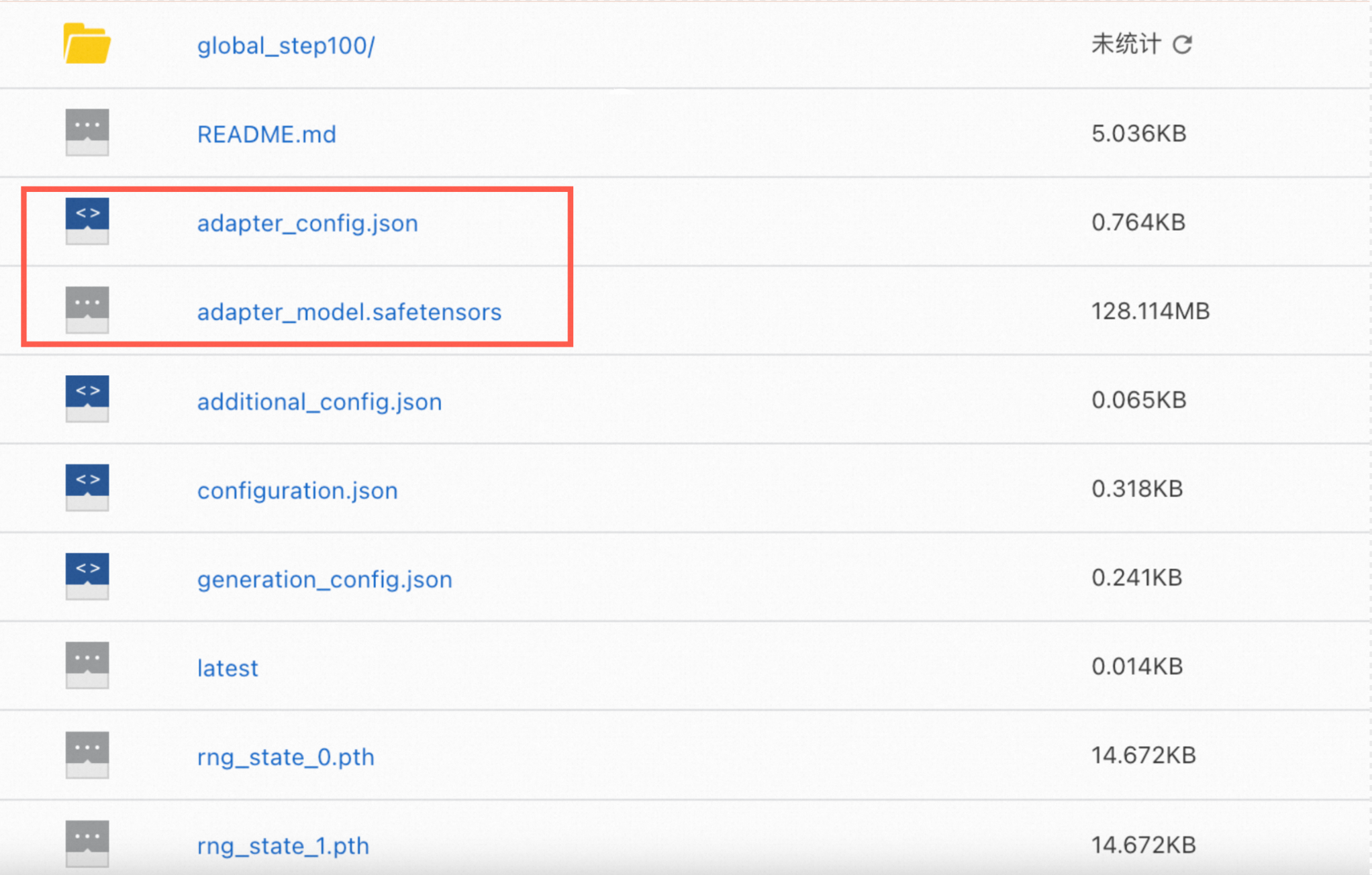
- Files to import for full-parameter fine-tuning must be consistent with open source models.
FAQ
How do I import files from OSS to Alibaba Cloud Model Studio for the first time?
How do I import files from OSS to Alibaba Cloud Model Studio for the first time?
bailian-datahub-access tag to the target OSS bucket before you import.If you are unfamiliar with the concepts and differences between root accounts and RAM users, first read Permission Management.
- Use a Root Account
- Use a RAM User
-
Click Go to Authorization.

-
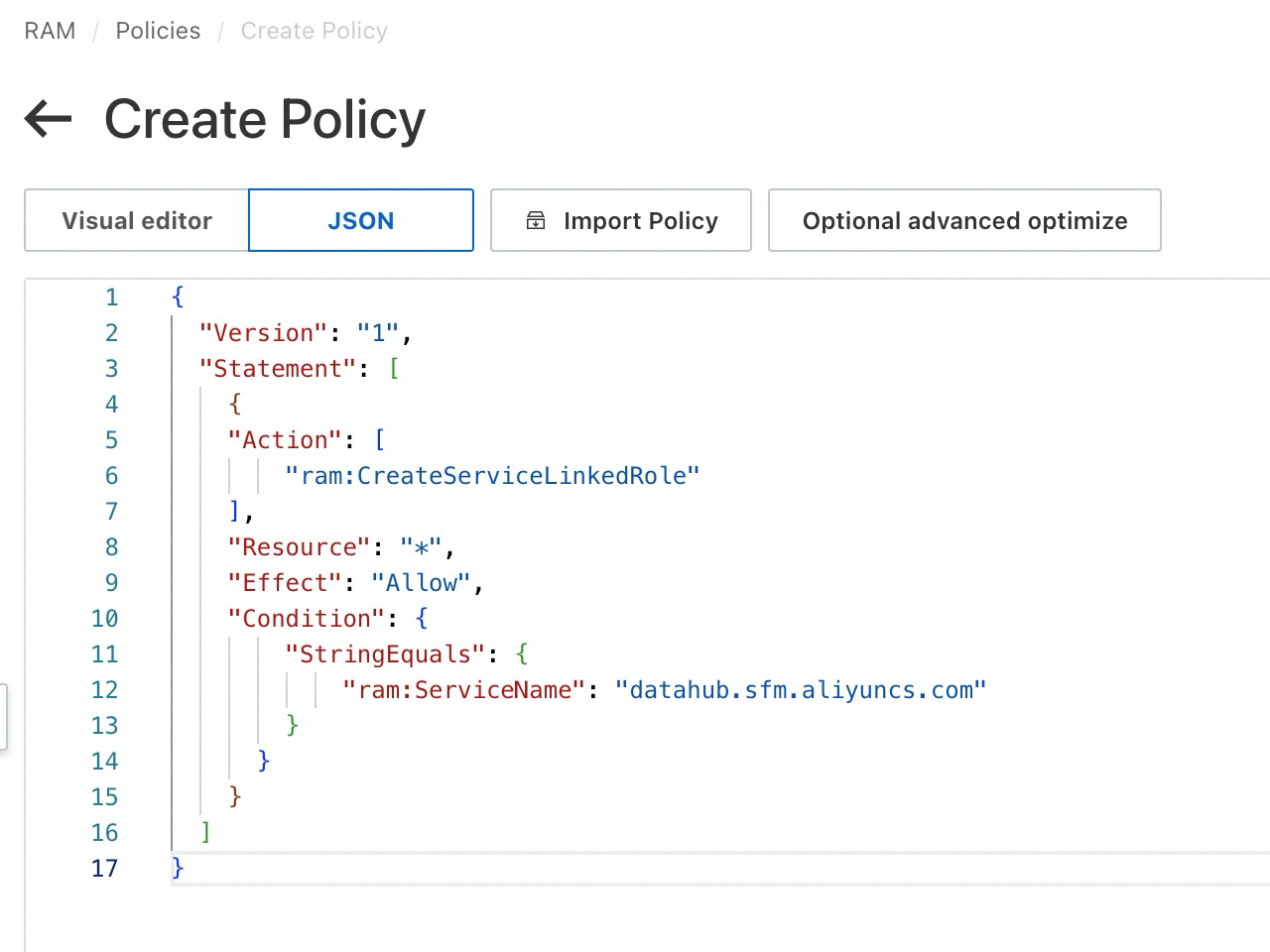
In the dialog box, click Confirm Authorization. The system automatically enables the OSS Service-linked Role for you (a prerequisite).
This usually takes effect within seconds. During peak service hours, there may be a slight delay.
What to do if "This request failed. Try resubmitting or contact the administrator. Error code: 10041495" appears.

-
Add the
bailian-datahub-accesstag to the target OSS bucket.This tag marks buckets accessible by Alibaba Cloud Model Studio. Alibaba Cloud Model Studio cannot access untagged buckets.
- Go to the OSS Management Console. In the navigation pane on the left, click Bucket List. The buckets that you created are displayed.
-
In the Tag column for the target bucket, hover over the
 icon, then click Go to Edit.

-
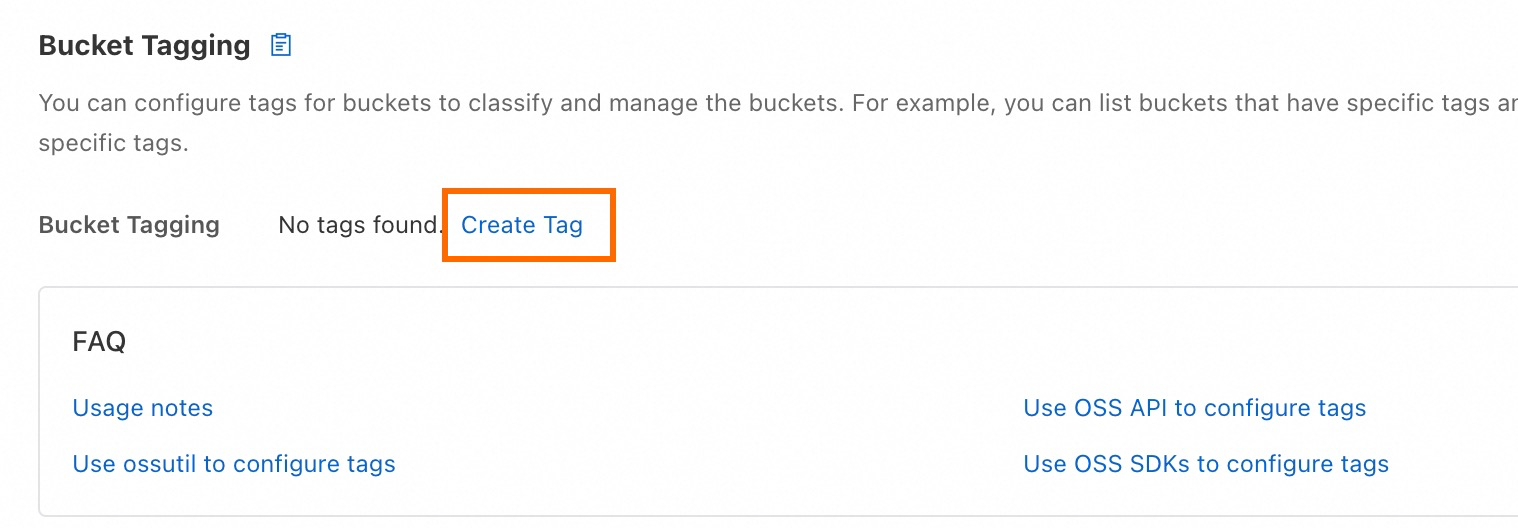
Click Create Tag.
-
Click Tag. Set the tag name to
bailian-datahub-accessand the tag value toread. Then, click Save.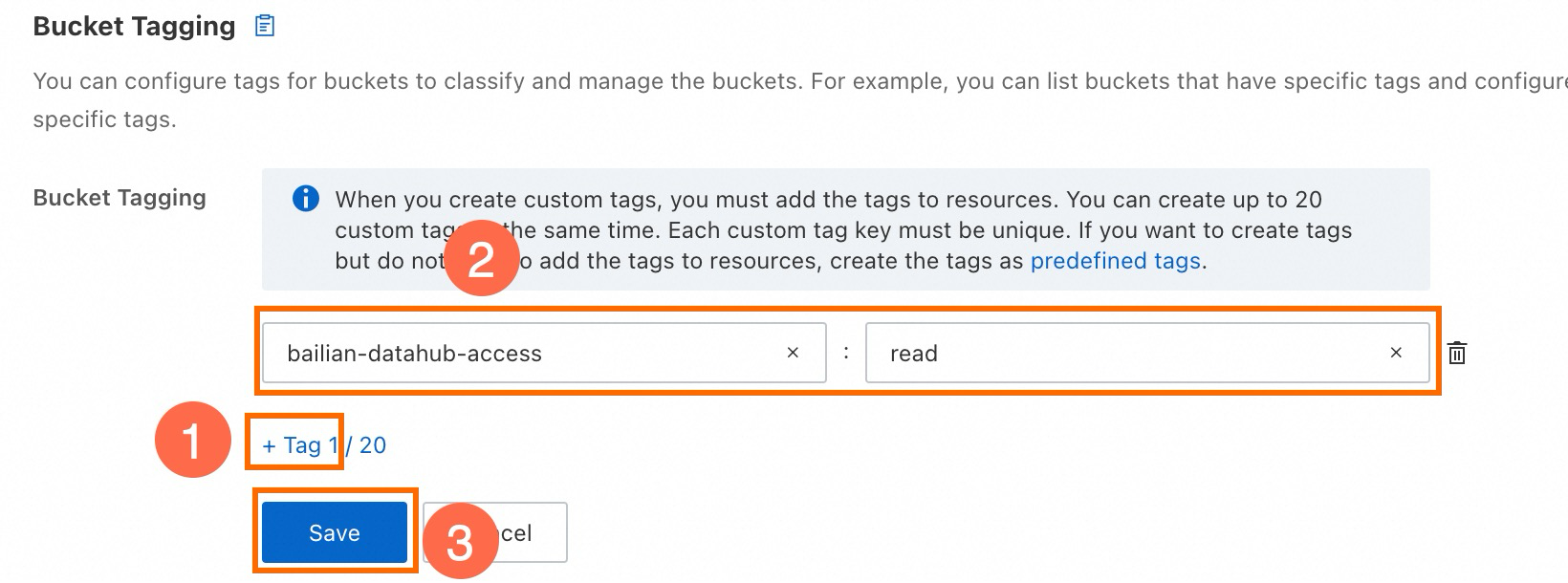
-
Return to the Import Model interface, reselect the target bucket, and try importing again.
Note that Alibaba Cloud Model Studio does not support accessing files stored in the root directory of a bucket. Select an existing folder or create a new one within the bucket for Alibaba Cloud Model Studio to access.



What to do if error "10041495" occurs?
What to do if error "10041495" occurs?
- The root account must go to the OSS Management Console. Enable OSS as prompted on the interface.
- Return to the Alibaba Cloud Model Studio Import Model interface. Then, try authorizing again.
What to do when import fails with AvailableModelFileNotFound?
What to do when import fails with AvailableModelFileNotFound?
What does the Expired model status mean?
What does the Expired model status mean?
What to do when a target Bucket is not selectable in the Bucket dropdown?
What to do when a target Bucket is not selectable in the Bucket dropdown?
Is the My Models list auto-refreshing every few seconds a fault?
Is the My Models list auto-refreshing every few seconds a fault?
Why does the imported model produce different inference results compared to local vLLM or SGLang?
Why does the imported model produce different inference results compared to local vLLM or SGLang?
Does deleting an imported model affect the source files in OSS?
Does deleting an imported model affect the source files in OSS?
How to upgrade from the legacy authorization method?
How to upgrade from the legacy authorization method?