Data processing lets you use various model operators to clean and augment the training set used for model tuning, improving its quality.
Why data processing
In the model fine-tuning process, a high-quality training set will significantly improve the training performance and prediction capability of a large model. However, most existing training sets have low data quality and are insufficient in quantity. Therefore, you should first use the Data Processing feature of Alibaba Cloud Model Studio to perform Data Cleansing and Data Augmentation on your training set. After you obtain sufficient high-quality training data, you can then perform model fine-tuning.
Building an effective SFT training set typically requires 1,000+ samples.
-
Data Cleansing: You need to correct issues in the training data, such as issues with standardization, compliance, consistency, and duplication. Model Studio currently supports ten data cleansing operations, including special content removal and sensitive data masking.
-
special content removal: Identifies and removes content such as URLs and special characters from your training data.
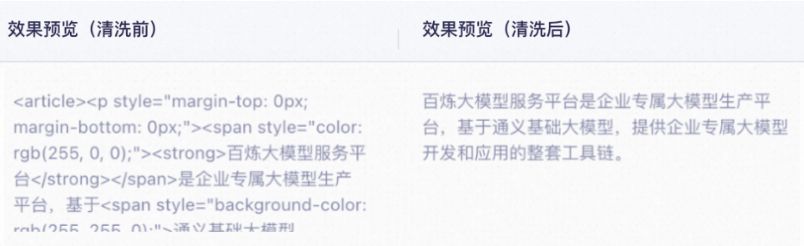
-
sensitive data masking: Identifies and masks sensitive data in your training data.
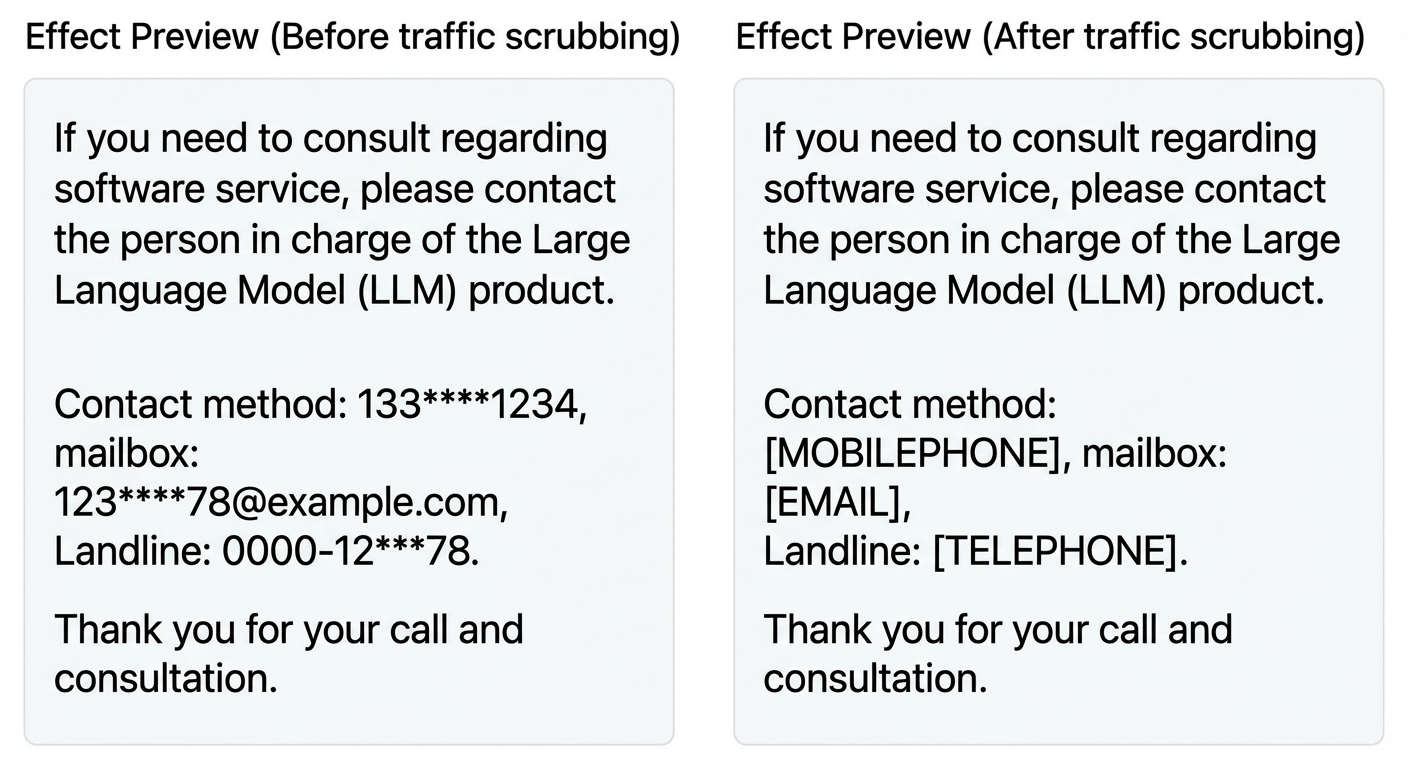
-
special content removal: Identifies and removes content such as URLs and special characters from your training data.
- Data Augmentation: To increase the diversity and balance of your training data or expand its size.
Supported training sets
Data processing supports the SFT-text generation training set, but does not currently support the SFT-image understanding training set or the DPO-text generation training set.
This training set contains single-turn or multi-turn dialogue data in the ChatML format. SFT-ChatML format example.jsonl
Create a data flow task
Alibaba Cloud Model Studio does not currently provide an API for data processing.This section shows you how to build a custom data flow in the console to illustrate the data processing workflow. This data flow first applies sensitive information masking (data cleaning) to the training data, and then performs data augmentation. The process has two steps:
- Create a data flow: Build a custom data flow from a blank canvas.
- Create a data flow task: Start a data flow task based on the created data flow to process your training set.
Clean the data before augmenting it to ensure the augmentation process runs on a high-quality dataset. This helps ensure that the data source for model fine-tuning is accurate.
If you only need to perform data cleaning or augmentation on your training data, you can use a prebuilt Data Flow Template in Alibaba Cloud Model Studio. Go to the Data Management page, and on the Data Flow tab, click Data Flow Template, then create a data flow based on this template.
Step 1: Create a data flow
- Go to the Data Management page. On the Data Flow tab, click the Create Data Flow button in the Data Flow list.
-
In the Create Data Flow dialog box, enter a Data Flow Name and Data Flow Description, and then click OK to open the data flow canvas. The data flow remains in the Draft state until you click Publish in the upper-right corner.
The Start node is pre-configured with a
dialogue_textparameter that represents the training set to be processed. You cannot modify this parameter.Click the
 icon in the upper-left corner to exit the canvas. The system automatically saves your data flow draft. You can click Manage to open the canvas again and continue editing.
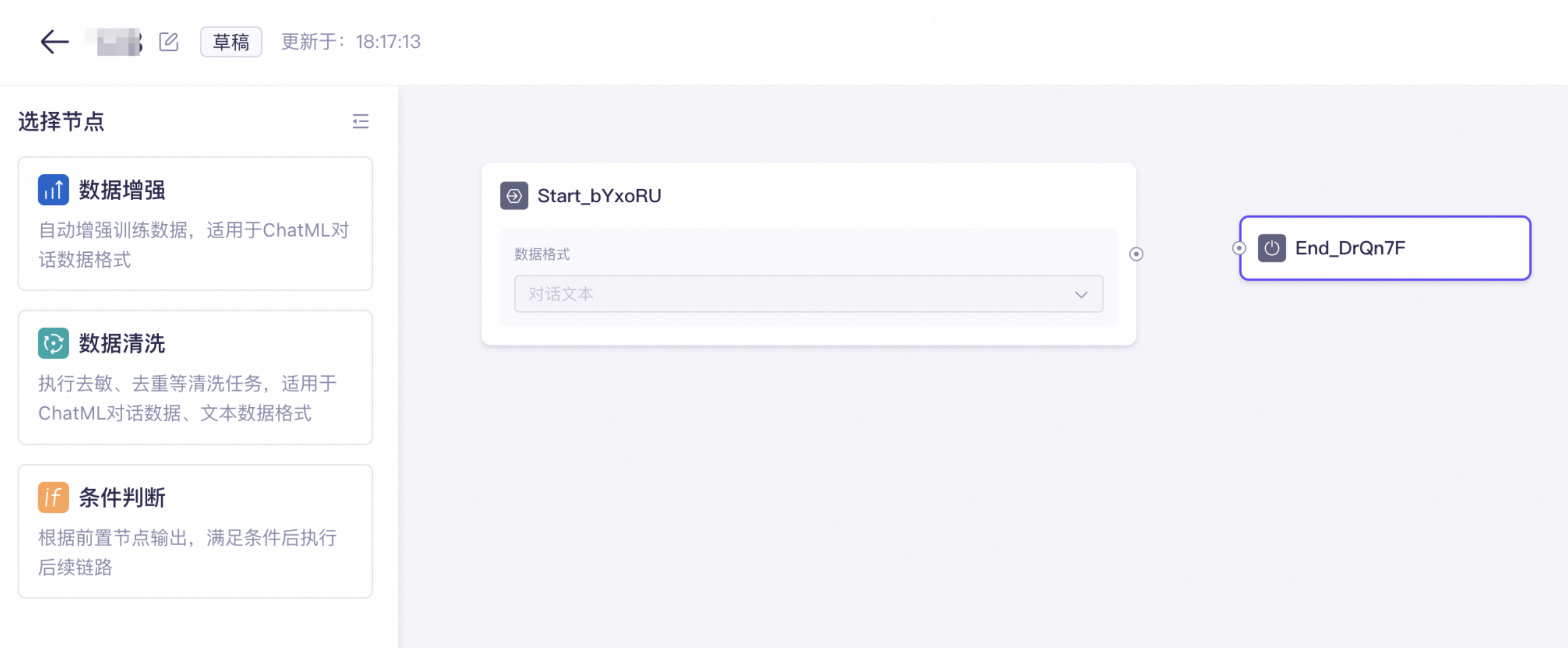
-
Drag the Data Cleansing node from the left to the canvas, enable the Sensitive Data Masking operator for the Data Cleansing node, and disable the other operators.
The Data Cleansing node is pre-configured with a
dataSetCountparameter, which represents the size of the training set generated when the node finishes. You cannot modify this parameter.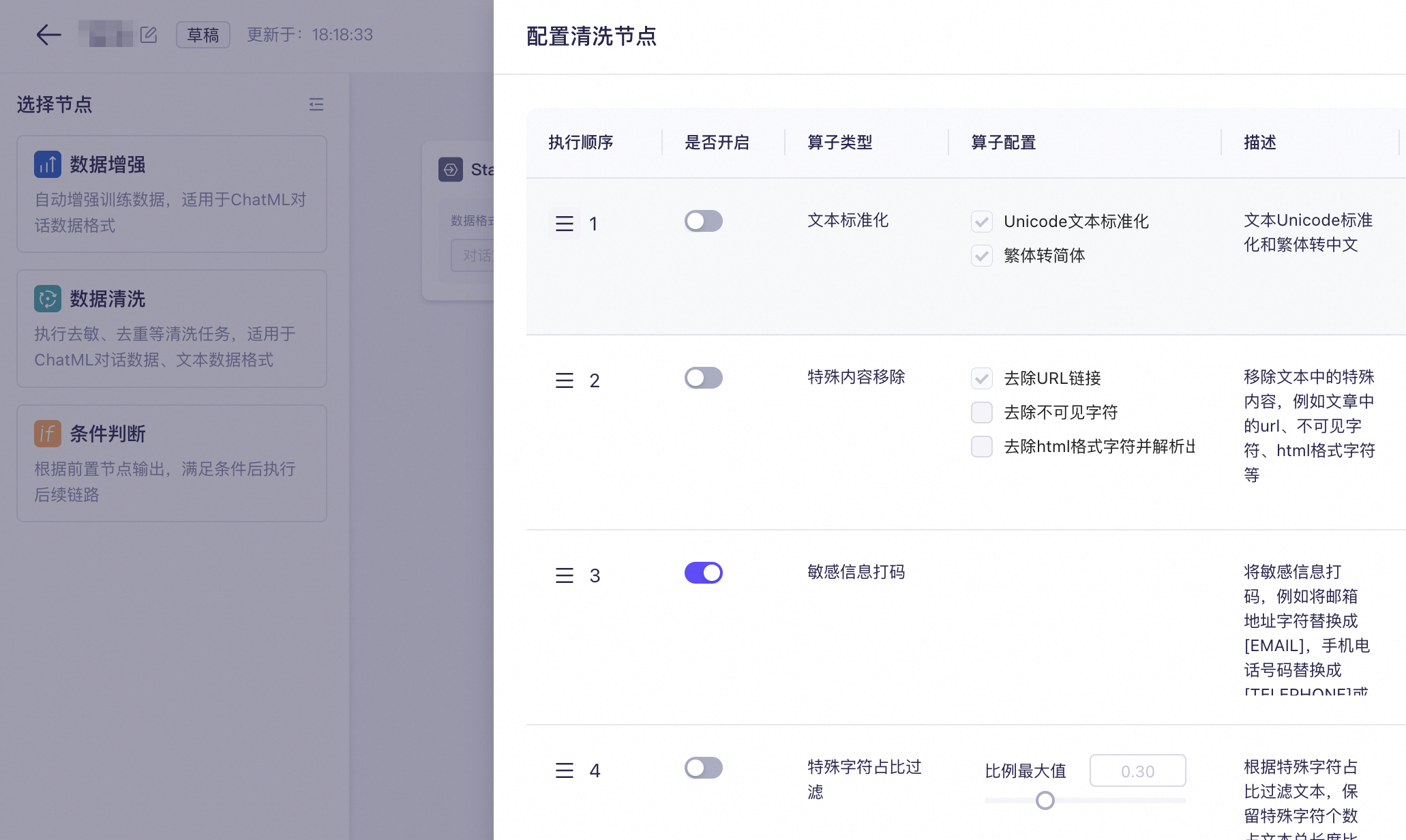
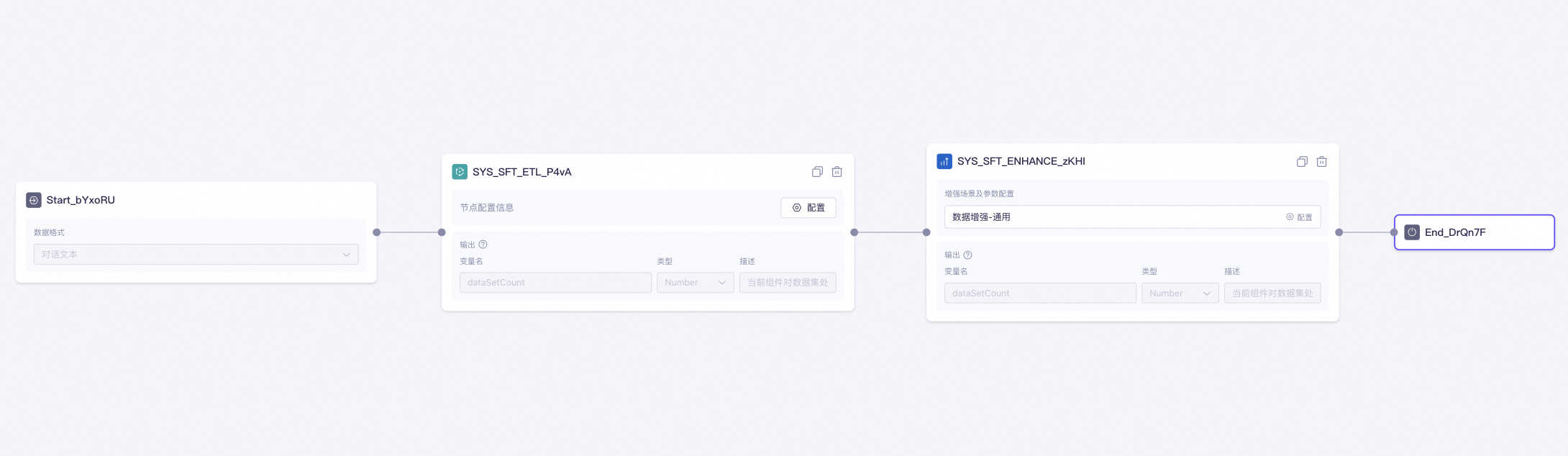
- Connect the Start node to the Data Cleansing node.
-
Drag the Data Augmentation node from the left onto the canvas, and configure the parameters for the Data Augmentation node. Learn more about the parameters.
Parameter Configuration Select Scenario Data Augmentation - General. Sample count for instruction generation This value must be smaller than the size of the input data for this node. Otherwise, use the default value. Similarity filtering threshold Keep the default value. Number of samples to generate Keep the default value. Prompt Configuration Use the default template provided by Alibaba Cloud Model Studio. -
Connect the Data Cleansing node to the Data Augmentation node, and then connect the Data Augmentation node to the End node.
-
Click Publish in the upper-right corner. The data flow status changes to Publish. If you edit the data flow again, its status reverts to Draft. Click the icon in the upper-left corner to exit the canvas.
Searching for a data flow: On the Data Flows tab, enter the data flow name in the search box and click the
 icon to find the data flow. Fuzzy search is supported.
- Next, follow the instructions in Step 2: Create a data flow task to process your training set with this data flow.
Step 2: Create a data flow task
-
Go to the Data Management page. On the Data Flow tab, click Task List, then create a task from the data flow list. In the dialog box that appears, select the target data flow and click OK. If a data flow that you created does not appear in the list, this may be because:
-
The data flow has not been published.
You can go to Data Flow list, find the data flow that you want to publish, and then click Manage to publish.
- The data flow does not belong to the current workspace.
-
The data flow has not been published.
-
Enter a Task Name, select Model Data as the Data Source, and select the training set to process from the list.
If no training set is available, click Manage to go to Model Data and upload a training set. For more information, see Training Sets and Evaluation Sets.
Model Data provides version management for training sets. After a training set is cleaned or augmented, a new version is automatically generated. This new version is saved independently and does not overwrite the original training set.
Data Processing currently supports only SFT-text generation training sets in formats other than ChatML. SFT-ChatML format example.jsonl
-
Click Created. The data flow task starts automatically.
The task may take some time to complete. During execution, you cannot manually stop the task.
-
Click the
 icon to refresh the Processing Status. The possible Processing Status are described in the following table.
Status
Description
Processing
The data flow task isrunning. During peak hours, tasks may be queued. No user action is required.
Completed
The data flow task completed successfully. Click Execution Process to the right of the task to view the results.
Processing failed
The data flow task failed. We recommend that you submit a ticket to determine the cause.
- After the task completes, the system creates a new version of the processed training set. Make sure to use the correct version for subsequent operations.
Manage data flow tasks
This section shows you how to view the list of data flow tasks in your workspace, find a specific task, and review its basic information, configuration, processing status, and results.
Go to the Data management page and click the Tasks tab. On this page, you can:
- View data flow task list: View the complete list and an overview of data flow tasks in the current workspace, including the Processing Status and Data Flow of each task.
-
Find a data flow task: Enter a data flow task name in the search box and click the icon. Fuzzy search is supported.
-
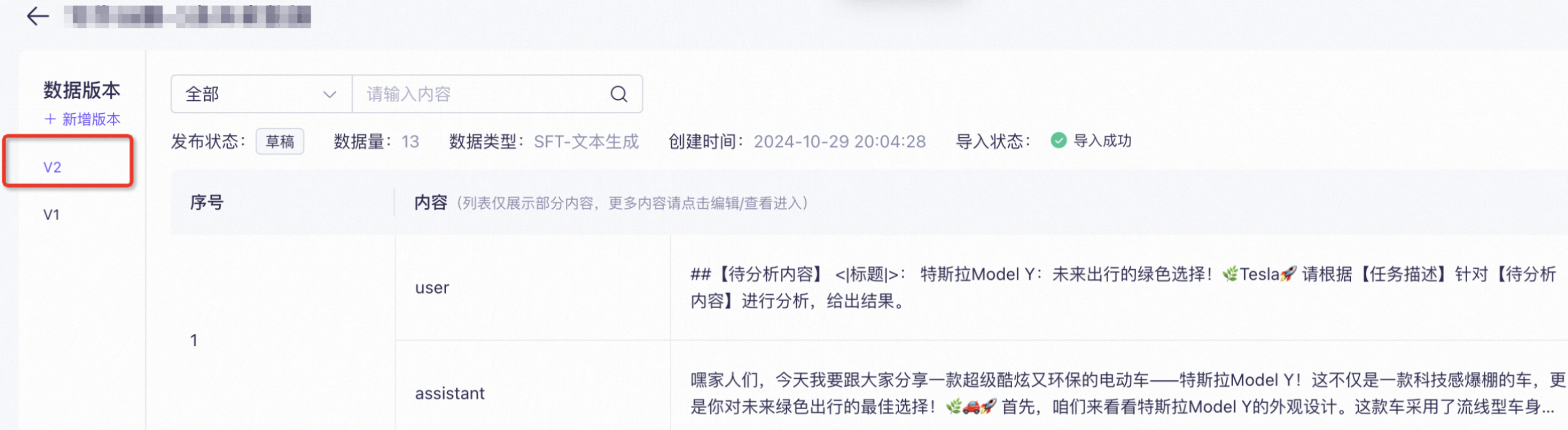
ViewingData SourceandData Flow: A new version of your training set is automatically generated after it is cleaned or enhanced. This new version is saved independently and does not overwrite the original training set. For example, if the training set before processing is version
V1, the processed data is stored as versionV2of the training set.Review the cleansed dataset to verify its integrity and accuracy.
-
View Execution Process: Click Execution Process in the Actions column to view the processing results and time taken for the data flow task, including the intermediate results and time taken for each processing node.
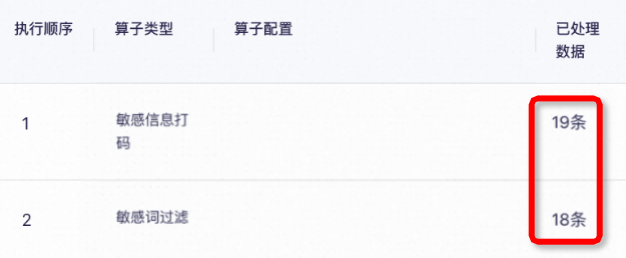
The Data Cleansing node displays the size of the output training set after each operator is applied. For example, in the figure above, the sensitive word filtering operator runs after the sensitive data masking operator, and the sensitive word filtering operator filters out one data entry.
-
Delete data flow task: Click Delete in the Actions column.
Deleting a task also permanently deletes its execution history. Proceed with caution.
Node
Start and end node
Start and end node
- Definition: The Start node initiates a data flow, and the end node outputs the data flow's result. Every data flow must have a Start node and an end node. The end node is the final node that outputs the processed training set. You cannot add other nodes after it. In a workflow, the process generates the execution result only after reaching the end node.
-
Start node parameter configuration:
Description
Parameter configuration
Input
Output
Other parameters
Receives the user's training set for data cleaning or augmentation. Custom variables are not currently supported.
dialogue textrepresents the training set to be processed. (This parameter cannot be changed.)Passes the input variable to the next node without modification.
None.
-
End node parameter configuration:
Description
Parameter configuration
Input
Output
Other parameters
Outputs the cleaned or augmented training set. Custom variables are not currently supported.
The training set processed by the preceding node.
Same as the input variable.
None.
-
Example:
In the example below, the input of the end node is the output of the preceding Data Cleansing node. This means that the data flow ends after the Data Cleansing node finishes execution and outputs the processing result of the Data Cleansing node.
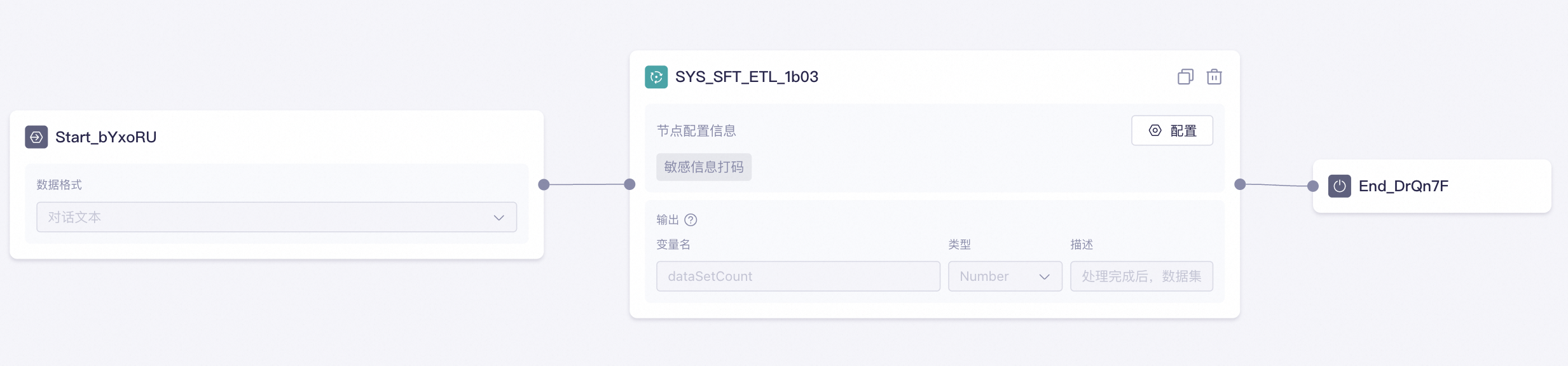
-
End node output:
The end node's output automatically generates a new version. This new version is saved independently without overwriting the original training set, and you can view it in the Data Flow column.

Condition node
Condition node
- Usage: Controls the workflow path by evaluating one or more conditions. If a condition is met, the workflow follows the corresponding branch. The node supports AND/OR logic and evaluates conditions sequentially from top to bottom.
-
Parameter configuration:
Parameter
Description
Conditional branch
Enter a conditional expression.
Other
The default branch to use if no other conditions are met.
-
Node example:
The following is a simple example of a workflow that first cleans and then augments data. The workflow logic is as follows: A training set is first processed by the Data Cleansing node. The cleaned data is then passed to the Conditional Judgment node. Inside the node, a condition is evaluated for
dataSetCount(the number of messages in the cleaned result). If the count isless than or equal to 10, the data is sent to the Data Augmentation node for augmentation. Finally, the end node outputs the result.
Data cleaning node
Data cleaning node
- Usage: Use this node to fix issues in your training data related to standardization, compliance, consistency, and duplication.
-
Parameters:
Parameter Description Input The training set to clean (dialogue text in ChatML format). Cleaning operator Select the cleaning operators to execute, such as document similarity deduplication, sensitive word filtering, and toxicity removal. The operators run in the specified order to prepare data for subsequent nodes. Adjust operator execution order: Drag the
 icon to change the operator execution order. The Data Cleansing node runs the operators in this order.
Whether to Enable: Use the
 toggle to enable or disable an operator. For easier troubleshooting, enable only one operator per data cleaning node.
Operator Configuration: A selected checkbox
 indicates that the operator will perform this action.
Output Outputs the cleaned training set and the dataSetCountvariable. This read-only variable indicates the number of messages in the cleaned training set. -
Node example:
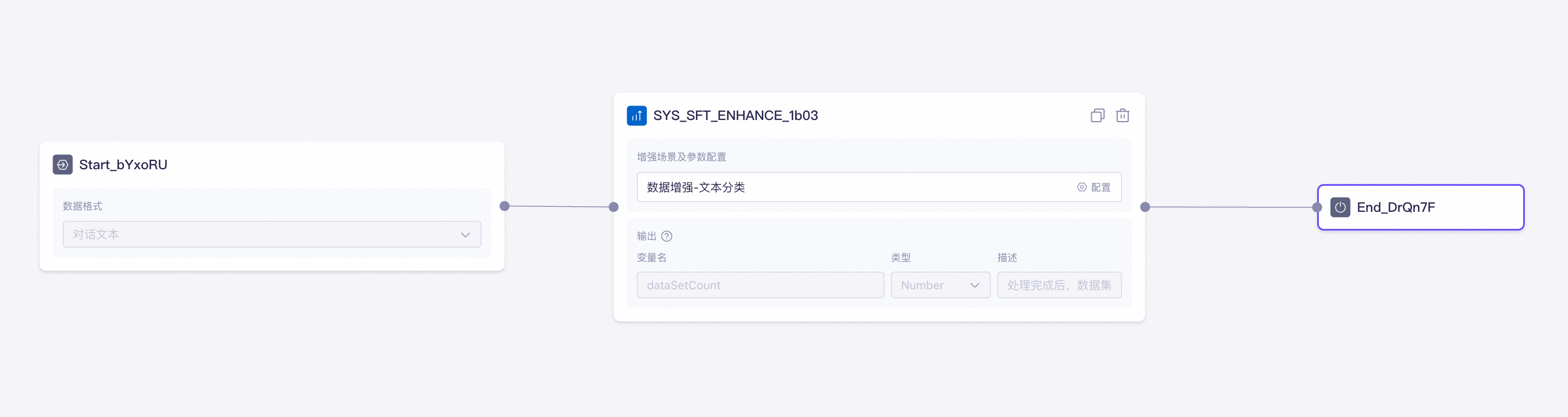
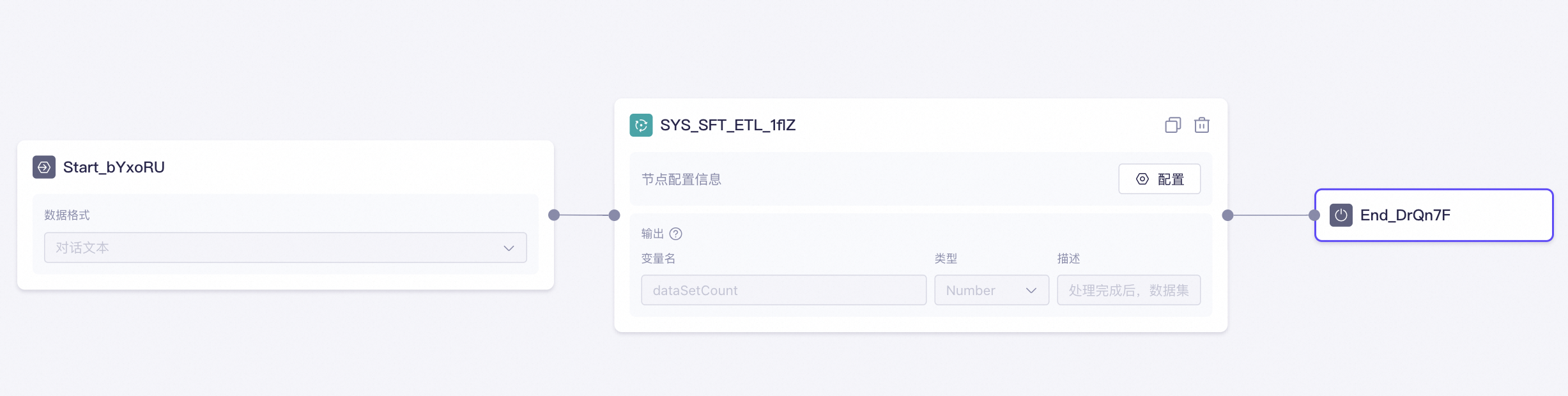
In the example below, the Start passes the training set to the Data Cleansing. Inside the node, the cleaning operators process the training data in their configured order. Finally, the Data Cleansing outputs the cleaned training set.
Data augmentation node
Data augmentation node
- Usage: Diversifies and balances training data, or expands the dataset by creating augmented data.
-
Scenario selection:
-
Data Augmentation - General: This scenario generates new data using a few-shot strategy. It randomly selects samples (seeds) from the training set (seed pool), appends them to a prompt, and sends a request to the
Qwen-Maxlarge model. Model selection is not supported. Use this scenario to augment SFT training sets for fine-tuning large models for text question answering. -
Data Augmentation - Text Classification, Data Augmentation - Text Extraction, and Data Augmentation - Text Creation are scenario-optimized versions of Data Augmentation - General. They are purpose-built to augment SFT training sets for fine-tuning large models for text classification, text extraction, and text generation tasks, respectively.
For their specific tasks, they produce better augmentation results than Data Augmentation - General.
-
Data Augmentation - General: This scenario generates new data using a few-shot strategy. It randomly selects samples (seeds) from the training set (seed pool), appends them to a prompt, and sends a request to the
-
Parameter configuration:
- Data augmentation - general
- Data augmentation - text classification
- Data augmentation - text extraction
- Data augmentation - text creation
Parameter Description Input The training set to be augmented by this node. The data must be dialogue text in ChatML format.Example format: Number of Samples to Generate The number of new data samples to generate. For example, if your original training set has 10 entries and you set Number of Samples to Generate to 10, the augmented training set will contain 20 entries. Each Data Augmentation - General task can generate up to 2,000 samples.
Example of data generated by Data Augmentation - General based on the provided seeds:The system adds the
foreignKeyfield to track the origin of each text sample. The augmented training set can be used directly for model fine-tuning without removing theforeignKeyfield, as it does not affect the fine-tuning results.Number of Samples for Instruction Generation The number of seeds the system selects from the pre-augmentation training set. These seeds are appended to the prompt (see Prompt Configuration below) and used as input to the large language model for data augmentation. If the total length of the seeds and the prompt exceeds the maximum input token limit of Qwen-Max, the system automatically adjusts Number of Samples for Instruction Generation to stay within the token limit.
Prompt Configuration Define the input and output requirements for the data augmentation job. The system provides a default template you can use as a starting point. The Data Augmentation - General node is essentially aQwen-Maxlarge language model (LLM). Based on the Prompt Configuration, the node augments the input training data using a few-shot strategy. Adjust the Prompt Configuration to match the goal of each data augmentation task, such as improving data diversity or balance.Currently, only thefew_shot_examplesparameter is supported.Few-shot strategy: For example, when you create a data flow task, you select a training set with 1,000 data entries. You set Number of Samples for Instruction Generation to 5 and the desired Number of Samples to Generate to 200. In this case, the algorithm samples 5 entries from the 1,000 entries, inserts them into the
few_shot_examplesvariable in the prompt, and then requests Qwen-Max to generate 1 new data entry. This process repeats 200 times to generate 200 new entries.Tips: Precision and diversity- Task relevance: Ensure that the generated data is highly relevant to the target task. Avoid introducing irrelevant variations to preserve the data's context and meaning.
- Diversification strategy: Use multiple data augmentation strategies, such as synonym replacement, random sampling, and translation, to maximize data diversity. This helps the large language model generalize better.
-
Balanced augmentation: Keep the generated data balanced across class, difficulty, and structure. Avoid exposing the large language model to too much data of a single type, which can cause overfitting. During augmentation, do not significantly deviate from the original data's distribution.
Reduce the risk of overfitting: When a training set has insufficient data volume or diversity, a large language model may overfit the dominant training data during full-parameter training. This hinders the model's ability to learn generalized features.
Similarity Filter Threshold Valid values: 0.1 to 1.0. A lower value enforces a stricter acceptance threshold for newly generated data. This helps reduce duplicates by filtering out high-similarity data (high ROUGE-L scores). The system computes similarity across the full ChatML record. The system evaluates each candidate sample. If a sample's similarity score is below the threshold, it is accepted; otherwise, it is discarded.
ROUGE-L measures similarity by calculating the length of the longest common subsequence (LCS) between the generated text and a reference text. A score closer to 1.0 indicates higher similarity.
Output Outputs the augmented training set from this node and the dataSetCountvariable, which represents the number of messages in the augmented training set.Example output format:Alibaba Cloud Model Studio cannot distinguish between original and newly generated records in the augmented training set. You must use a third-party diff tool to compare them manually.The system adds the
foreignKeyfield to track the origin of each text sample. The augmented training set can be used directly for model fine-tuning without removing theforeignKeyfield, as it does not affect the fine-tuning results. -
Example:
In the example below, the training set to be augmented is passed from the Start node to the Data Augmentation node. The latter processes the training data based on the configured scenario and parameters and finally outputs the augmented training set from the end node.