

Edit images with text prompts using the Wan model: outpainting, watermark removal, style transfer, instruction-based editing, inpainting, and restoration.
Model overview
Performance showcase
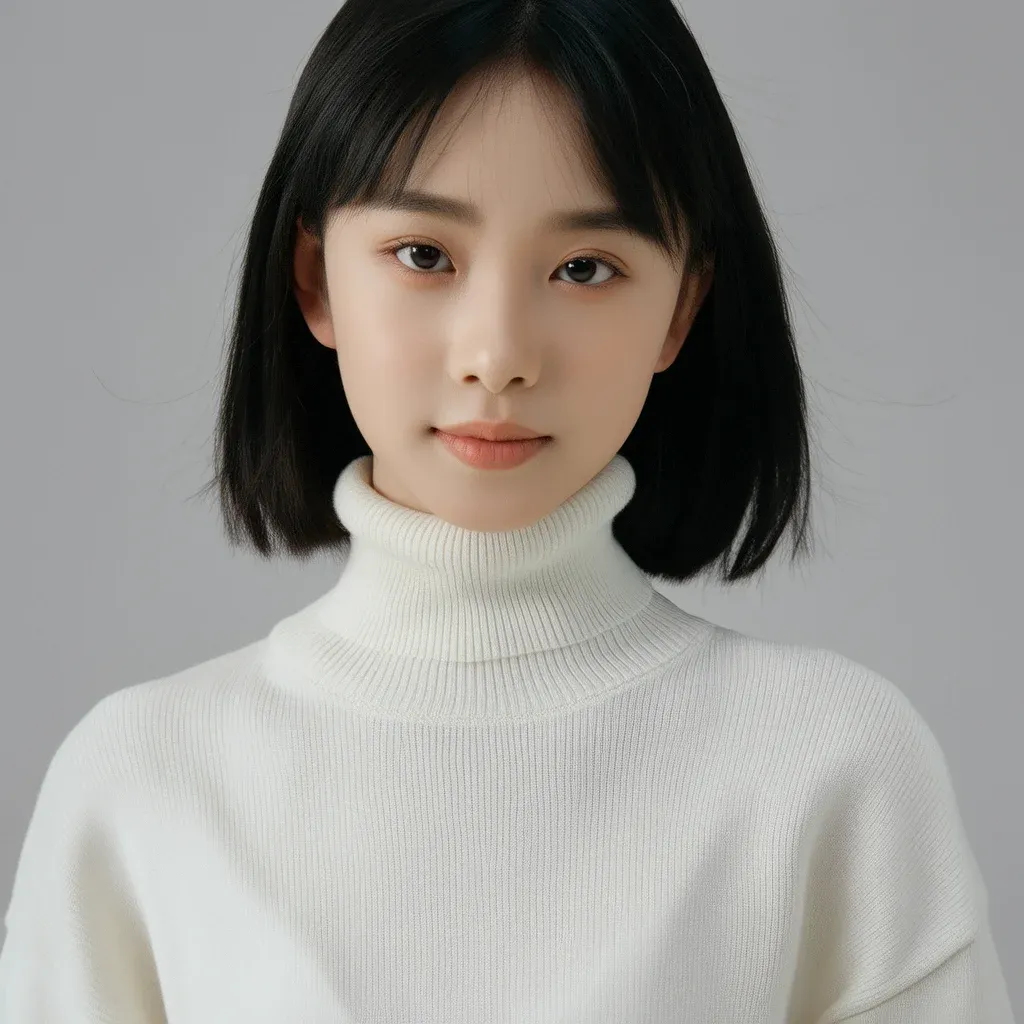 Original image | 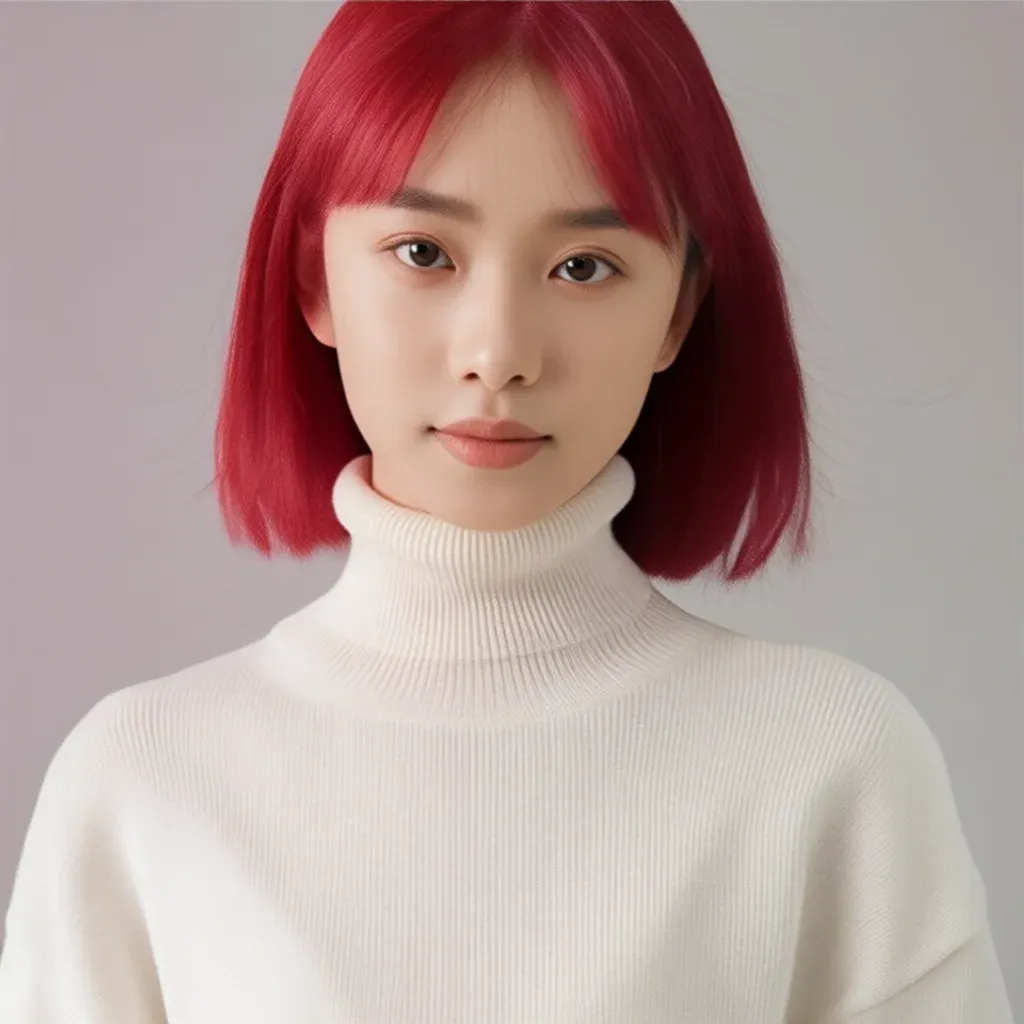 Change her hair to red | 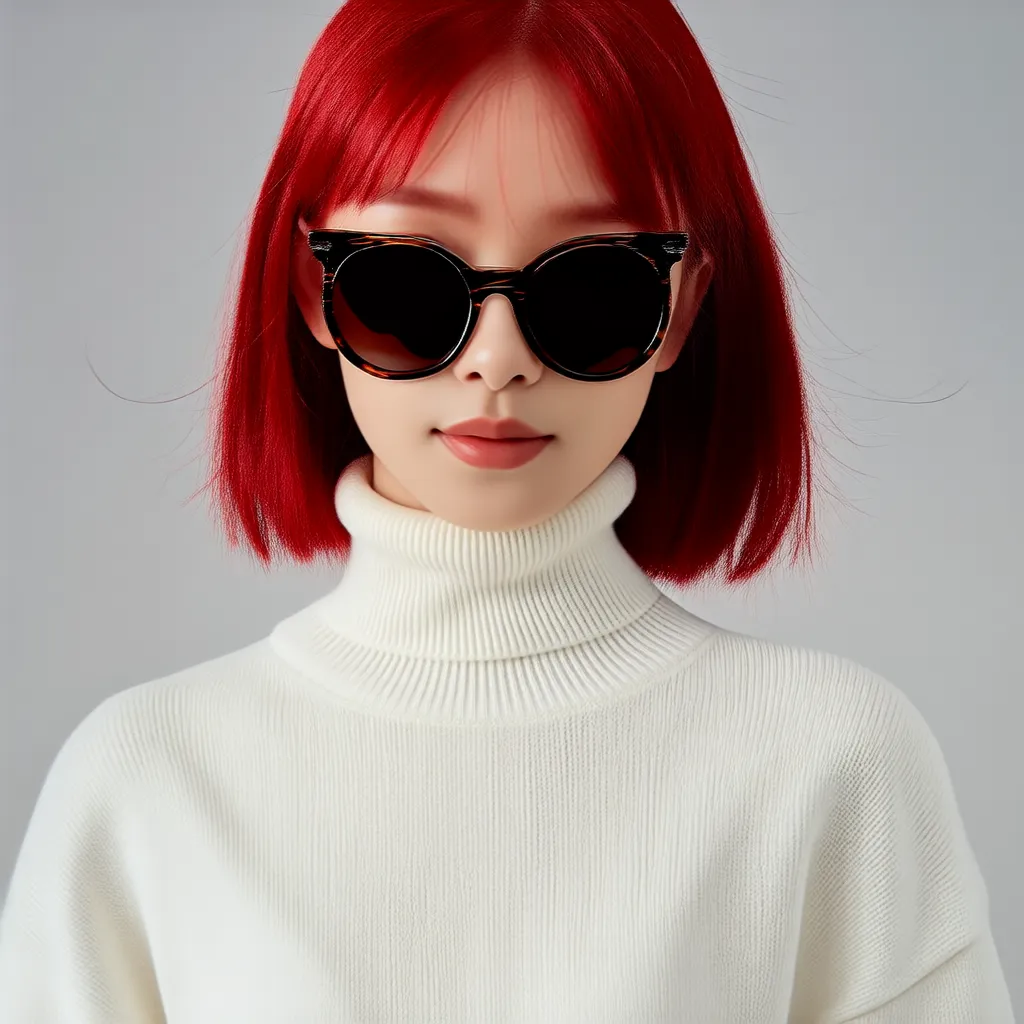 Put a pair of sunglasses on her | 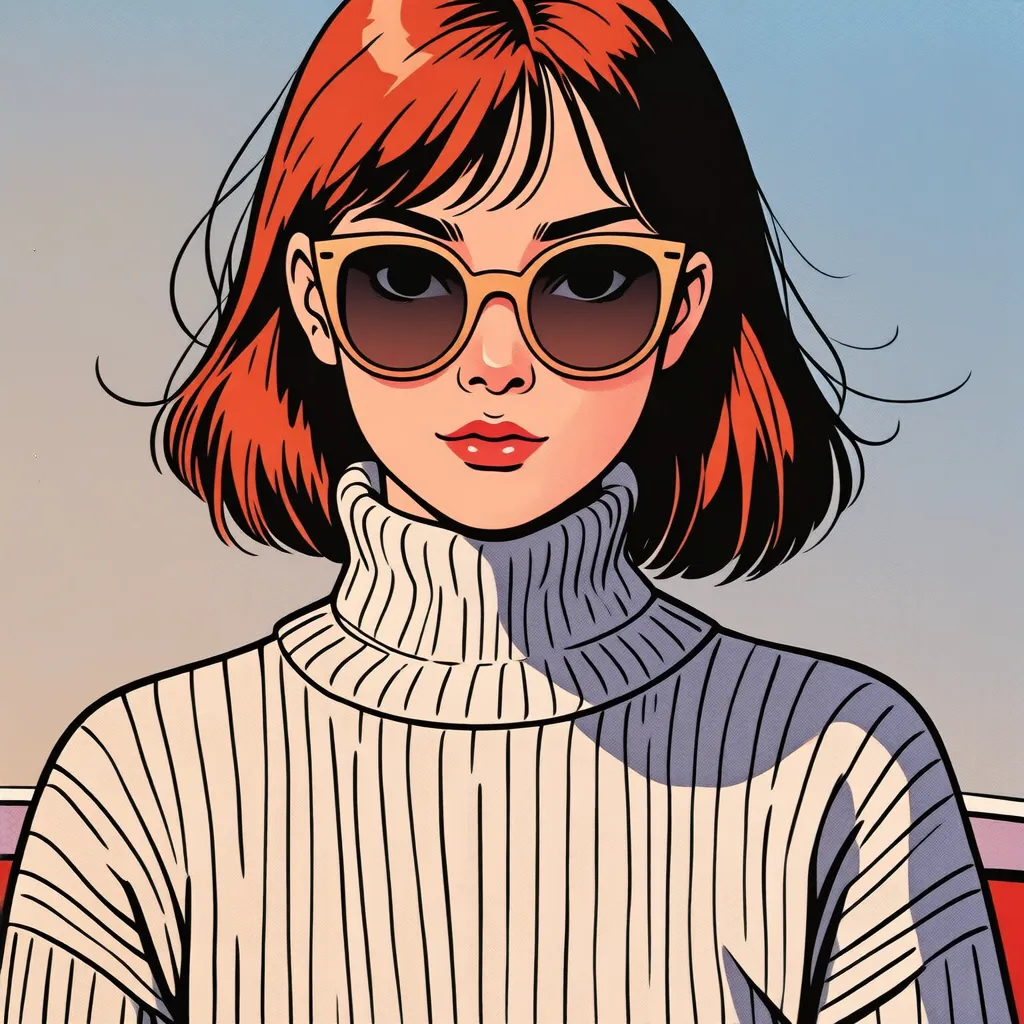 Convert to French picture-book style |
For more examples, see Key capabilities.
QuickStart
Prerequisites
Before you call the API, obtain and configure an API Key, and then configure the API Key in environment variables. If you call the API through the DashScope SDK, you also need to install the SDK.
Sample Code
This section demonstrates how to call the general image editing API to complete a "local repainting" task.
The SDK encapsulates the asynchronous processing logic at the underlying layer, and its high-level interface behaves as a synchronous call (that is, a single request that waits for the final result to return); the curl example, by contrast, corresponds to two separate asynchronous API interfaces: one for submitting a task and the other for querying the result.
- Python
- Java
- curl
Request example
Response example
The URL is valid for 24 hours. Please download the image promptly.
Key capabilities
The general image editing API uses the function parameter to specify different image editing capabilities. All capabilities follow the calling method described in QuickStart.
The following uses curl calls as examples and lists only the input and parameters JSON fragments specific to each feature, to illustrate what needs to be configured in the request body.
Note: A complete curl request should include top-level fields such as model, input, and parameters. For the specific structure, refer to General Image Edit API reference.
Global stylization
Transfers the entire image to a specified artistic style. Use cases include picture book creation and social media illustrations (generating backgrounds or concept images that match a specific visual style).
-
How to use: Set the
functionparameter tostylization_all. -
Supported styles:
- French picture book style
- Gold foil art style
-
Parameters used together:
parameters.strength(0.0-1.0, default 0.5) controls the degree of modification; the smaller the value, the closer the result to the original image. - Prompt tips: Use the "convert to XX style" phrasing, for example, "convert to French picture book style".
Request example
Request example
Input image | Output image | |
|---|---|---|
Prompt: convert to French picture book style | Prompt: convert to gold foil art style | |
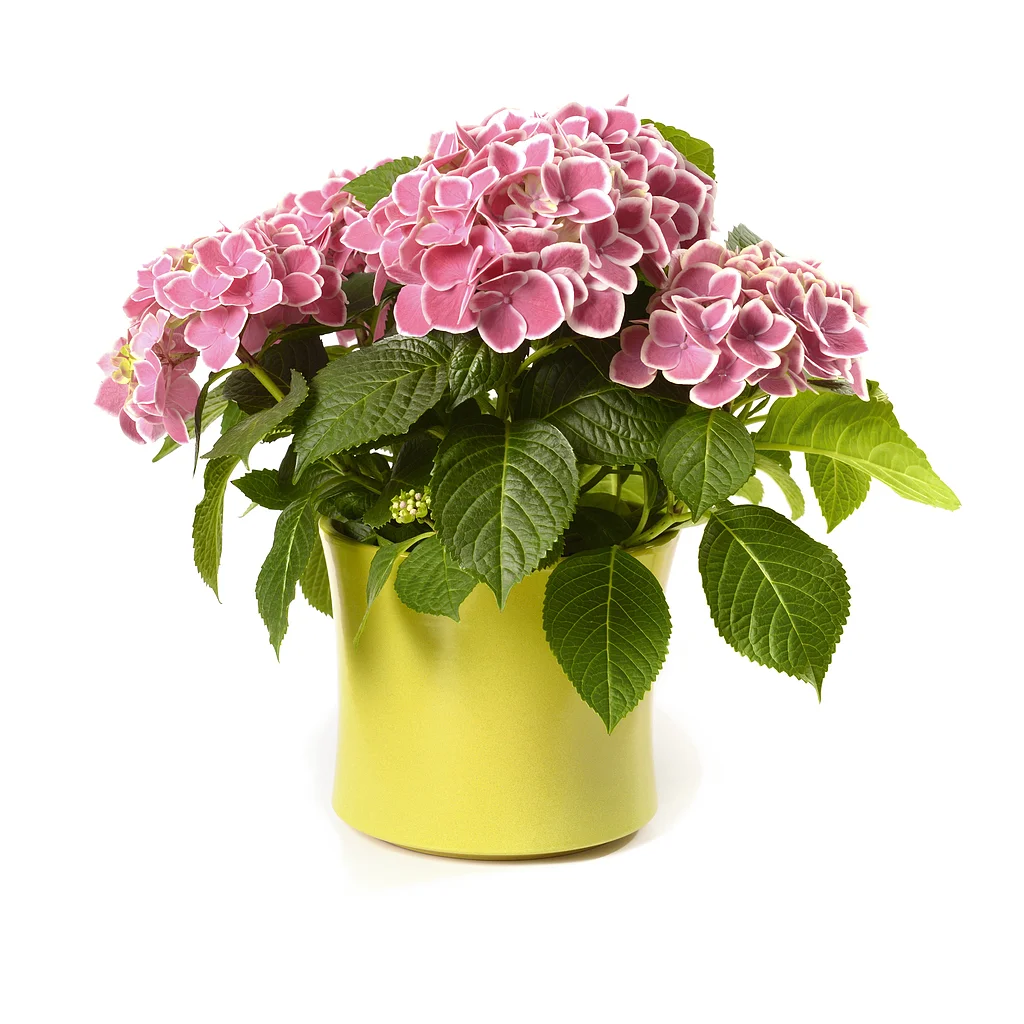 | 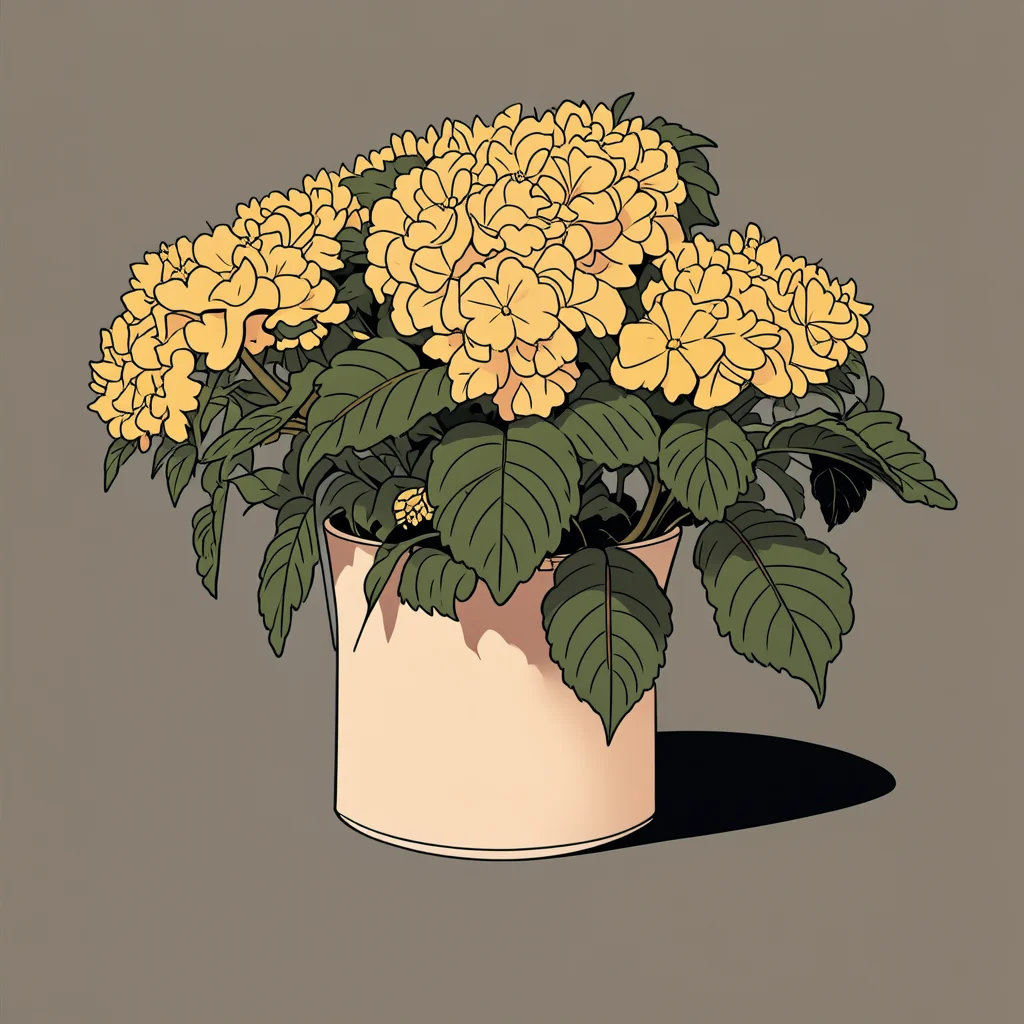 | 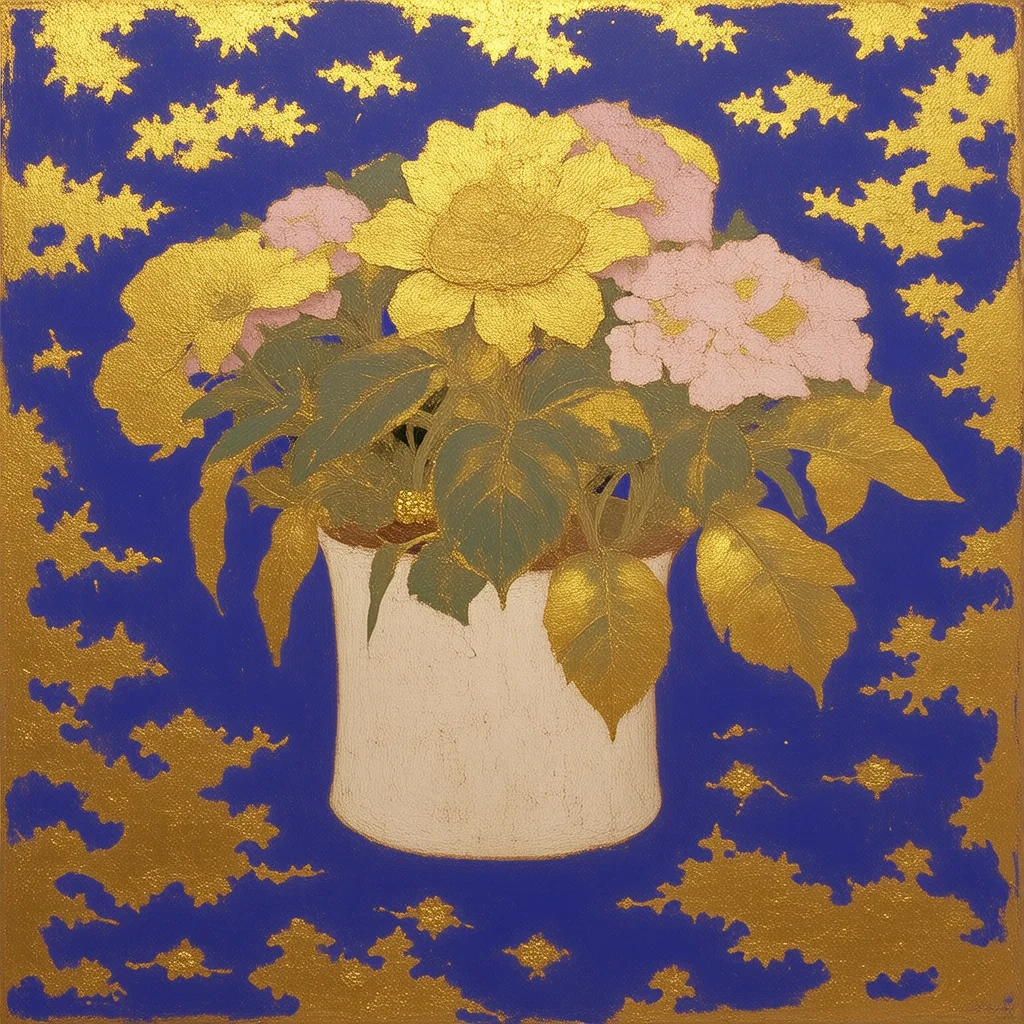 |
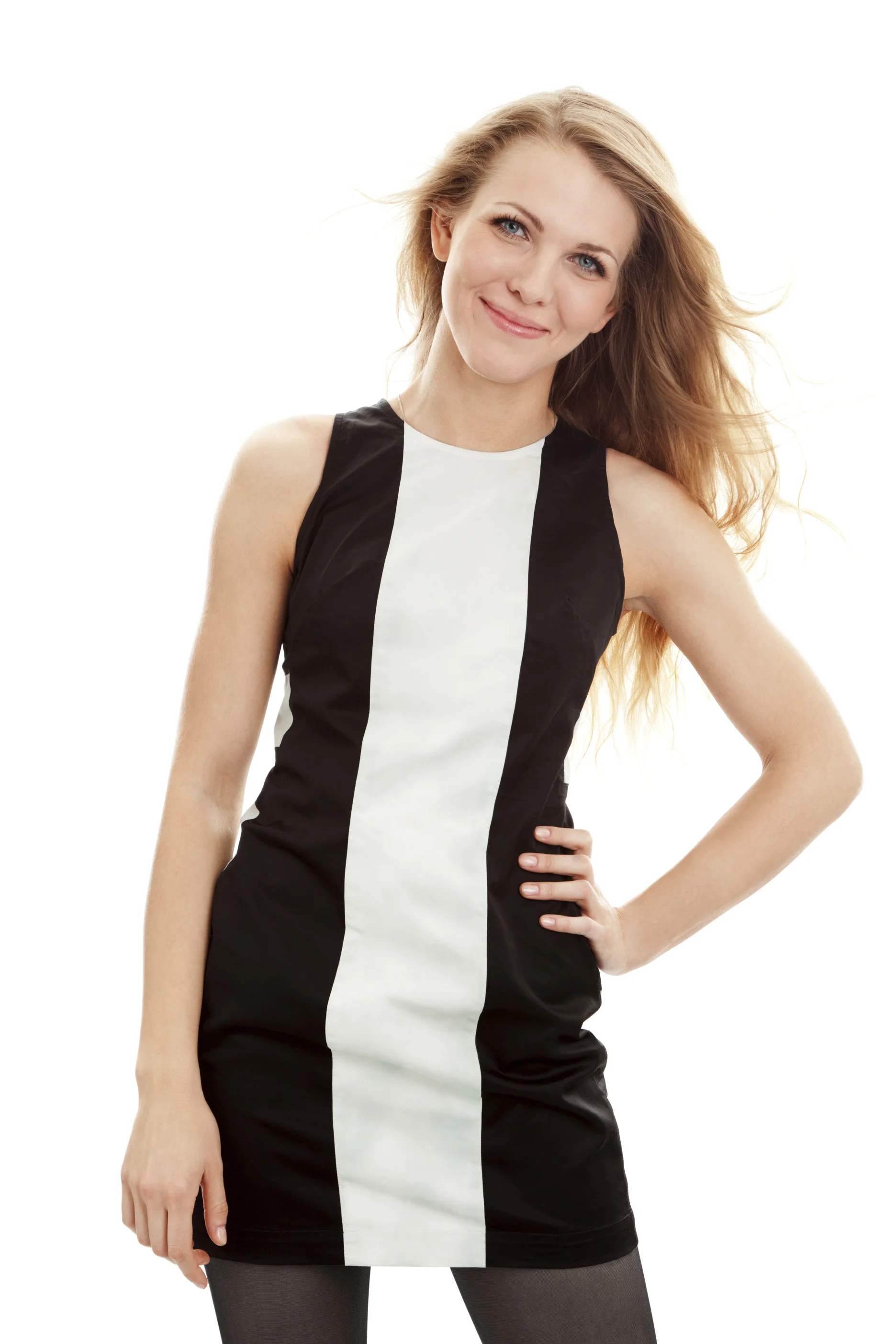 | 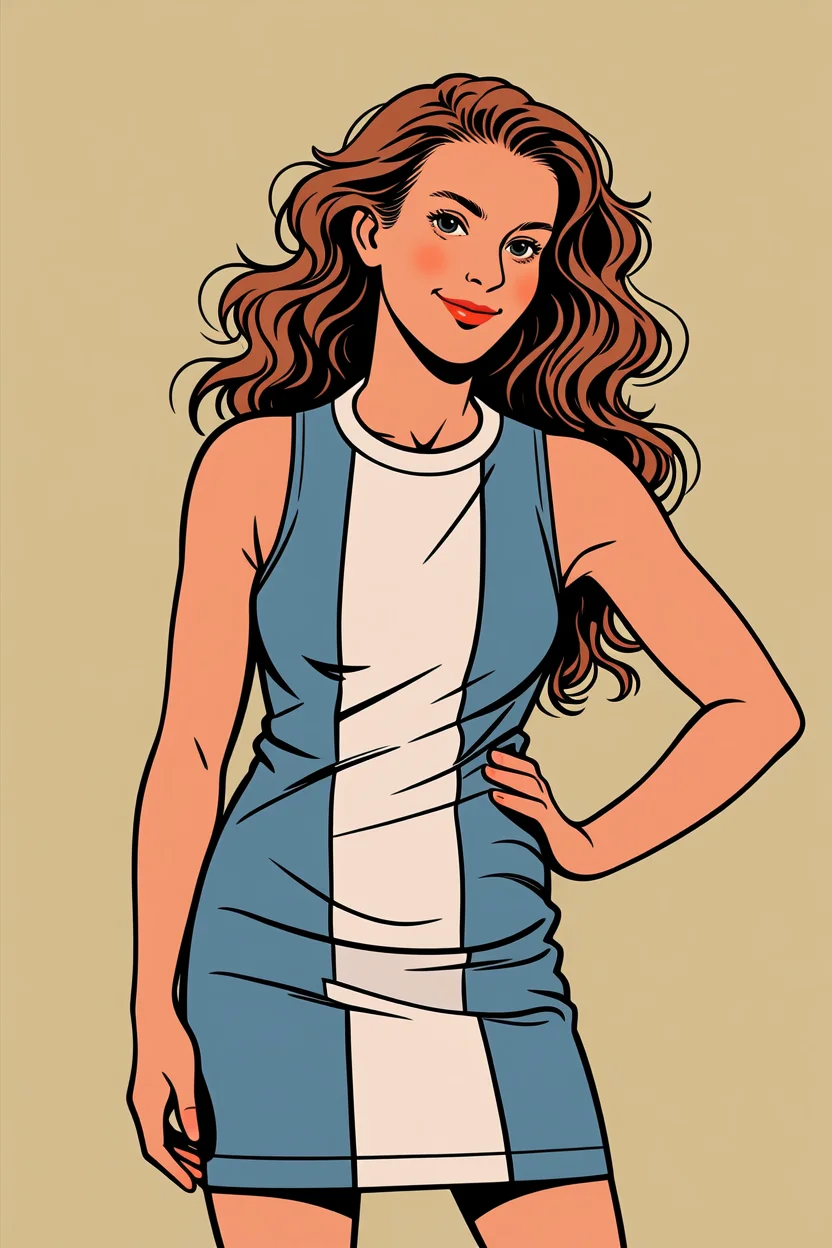 | 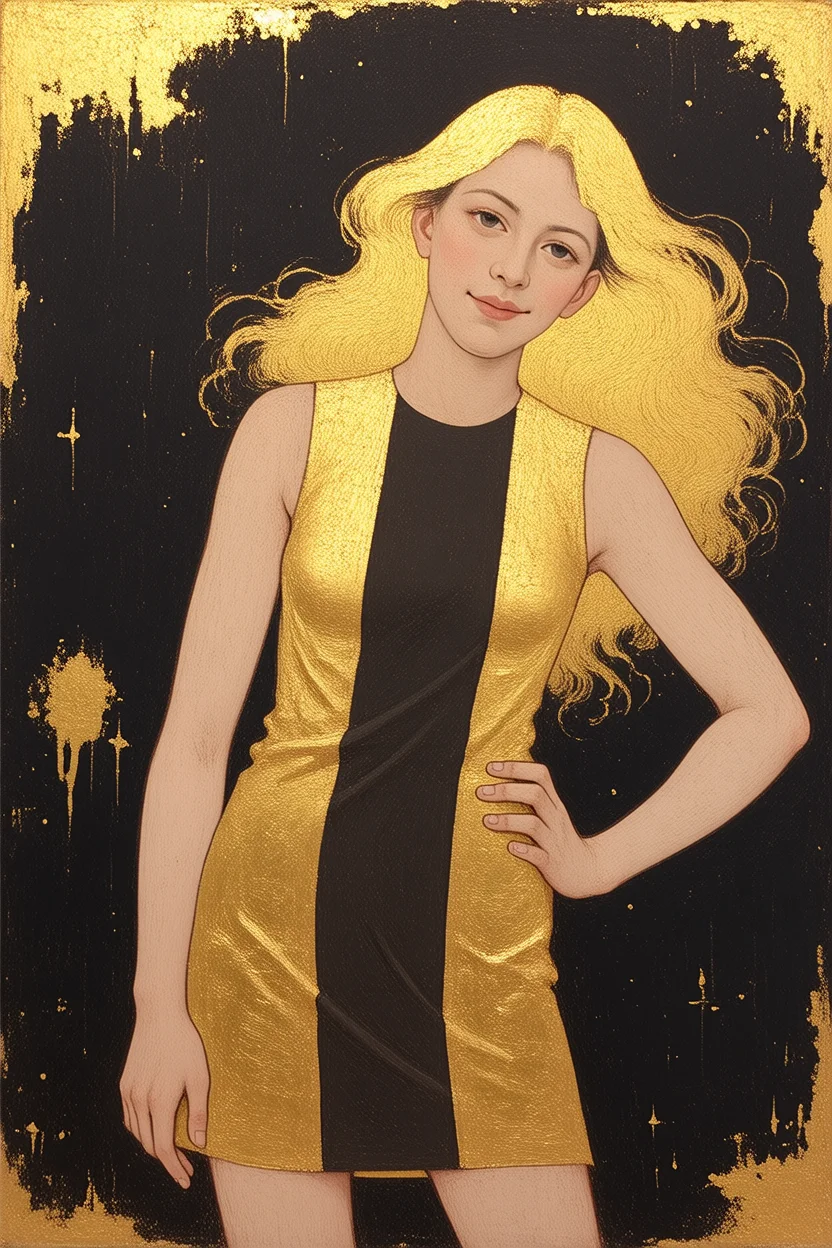 |
Control the degree of image modification with strength
Use theparameters.strength parameter to control the degree of image modification. This parameter is optional, with a value range of [0.0, 1.0] and a default value of 0.5. The closer the value is to 0, the closer the result to the original image; the closer the value is to 1, the greater the modification to the original image.
Input prompt: Convert to French picture book style.
Input image | Output image | ||
|---|---|---|---|
strength=0.0 (minimum) | strength=0.5 (default) | strength=1.0 (maximum) | |
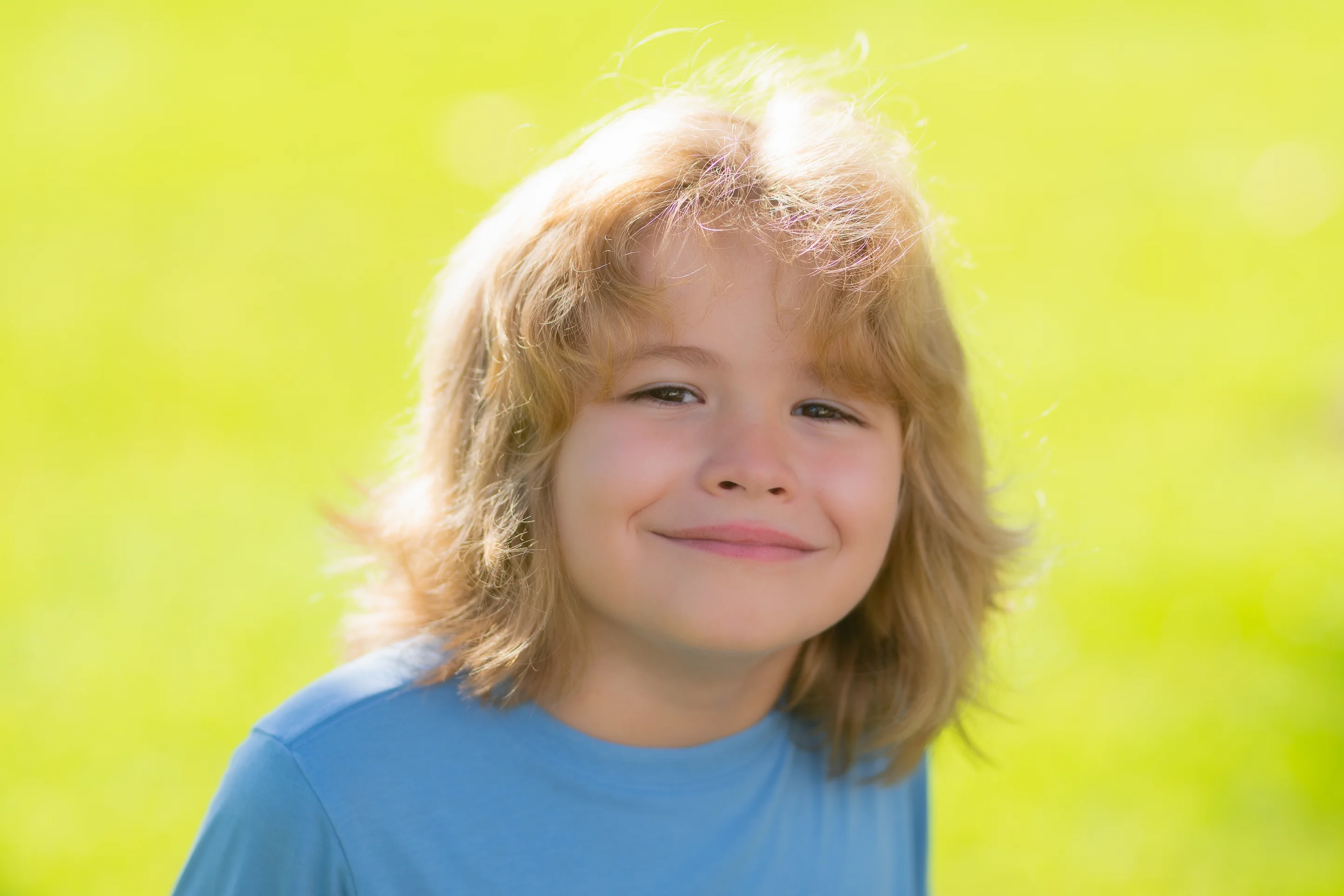 | 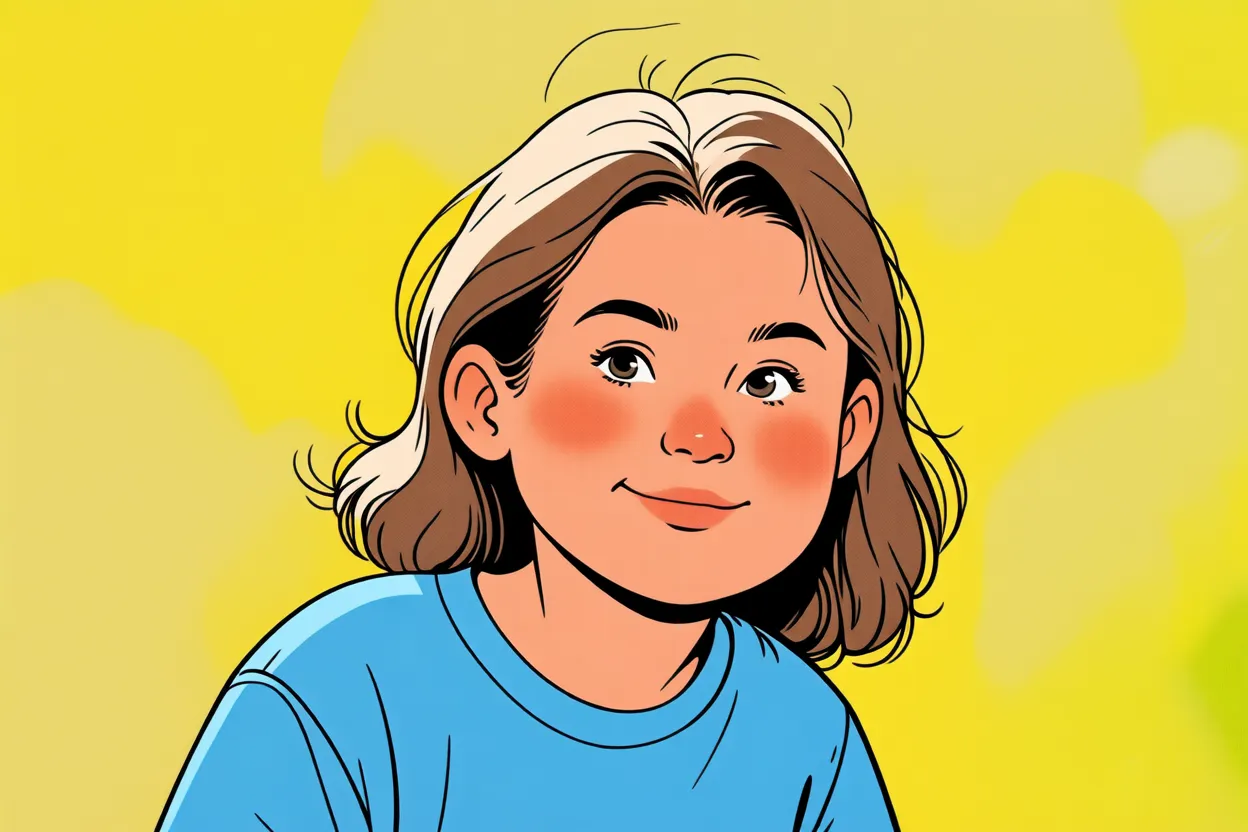 | 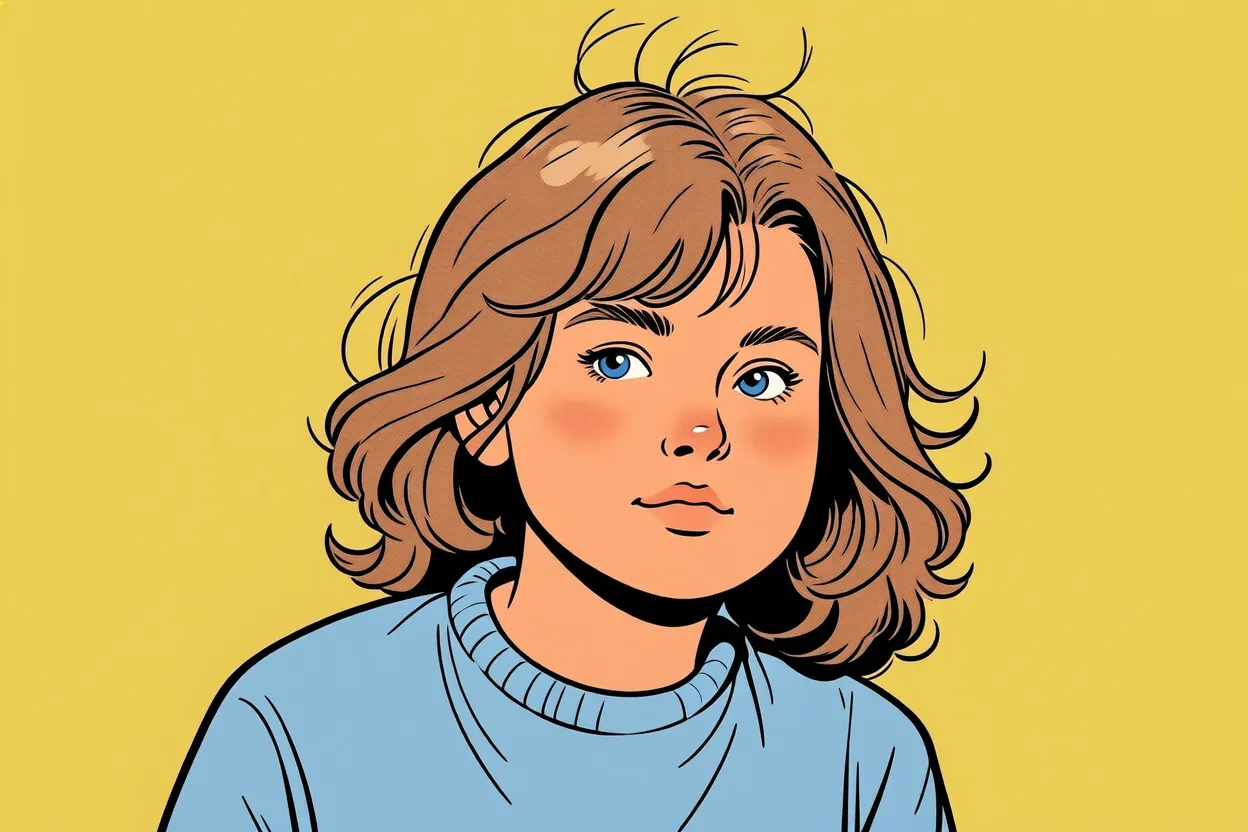 |  |
Local stylization
Applies style transfer only to a local region of the image. Use cases include personalized customization (such as stylizing a person's clothing) and advertising design (highlighting products).
-
How to use: Set the
functionparameter tostylization_local. -
Supported styles: The Chinese-English correspondence is as follows:
- Ice sculpture: ice
- Cloud: cloud
- Festive lantern: chinese festive lantern
- Wooden: wooden
- Blue and white porcelain: blue and white porcelain
- Fluffy: fluffy
- Yarn: weaving
- Balloon: balloon
- Prompt tips: Use the "turn XX into XX style" phrasing, for example, "turn the house into wooden style".
Request example
Request example
Input image | Output image | |||
|---|---|---|---|---|
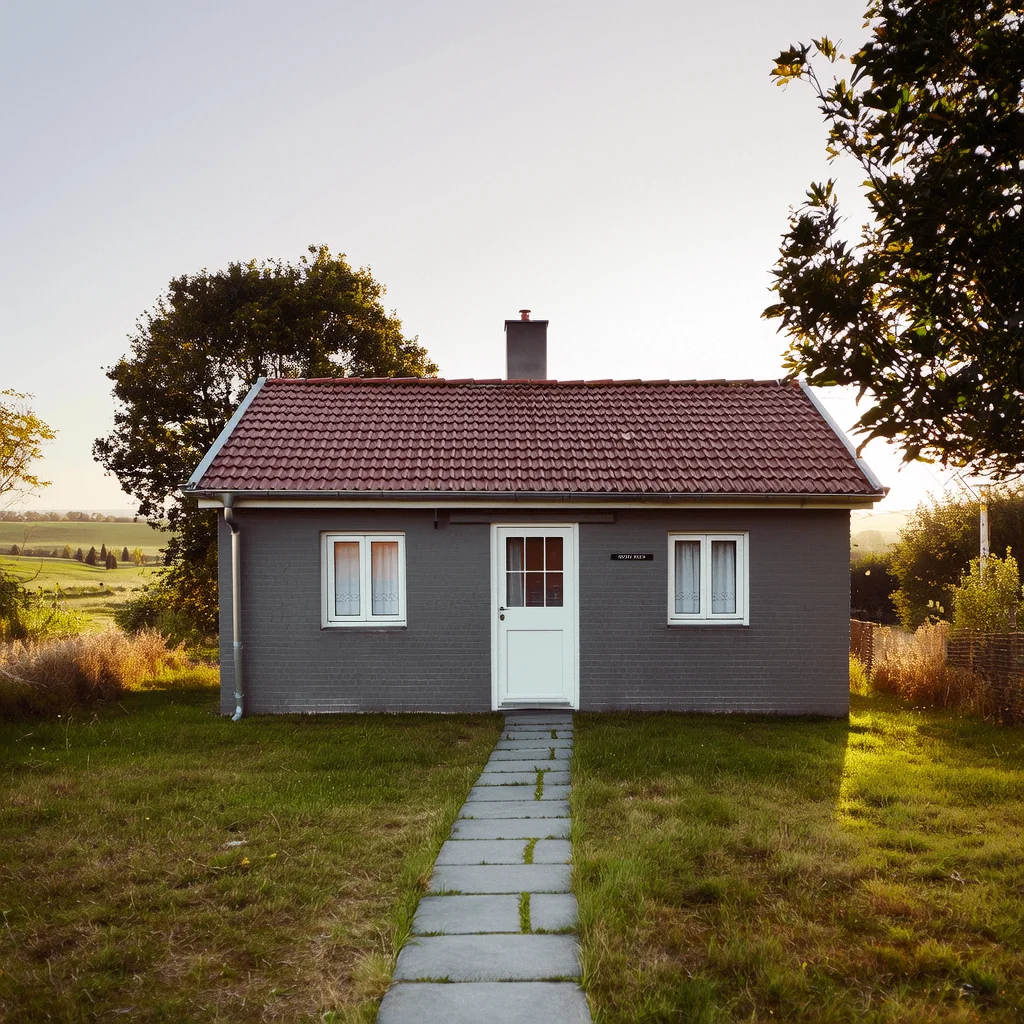 | 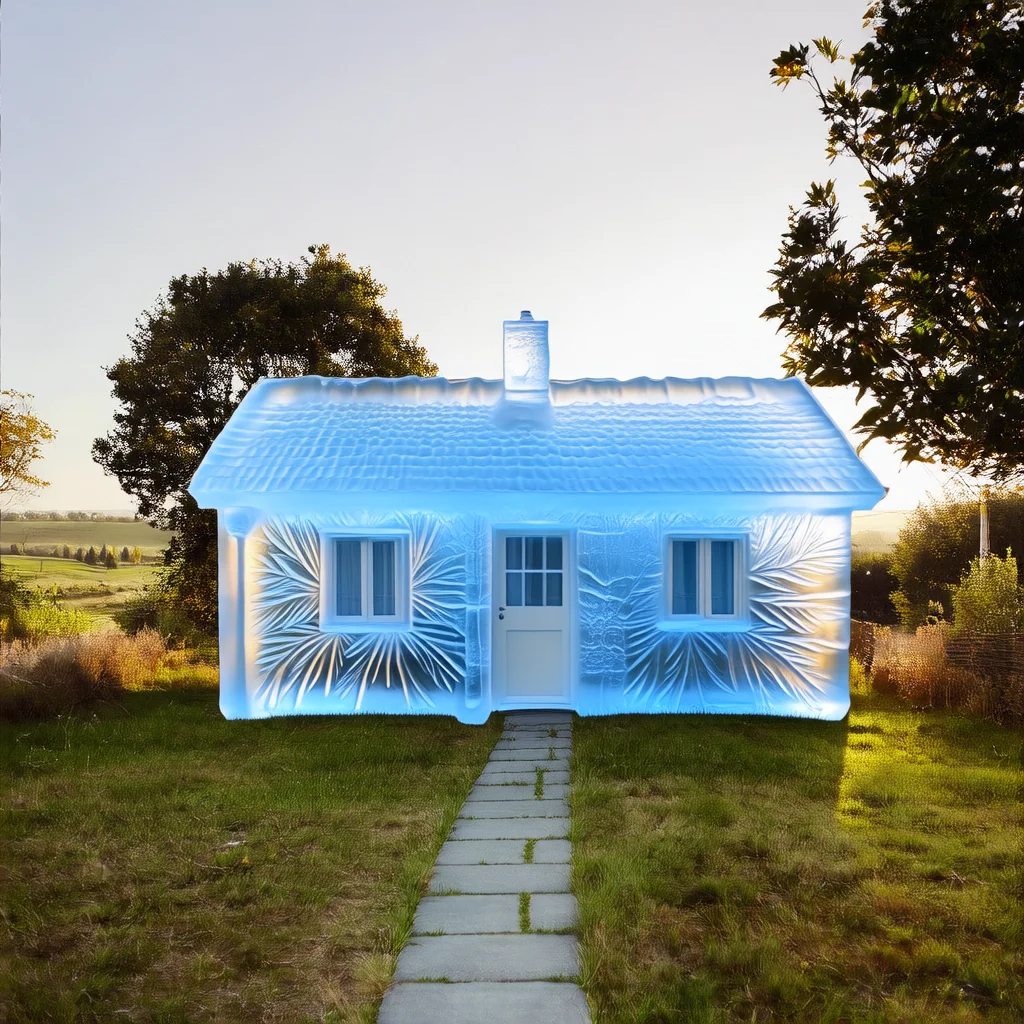 Ice sculpture | 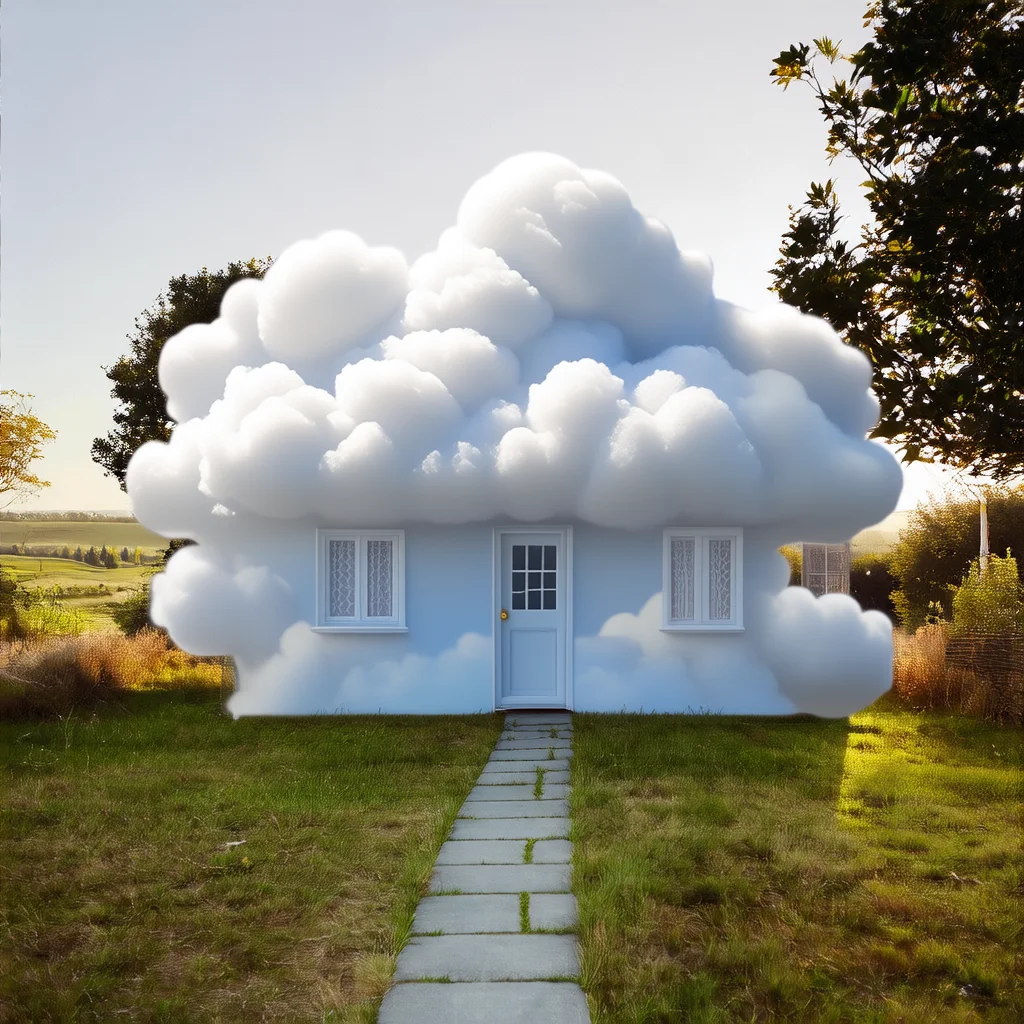 Cloud | 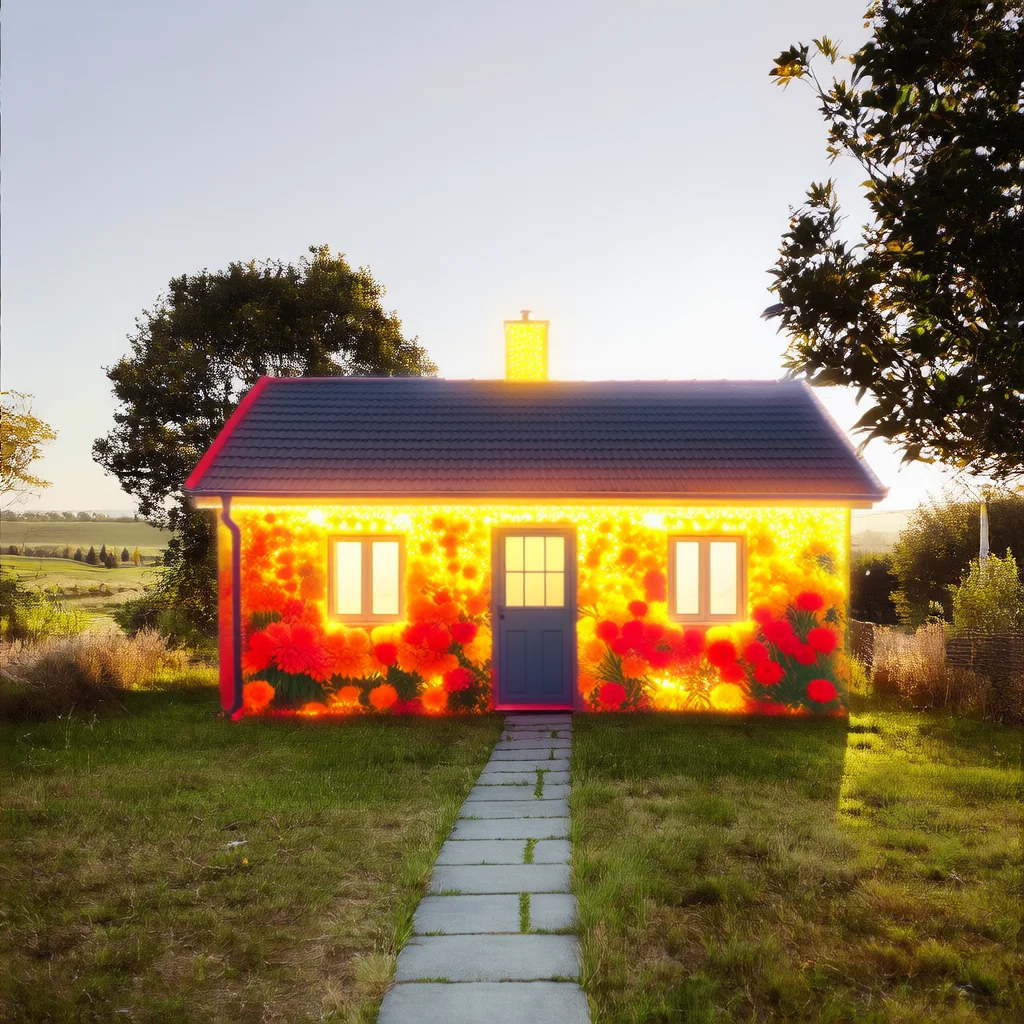 Festive lantern |  Wooden |
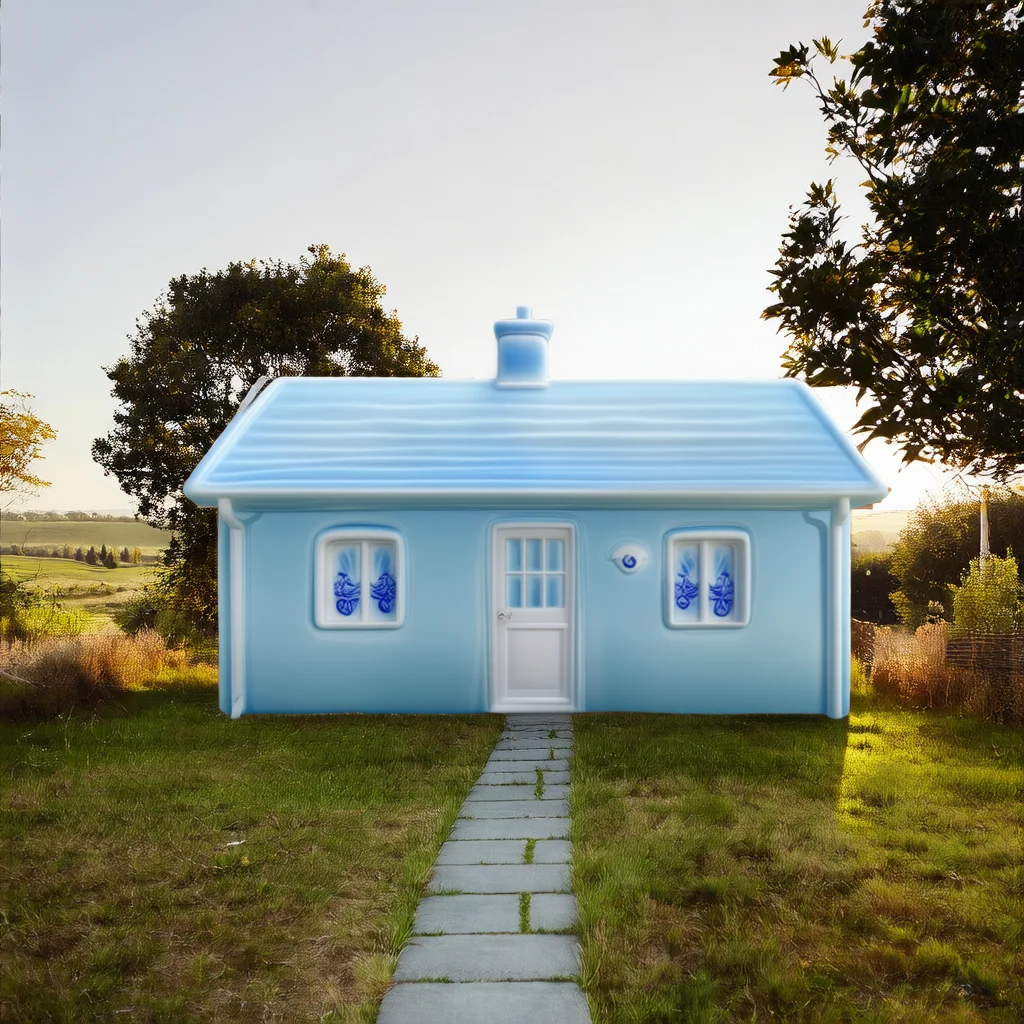 Blue and white porcelain | 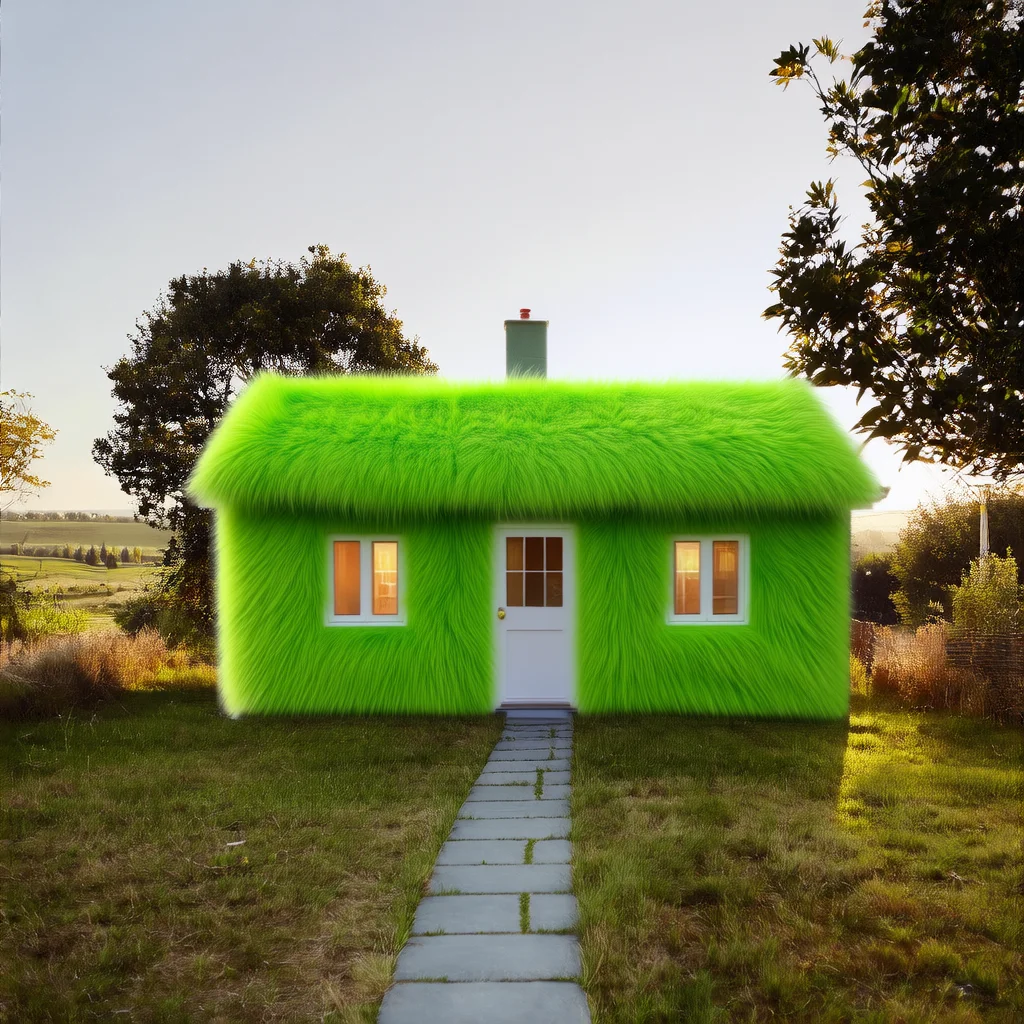 Fluffy | 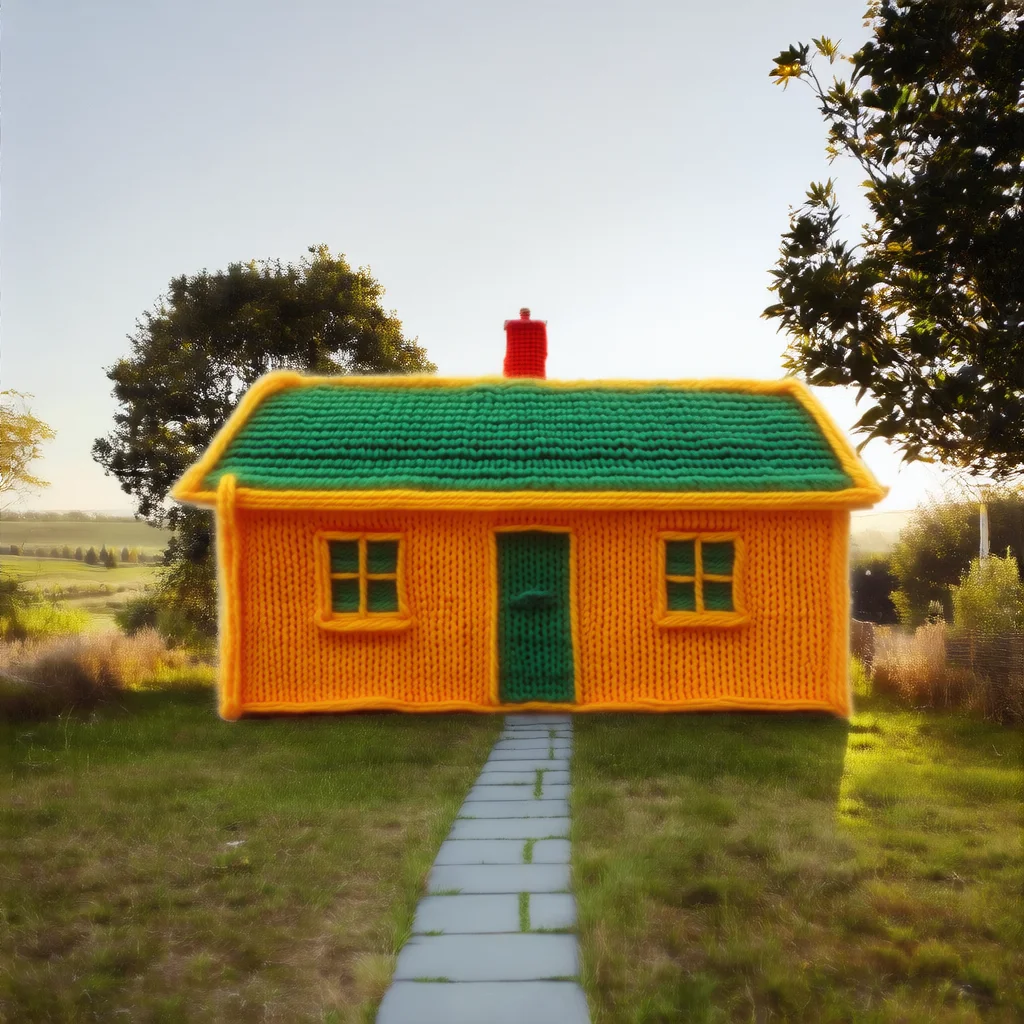 | 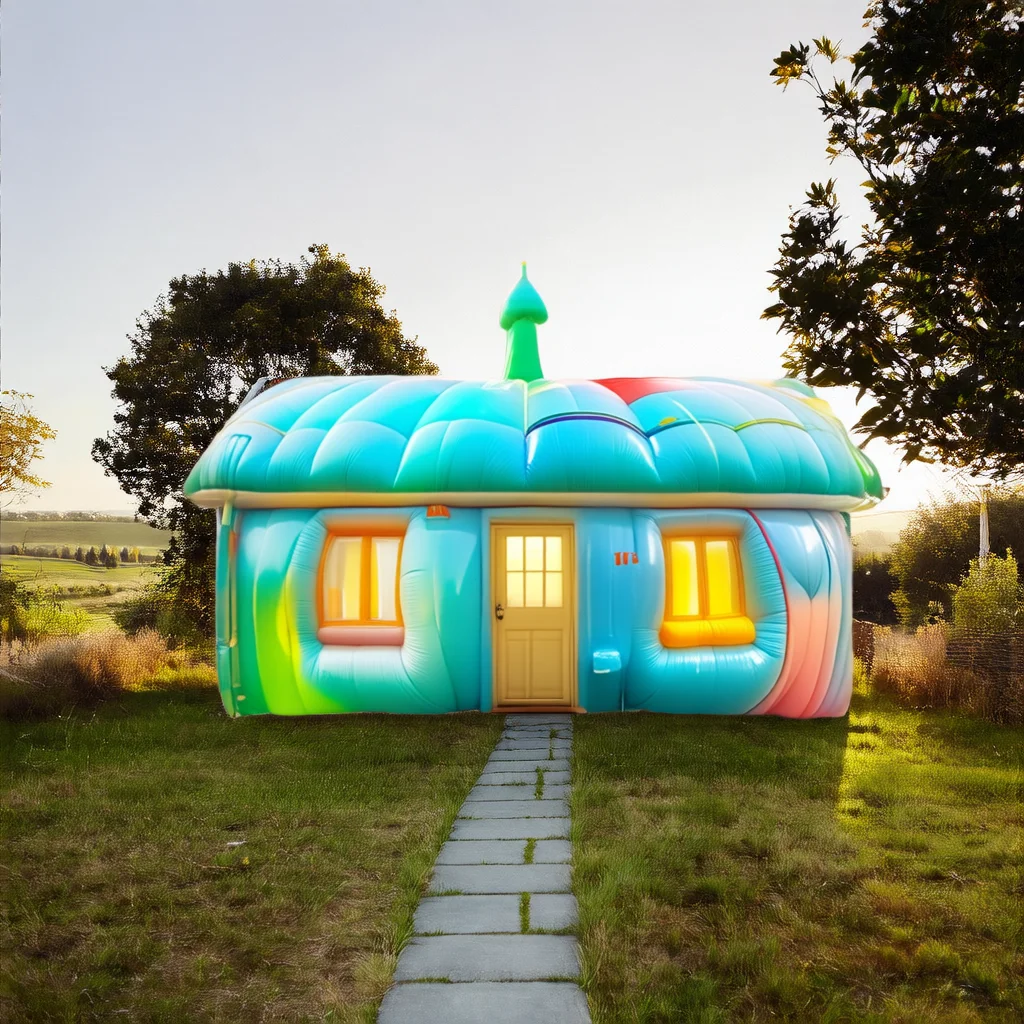 Balloon | |
Instruction-based editing
No region needs to be specified; image content can be added or modified through text instructions only. Use cases include simple edits that do not require precise positioning, such as adding accessories to a person or changing hair color.
- How to use: Set the parameter
functiontodescription_edit. - Parameters used together:
parameters.strength(0.0-1.0, default 0.5) controls the extent of modification; the smaller the value, the closer the result to the original image. - Prompt tips: Explicitly write action descriptions such as "add" or "modify". For deletion, inpainting is recommended.
Request example
Request example
Capability | Input image | Output image |
|---|---|---|
Add an element | 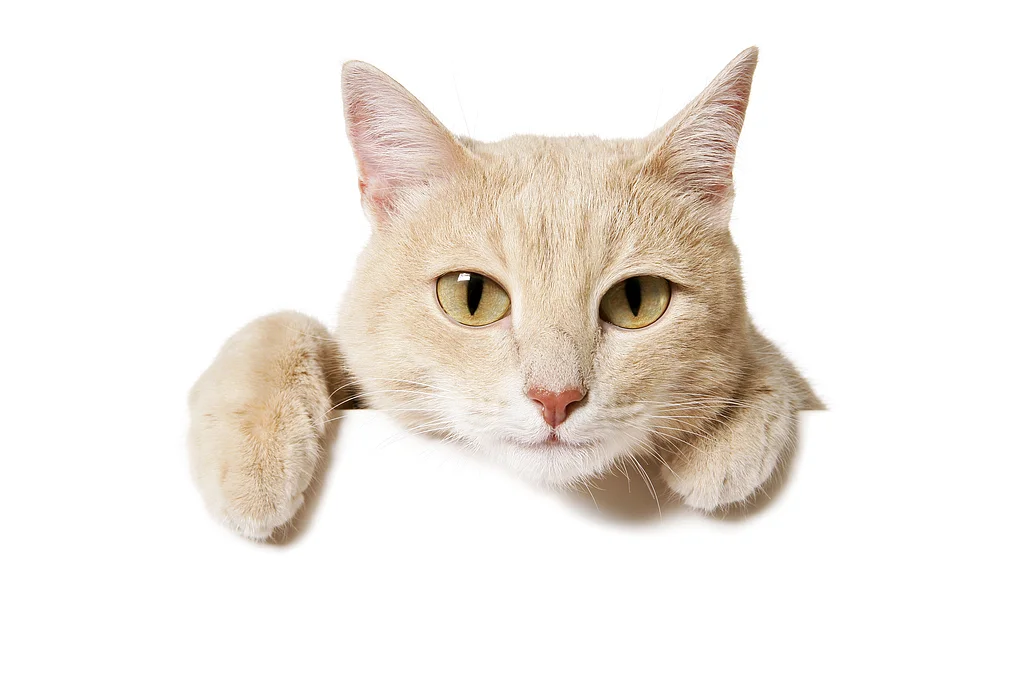 | 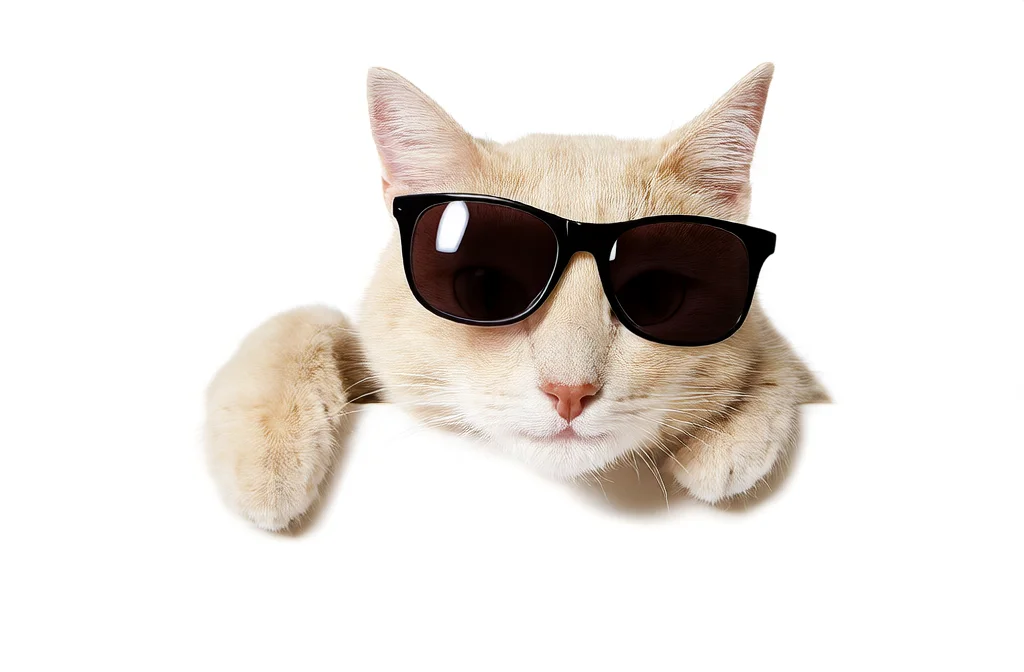 Add a pair of sunglasses to the kitten. |
Modify an element | | Change her hair to red. |
Control the extent of image modification with strength
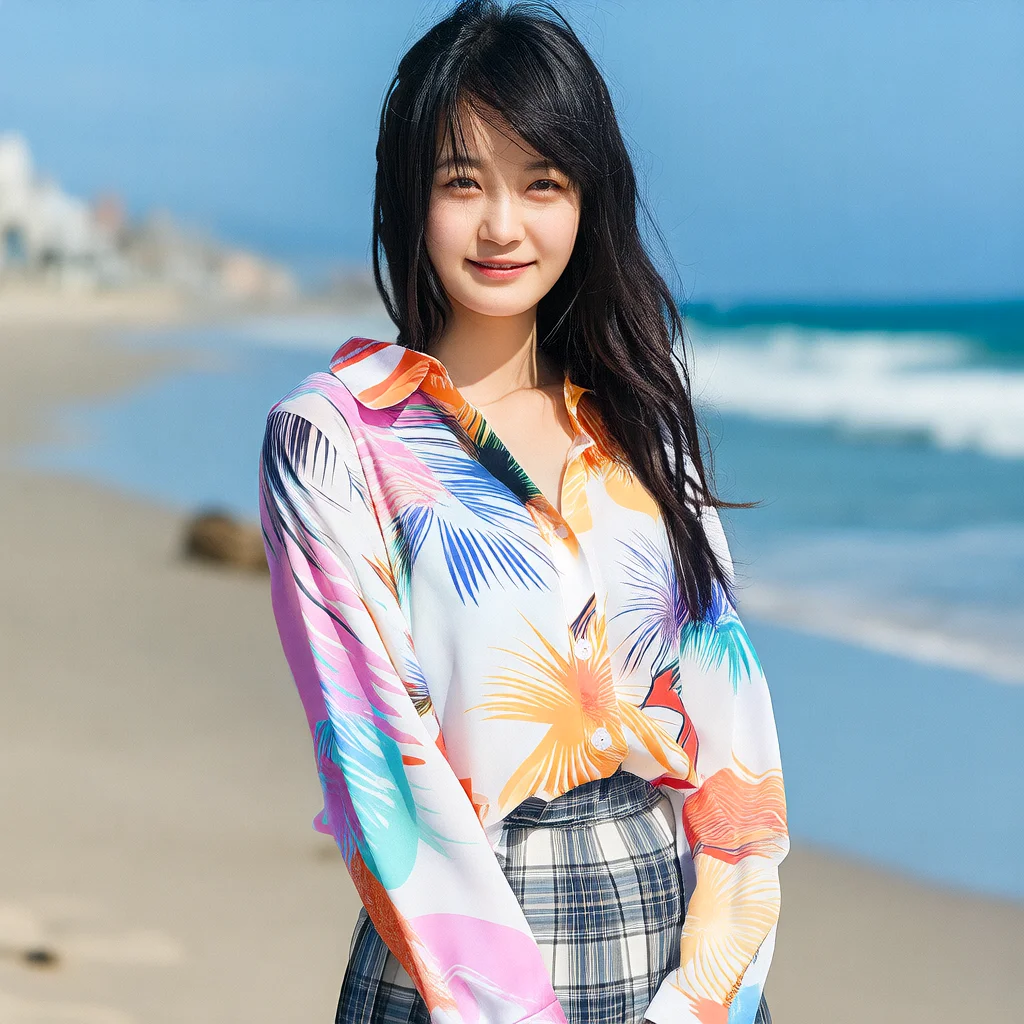
Use theparameters.strength parameter to control the degree of image modification. This parameter is optional, with a value range of [0.0, 1.0] and a default value of 0.5. The closer the value is to 0, the closer the result to the original image; the closer the value is to 1, the greater the modification to the original image.
Input prompt: Change the clothes she is wearing into a beach shirt with a colorful print.
Input image | Output image | ||
|---|---|---|---|
strength=0.0 (minimum) | strength=0.5 (default) | strength=1.0 (maximum) | |
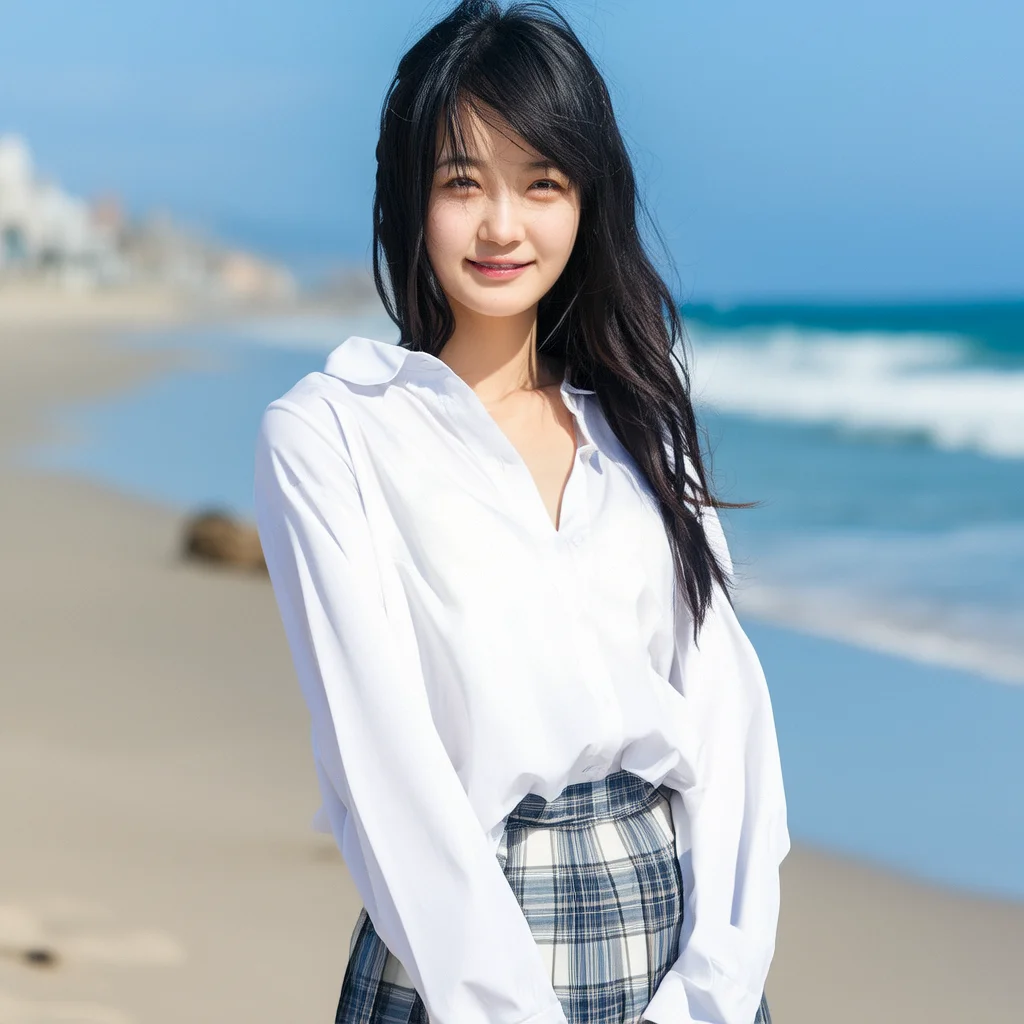 |  |  |  |
Inpainting
Add, modify, or delete content in a specified region by providing a mask image that marks the painted area. Use cases include edits that require precise control of the region, such as changing outfits, replacing objects, and removing distractions.
-
How to use: Set the parameter
functiontodescription_edit_with_mask. -
Mask requirements:
mask_image_urlmust be provided; in the mask image, white areas are the regions to edit, and black areas are preserved. -
Prompt tips: Explicitly write action descriptions such as "add", "modify" and describing the content after deletion.
- Add/modify: You can describe the action ("Add a hat to the puppy") or the final result ("A puppy wearing a hat").
- Delete: If the object to delete is small,
promptcan be left empty (""); if the object is large,promptmust describe the background content that should appear after deletion (for example, "A transparent glass vase on a table"), rather than "Delete the teddy bear".
Request example
Request example
| Capability | Input image | Input mask image(White indicates the region to edit) | Output image |
|---|---|---|---|
| Add an element | 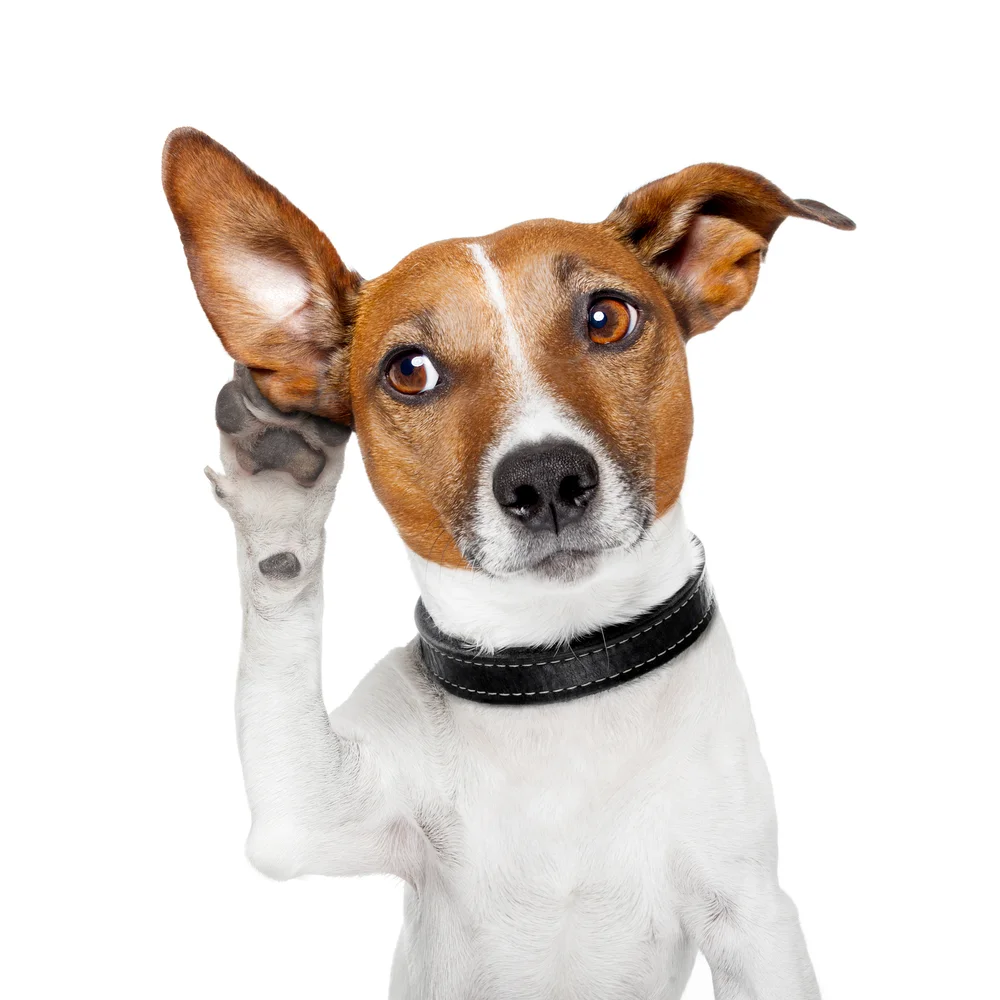 | 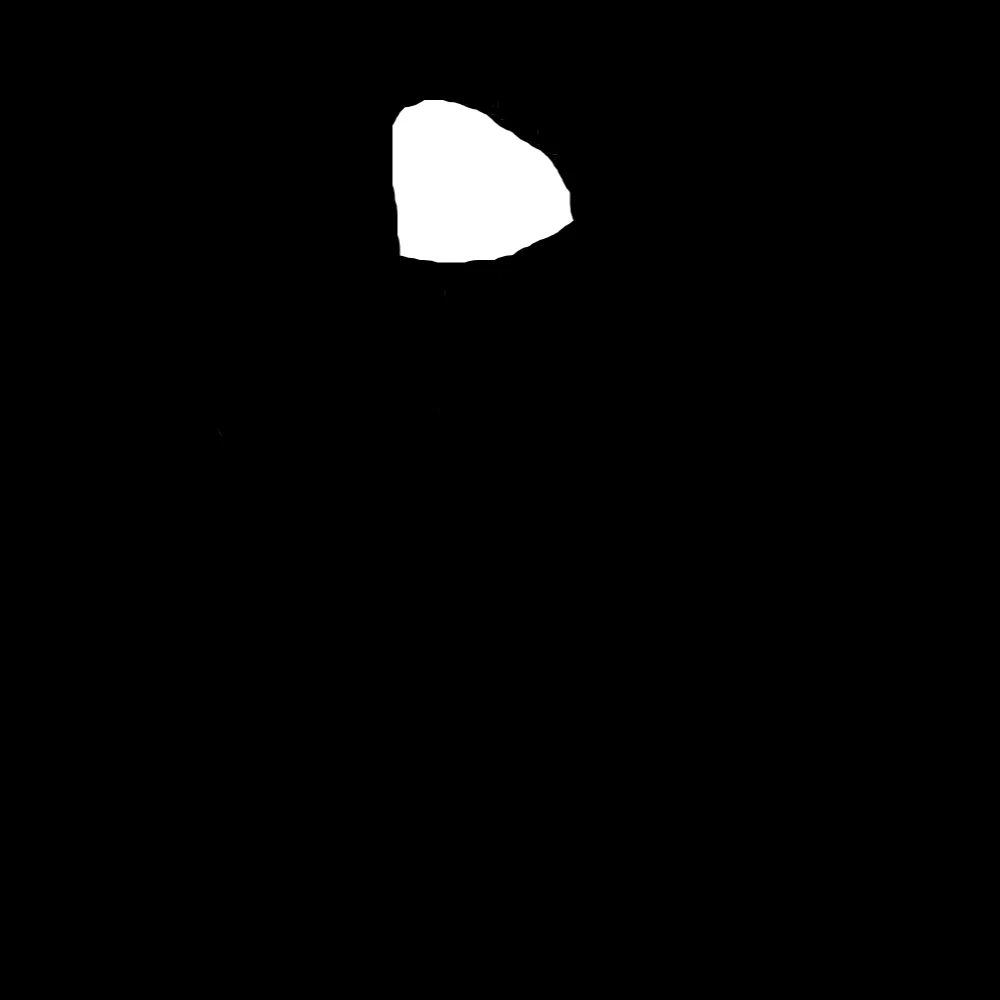 | 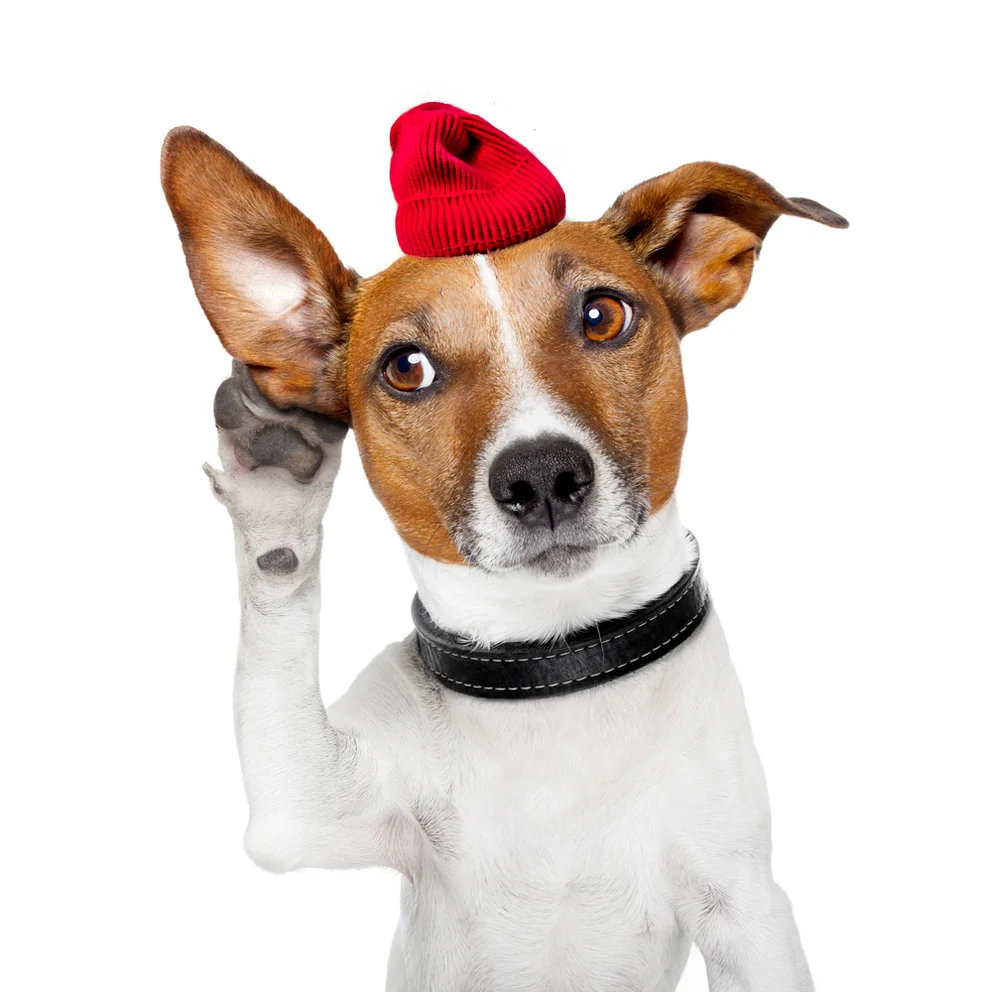 The prompt can also be written as "A puppy wearing a hat" (describing the desired image content). |
| Modify an element | 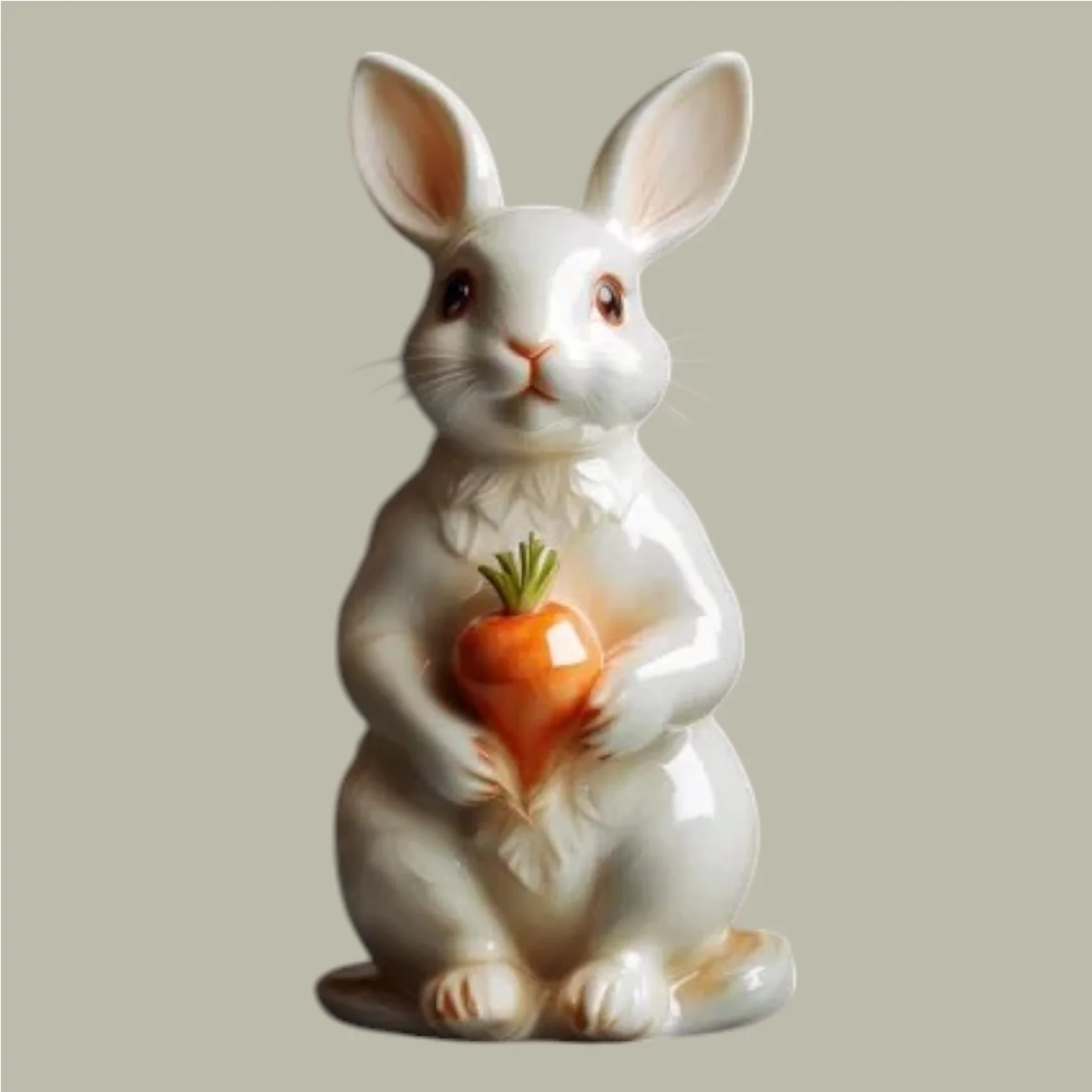 | 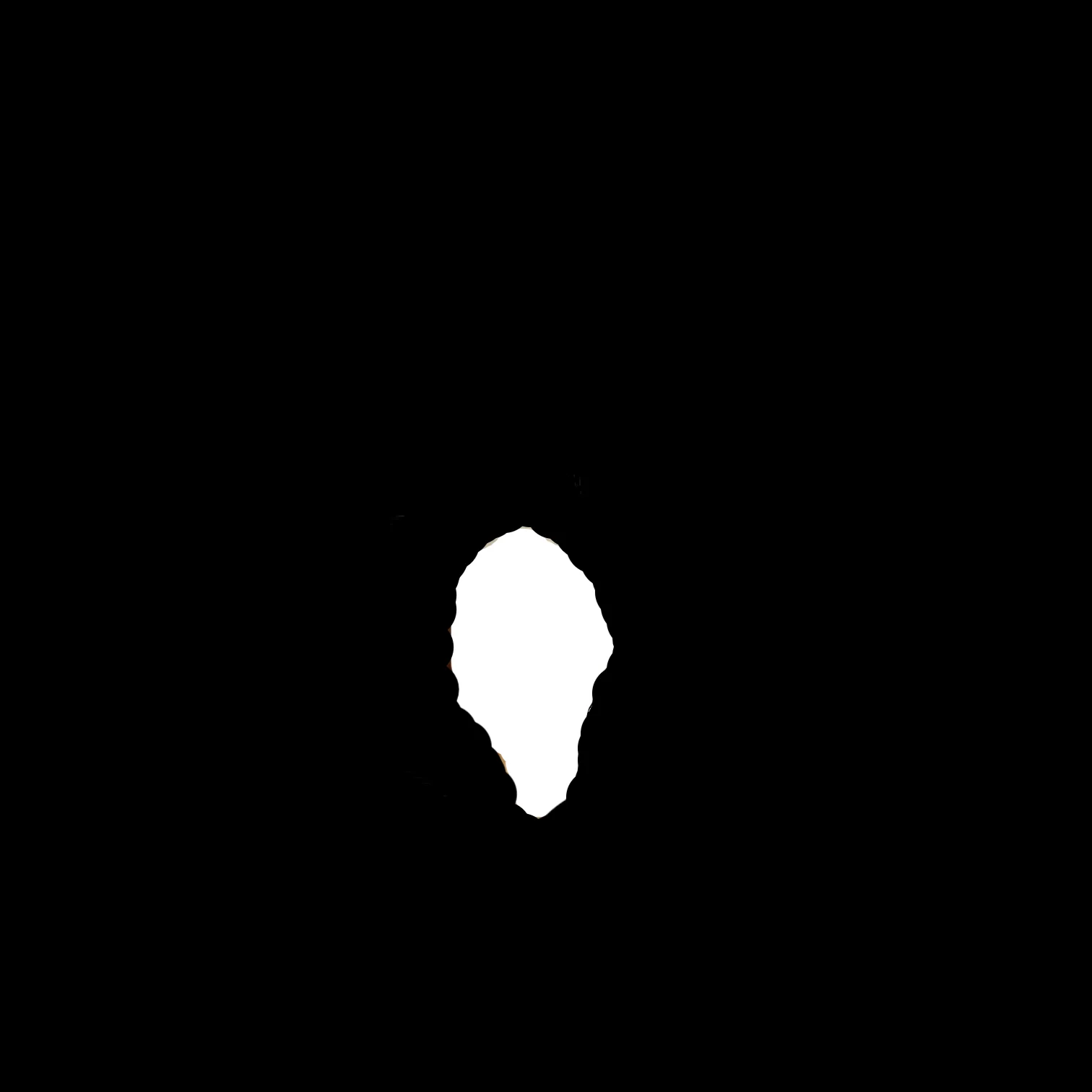 | 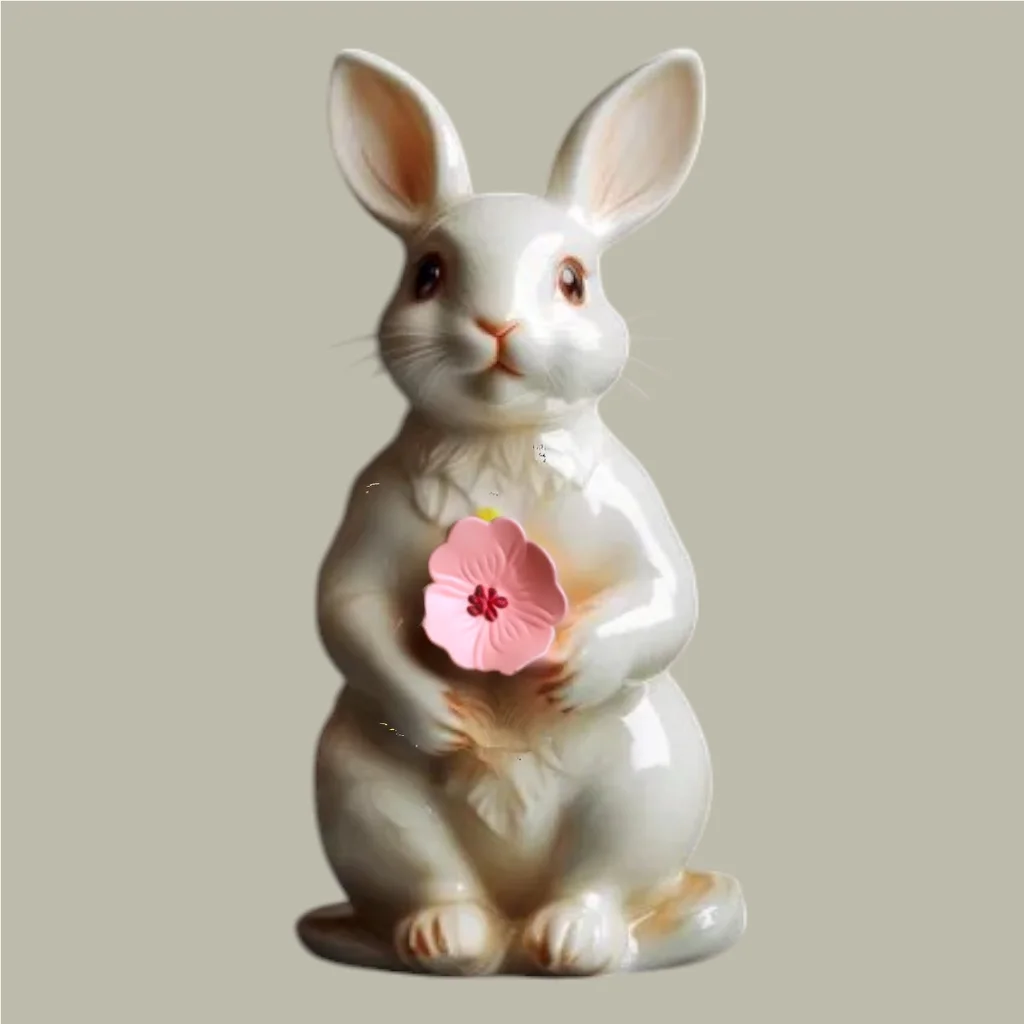 The prompt can also be written as "Replace the carrot held by the ceramic rabbit with a ceramic flower" (describing the action). |
| Delete an element | 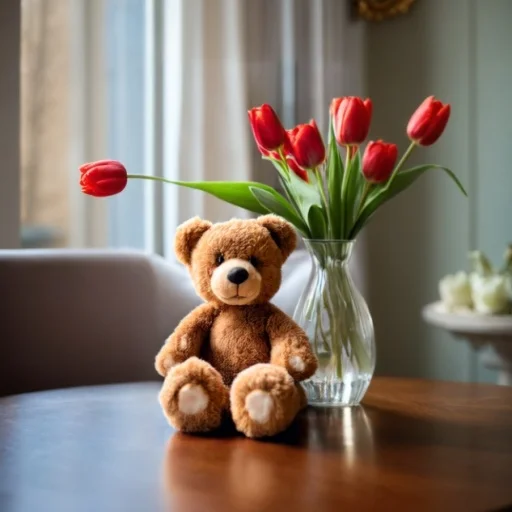 |  | 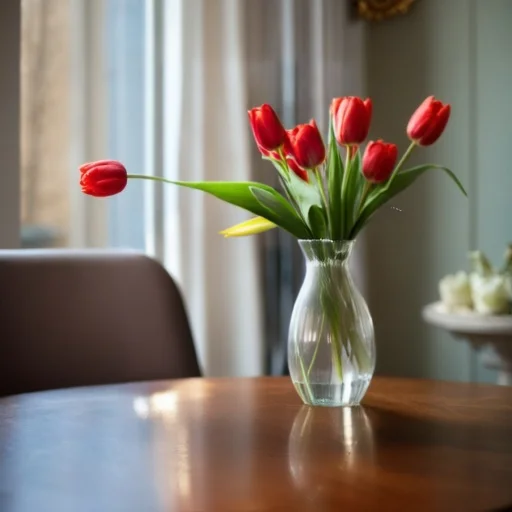 The prompt must describe the content after deletion; do not write "Delete a brown teddy bear". |
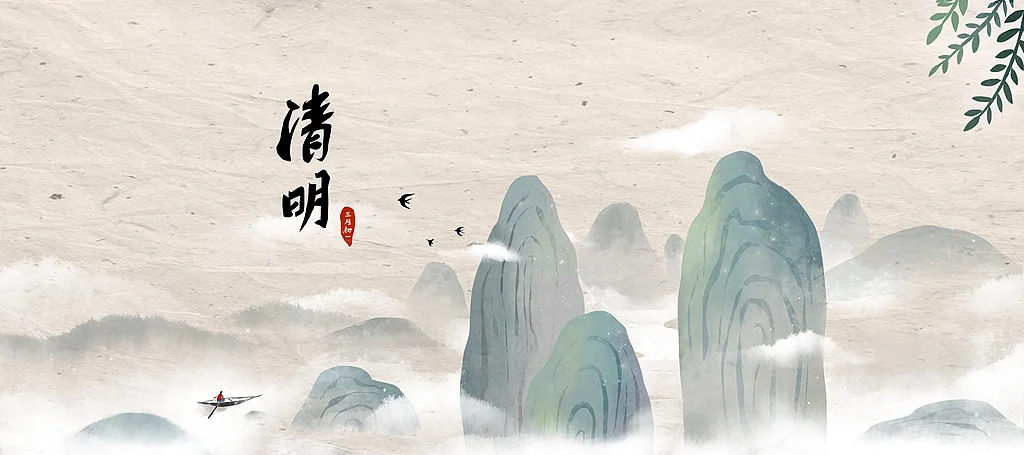
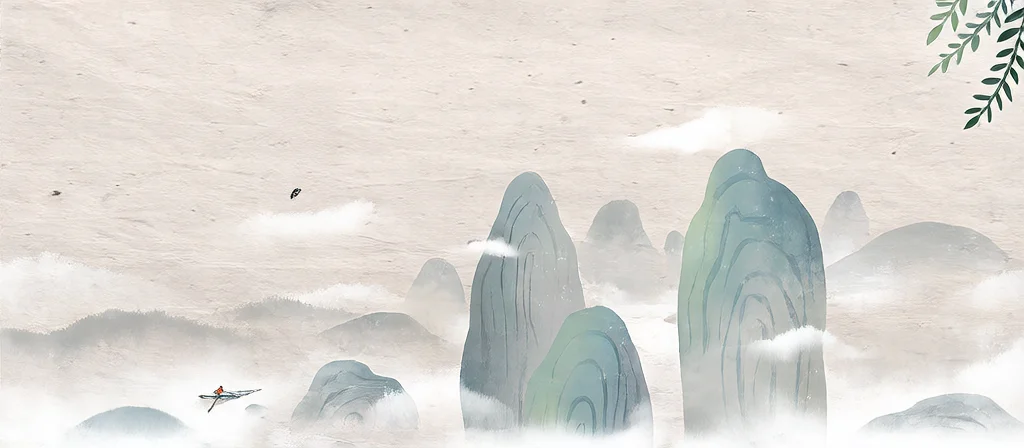
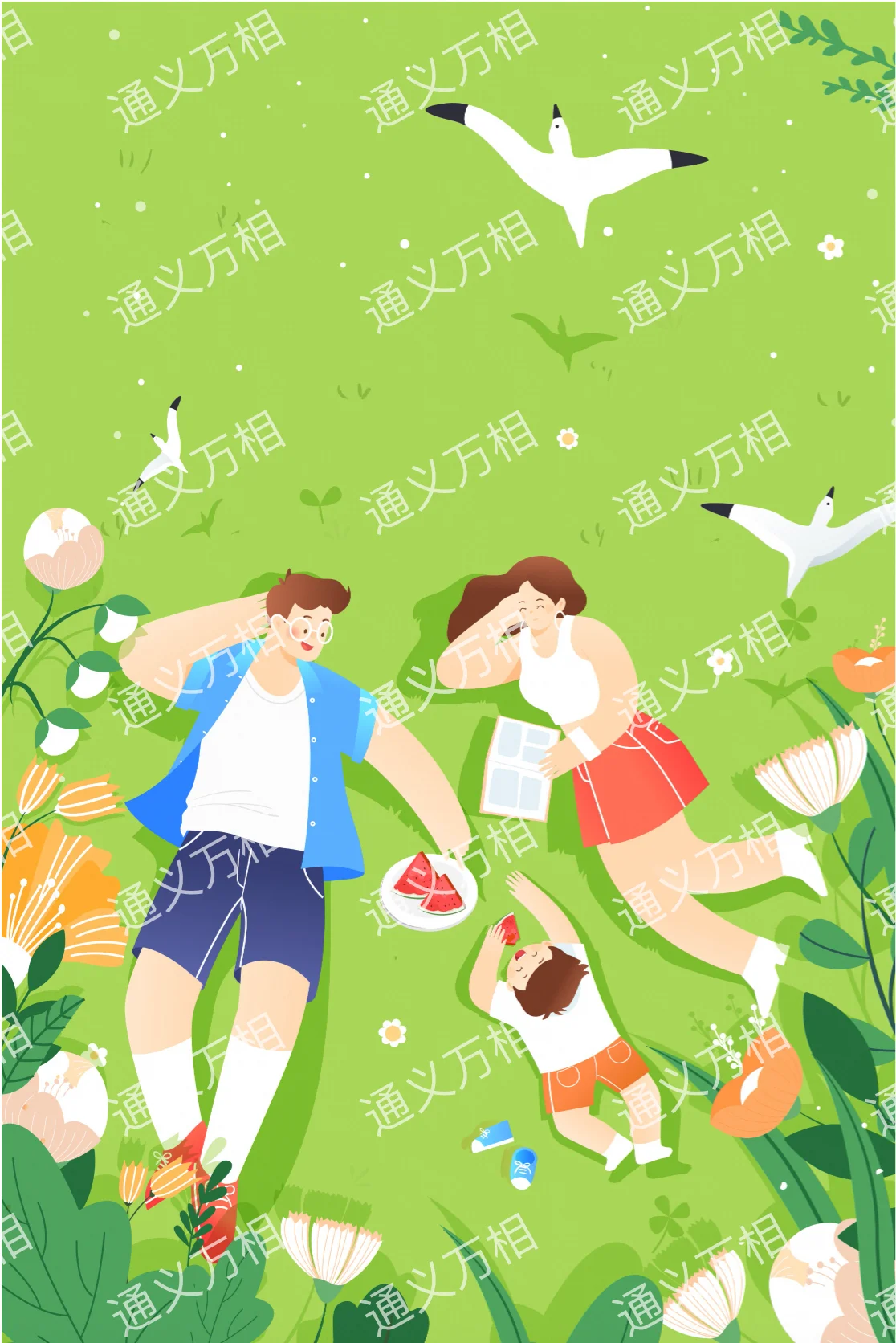
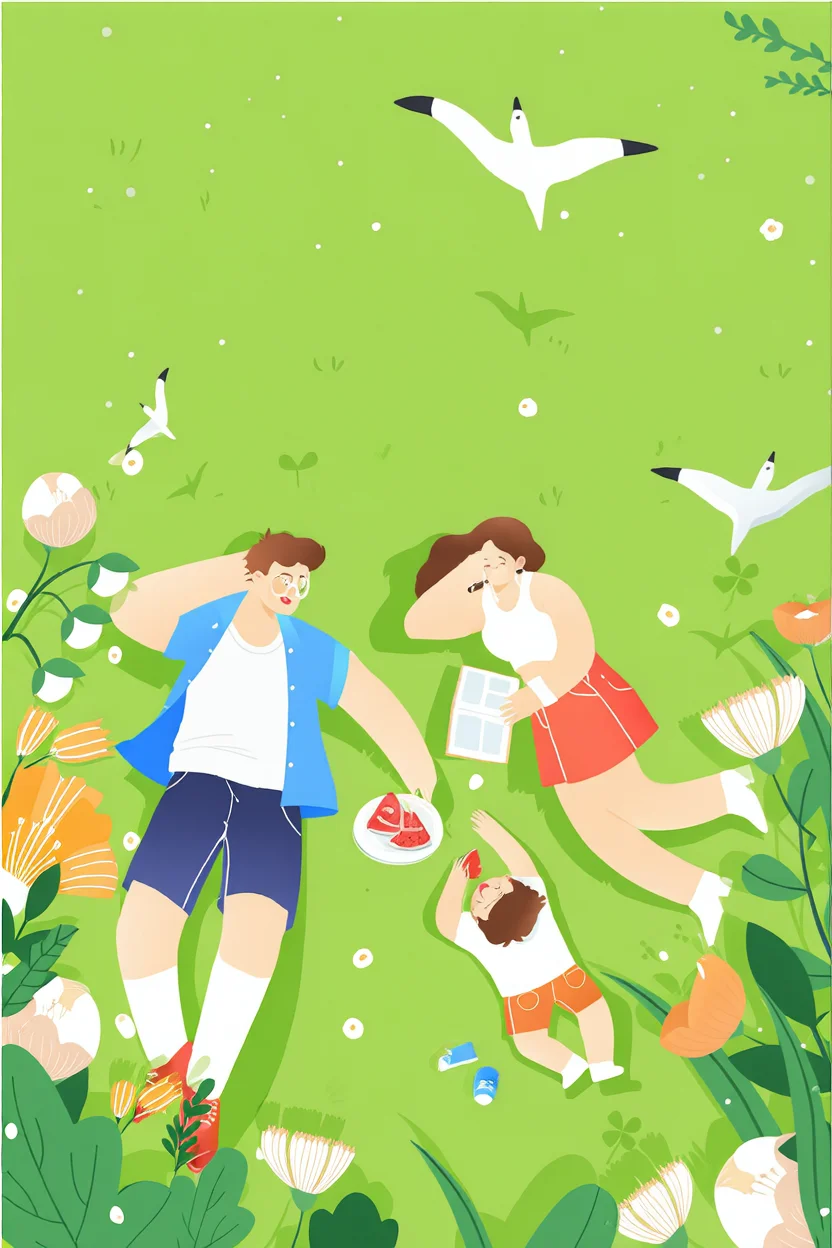
Remove text and watermarks
- How to use: Set the parameter
functiontoremove_watermark. - Prompt tips: You can use a general instruction such as "Remove the text in the image", or specify a type such as "Remove the English text".
Request example
Request example
Input image | Output image (text in the image removed) |
|---|---|
 |  |
 |  |
Outpainting
Proportionally expands the canvas in the four directions (top, bottom, left, and right) of the image and intelligently fills in content. Use cases include: adjusting the composition, and expanding a vertical image into a horizontal one to fit different media sizes.
- How to use: Set the parameter
functiontoexpand. - Parameters used together:
top_scale,bottom_scale,left_scale,right_scaleinparameterscontrol the expansion ratio in the four directions respectively (e.g., setting all of them to 1.5 means expanding to 1.5 times the original size). - Prompt tips: Describe the complete scene content you expect to see after expansion.
Request example
Request example
Input image | Output image |
|---|---|
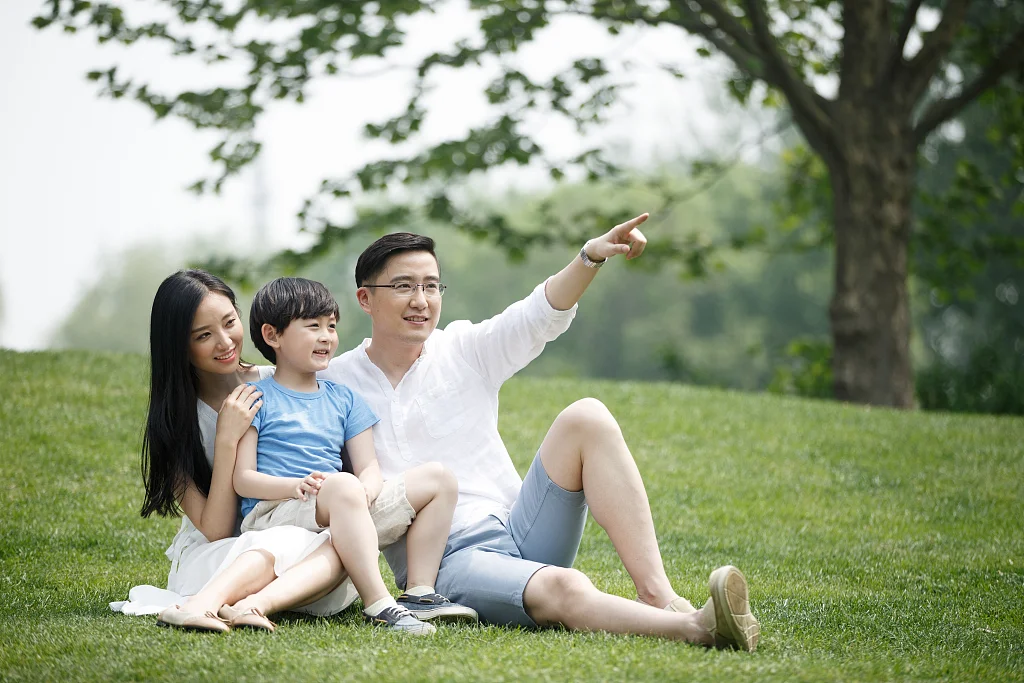 | 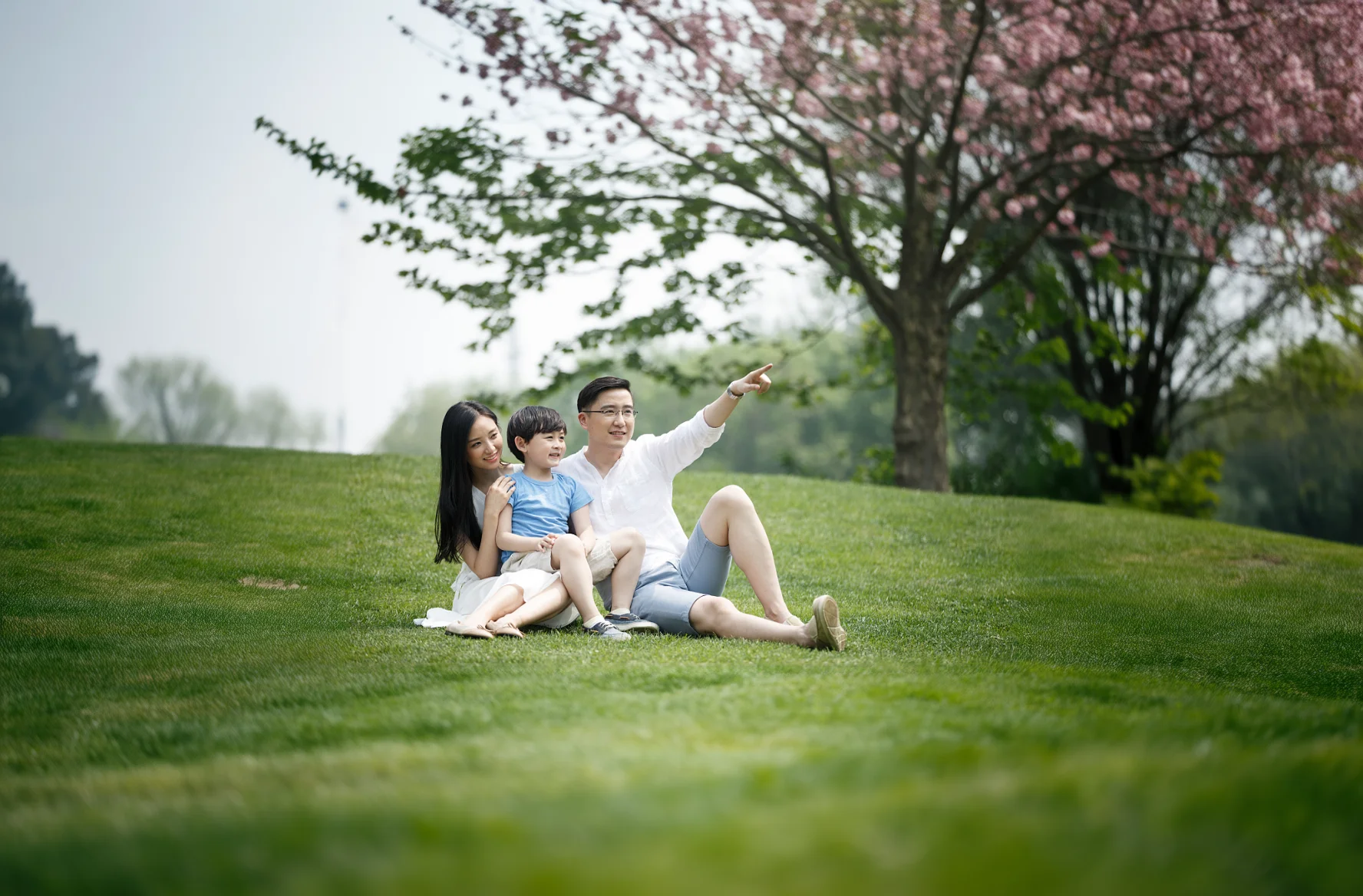 |
Image super-resolution
Enhances image clarity and supports upscaling, making low-resolution or blurry images clear. Use cases include: restoring old photos, and increasing the resolution of assets to meet high-definition printing or display requirements.
- How to use: Set the parameter
functiontosuper_resolution. - Parameters used together:
parameters.upscale_factor(1-4, default 1) controls the upscale factor. When the value is 1, only the clarity is enhanced without upscaling. - Prompt tips: You can use "image super-resolution" or describe the image content.
Request example
Request example
Input image (blurred image) | Output image (clear image) |
|---|---|
 | 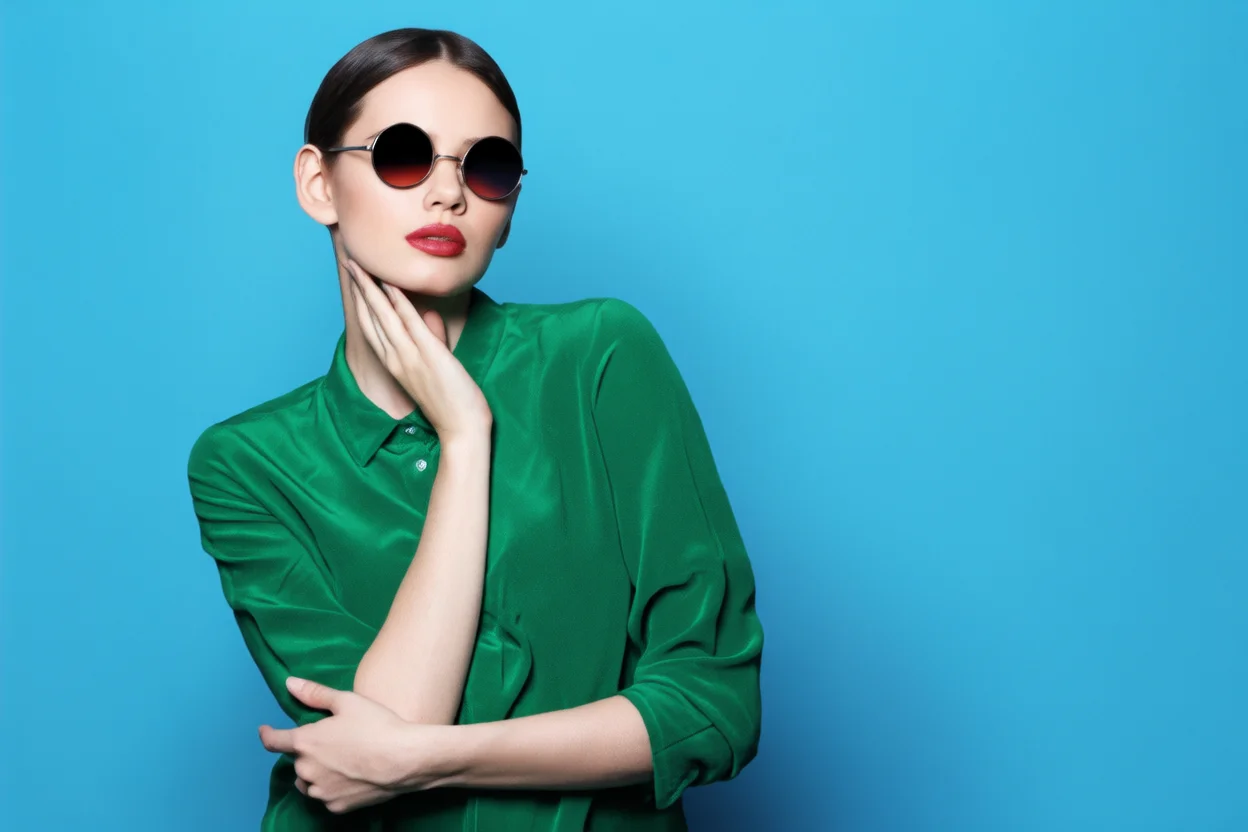 |
Image colorization
Converts black-and-white or grayscale images into color images (black-and-white/grayscale → color). Use cases include: colorizing historical photos, and filling in colors for line art or grayscale images.
- How to use: Set the parameter
functiontocolorization. - Prompt tips: You can leave it empty and let the model colorize automatically, or specify the colors of key elements through the prompt (e.g., "blue background, yellow leaves").
Request example
Request example
Input image | Output image |
|---|---|
 |  |
Line art-to-image (doodle painting supported)
Generates a new image based on the contour (line art) of the input image combined with the prompt. Use cases include: architectural concept design, illustration design, and doodle painting.
-
How to use: Set the parameter
functiontodoodle. -
Parameters used together:
parameters.is_sketch, which controls the model's generation result.false(default): The input is an RGB image, and the model first extracts the line art and then generates the image (RGB image → line art → new image).true: The input is an RGB image (such as a doodle or line art), and the model generates the image directly based on it (RGB image → new image).
- Prompt tips: Describe the image content you expect to generate; the more specific the description, the better the generation result.
Request example 1: line art-to-image
Request example 1: line art-to-image
Request example 2: doodle painting
Request example 2: doodle painting
Capability | Input image | Output image |
|---|---|---|
Line art-to-image (is_sketch=false) | 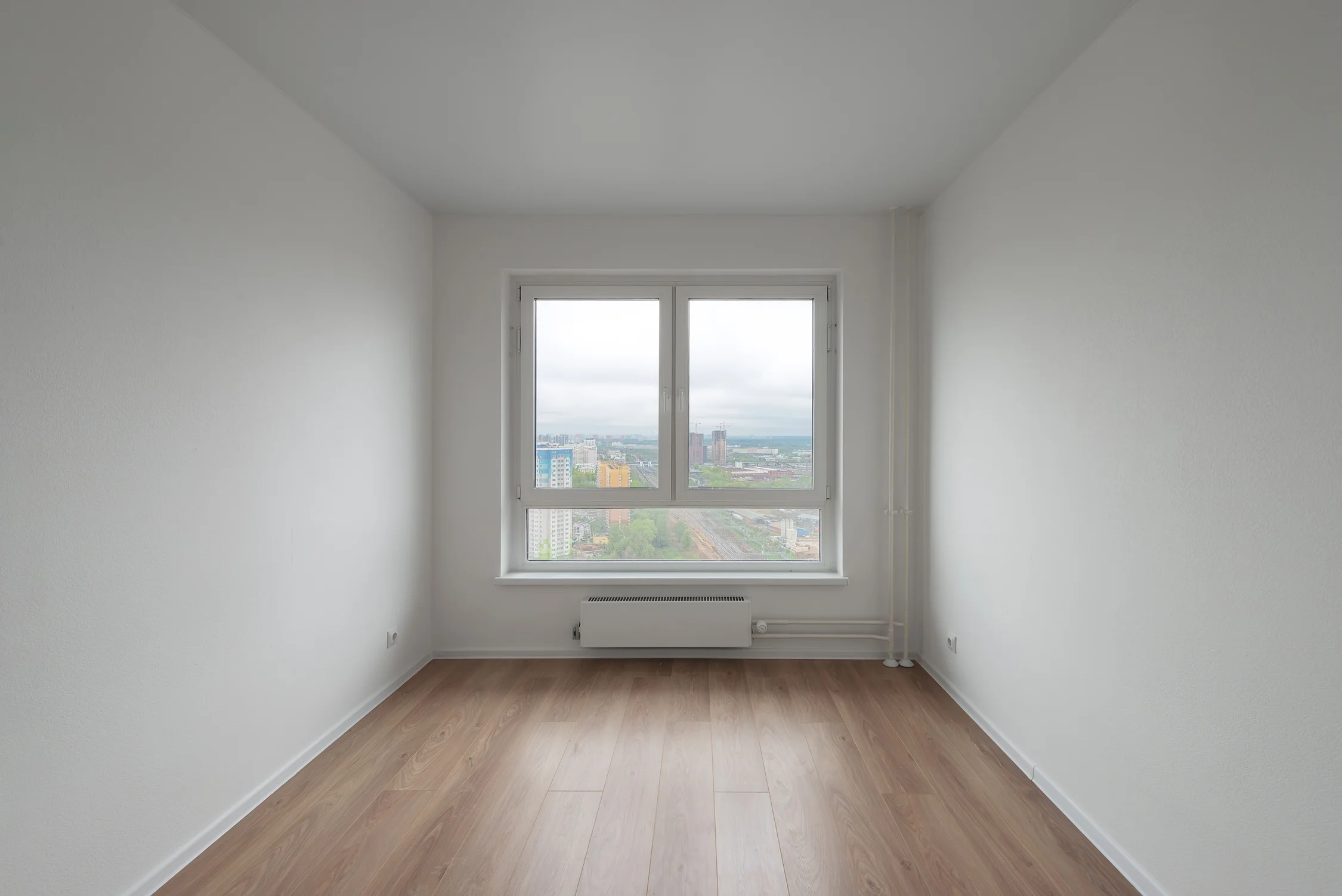 | 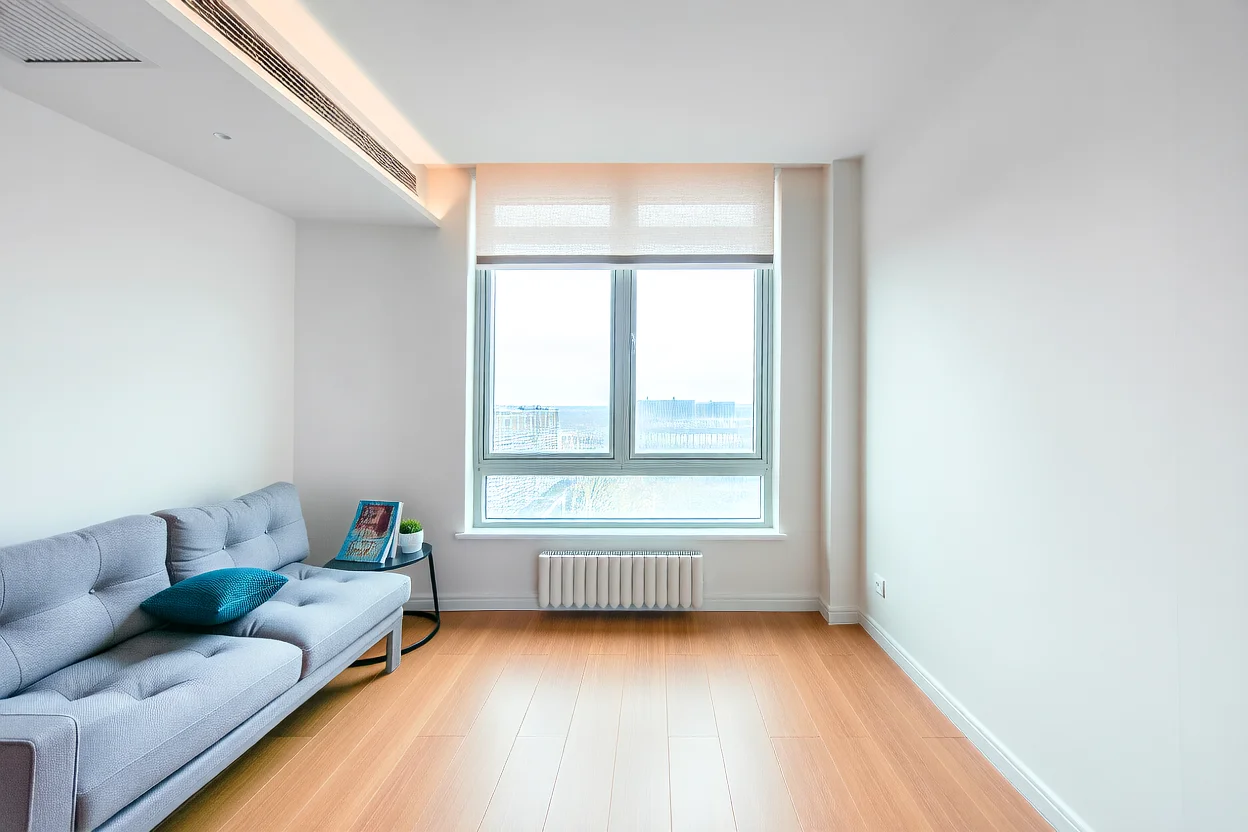 A living room in Nordic minimalist style. |
Doodle painting (is_sketch=true) |  | 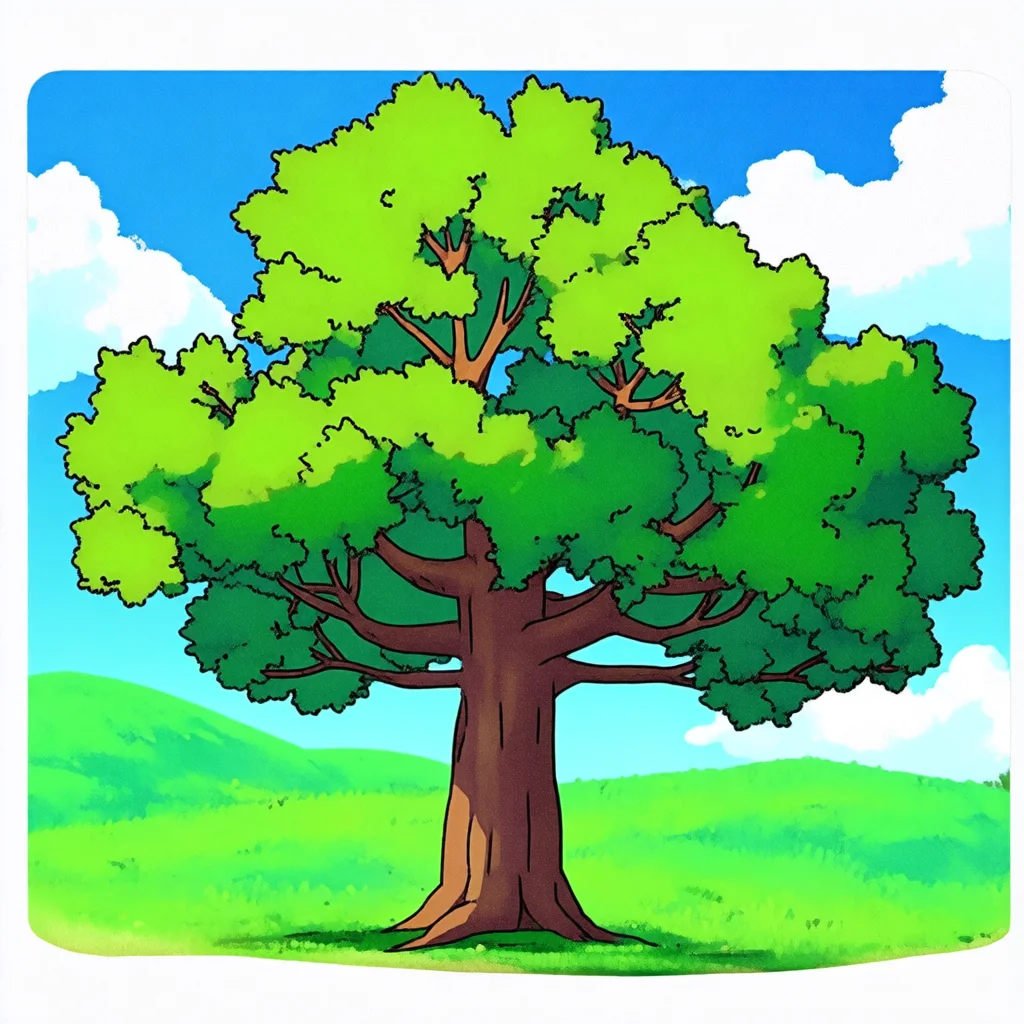 A tree in anime style. |
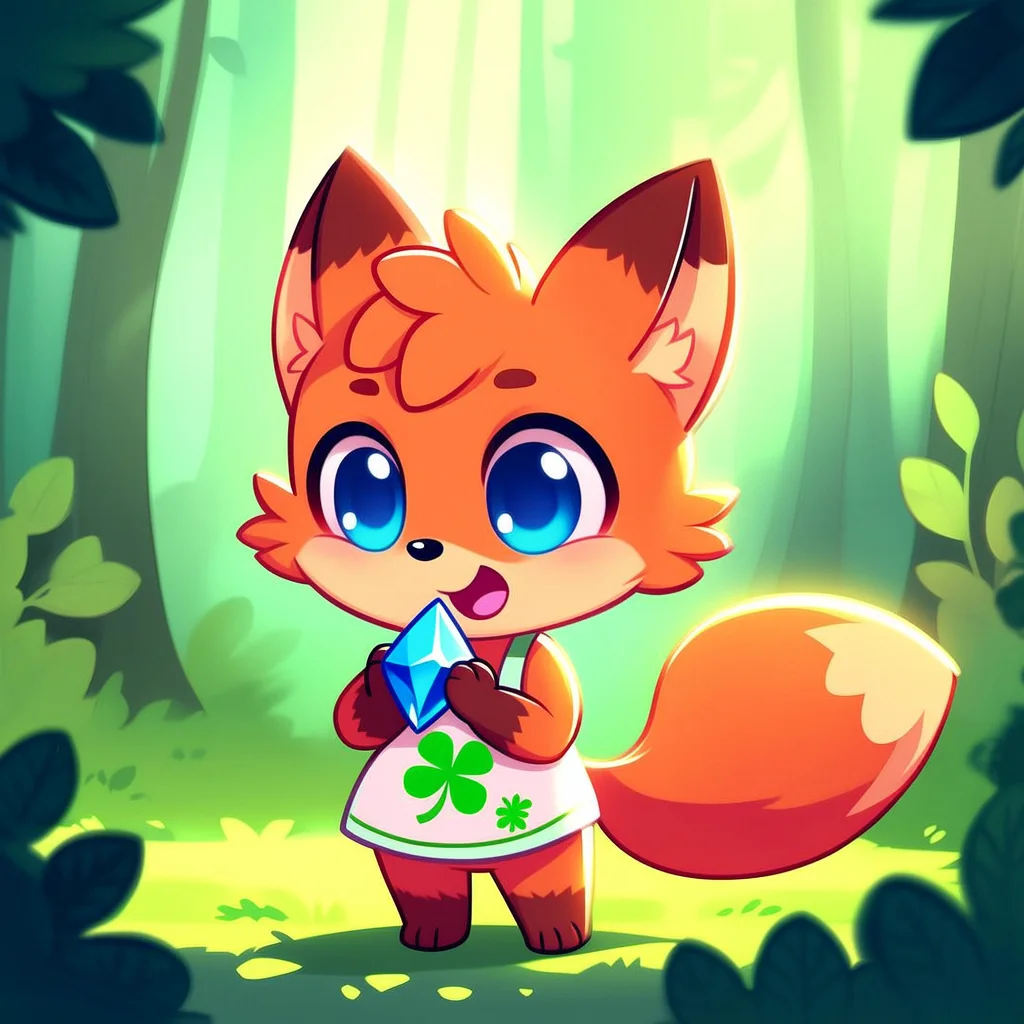
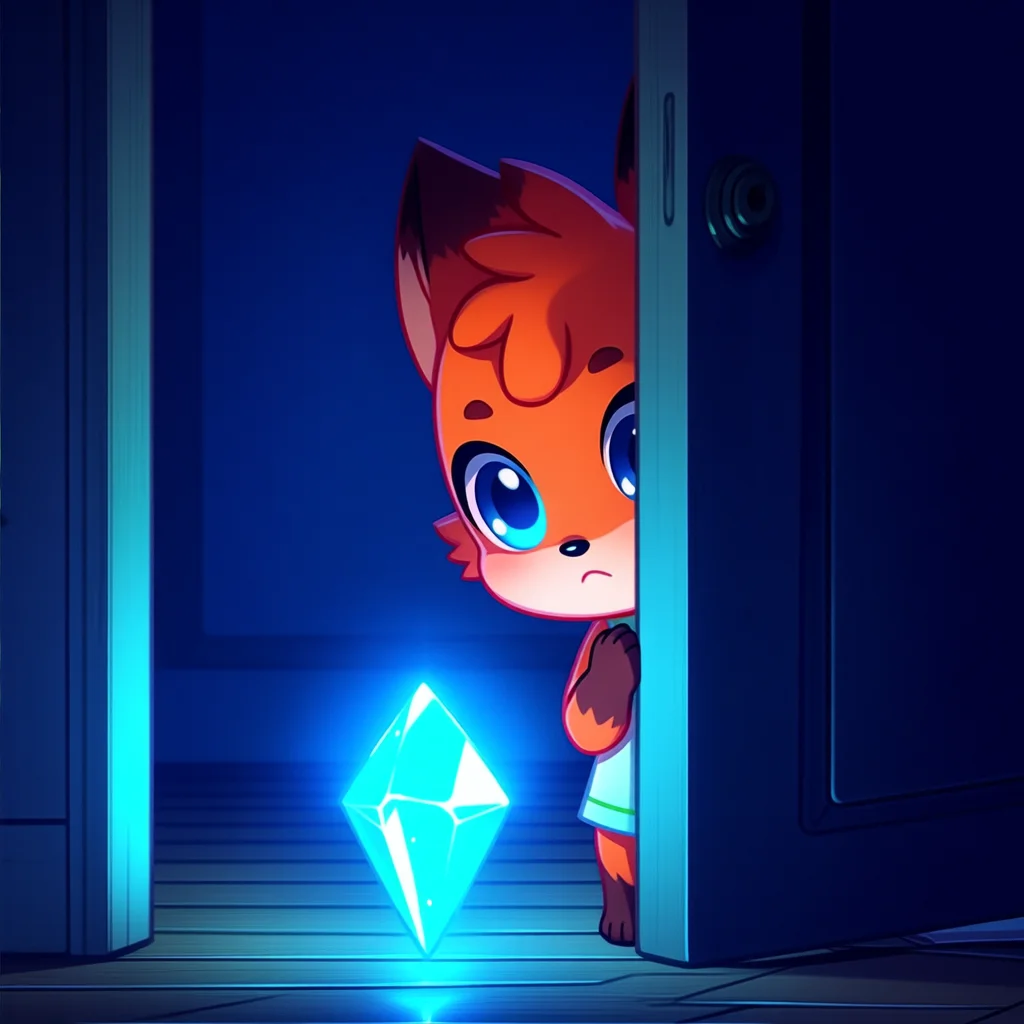
Image generation with cartoon character references
- How to use: Set the parameter
functiontocontrol_cartoon_feature. - Prompt tips: Use the "cartoon character..." pattern to describe the character's actions and environment in detail.
Request example 2: doodle painting
Request example 2: doodle painting
Input image | Output image |
|---|---|
 |  |
Going live
Best practices
- Asynchronous polling: Use graduated polling intervals (e.g., every 3s for 30s, then increase) to avoid rate limits.
- Parameter tuning: Test key parameters like
strengthin small-scale trials before production to find optimal values. - Image storage: Result URLs expire after 24 hours. Download and transfer to persistent storage (e.g., OSS) promptly.
Risk prevention
- Error handling: Check
task_statusin query results. IfFAILED, recordcodeandmessagefor troubleshooting. Transient errors (e.g., timeouts) may succeed on retry. - Content moderation: All input and output is reviewed for compliance. Non-compliant content returns
DataInspectionFailed.
API reference
Input and response parameters are documented in the General image editing API reference.
Billing and rate limiting
- For model free quotas and unit prices, see Models and pricing.
- For model rate limiting, see Wanxiang.
-
Billing details:
- Billed per successfully generated image. Charges apply only when
task_statusisSUCCEEDED. - Failed calls do not incur charges or consume Free quota for new users.
- General image editing also supports savings plans. Offset order: free quota > savings plan > pay-as-you-go.
- Billed per successfully generated image. Charges apply only when
Error codes
If the model call fails and returns an error message, see Error codes for resolution.
FAQ
Q: Why did my task fail (FAILED)?
Common causes:
- Content moderation failure: Input or output triggered security policy.
- Parameter error: Invalid request parameters (e.g., incorrect
functionname or inaccessible URL). - Internal model error: The model encountered an unexpected issue during processing. Check the
codeanderrorfields in the task query response to get the specific error code and message for troubleshooting.