

This topic describes, in order of actual use, how to create a throughput reservation in the console (form parameters and fee confirmation), integrate and call the API, view monitoring data, and perform daily management (scaling, renewal, unsubscription, capacity pack stacking, and overflow policy modification).
Before you begin
Before using throughput reservations, make sure the following three things are ready:
- Model Studio model service: Activated in the Model Studio console.
- Workspace: A workspace has been created; use the dedicated domain and API Key of that workspace when calling reserved capacity.
- API Key: Created in the target workspace; see Obtain and configure an API Key for the steps.
Create a throughput reservation
Go to the creation page: Log on to the Model Studio console, choose Model Inference > Throughput Reservations in the left-side navigation pane, and click Create Throughput Reservation.
Fill in the form fields one by one in the order they appear in the console:
| Form field | What to fill in | When it is available |
|---|---|---|
| Reservation Name | A custom name of no more than 50 characters | Always displayed |
| Select Model | Select the model to reserve capacity for from the drop-down list | Always displayed; once a model is selected, the billing cycle options appear dynamically based on the selected model |
| Reasoning Mode | Standard mode / Turbo mode | Always displayed; for the differences between the two modes, see Throughput reservation overview |
| Billing Cycle | By Day / By 8-hour slot / Pay-as-you-go by hour | By Day: available for both modes. By 8-hour slot: Standard mode only, and orders can be placed only between 22:00 and 00:00 the next day. Pay-as-you-go by hour: Turbo mode only; appears after Turbo mode is selected |
| Input Capacity / Output Capacity | Unit: kTPM (1 kTPM = 1,000 tokens per minute); input starts at 200 in increments of 10, and output starts at 20 in increments of 1 | Always displayed; before purchasing, use the TPM capacity calculator to estimate, and see Long input and prefix caching for the long input and cache conversion rules |
| Duration | 1~30, 60, 90, 120, 365 days | Displayed only for upfront/By Day billing; By 8-hour slot is fixed at 8 hours and requires no input; pay-as-you-go is billed by actual usage and has no duration |
| Auto-Renew on Expiration | On / Off, On by default; when enabled, the fee is automatically deducted between 8:20 and 20:00 one day before expiration, with up to 4 attempts | Displayed only for upfront/By Day billing; auto-renewal is not supported for By 8-hour slot |
| Renewal Duration | 1~30, 60, 90, 120, 365 days | Displayed after Auto-Renew on Expiration is enabled (By Day only) |
| Overflow policy | Auto overflow (default; the excess is automatically billed on a pay-as-you-go basis without interrupting your business) / Reserved capacity only (the excess directly returns a 429 rate limit error and incurs no additional fees) | Always displayed |
model parameter with it in all subsequent calls.
Integration and invocation
Prerequisite: the reservation instance is in the Running state. There is only one rule for making calls: replace the model parameter in the request with the dedicated model code; everything else is the same as calling a regular model. The API Integration tab in the console details area provides examples for only some of the protocols (OpenAI compatible and DashScope); the complete calling methods for the three protocols are as follows.
- OpenAI Chat compatible
- Anthropic compatible
- OpenAI Responses
Suitable for businesses already integrated with the OpenAI Chat Completions protocol. Both endpoints can be used: the DashScope domain To switch to the Dedicated Workspace Host, simply replace the domain in the examples above with
https://dashscope.aliyuncs.com/compatible-mode/v1, or the Dedicated Workspace Host https://{workspaceId}.{region}.maas.aliyuncs.com/compatible-mode/v1 (replace {workspaceId} and {region} with actual values, such as cn-beijing).- cURL
- Python
https://{workspaceId}.{region}.maas.aliyuncs.com/compatible-mode/v1; the other parameters remain unchanged.provisioned_tokens is the converted capacity consumed by this call. For the meaning of the fields, see View capacity consumption and cache hits.
View and monitor
View capacity, usage, and running status on the throughput reservation page of the Model Studio console. The page is organized into three layers along the usage flow:
- Reservation list: one card per model, used to locate the target reservation.
- Card details area: click View more on a card to expand it; it contains the Overview, Monitoring, and API Integration tabs, which are used respectively to determine whether capacity is sufficient, troubleshoot call issues, and obtain call examples. At the bottom of the Overview tab is the list of capacity instances under the model; the entries for scaling, renewal, and unsubscription are all in the Actions column of each instance row.
Reservation List
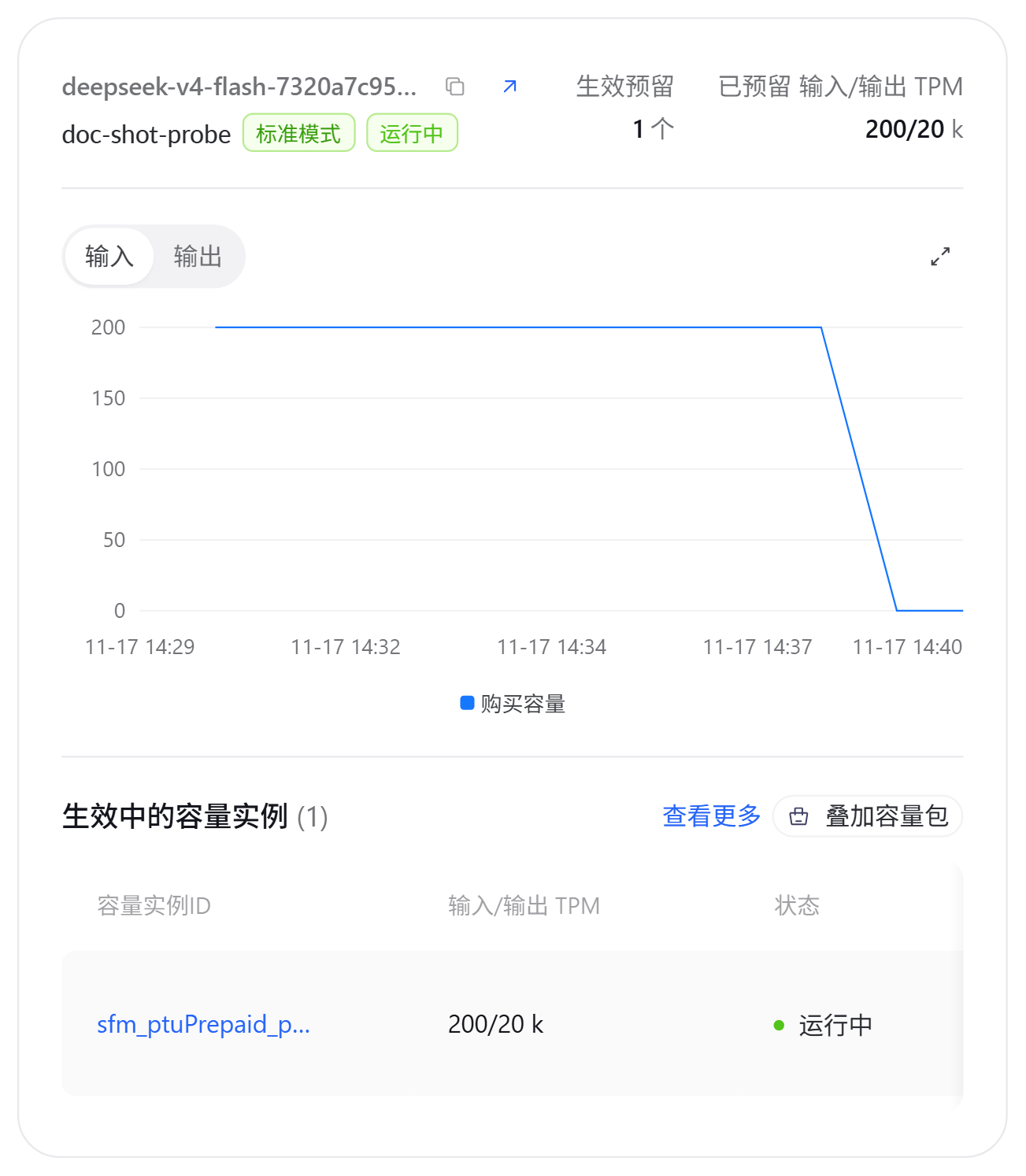
| Card information | Description |
|---|---|
| Mode label, status | The inference mode of the reservation and the current status of the instance. |
| Active Reservations | The number of active capacity instances; the statistics include historical expired, stopped, and released reservations, so this is not equal to the currently available quantity. |
| Reserved Input/Output TPM | The total capacity of all instances under the model. |
Card Details Section
The details section contains three tabs:
- Overview
- Monitoring
- API Integration
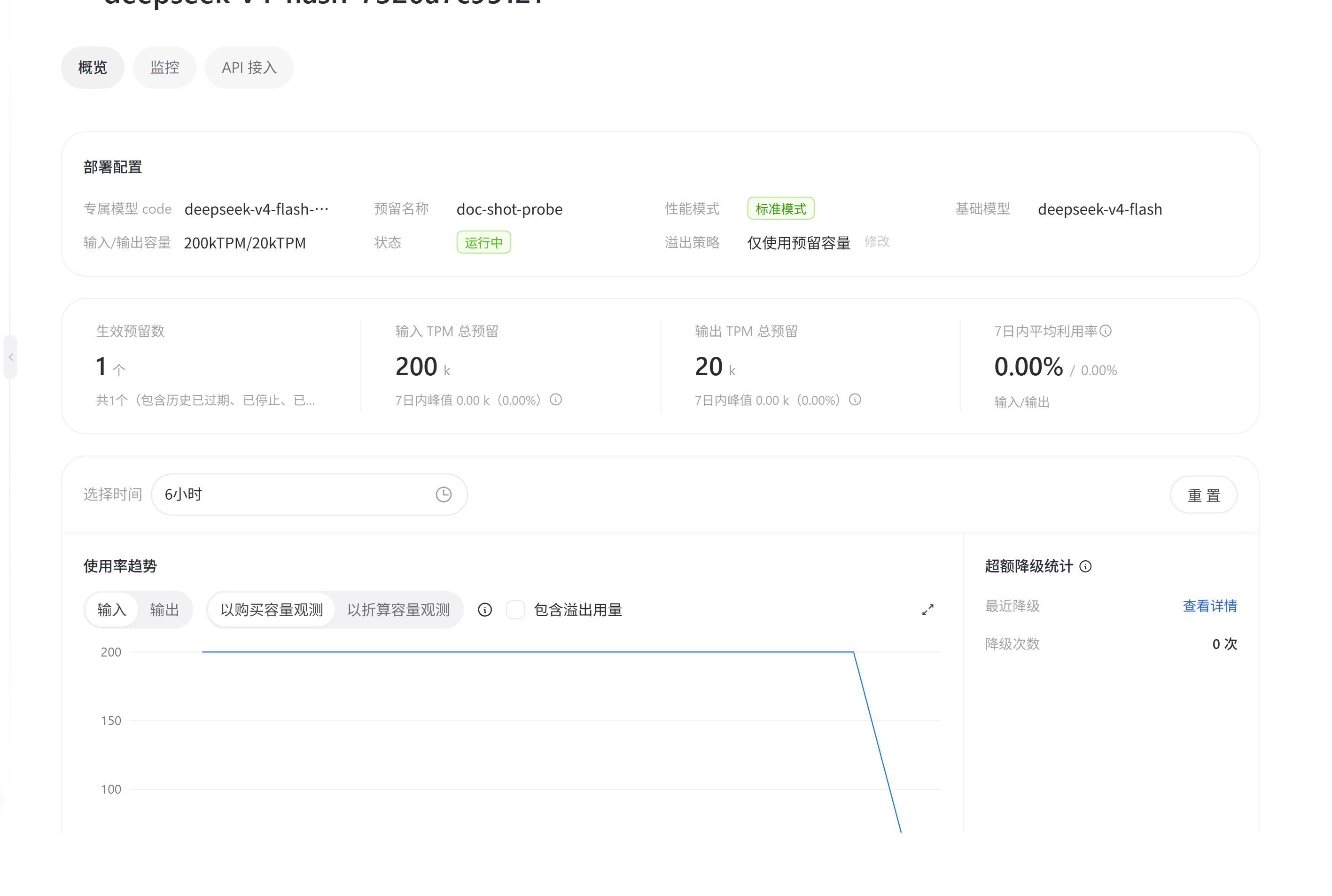
| Check item | Location | Criterion |
|---|---|---|
| Utilization | Statistics card (average utilization) and the Utilization Trend curve | A utilization rate that remains close to 100% indicates insufficient capacity. |
| Peak | Statistics card Peak within 7 days (capacity usage peak over the last 7 days) | A peak close to or exceeding the purchased capacity indicates insufficient capacity during peak hours. |
| Overage degradation | Overage Degradation Statistics (the most recent degradation time and count, generated only under the auto overflow policy) | Frequent degradation indicates frequent overage; we recommend scaling out (see Management operations). |
| Statistical method | Description |
|---|---|
| By purchased capacity | Calculates the utilization rate based on the purchased capacity. |
| By converted capacity | Based on the capacity converted using the conversion coefficient (the conversion method for long input and caching). |
| Including overflow usage | Usage additionally counts the portion that overflows to pay-as-you-go billing. |
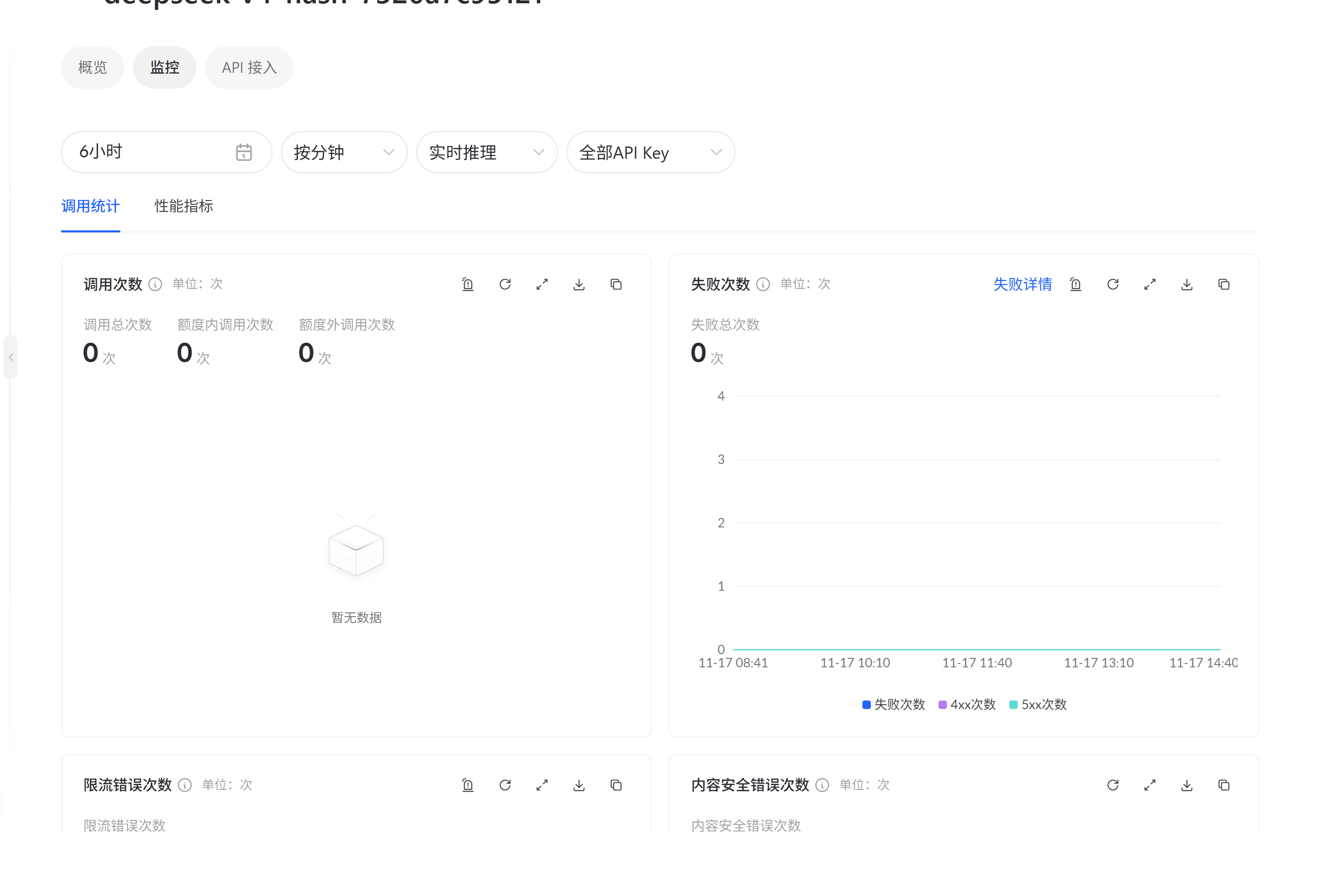
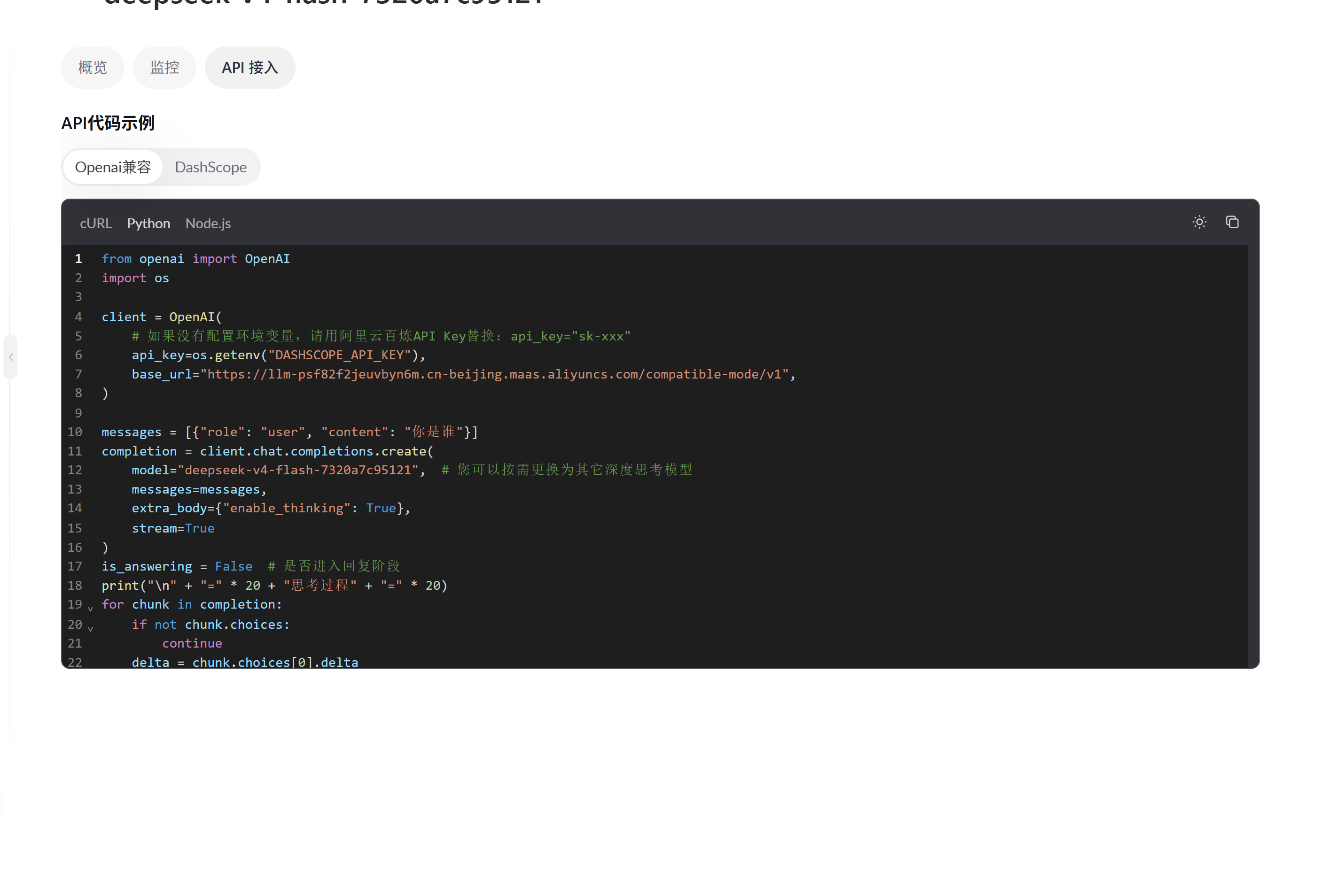
Capacity Instance List

| Column | Description |
|---|---|
| Capacity instance ID | The unique identifier of the instance, used to specify the instance when calling the management OpenAPI. |
| Input/Output TPM | The input/output capacity of the instance. |
| Status | For the meaning, see Instance status. |
| Billing Cycle | Upfront/by day, upfront/8-hour block, pay-as-you-go/by hour. |
| Effective/expiration time | The effective and expiration times; the number of remaining days is displayed before expiration. |
| Auto-renewal | On/Off; the change takes effect immediately (upfront/by day only). |
Management Operations
Operations available and constraints for each billing method:
| Billing method | Scaling | Renew | Unsubscribe / delete | Key constraints |
|---|---|---|---|---|
| Upfront/by day | Supported | Supported (including auto-renewal) | Unsubscribe via User Center | Unsubscription is irreversible and refunds are settled based on the penalty coefficient; the API cannot directly release upfront instances (this must be handled in User Center) |
| Pay-as-you-go/by hour | Supported | Not applicable (no expiration concept) | Deleting the instance stops billing | Instances scaled to zero can be deleted directly; all instances must be released before deleting the Model Code |
| 8-hour block | Not supported | Not supported | Not supported | Capacity automatically becomes invalid after the block expires; auto-renewal is not supported |
| Action | Problem solved | Entry | Applicable instances | Fees and rules |
|---|---|---|---|---|
| Add-on capacity package | Adds a new capacity instance | Card Add-on capacity package/Buy capacity, or next to the capacity instance list title | By-day and by-hour pay-as-you-go instances | Add-on capacity package billing |
| Scaling | Scales the capacity of the original instance up or down (including to zero) | Capacity instance list Actions column | By-day and by-hour pay-as-you-go instances | Scale out, Scale in |
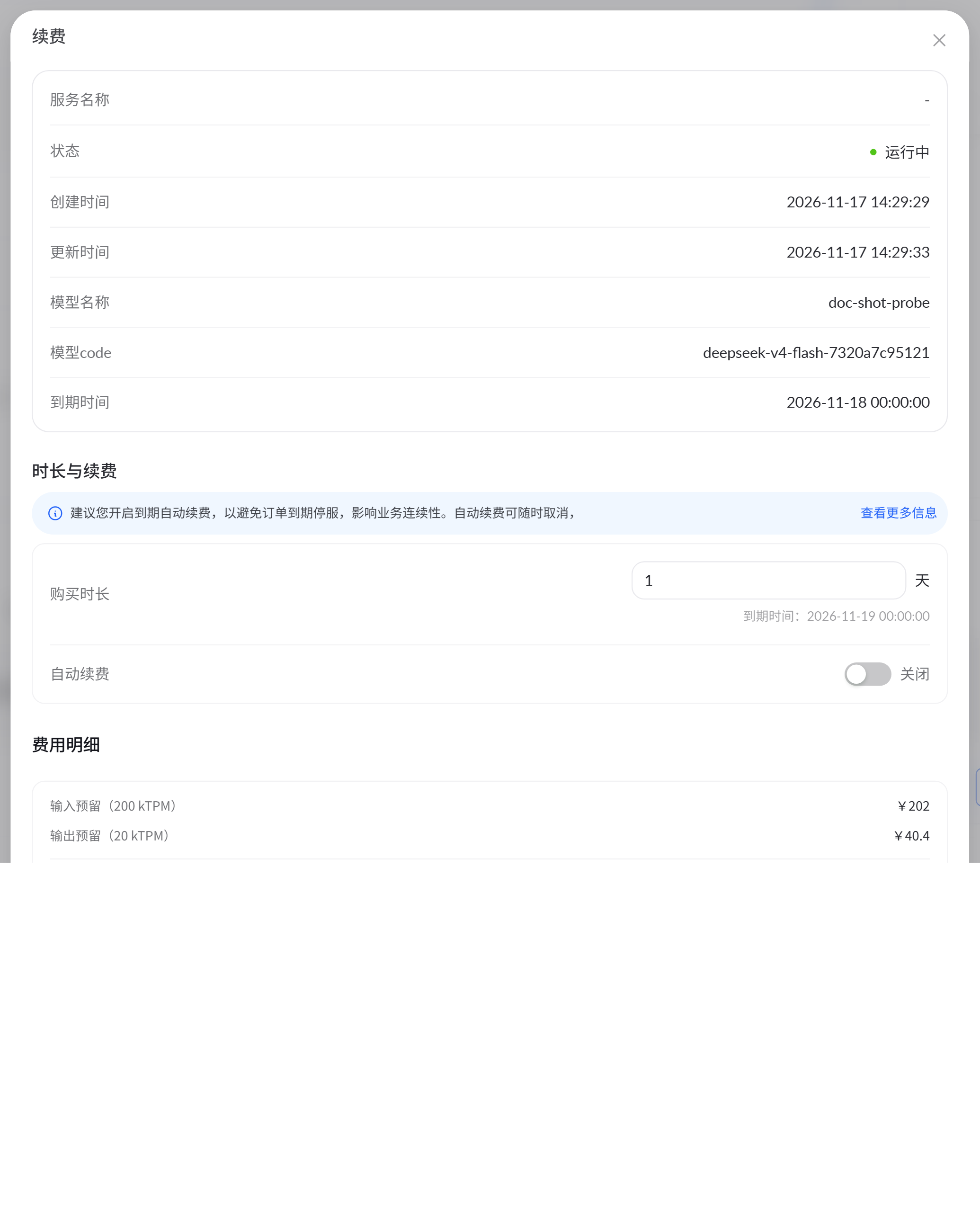
| Renew / auto-renewal | Extends the validity period and avoids interruption at expiration | Capacity instance list Actions column / auto-renewal column switch | By-day instances | Billing rules |
| Unsubscribe | Completely stops and releases the instance | Capacity instance list Actions column (redirects to User Center for processing) | By-day instances | Unsubscribe |
| Modify overflow policy | Determines whether the excess portion is converted to pay-as-you-go billing or returns 429 | Edit next to the overflow policy on the Overview tab | All instances | Overflow policy and billing |
Add-on Capacity Package
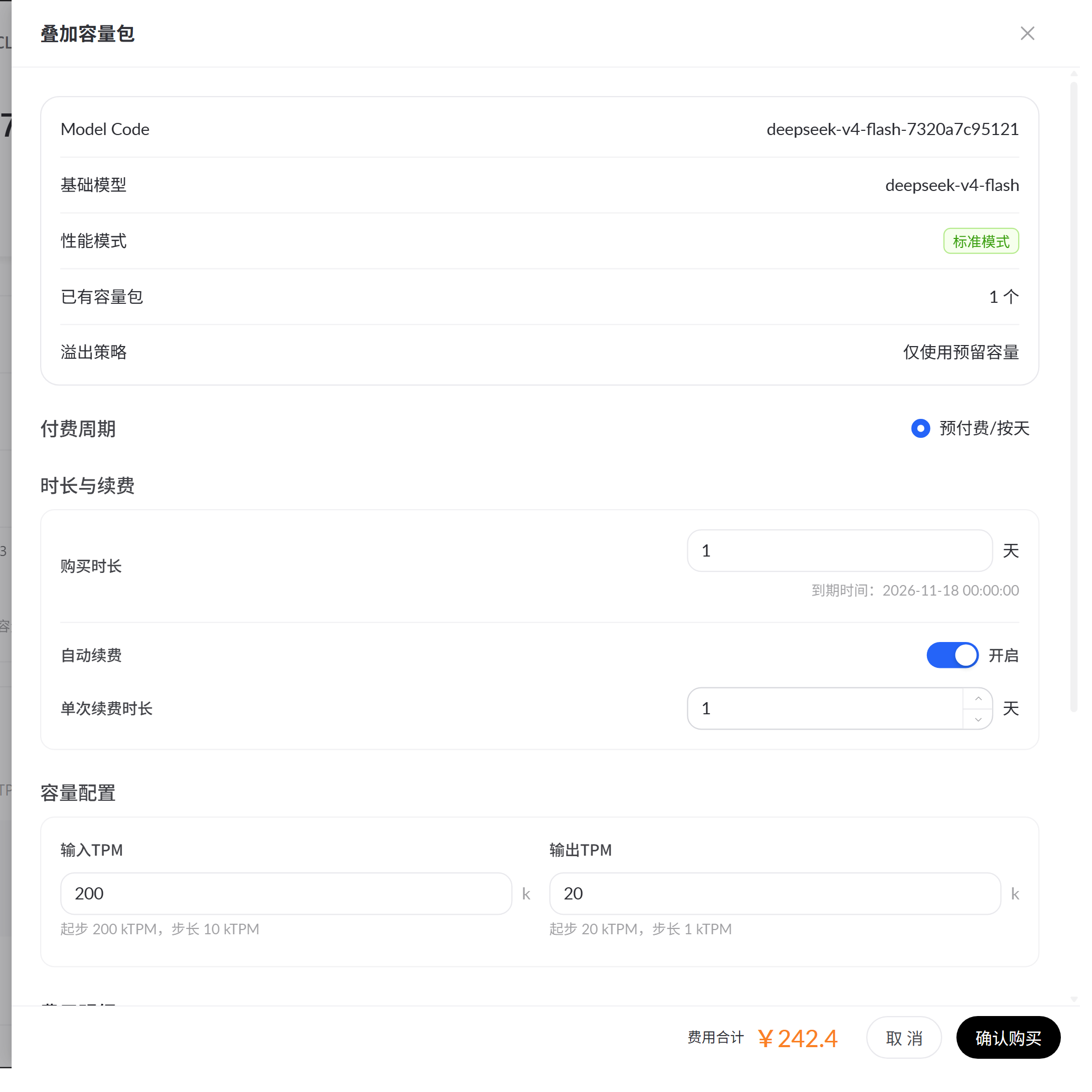
| Billing Cycle | Applicable conditions |
|---|---|
| Upfront/By Day | Applies to both upfront and pay-as-you-go reservations |
| Upfront/By 8-hour time window | Standard mode (Basic) only, and only some models support it; for the supported list, see 8-hour time window reservation billing |
| Method | Object changed | Billing |
|---|---|---|
| Add-on capacity pack | Adds an independent instance that coexists with the original instance | Purchased independently; you can choose the billing cycle and duration (for example, By 8-hour time window) |
| Scaling | Adjusts the input/output TPM of the original instance | The added portion is billed based on the remaining validity period |
Scaling, renewal, and unsubscription
All three operations are available in the Actions column of the capacity instance list:
- Scaling
- Renew
- Unsubscribe
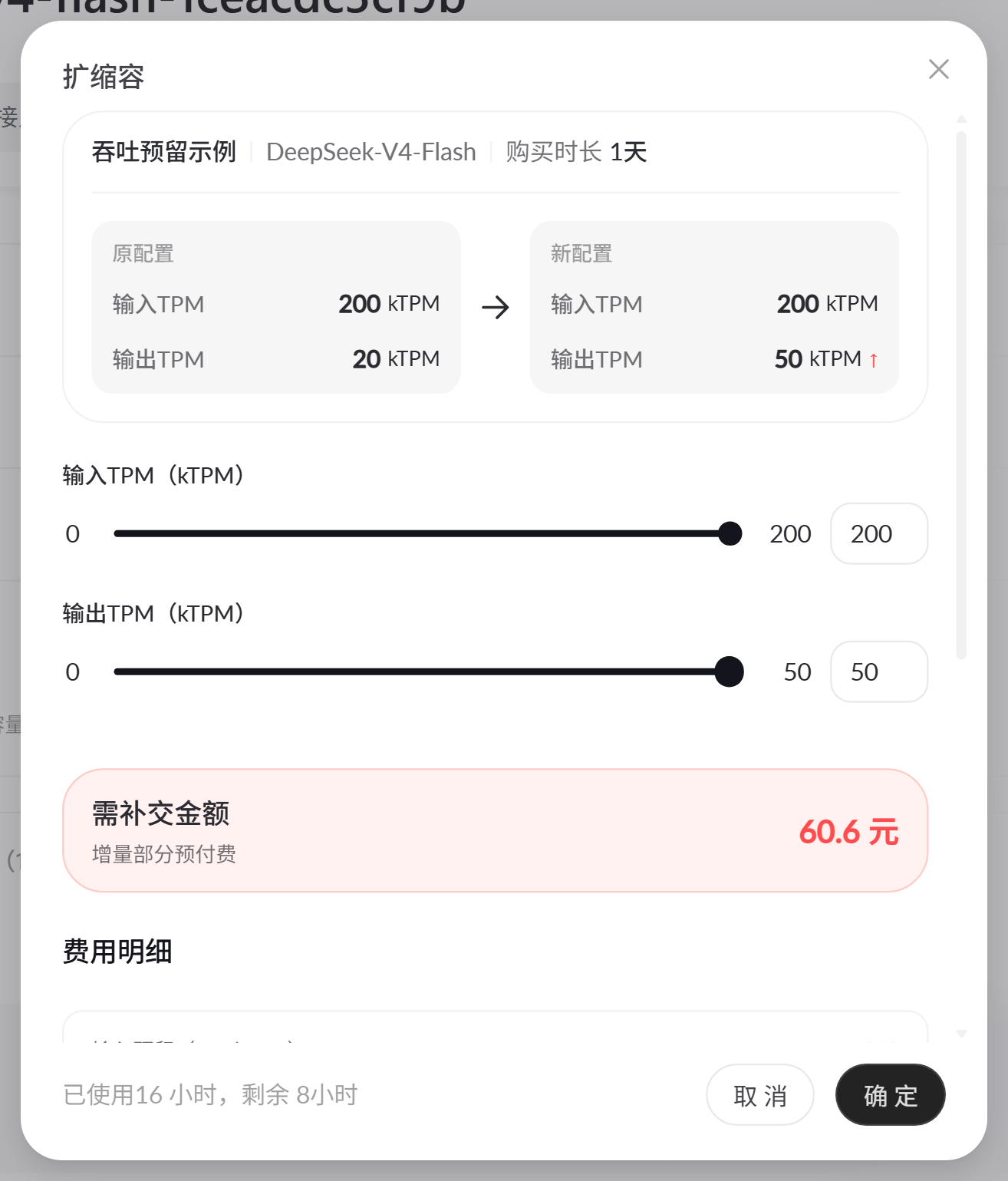
Both input and output TPM can be adjusted to 0 (zeroed out): after zeroing out, capacity fees stop accruing, the dedicated model code is retained, and calls can be restored by scaling out. Scale-in and zeroing out are refunded based on configuration-downgrade settlement, with a penalty factor of 1.2 for usage ≤30 days and 1.0 for >30 days. For more information, see Scale-in. The penalty factor applies only to upfront instances; pay-as-you-go instances stop being billed once deleted and no refunds are generated.
Modify the overflow policy
The overflow policy can be modified after creation: click Edit next to the overflow policy on the Overview tab. Whether the excess portion is converted to pay-as-you-go billing or a 429 error is returned is determined by the overflow policy. For the behavioral differences and billing impact of the two policies, see Overflow policy and billing.
Instance status
The five instance statuses and their meanings:
| Status | Meaning and outcome |
|---|---|
| Running | Normal service; the dedicated model code can be called. |
| Pending activation | Created, waiting to take effect. |
| Updating | Scaling in progress. |
| Stopped | Three causes: expiration, overdue payment, or capacity zeroed out. Instances stopped due to expiration or overdue payment recover after renewal; zeroed-out instances recover after scaling out again in the Scaling dialog box. |
| Released | Resources have been reclaimed; irrecoverable. |
FAQ
Q: What should I do when a call returns a 429 rate limit error?
Q: What should I do when a call returns a 429 rate limit error?
Troubleshoot in three steps:
- Check the overflow policy first: if it is Reserved capacity only, requests exceeding the reserved capacity will inevitably return 429; you can change the overflow policy to Automatic overflow on the Overview tab.
- Check Overage Degradation Statistics on the Overview tab to confirm how often overage occurs.
- Frequent overage indicates insufficient capacity: increase the capacity through Scaling or purchase an add-on capacity pack.
Q: How do I troubleshoot an increased failure rate?
Q: How do I troubleshoot an increased failure rate?
On the Monitoring tab, triage failures by type: 4xx errors are mostly issues with the request itself (parameters, authentication); 5xx errors are server errors and can be retried; for throttling errors, troubleshoot capacity as described in the previous question; for content moderation errors, check the input content.
Q: What happens after expiration?
Q: What happens after expiration?
After expiration, the reservation is immediately suspended (calls are not allowed, but renewal is still possible); it is released 2 hours after suspension and cannot be recovered. We recommend keeping Auto-Renew on Expiration enabled. For the rules, see Expiration and lifecycle.
Q: How do I determine whether I need to scale out?
Q: How do I determine whether I need to scale out?
On the Overview tab, watch for two signals: the utilization curve staying persistently close to 100%, or a frequent increase in the count in Overage Degradation Statistics. If either signal persists, we recommend scaling out the input/output capacity.