

This document describes how to use the Function Compute node.
Node interface
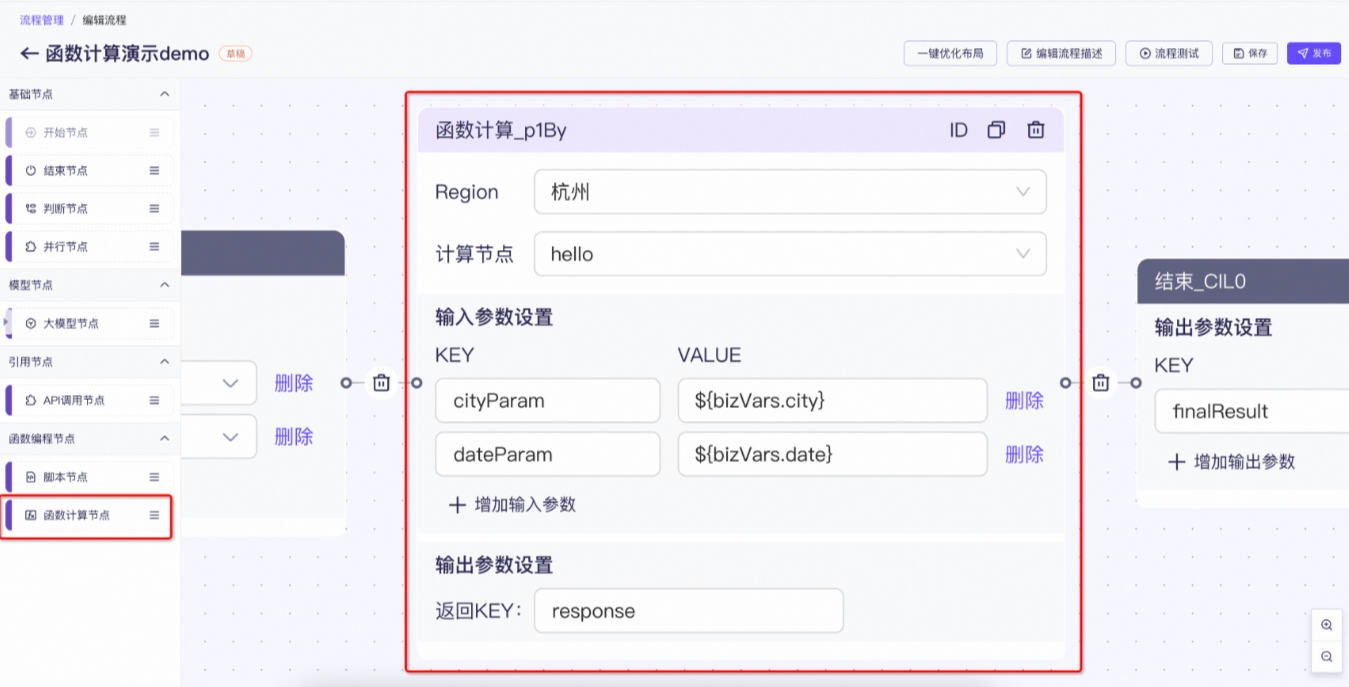
Node description
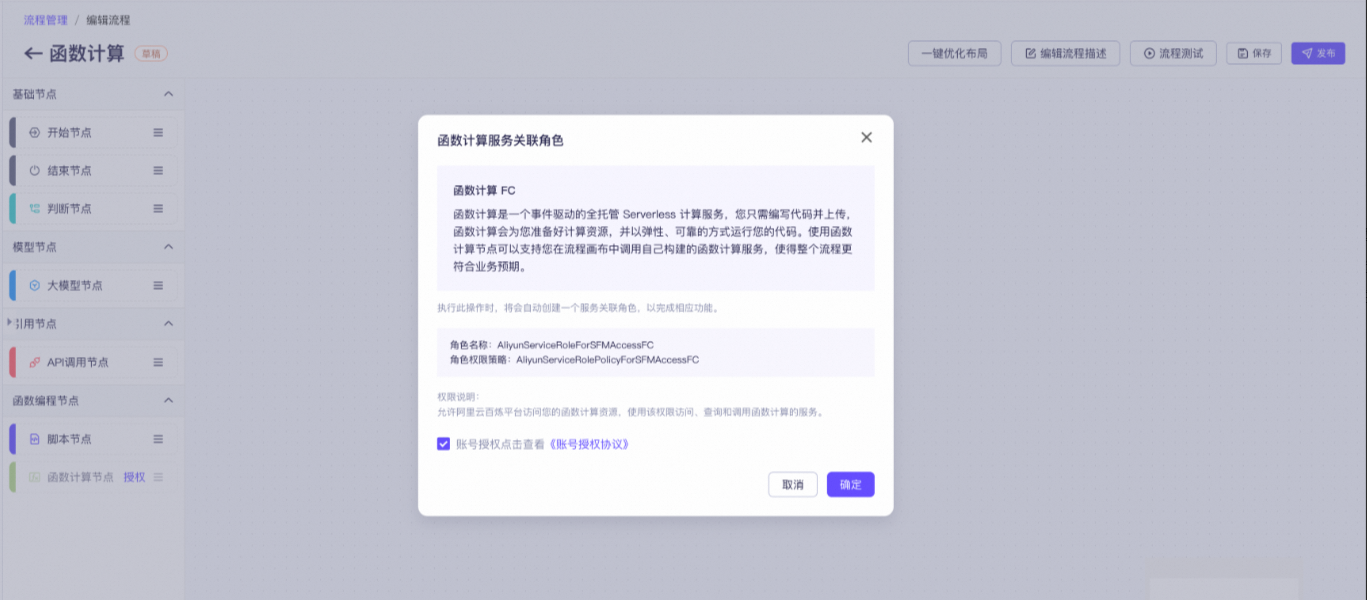
Alibaba Cloud Model Studio provides a Function Compute node that uses Alibaba Cloud Function Compute (FC) to provide developers with advanced code development capabilities. After you grant authorization, the node uses a service-linked role to retrieve your function list and call specified functions. This lets you run custom code within your flow.
Authorization
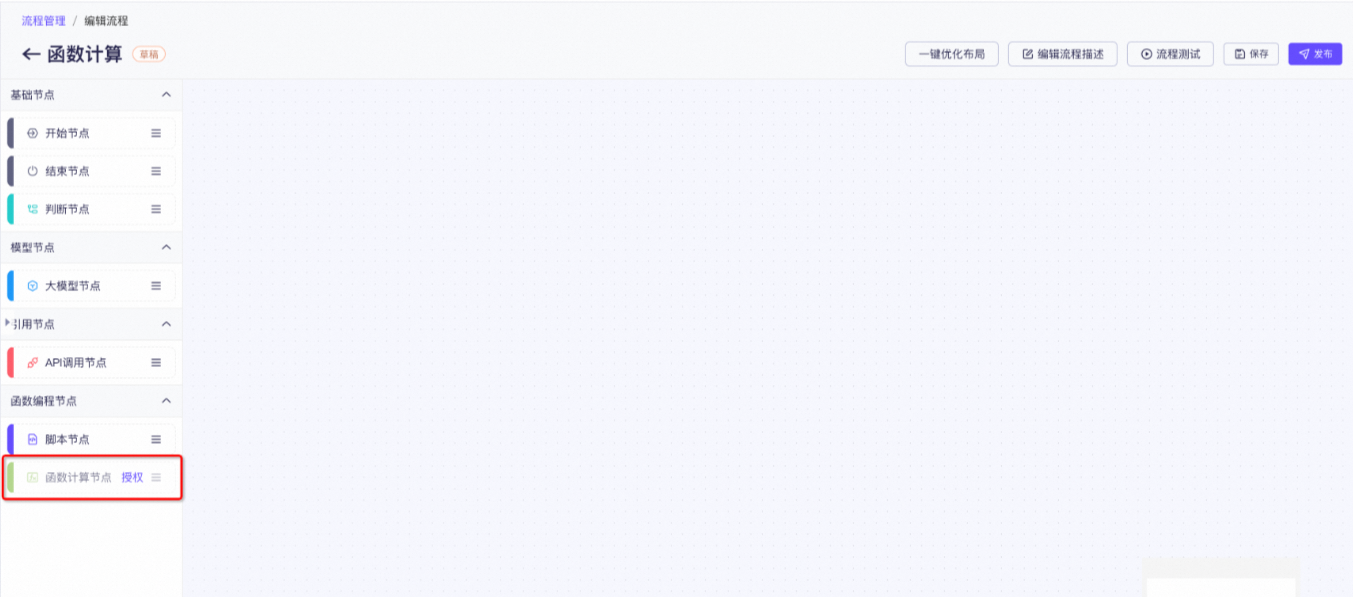
If Function Compute is not authorized, the Function Compute node is grayed out and you cannot drag it. You must grant authorization first.
Configuration page
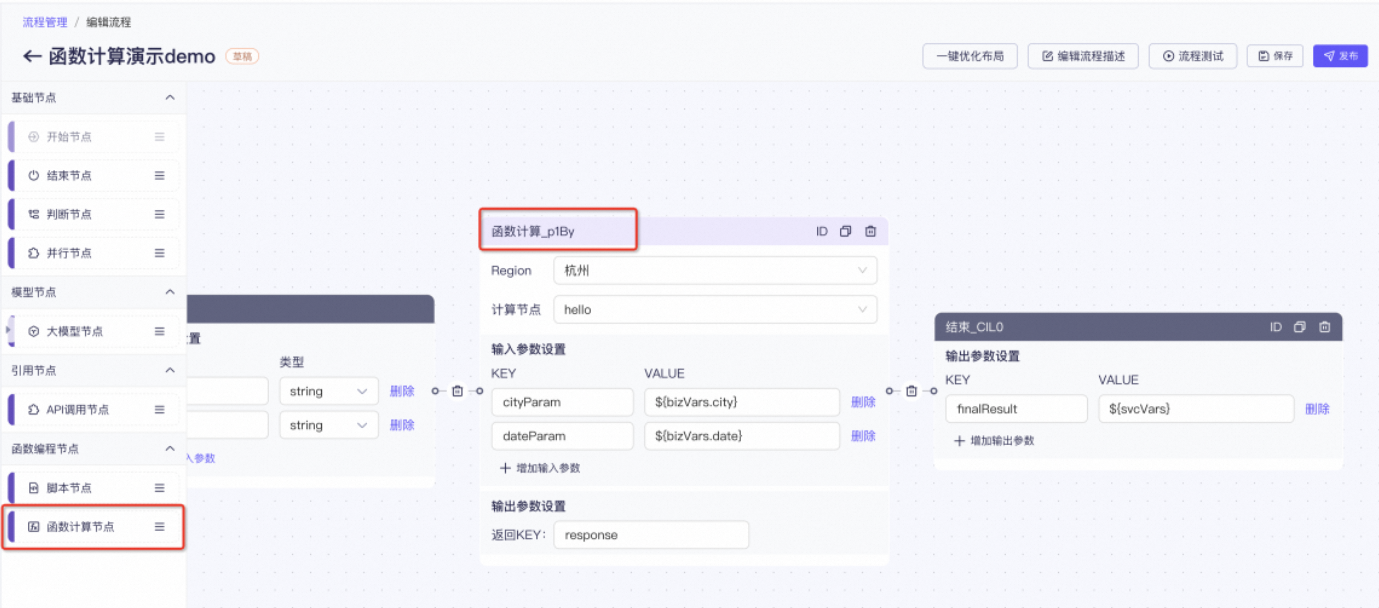
Function node configuration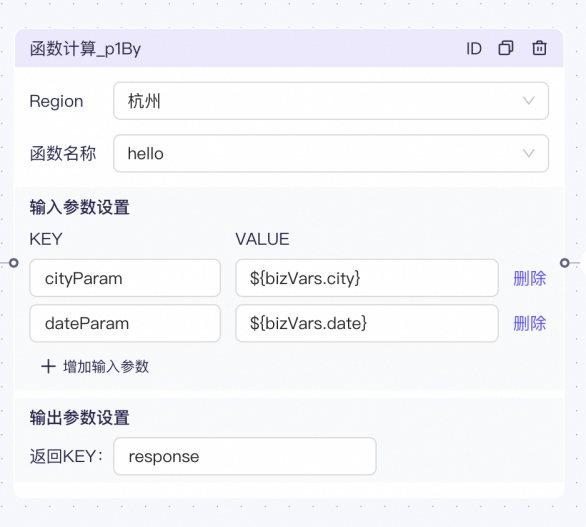
As shown in the preceding figure, region is the region where your Function Compute service is located. Currently, only the Hangzhou and Beijing regions are supported. When you switch the region, the Function Name list displays all function names in the new region. Select the function that you want to call.
Input Parameter Settings is used to pass parameters for a function invocation. For example, as shown in the figure, Function Compute requires two parameters: cityParam and dateParam. To pass the city and date request parameters to the corresponding function parameters, configure them as shown in the figure. Output Parameter Settings is used to define the key for the Function Compute result in the result set. This allows subsequent nodes to easily retrieve the result. For more information about how to retrieve input and output parameter values, see Description and retrieval of flow variables.
Create and use a Function Compute function
Create an event function in Function Compute. This function type is integrated with the Function Compute node to simplify parameter passing.
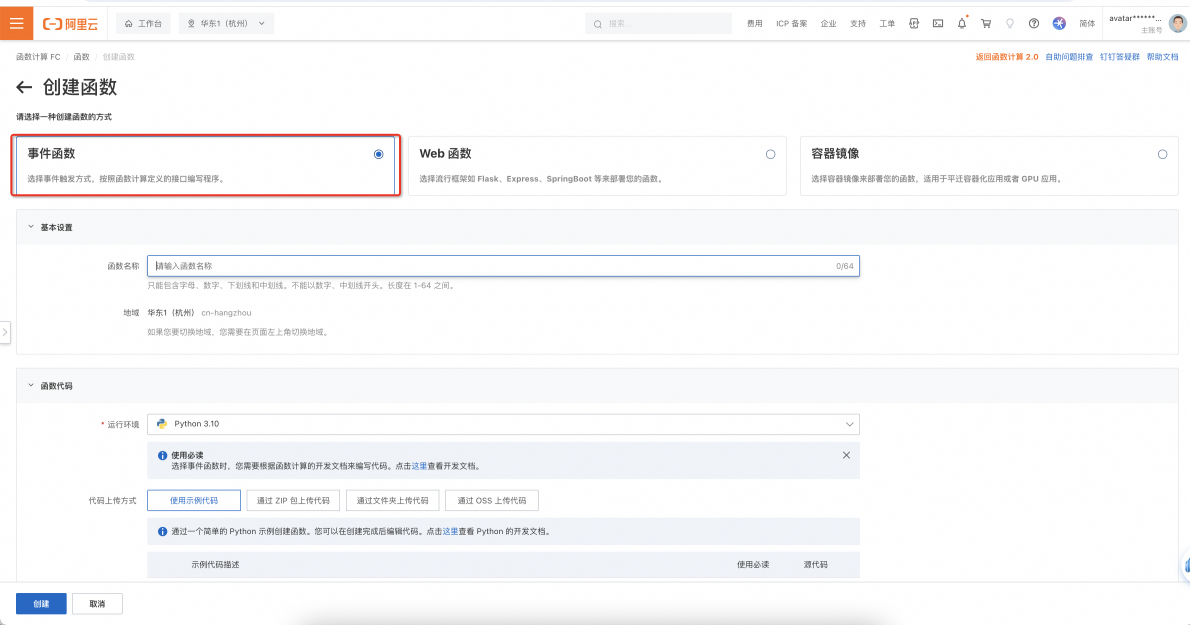
hello world sample code as an example. The following figure shows the code, which prints the event parameter.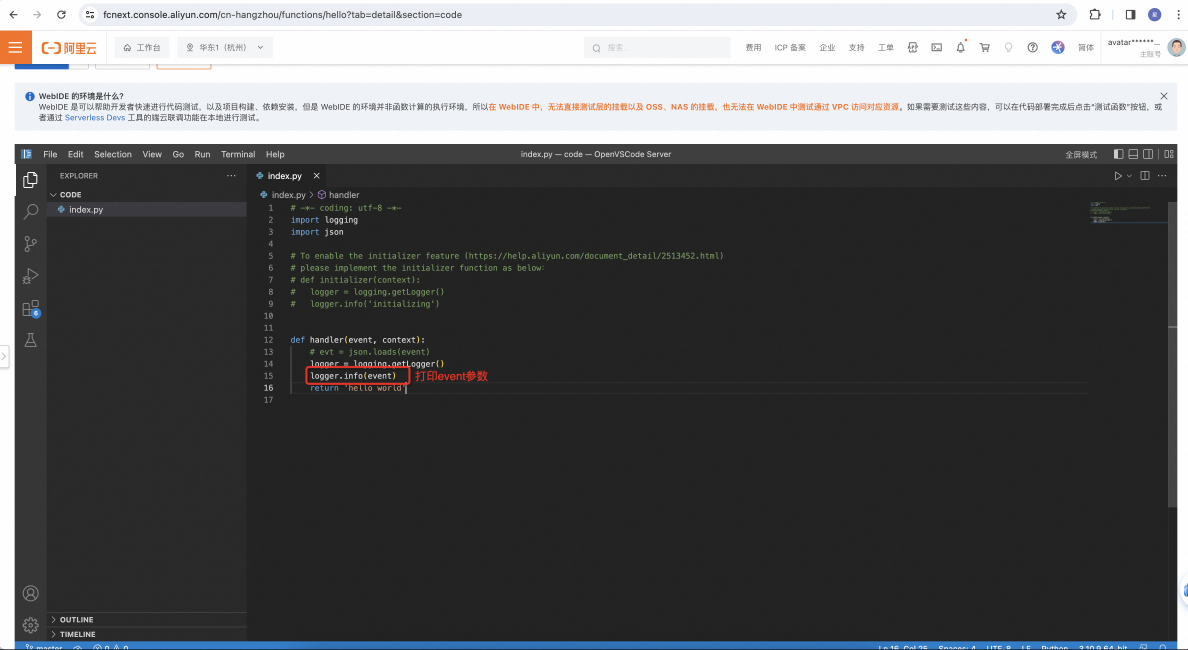
cityParam set to Hangzhou and dateParam set to 2024-01-26. After the call, the result hello world is returned.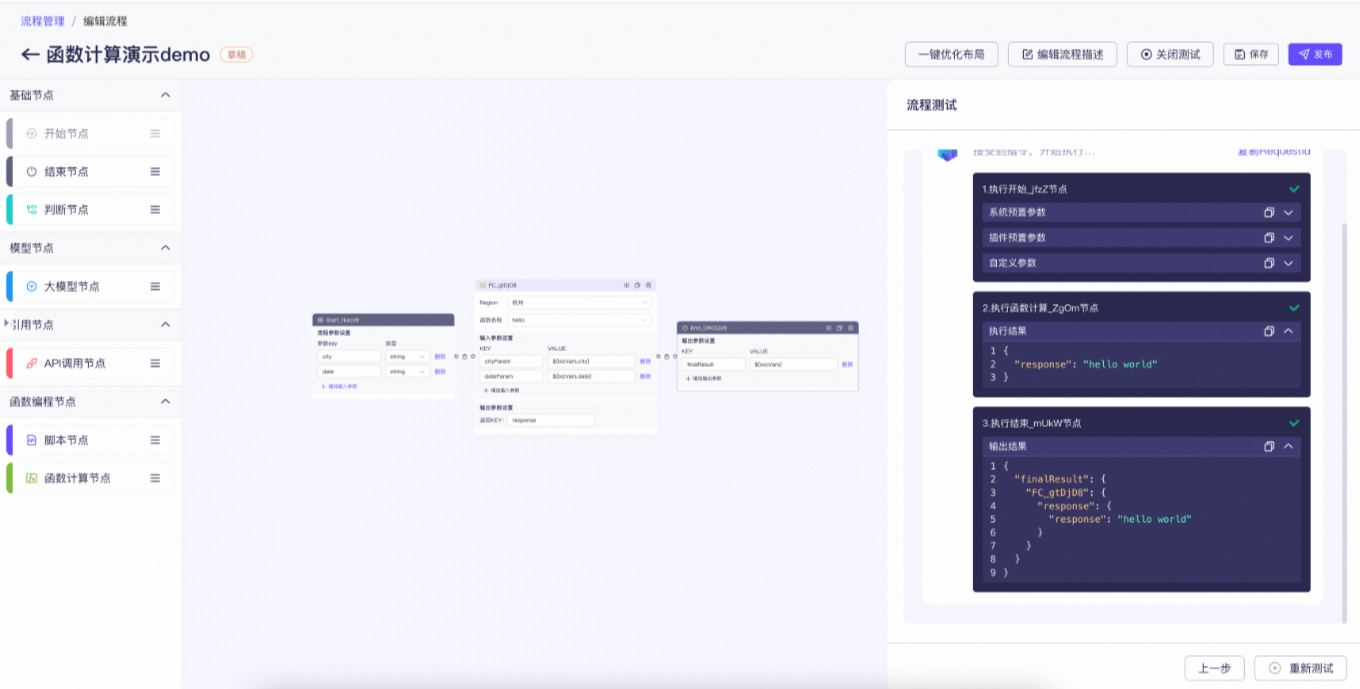
event is output. The cityParam and dateParam parameters are passed to Function Compute as a dictionary (dict). This allows Function Compute to use intermediate results from the large model flow.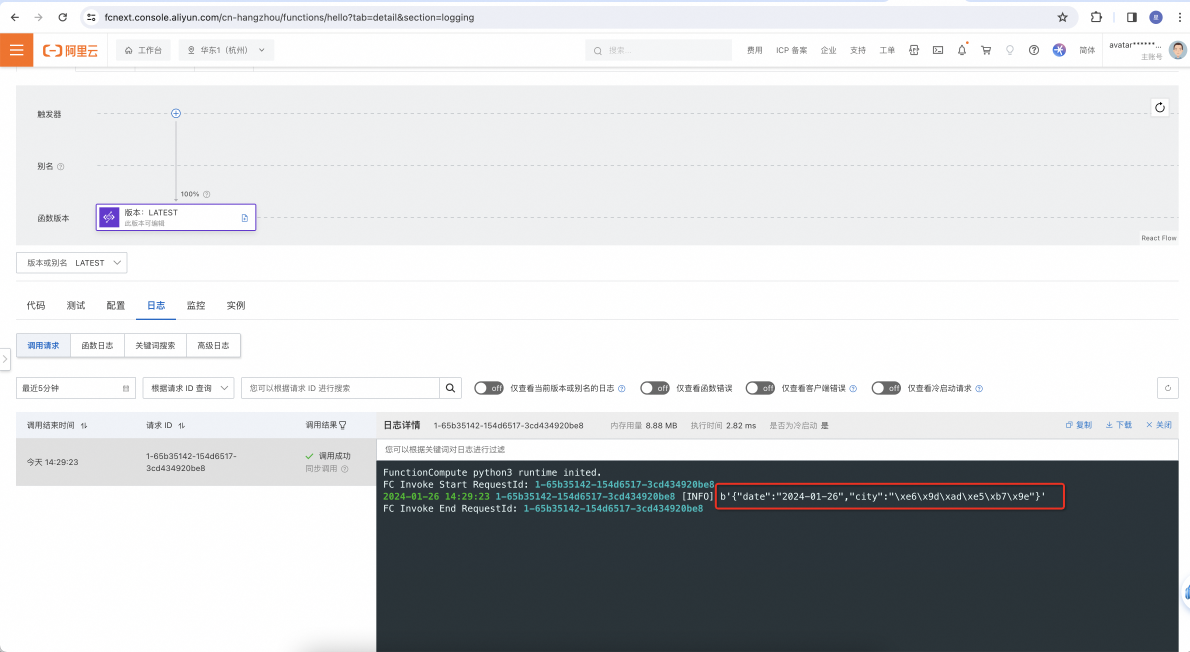
Function Compute response parameters
The output of Function Compute calls is converted to a string. This can make it difficult to retrieve values from complex objects in subsequent nodes. To resolve this issue, Alibaba Cloud Model Studio transforms the results from Function Compute. If the result is a dict, map, or list, it is converted to an object in the global variables.
For example, if Function Compute returns {"a":"1","b":"2"}, Model Studio converts this JSON string to an object: {"a":"1","b":"2"}. To retrieve the value of a, you can use the expression svcVars.{function_compute_id}.{result_key}.a. For more information about the specific logic for retrieving values, see Description and retrieval of flow variables.